 Bloomz
Assign, close and get a weekly digest of School Answers questions
A School Answers escalation isn't just answered — it can become a real staff task, with an owner, and a close-out that logs how it was resolved even when nobody wrote a reply. This article covers the parts of the Escalations tab beyond Respond (see School Answers: AI answers on your school website for that), plus a Recurring Questions view that surfaces what your community keeps asking and a weekly digest that lands in admin inboxes without anyone opening the console.
Before you start
You need a role of school webmaster or above on the site, same as the base Escalations tab. Assigning an escalation only offers people from your site's existing staff list — the same names on your site's People screen — never a new staff/user model of its own.
Step 1 — Assign an escalation to an owner
On any open or answered escalation, use the Assigned to dropdown to hand it to a specific staff member. Assigning is repeatable any time before the ticket closes — reassign it as ownership changes.
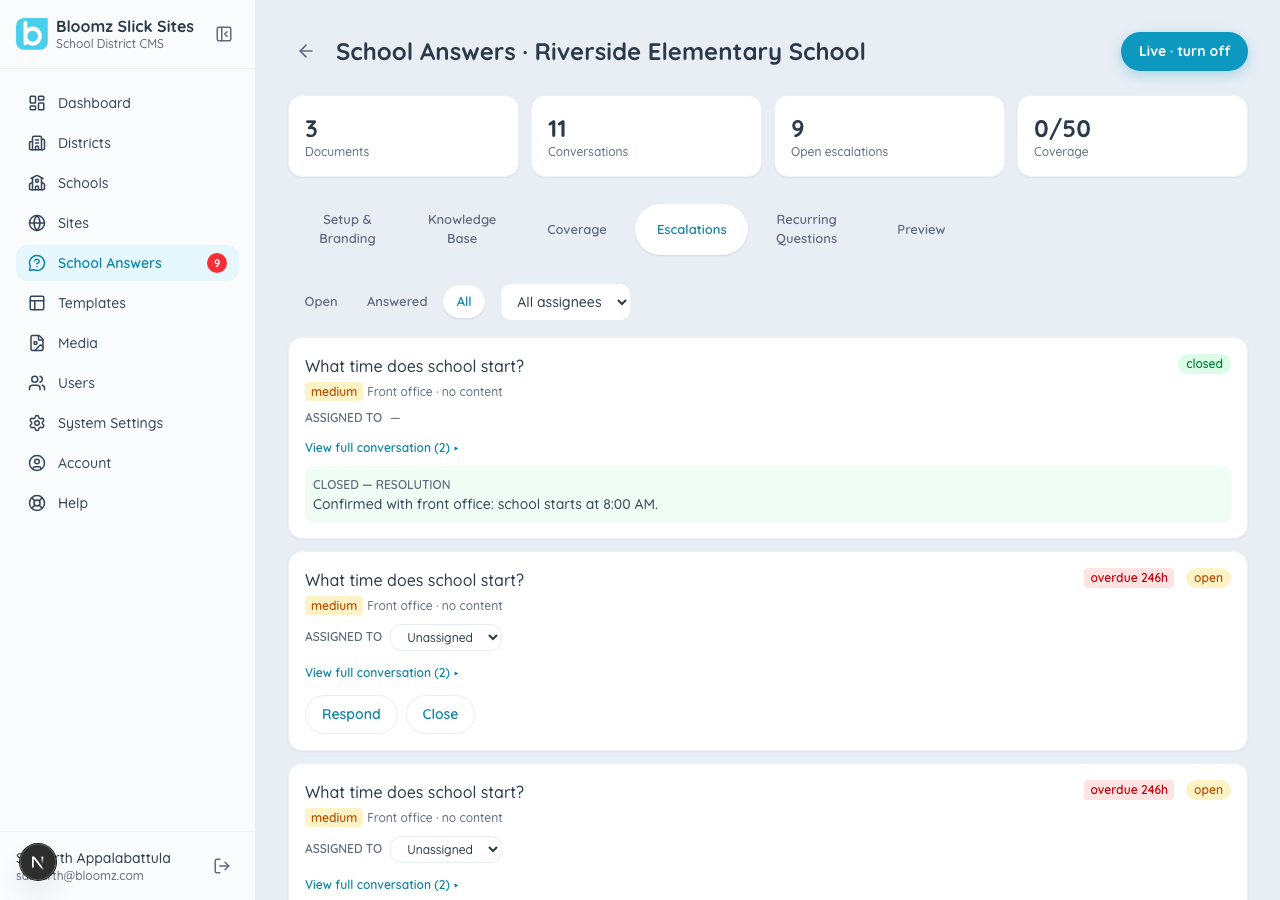
Every non-terminal escalation also carries an SLA countdown against its category's response-time target, so a stale ticket is visible before a family has to ask twice.
Step 2 — Close a ticket that doesn't need a written reply
Select Close to open a resolution note field, then Close question. Not every ticket needs — or gets — a formal Respond: some resolve by a phone call, turn out to be duplicates, or need no reply at all. Close works from either open or answered, so you're never forced through Respond first.
What you should see: the ticket moves to closed, and its card shows a Closed — resolution block with your note in place of the usual admin-reply block. Both assign and close are blocked once a ticket is already closed — ownership and resolution are frozen there; there is no reopen.
Watch out: closing (like responding) can notify the parent who asked — on a channel they can actually be reached on: email if they left one, text if their question came in by SMS, or a Bloomz-app notification if they were signed in when they asked. If you close a ticket with no reply and no note, the family may never learn what happened to their question — write a resolution note whenever you can, even a short one.
Step 3 — Find out what your community keeps asking
Open the Recurring Questions tab and pick a 7d / 30d / 90d window. It groups the period's questions by category with counts and a few sample questions per category, and flags any category with real volume that your knowledge base still can't cover as a content gap — your best to-do list for what to add next (see School Answers: AI answers on your school website's coverage scorecard for the complementary, all-time view).
Step 4 — Send this week's digest right now
Select Send weekly digest now to force a site's digest immediately rather than waiting for its weekly schedule. It goes to the site's escalation-notification address (if set) plus every school webmaster on the site, and confirms who it reached.
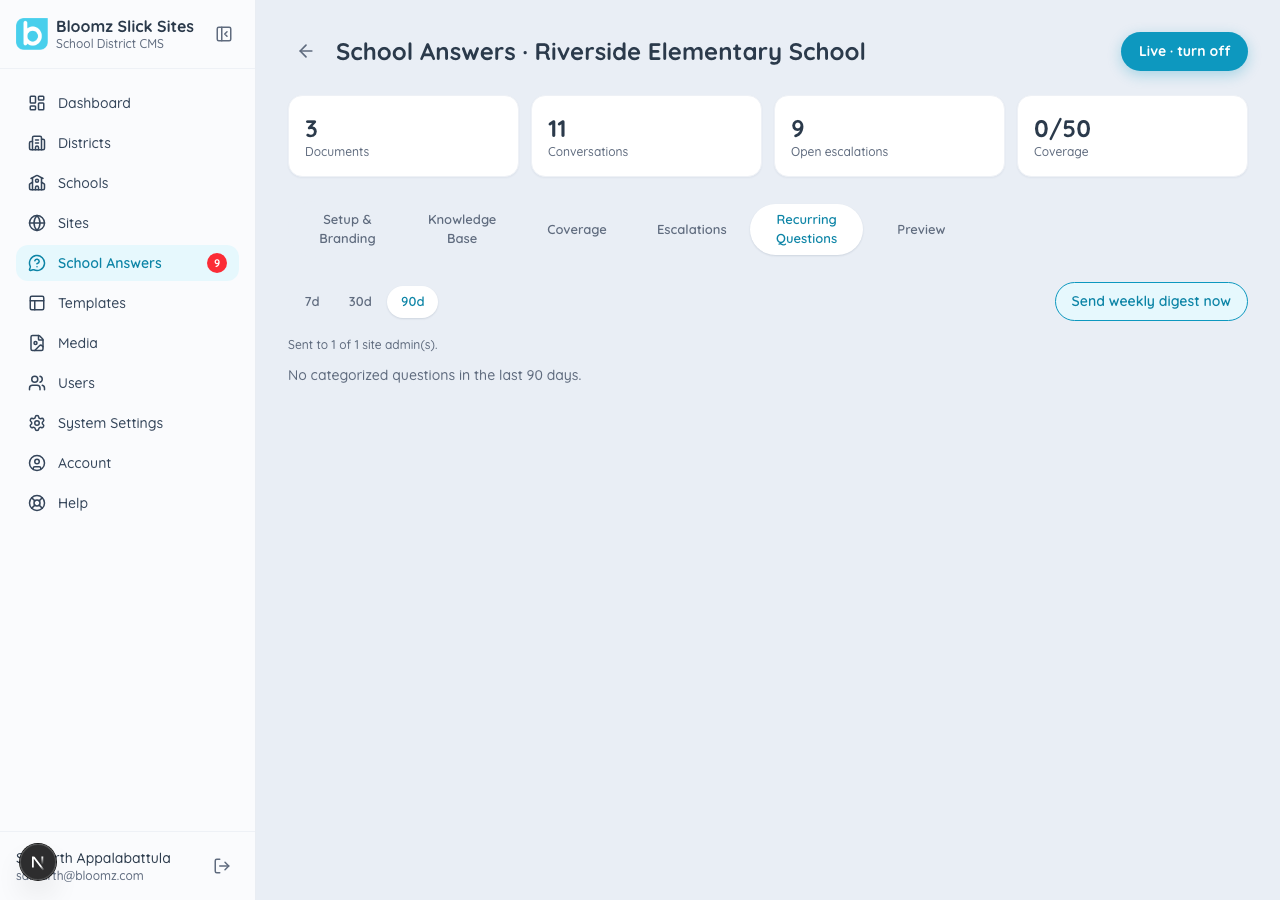
Watch out: a newly-enabled site's first digest is scheduled a week out, not sent immediately — so an empty first week is expected, not a sign anything is broken. Use Send weekly digest now if you don't want to wait for it.