 Bloomz
Certify translations in the review queue
Some content is too sensitive to send on a machine translation alone — an IEP notice, a discipline letter, an enrollment or health notice. Translation Review holds that content back until a real person has certified a translation for every language it's going to, so a family's home-language copy of a legally sensitive notice was actually reviewed by a human, not just machine-translated on the fly. This is a district-governed console, separate from the family-facing translation settings — see Get posts and messages translated into your language for what a parent controls on their own end.
Before you start
You need a Translation Reviewer capability, or a district-admin role — either one can certify, reject, assign, or edit an item. Your district also needs Translation Review turned on. Content only ever lands in this queue when it's been marked non-routine — either automatically, because it matches one of your district's configured classes (an IEP document, a discipline letter, an enrollment or health notice), or because whoever composed it flagged it directly with a Mark as non-routine toggle in the post or message composer. Routine content — the vast majority of what your school sends — never touches this queue and keeps sending exactly as it always has.
Step 1 — Open Translation Review
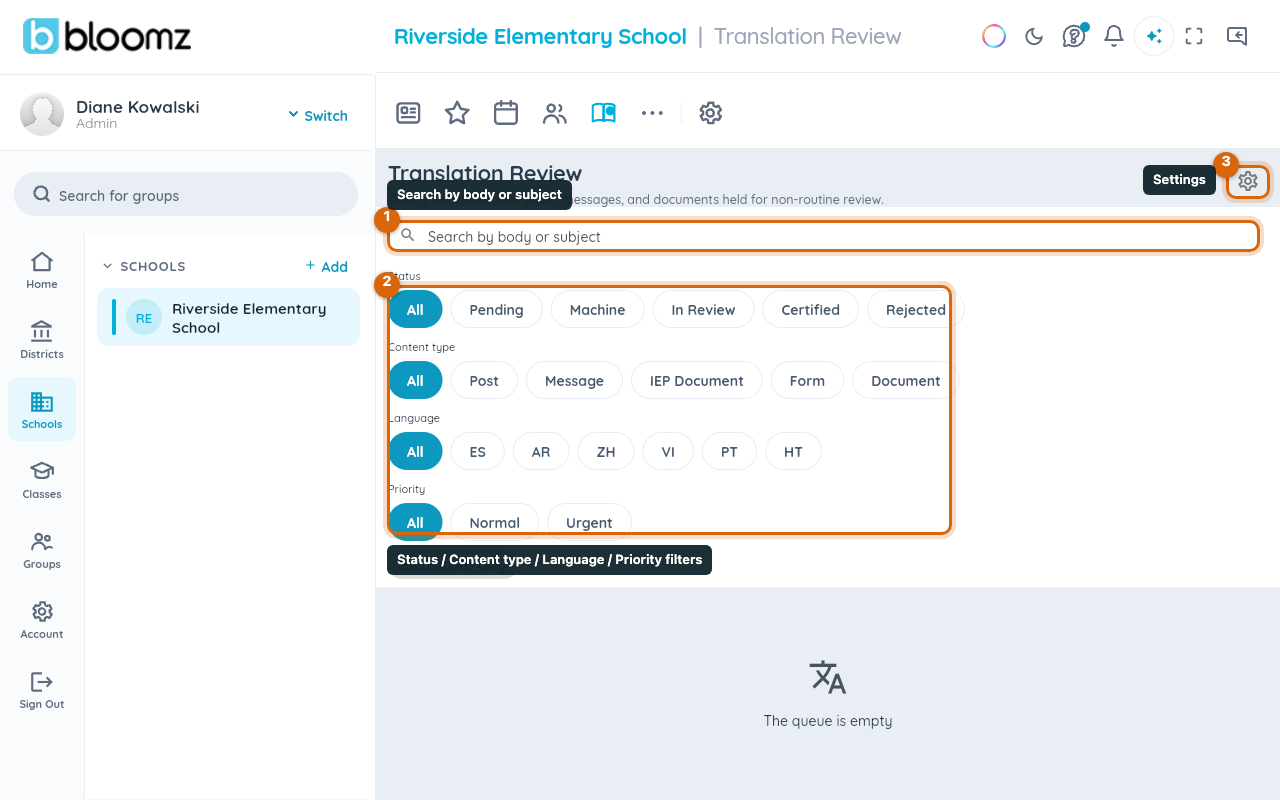
Open More and select Translation Review — it's listed under Safety & Wellbeing, alongside your other family-contact and compliance tools.
Step 2 — Find the item you need
Search by body or subject, or narrow with the filter rows: Status (Pending / Machine / In Review / Certified / Rejected), Content type (Post / Message / IEP Document / Form / Document), Language, and Priority (Normal / Urgent) — plus an Escalations only toggle for items that have been waiting longest. An empty queue is a good sign: it means nothing is currently held up waiting on a human translator.
Step 3 — Open an item and certify, reject, or reassign it
Select an item to open its detail view. From there you can request a machine draft to start from, edit the translated body directly, assign it to a specific reviewer, and either certify it — which requires your name and a translator credential, so there's a real record of who reviewed it — or reject it and send it back. The content stays held until every language it needs is certified; certifying the last outstanding language releases it to send immediately, with no separate publish step.
Watch out: rejecting an item does not automatically notify anyone to try again — it just leaves the content held with its reason intact. Follow up with whoever composed it (or your translation vendor) so a fresh draft actually gets queued.
Step 4 — Configure what counts as non-routine
Select the Settings gear in the top corner to open Translation Review Settings. Each non-routine class — IEP, Discipline, Enrollment, Health, and any others your district has added — has its own checkbox to turn it on or off, plus Post types and Keywords fields (both comma-separated) that decide what actually matches that class.
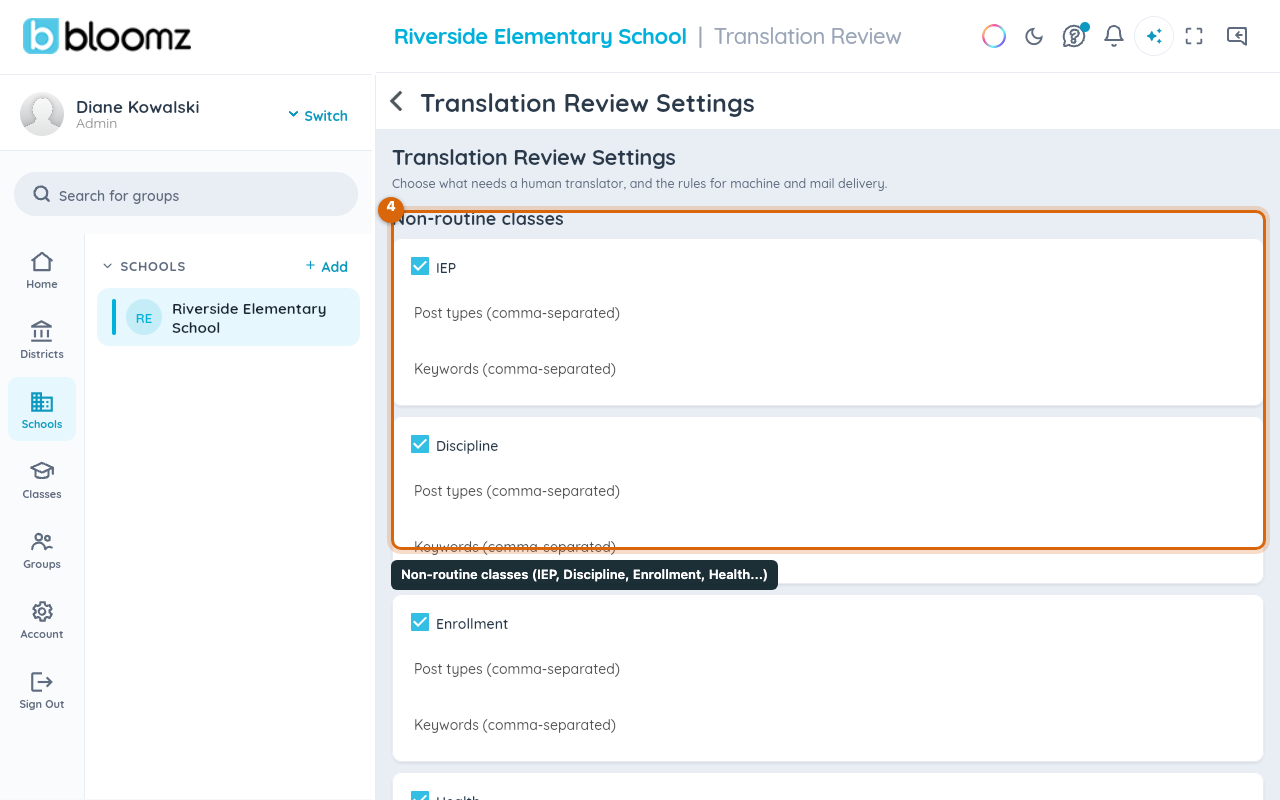
The same settings page also controls whether machine translation alone is enough for digital delivery and whether mail delivery always requires a certified translation — the two levers that decide how strict the gate is for content that isn't one of your explicitly configured classes.
What families see
Nothing changes on the family side while content is held — they simply don't receive that specific post, message, or document yet. Once every language is certified, delivery goes out exactly as if it had sent normally the first time; there's no separate "delayed" indicator on their end.