 Bloomz
Connect Clever to Bloomz
Clever's roster-sync API can keep Bloomz's classes, students, teachers, and family contacts current automatically, on a nightly schedule.
Before you start
Clever setup happens on both sides, and the Clever side has to be right first — Bloomz can't see or fix data that Clever isn't sharing.
On the Clever side, before you touch Bloomz:
- Add Bloomz to your district's application list on the Clever dashboard.
- Set data-sharing permissions for the Bloomz application — which sections, students, teachers, and contacts it can see. For elementary schools, share only homeroom and specialist sections; sharing every subject-level section creates duplicate, same-roster classes in Bloomz.
- Confirm the Bloomz-side user has a
district_adminorschool_adminrole on the Clever side — school-level import only works for accounts with one of those roles on Clever, regardless of their Bloomz role. - Changed sharing permissions can take up to an hour to reach Bloomz — don't import immediately after changing them.
Watch out: Clever sends every staff member through the same API regardless of their real role, so Bloomz imports them all as School Support Staff at first. Upgrade specific people to School Admin or School Office Staff afterward in Manage > Staff.
Step 1 — Get your district auth token from Bloomz
Contact your Bloomz account team for your district's Clever authentication token — this isn't something you generate yourself on either side.
Step 2 — Send Clever setup to your Bloomz account team
Clever's connection itself isn't a self-service form inside Bloomz: once the Clever side is shared and your district auth token is in hand, your Bloomz account team connects it for you and confirms your Clever Student ID field and Clever Contact Field choices with you (Student ID field: SIS ID vs. Student Number — whichever your district actually uses for ID-matched auto-notices and reports; Contact field: which Clever relationship/type carries family contacts).
Step 3 — Confirm the connection in Bloomz
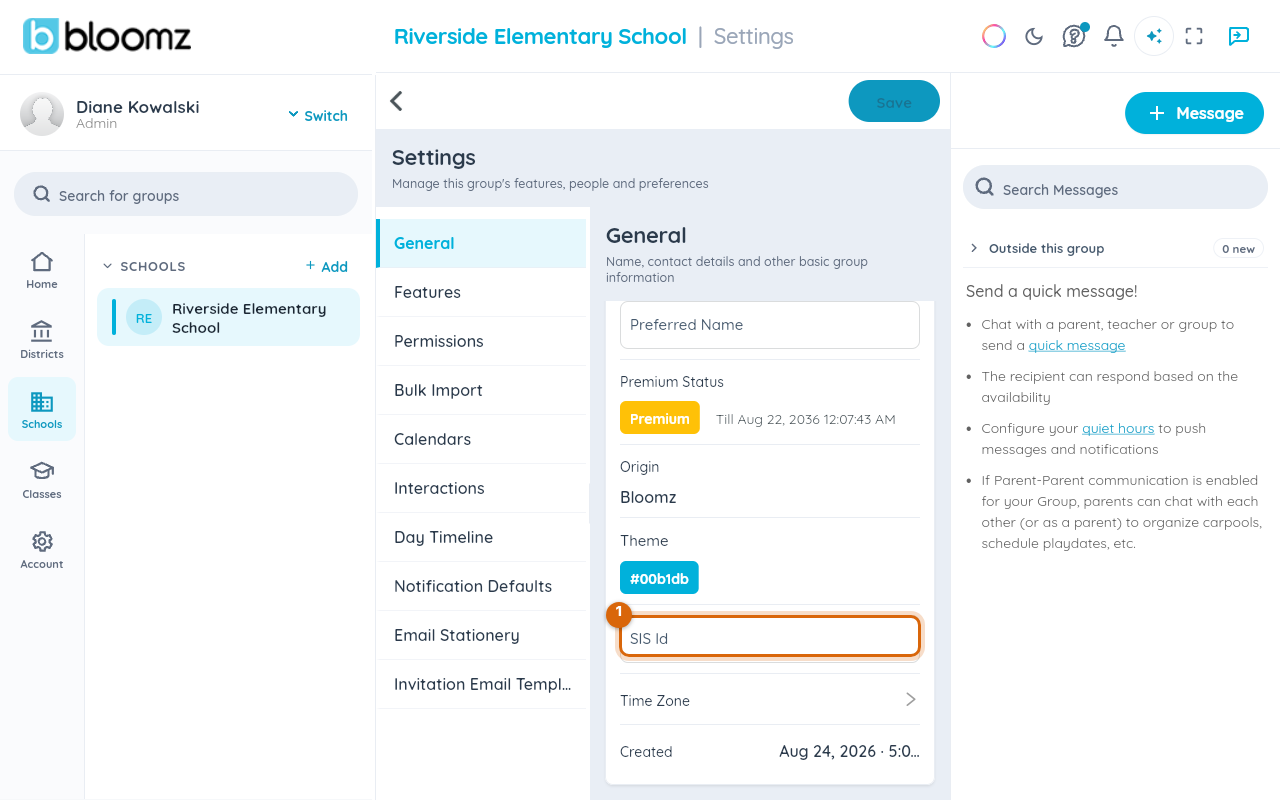
Once your account team confirms Clever is connected, open Data Sync and select Sync Settings to see the SIS Id Bloomz recorded for your school — matching this against the district ID your account team gave you is how you confirm the right Clever district is wired to the right Bloomz school.
Step 4 — Watch the first sync
The first import can take longer than a nightly one. Check Data Sync for a healthy status and a Last import: Succeeded result — see Understand the Data Sync page for what every part of that screen means.
Watch out: this isn't only a Full Data risk. Every sync — nightly or manual — removes a student, and their parent, from any class whose Clever section no longer lists them, whether or not this run is Full Data. A safety limit only pauses removal when a whole class disappears from the feed at once (10% or more of your school's synced classes in one run) or when people removals get large across the whole school (50% or more) — it does not stop one student being dropped from one class, which is the most common cause of "why was this student removed?" questions. If your SIS schedules some of a class's students in a second section, only one section is linked to the Bloomz class — see Combine two class sections into one class, or those students keep getting dropped every sync. Hand-added people with no Clever ID are never removed by a sync. A Full Data resync is the bigger, separate risk: it removes anyone from Bloomz who isn't in the current Clever feed at all — bypassing both safety limits — and it can't be undone. Ask your account team before requesting one.
What happens next
Bloomz emails an import status report after every sync, day to day. See Understand the Data Sync page for what the ongoing status looks like, and Check your SIS sync and fix an issue for troubleshooting a specific gap.