 Bloomz
Connect Skyward to Bloomz
Skyward can keep Bloomz's classes, students, teachers, and family contacts current automatically. Bloomz supports both Skyward products — the legacy SMS 2.0 and the newer Qmlativ — your district's sync uses whichever one your Skyward instance runs.
Before you start
You'll need a Client ID, Secret Key, and Server URL from Skyward. Where to find them in Skyward:
- Client ID and Secret Key: Product Setup → Skyward Contact Access → Secured User → find (or create) a user with access to all the data Bloomz needs, then select the API button on that user's panel.
- Server URL: Product Setup → Skyward Contact Access → District Setup → Configuration → API Configuration — this screen lists several related URLs (Appserver, Authentication, LMS API, OneRoster API); Bloomz needs the one your Skyward admin identifies as the integration/API URL for this purpose.
Step 1 — Send your Skyward values to Bloomz
Skyward's connection isn't a self-service form inside Bloomz — send the Client ID, Secret Key, and Server URL from Before you start to your Bloomz account team, and they connect it for your district.
Step 2 — Confirm the connection in Bloomz
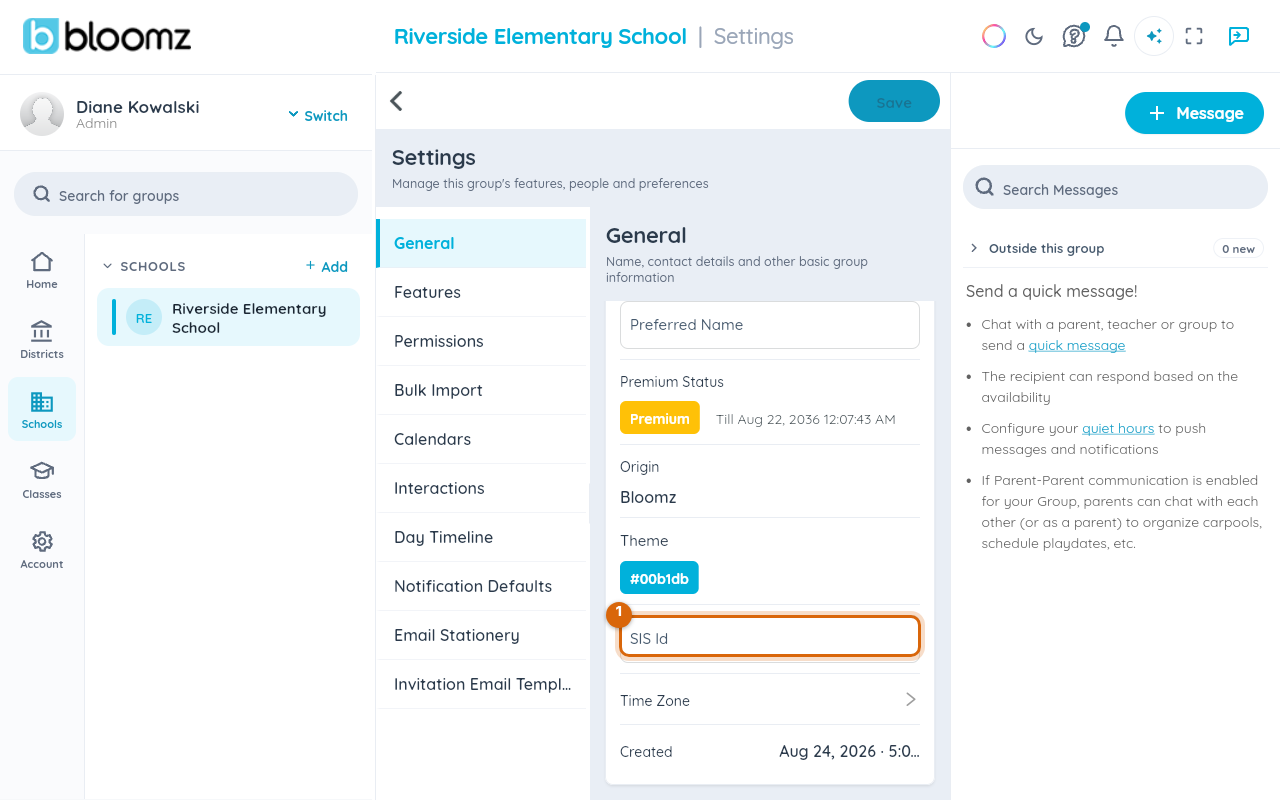
Once your account team confirms Skyward is connected, open Data Sync and select Sync Settings to see the SIS Id Bloomz recorded for your school — matching this against your Skyward district identifier is how you confirm the right connection landed on the right Bloomz school.
Step 3 — Watch the first sync
Check Data Sync for a healthy status and a Last import: Succeeded result — see Understand the Data Sync page for what every part of that screen means.
Watch out: this isn't only a Full Data risk. Every sync — nightly or manual — removes a student, and their parent, from any class whose Skyward section no longer lists them, whether or not this run is Full Data. A safety limit only pauses removal when a whole class disappears from the feed at once (10% or more of your school's synced classes in one run) or when people removals get large across the whole school (50% or more) — it does not stop one student being dropped from one class, which is the most common cause of "why was this student removed?" questions. If your SIS schedules some of a class's students in a second section, only one section is linked to the Bloomz class — see Combine two class sections into one class, or those students keep getting dropped every sync. Hand-added people with no Skyward ID are never removed by a sync. A Full Data resync is the bigger, separate risk: it removes anyone from Bloomz who isn't in the current Skyward feed at all — bypassing both safety limits — and it can't be undone. Ask your account team before requesting one.
What happens next
Bloomz emails an import status report, and the same result is available afterward from Data Sync > Last Import Status. See Understand the Data Sync page for what the ongoing sync status looks like day to day.