 Bloomz
Create a staff-only department group
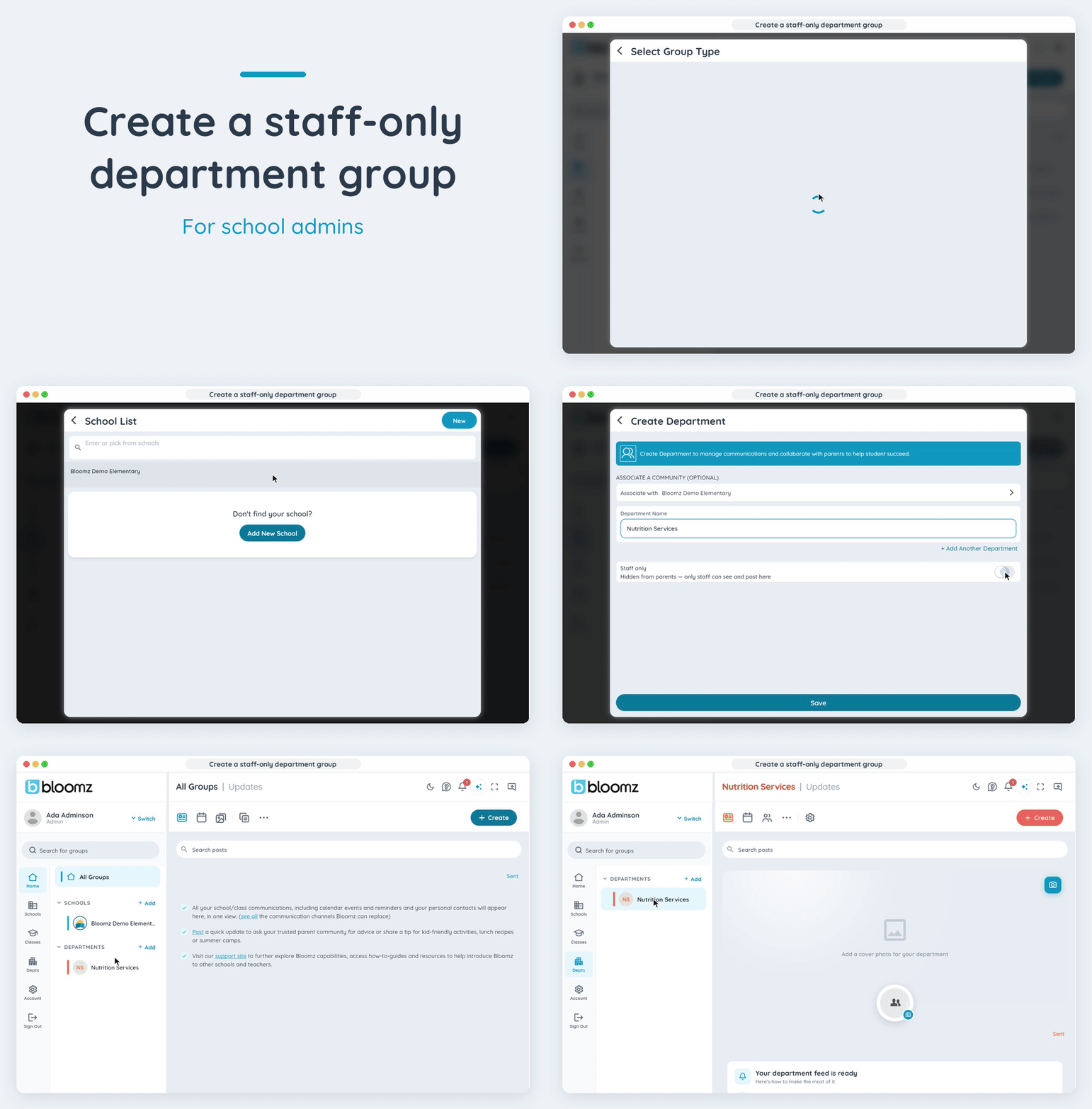
Give a department — Nutrition Services, Transportation, Facilities — its own private space to communicate and share files, completely hidden from parents. A Department is an ordinary group with one extra guarantee: switch on Staff only and no parent can ever see or post in it.
Before you start
You need a district or school admin role. Departments are for staff — a Department group does not support the student or parent role at all, staff-only or not.
Step 1 — Start a new group
From Home, select the Schools (or Classes) rail, then + Add, then Create new class/group.
Step 2 — Choose Department
Under Group Types (Student role not supported), select Department. The Create Department form opens.
Step 3 — Associate it with your school, name it and switch on Staff only
Select Associate with and pick your school from the School List. Then type a Department Name and switch on Staff only. Its description says exactly what it does: "Hidden from parents — only staff can see and post here."
Step 4 — Save
Select Save. The app asks Go to the created class?; choose Yes to open it or No to stay where you are. A new Depts icon appears in the left rail and lists the department. Everything posted in this department — updates, files, links — is visible only to staff members of the group, the same guarantee the retired Staff Spaces module used to provide on its own, now built into an ordinary Department.
Watch out: a Department created under a City community is different — cities also use Departments for public-facing sub-offices (like Public Works), so Staff only is not offered there. The toggle only appears for a Department under a district or school.