 Bloomz
Invite staff to your school
Bring teachers and office staff onto Bloomz under your school so they can be added to classes and see school-wide announcements.
Before you start
You need to be a school admin. Have each staff member's work email ready, and decide their role — Teacher or Office Staff — since that controls what they can see and do once they join.
Step 1 — Open Staff Management
From the admin home, select Manage, then Staff. This lists everyone already invited or active at your school.
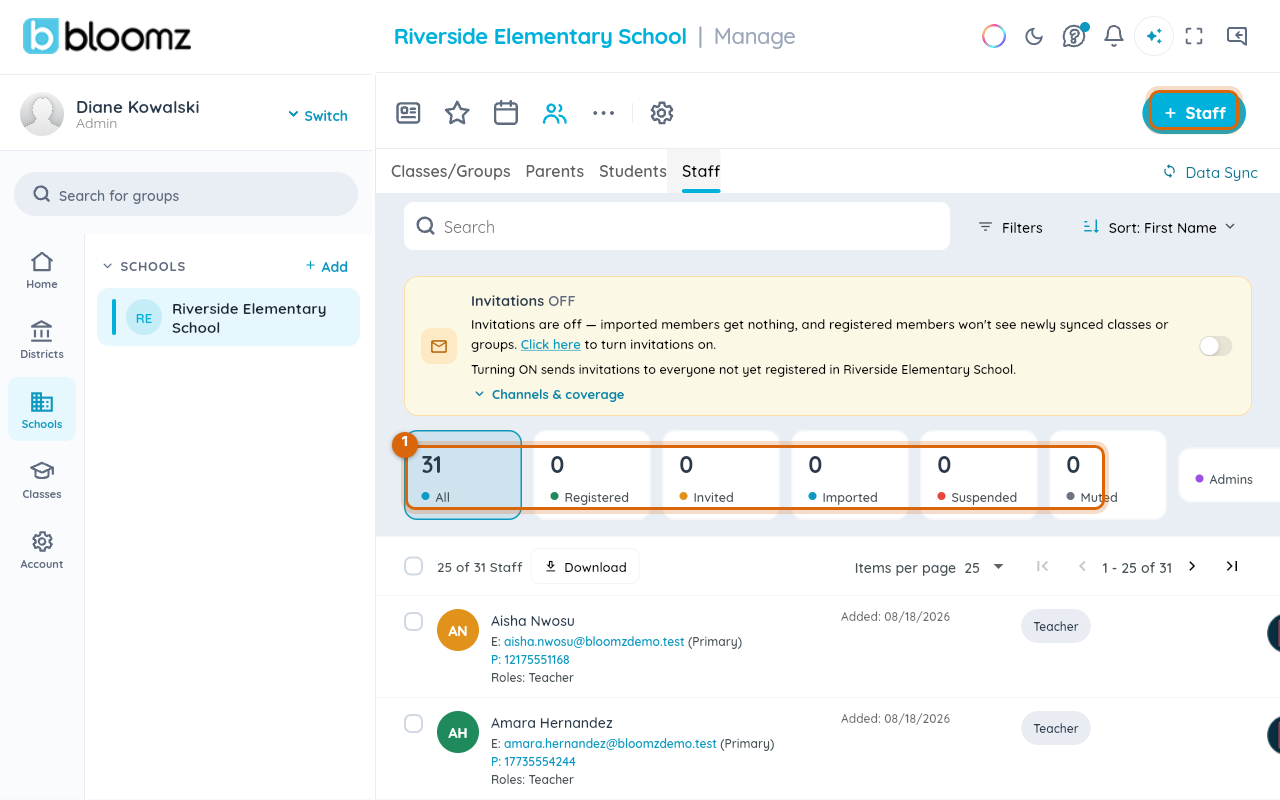
Step 2 — Start an invite
Select + Invite Staff. Enter the person's name, work email, and choose their role from the dropdown.
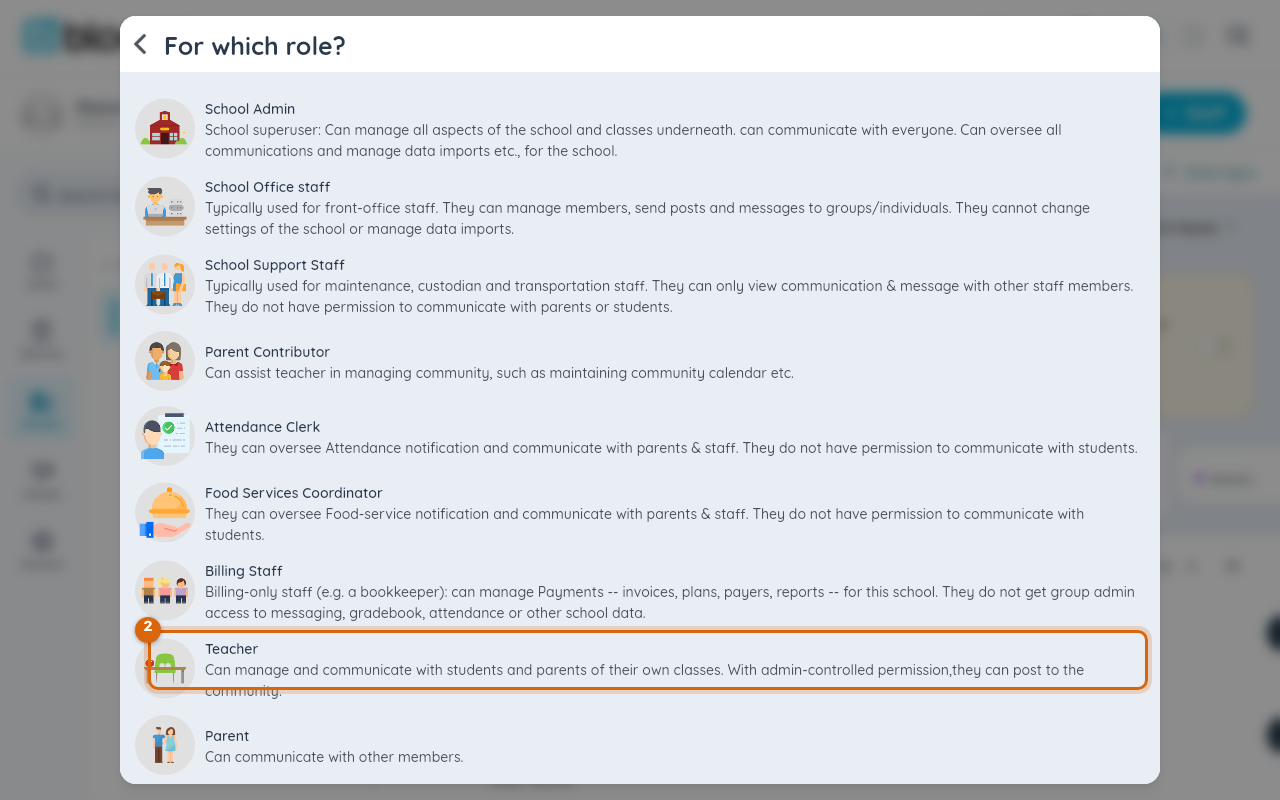
Step 3 — Invite a group at once
For several people, select Add Another to stack up rows, or switch to Bulk Upload and paste a name/email list. This is faster than inviting a whole department one by one at the start of the year.
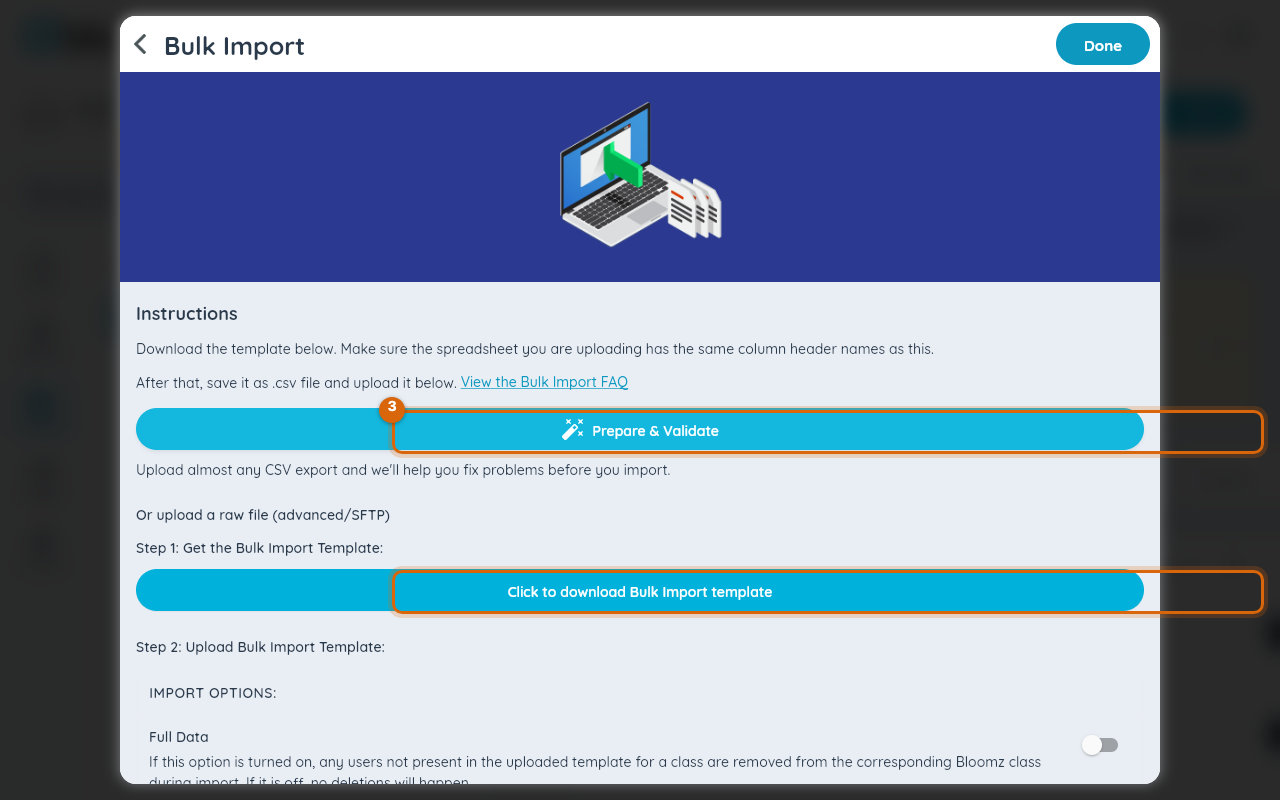
Step 4 — Send the invites
Select Send. Each person gets an email with a link to set up their account and sign in.
Step 5 — Confirm they've joined
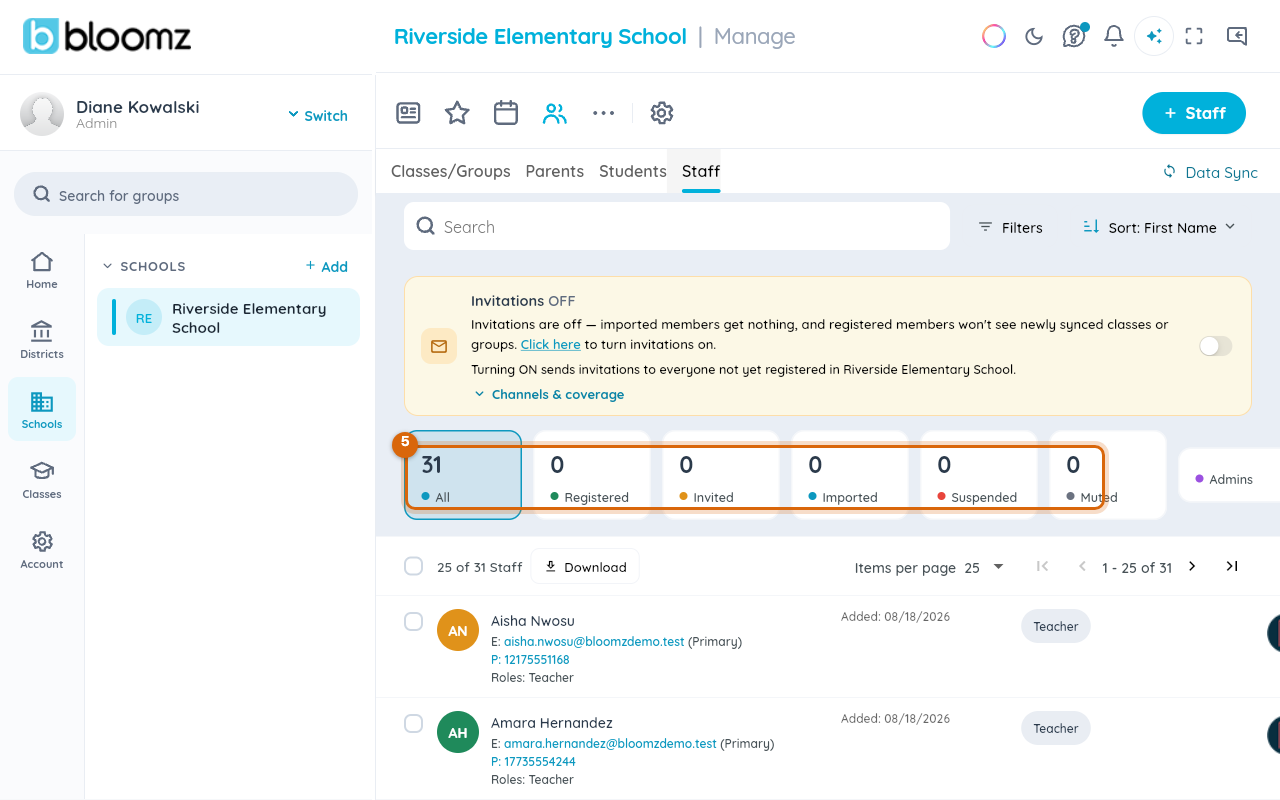
Back on the Staff list, anyone who hasn't accepted yet shows Pending; once they sign in, it changes to Active. Select a pending row to resend the invite.
Watch out: inviting someone with the wrong role (Office Staff instead of Teacher) means they can't be added to a class roster as a teacher afterward — remove and re-invite them with the correct role instead of trying to edit it.
Related
- Invite parents and students to a class
- Build a custom role and assign it to staff
- Remove a member, or merge duplicate accounts