 Bloomz
Invite parents and students to a class
Get every family on your roster into Bloomz — one at a time or all at once — so they see your posts, calendar and messages from day one.
Before you start
You need to be a teacher (or co-teacher) on the class. Have each family's email address or phone number ready, or use a class code or QR code instead if you'd rather families join themselves (see Join with a class code or QR code).
Step 1 — Open your class roster
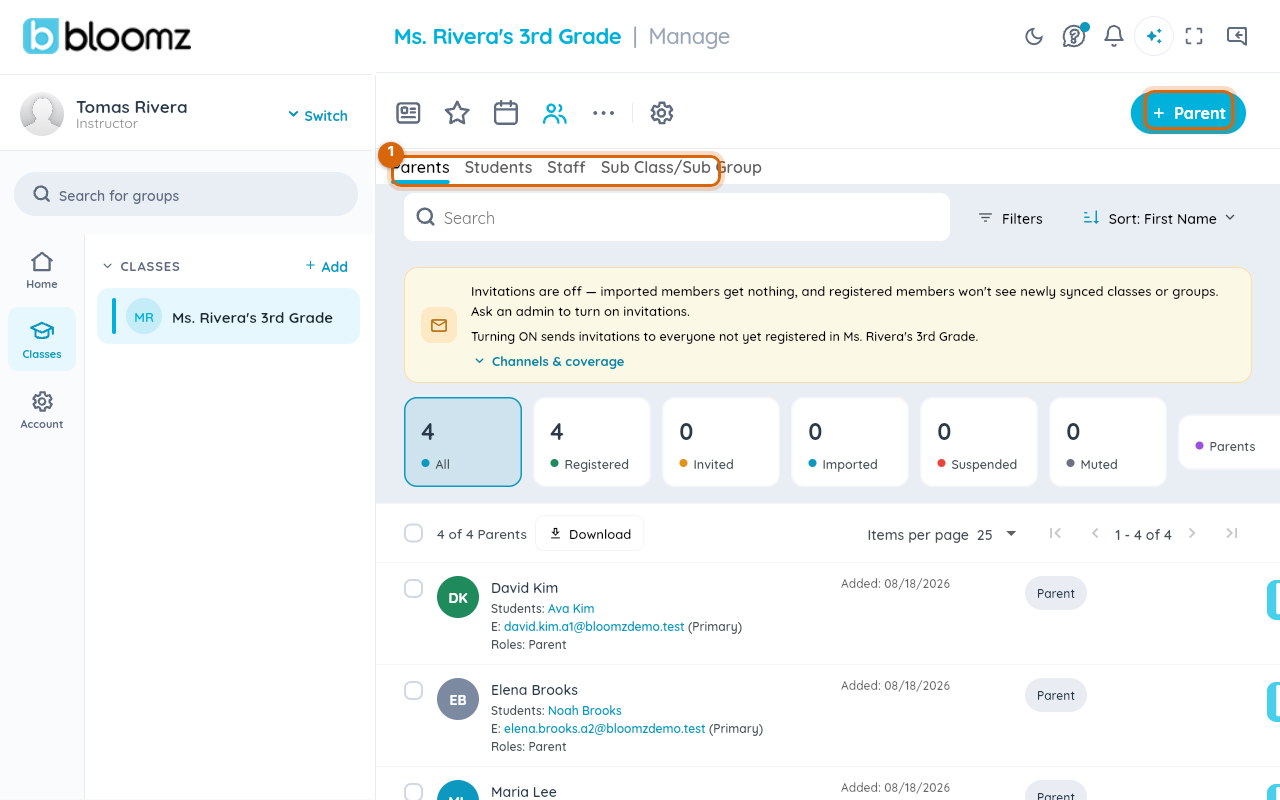
Open your class, select the Manage tab, then Members. This lists everyone already on the class and gives you the + Invite button.
Step 2 — Invite one family
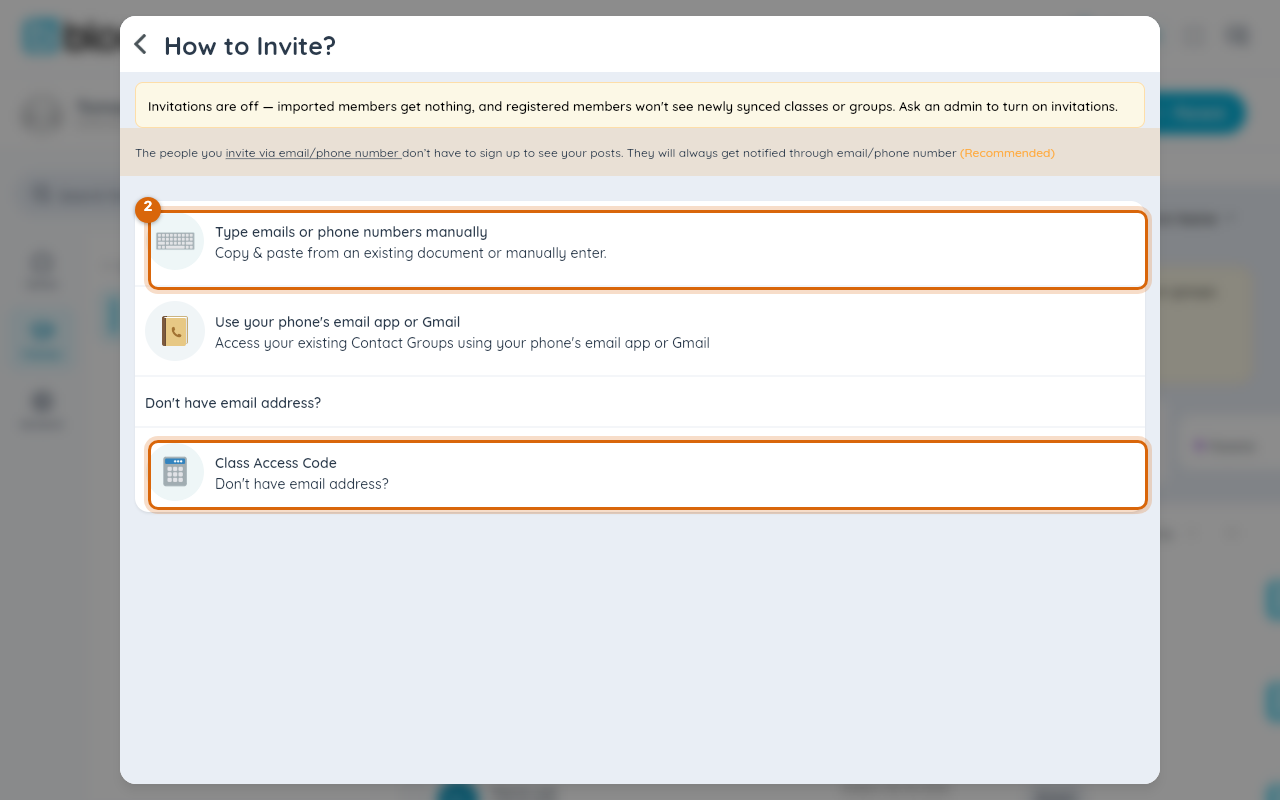
Select + Invite, choose Parent/Guardian or Student, and type the person's name plus an email or phone number. Link a student invite to the child's name on your roster so the parent lands on the right profile.
Step 3 — Invite many families at once
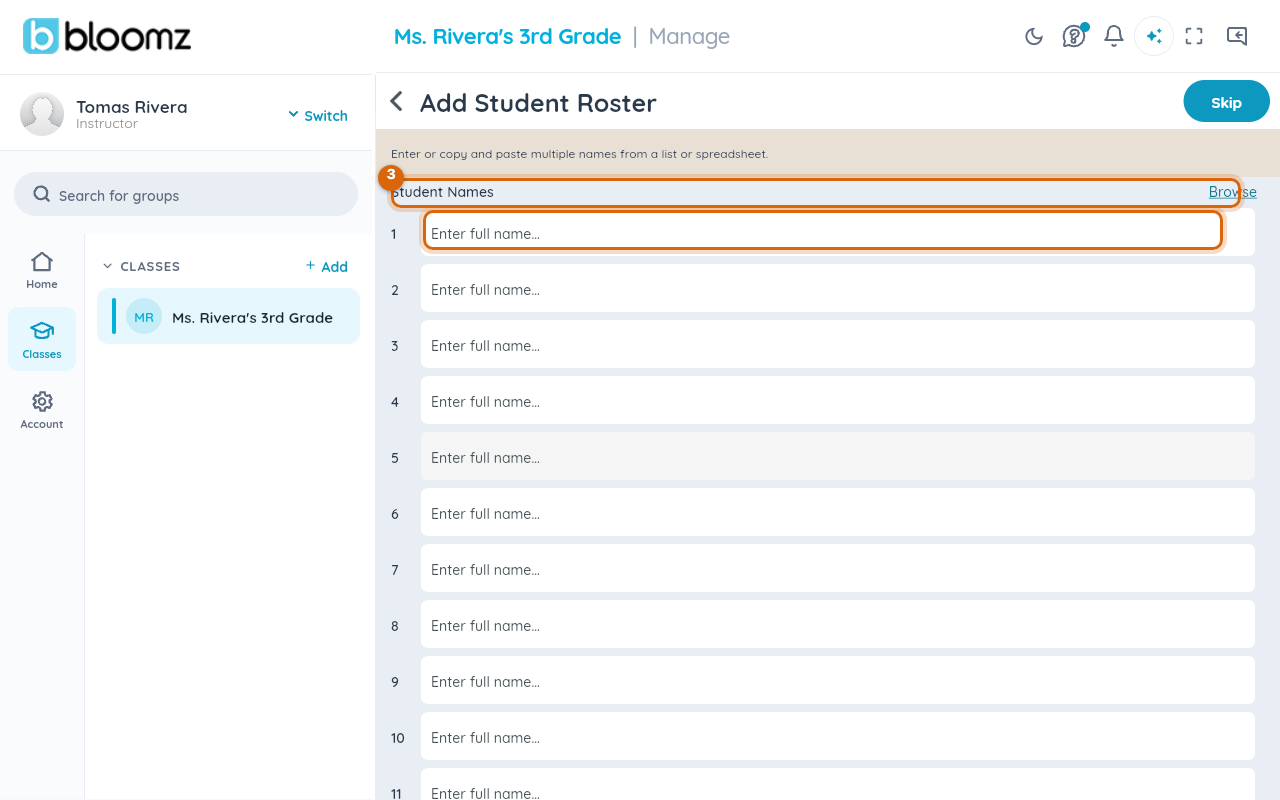
For a whole roster, select Bulk Invite and either paste a list of names and emails (one per line) or upload a CSV — see Import your roster from a CSV if you have a spreadsheet already. Each row becomes its own invite.
Step 4 — Review and send
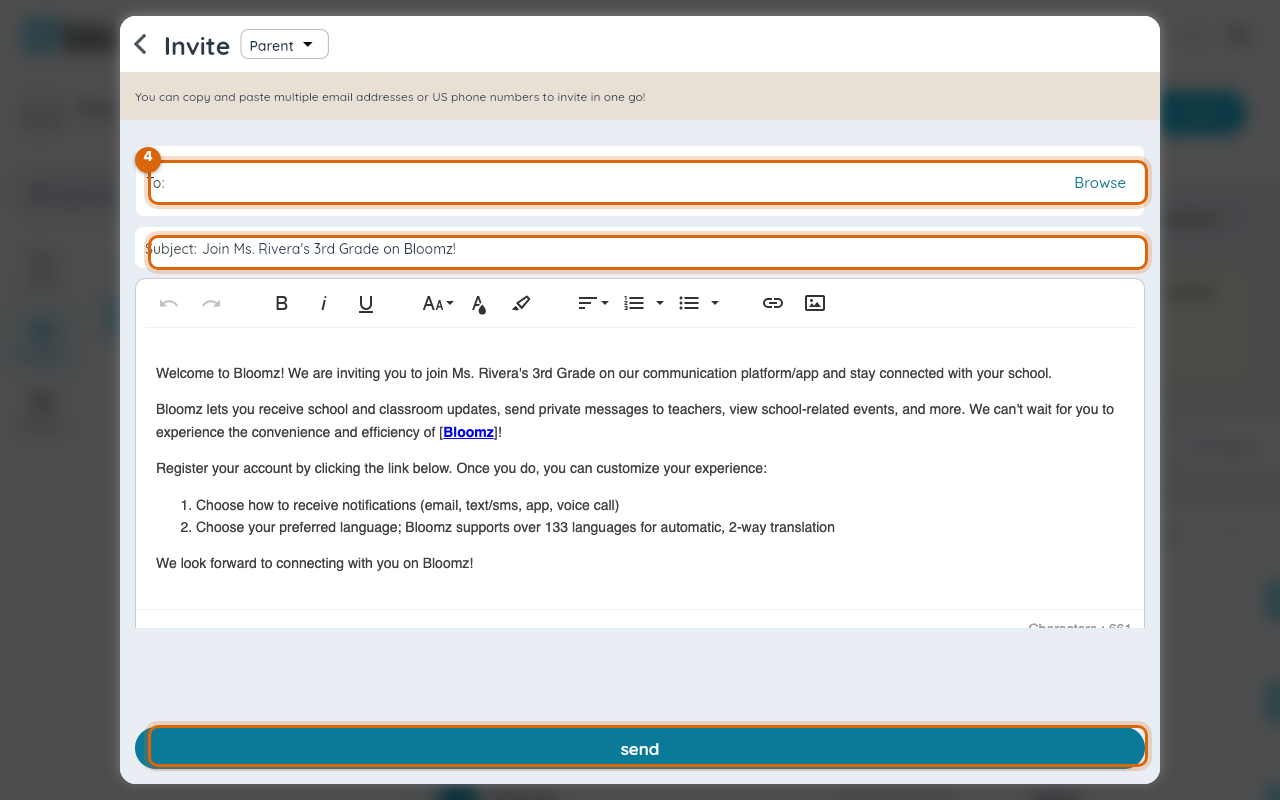
Check the list Bloomz built — misspelled emails and duplicates are flagged in red. Fix or remove flagged rows, then select Send Invites.
Watch out: an invite to a student under 13 routes to a parent first for consent before the student gets their own sign-in — that's expected, not a bug.
What families see
Each invited family gets an email or text with a join link. Once they accept, they show as Joined instead of Invited on your Members list — see Find who's registered and who's still invited to track that at a glance.
Related
- Import your roster from a CSV — the import wizard
- Find who's registered and who's still invited
- Join with a class code or QR code
- Invite a co-parent or another guardian