 Bloomz
Room Parents and Parent Premium
A Room Parent helps a teacher run the class — maintaining the class calendar, alongside whatever else the teacher hands off — without giving them a full Teacher's access. Bloomz assigns this with its own Room Parent role, separate from Parent and from Teacher. Posting to the class as a Room Parent needs Parent Premium on the Room Parent's own account, unless their school, district, or city already covers it, or they're also a Teacher or Class Admin on that class — see Room Parent needs Parent Premium to post below. Commenting never requires Premium.
Before you start
You need to be a teacher or class admin already on the class to assign the role. Have the Room Parent's work email address or phone number ready if they aren't on the roster yet.
Step 1 — Open your class's Staff list
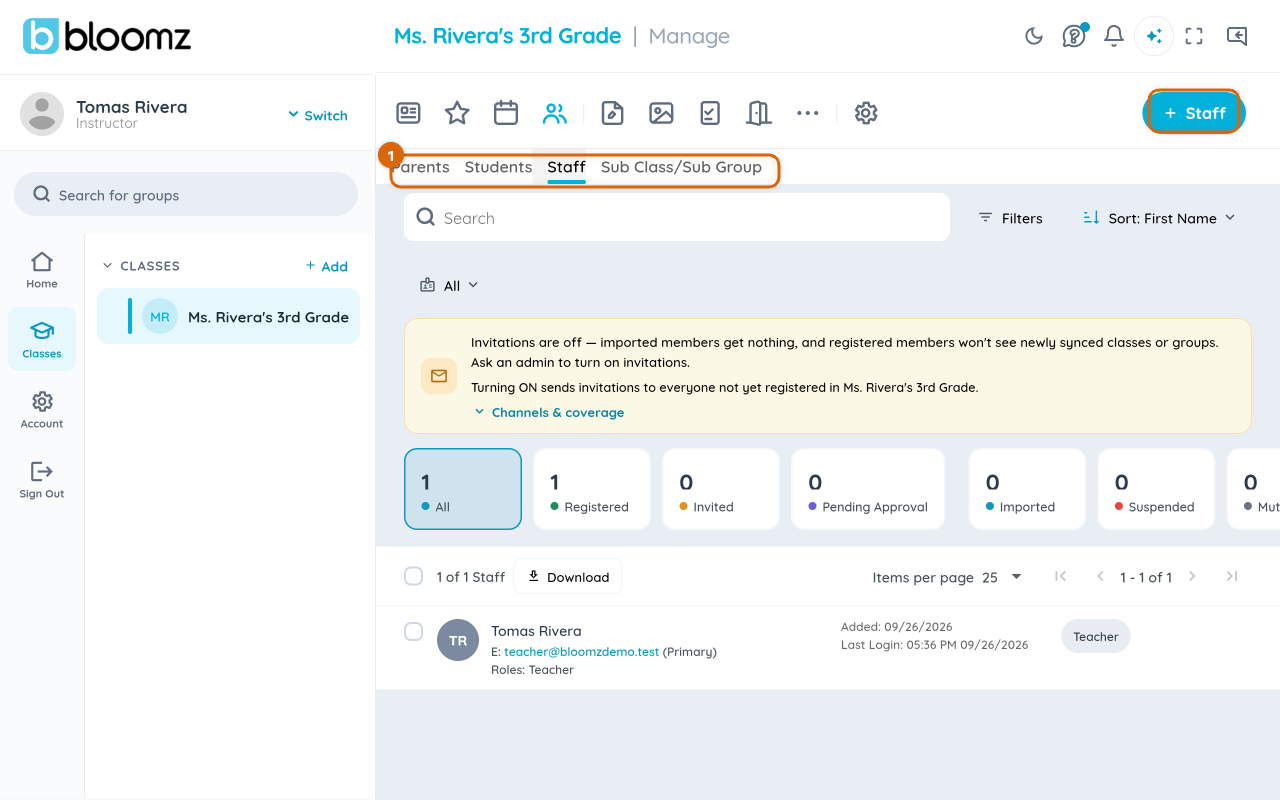
Open your class, select the Manage tab, then Staff. This lists everyone already teaching or administering the class and gives you the + Staff button.
Step 2 — Start the invite
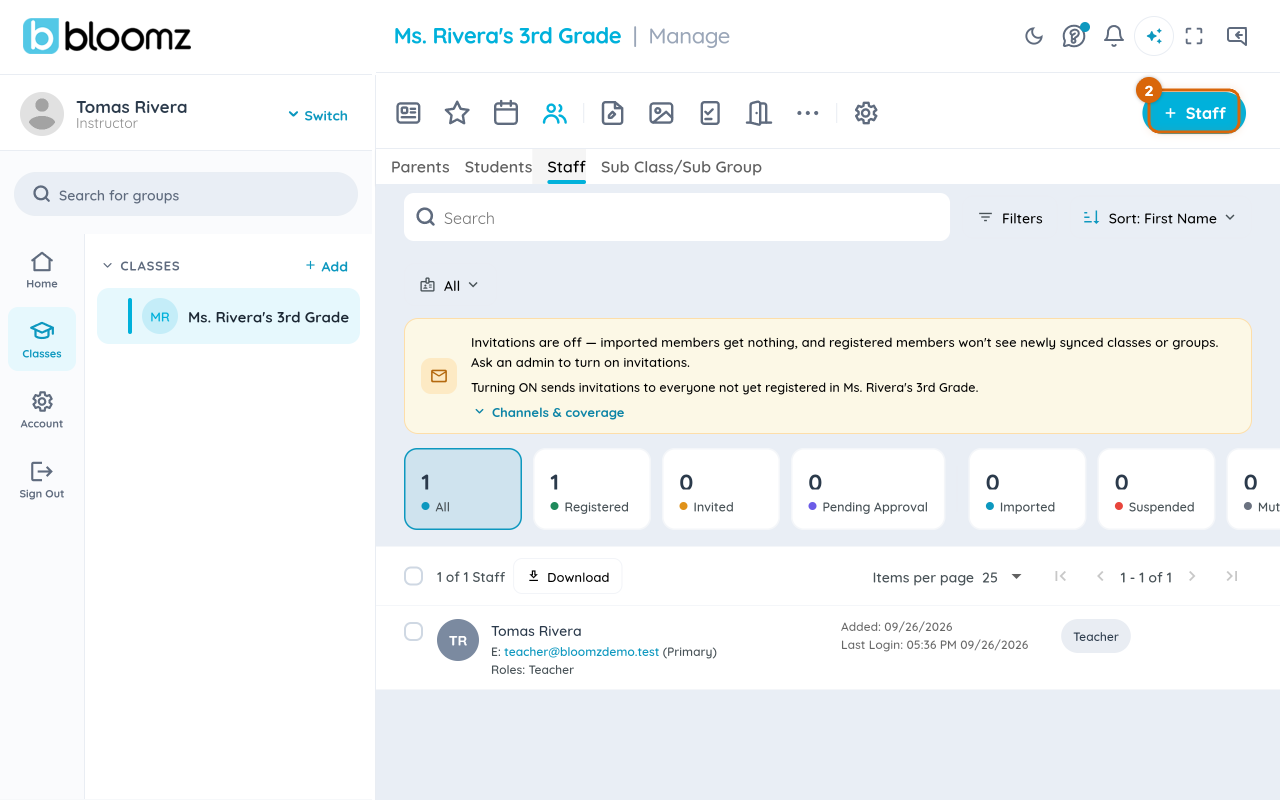
Select + Staff.
Step 3 — Choose the Room Parent role
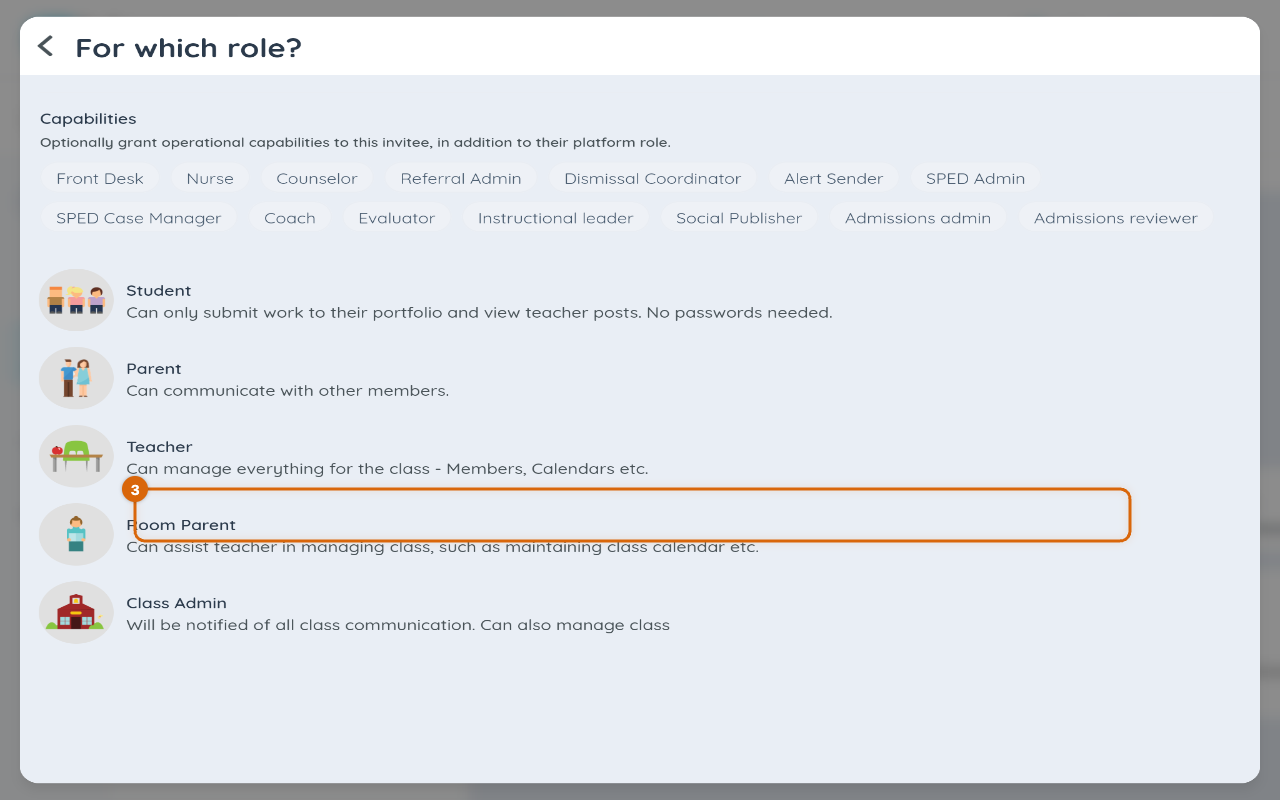
On the For which role? screen, select Room Parent. Bloomz describes it here as someone who can "assist the teacher in managing the class, such as maintaining the class calendar" — a helper role, not a second Teacher.
Step 4 — Enter their details and send
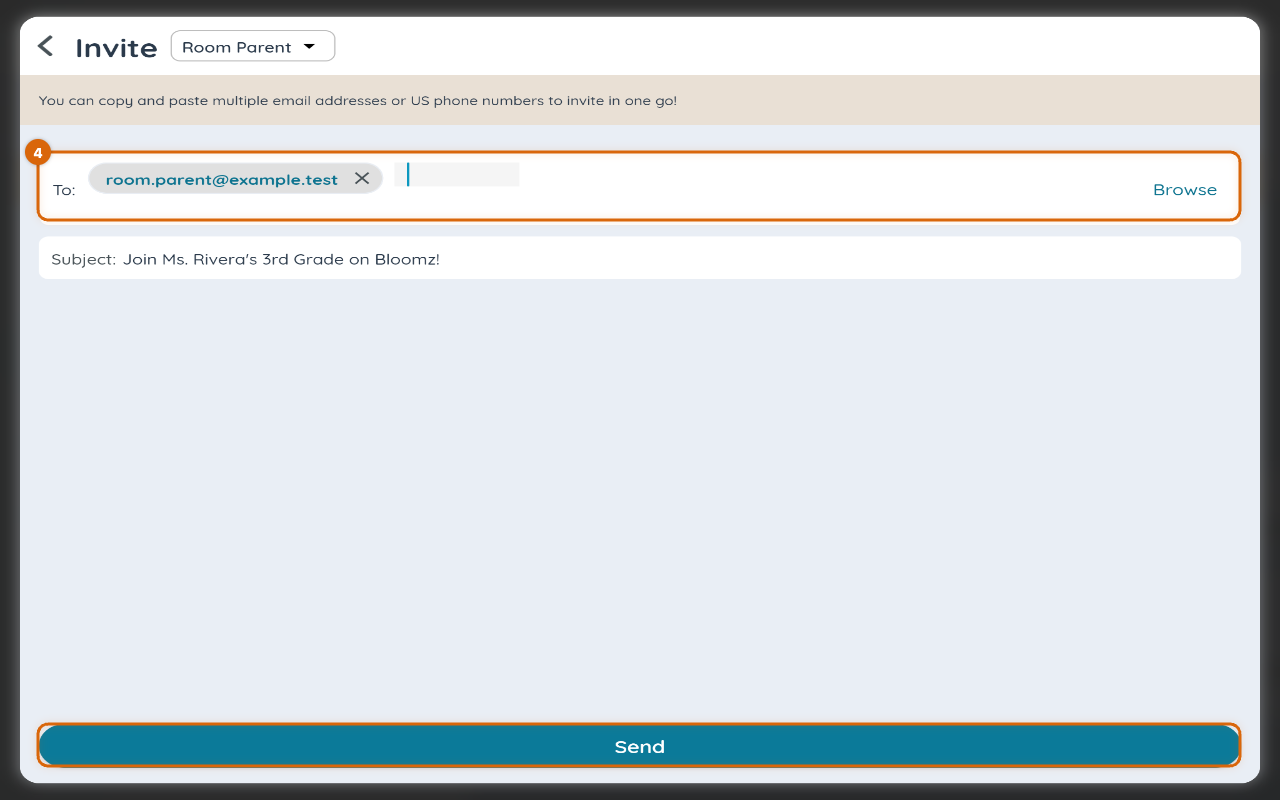
On the Invite screen, enter the Room Parent's name and their email address or phone number in the To field, then select Send.
A parent already on your roster can be promoted the same way without a new invite — open them from Manage → Members, select Change Role, and choose Room Parent there instead.
What happens next
The Room Parent gets an email inviting them to join the class, with a sign-in link. On your Staff list they show as Invited until they accept; once they sign in, that changes to Joined. They get class-calendar write access right away, the same as a teacher on the class.
Room Parent needs Parent Premium to post
Being a Room Parent does not by itself unlock posting to the class. To create a post, the Room Parent needs their own Parent Premium subscription — $125 per year, and posting is included with it. Comments stay free for everyone — Premium is never required to comment, only to create a new post.
A Room Parent doesn't have to buy Parent Premium themselves to post if either of these already covers them:
- Their school, district, or city already pays for a premium plan that covers parents. If your account is covered this way, posting works with no separate purchase.
- They're also a Teacher or Class Admin on that same class. That role's own posting rights apply, independent of Parent Premium.
If neither of those applies and a Room Parent without Premium taps to create a post, Bloomz shows an upgrade prompt instead of opening the composer, with an Upgrade button that takes them to the Products page to subscribe.
How a Room Parent gets Parent Premium
- Select your name and photo in the top-left corner, then select Account Settings.
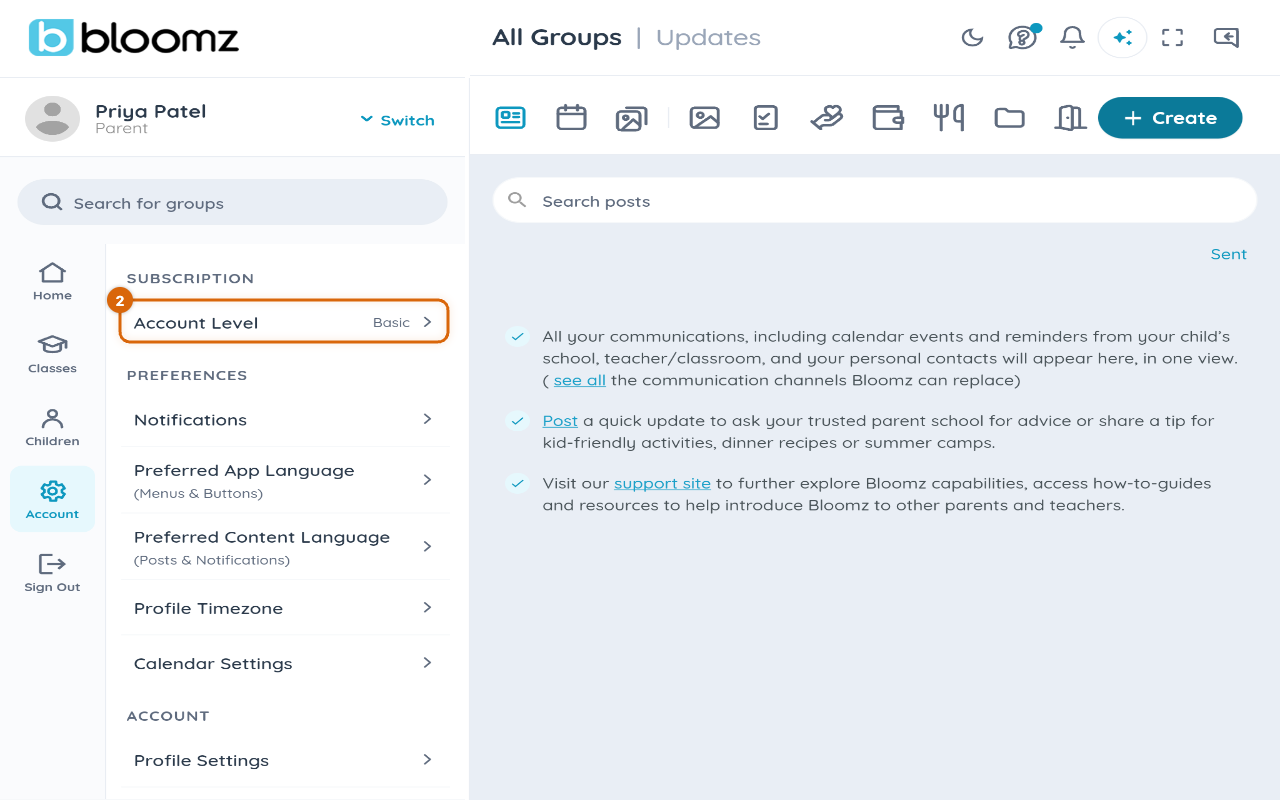
- Select Account Level. If you're not on Premium, you'll see an Upgrade to Premium row.
- Select Upgrade to Premium and complete checkout.
Watch out: if your Parent Premium subscription lapses, posting stops working again — unless a school/district/city plan or a Teacher/Admin role on the class already covers you — until you resubscribe; anything you already posted stays exactly as it is.
Related
- Add a co-teacher to your class
- Invite parents and students to a class
- Cancel your Premium subscription