 Bloomz
Add a co-teacher to your class
Add a co-teacher when another teacher — a specialist, a paraprofessional, or the teacher next door — needs the same access you have on a class. Bloomz has no separate "co-teacher" role: you add them with the Teacher role, and from that point they can post, message and manage the roster exactly as you can.
Before you start
You need to be a teacher or class admin already on the class. Have the co-teacher's work email address or phone number ready.
Step 1 — Open your class's Staff list
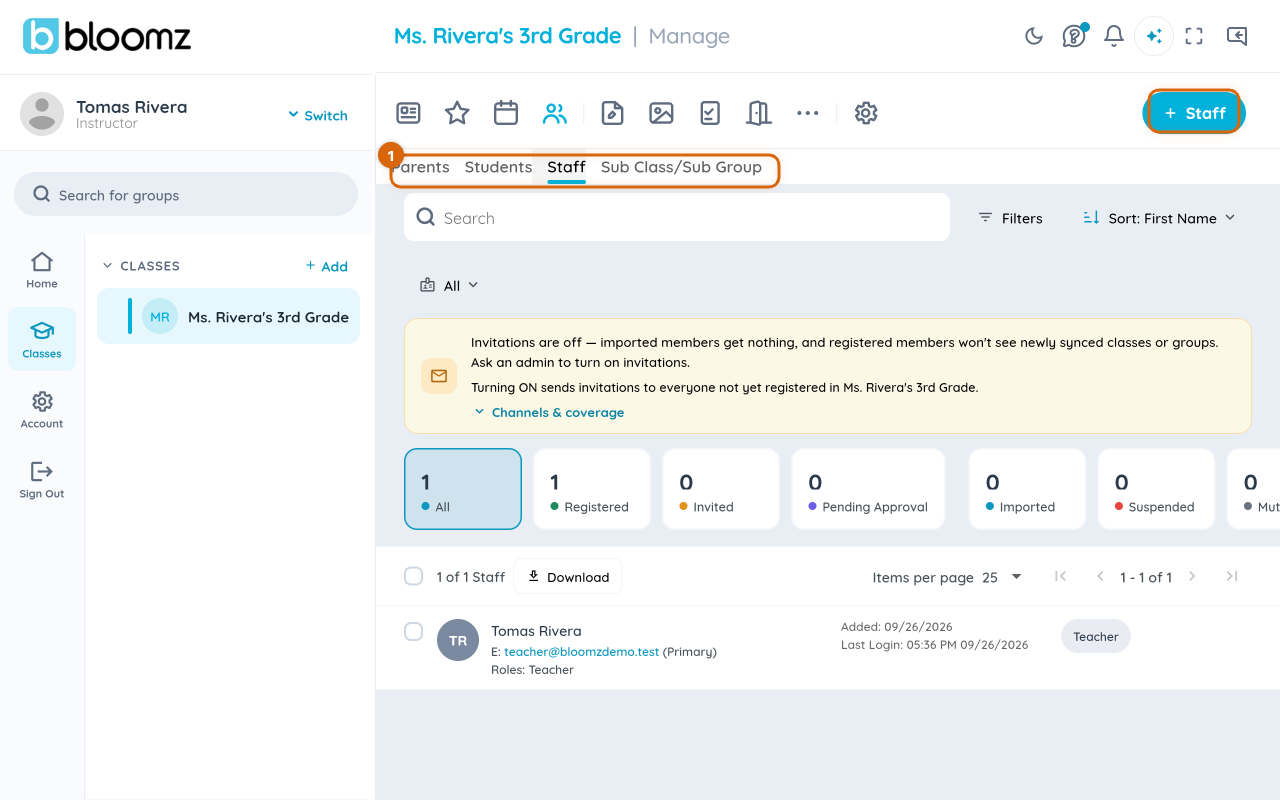
Open your class, select the Manage tab, then Staff. This lists everyone already teaching or administering the class and gives you the + Staff button. These steps work the same whether you're in the Bloomz app or using Bloomz in a browser.
Step 2 — Start the invite
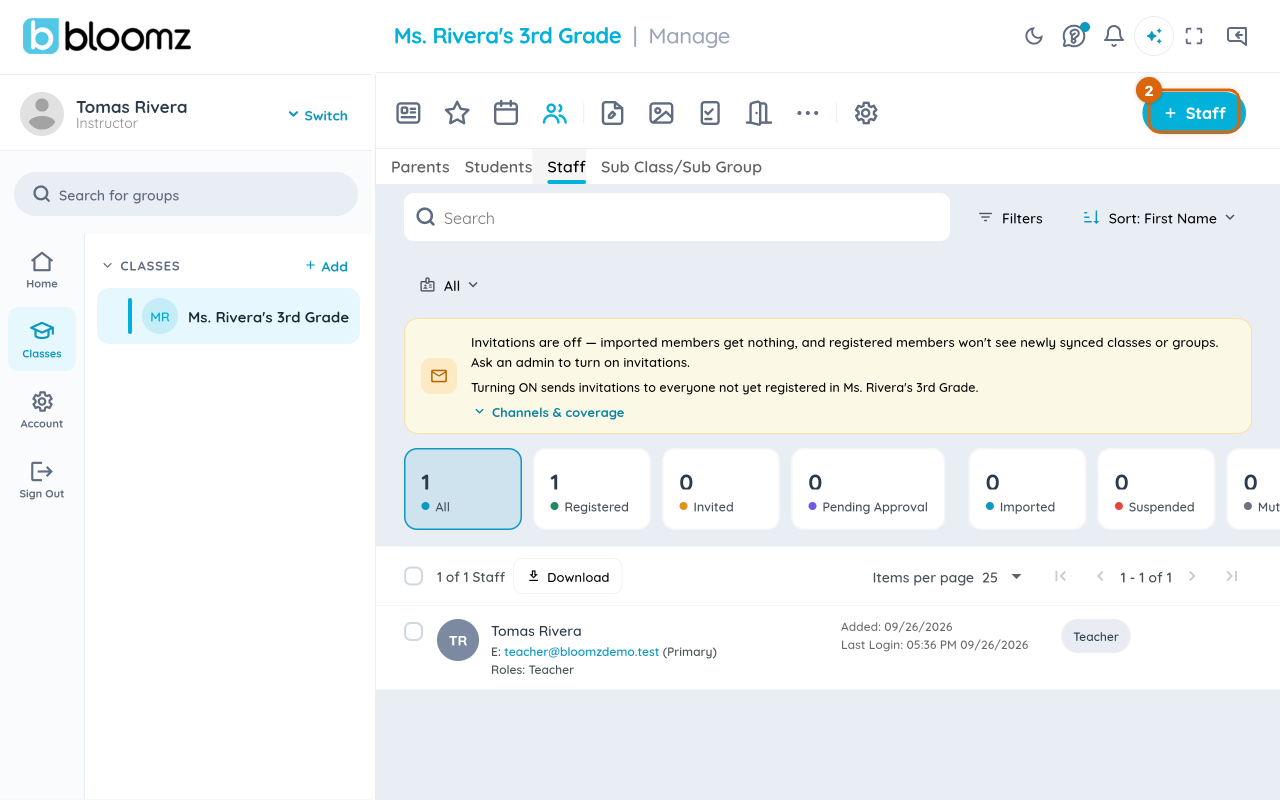
Select + Staff.
Step 3 — Choose the Teacher role
On the For which role? screen, select Teacher. Bloomz describes it here as someone who can "manage everything for the class - Members, Calendars etc." — that description is accurate: a co-teacher gets the same class-management access you have, not a limited helper view.
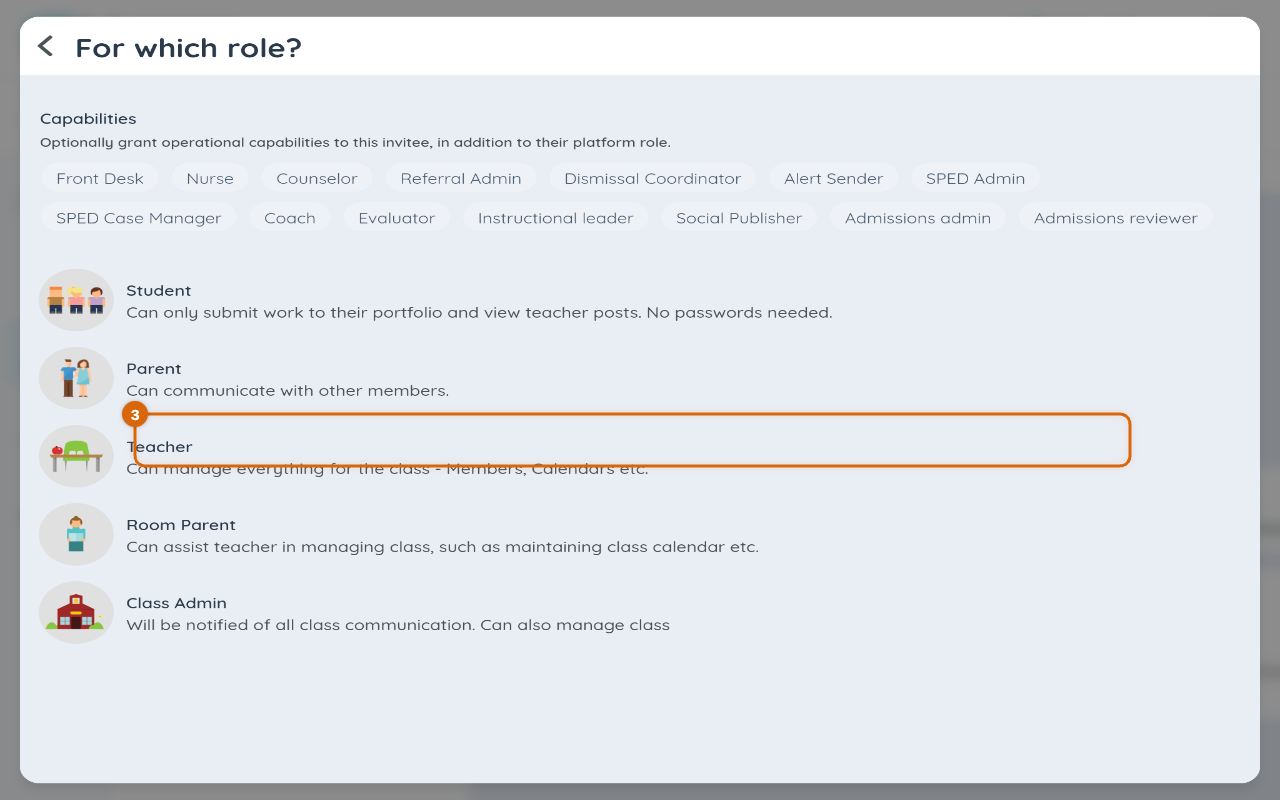
⚡ Watch out: Teacher is a full-access role. If you only want someone to help with logistics — sign-ups, reminders, the calendar — without giving them posting and roster access, invite them as Room Parent instead; don't pick Teacher just because it's the top of the list.
Step 4 — Enter their details and send
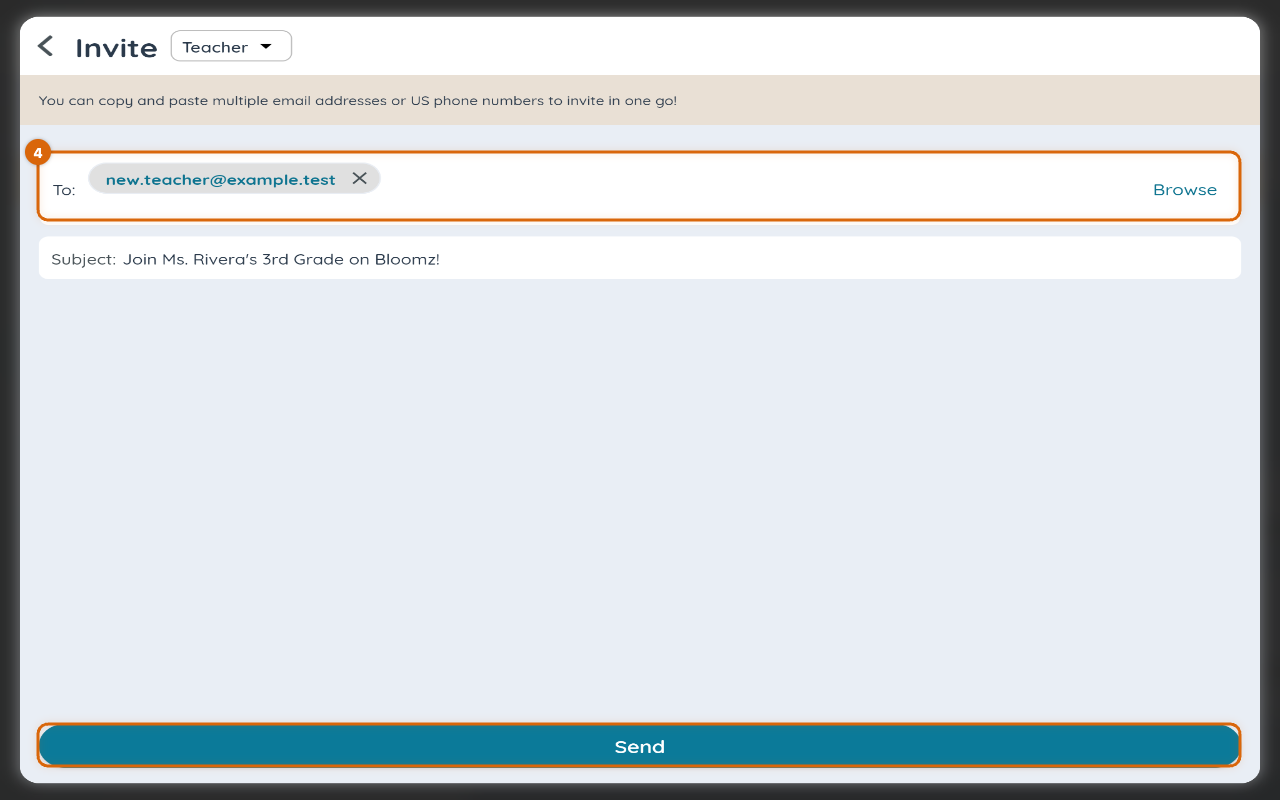
On the Invite screen, enter the co-teacher's name and their email address or phone number in the To field, then select Send.
What happens next
The co-teacher gets an email titled "Join your Class: [class name], on Bloomz" with a sign-in link. On your Staff list they show as Invited until they accept; once they sign in, that changes to Joined, and they can post and message on the class right away — there's no separate approval step.
Adding a co-teacher never counts against your own plan's admin or parent limits, so you can add as many as you need without tripping an upgrade prompt. If the co-teacher is on the free Teacher plan themselves, though, this class does count toward their own class limit — the same way any class they teach would.
If something goes wrong
The co-teacher can't seem to accept the invite. If they're on the free Teacher plan and already teaching the maximum number of classes it allows, adding one more — even as a co-teacher — puts them over their own limit. Ask them to upgrade to Teacher Premium, or to leave one of their existing classes first.
Related
- Invite staff to your school
- Invite parents and students to a class
- Change a class or group's settings — features, permissions, who can post
- Find who's registered and who's still invited