 Bloomz
Join with a class code or QR code
Some schools hand out a short class access code instead of, or alongside, individual invitations — common at back-to-school night or on a flyer sent home. Entering the code joins you straight to that specific class. On a phone, the same code can also be shared as a QR code you scan instead of typing.
Before you start
Get the code from your child's teacher or the school office — it is a short mix of letters and numbers tied to one specific class, and the school controls when it is turned on. You will also need a Bloomz account; this article shows you how to create one along the way if you do not have one yet.
Step 1 — Get the code from your school
A teacher or the school office turns on a class access code and shares it with families, along with a printable instructions sheet.
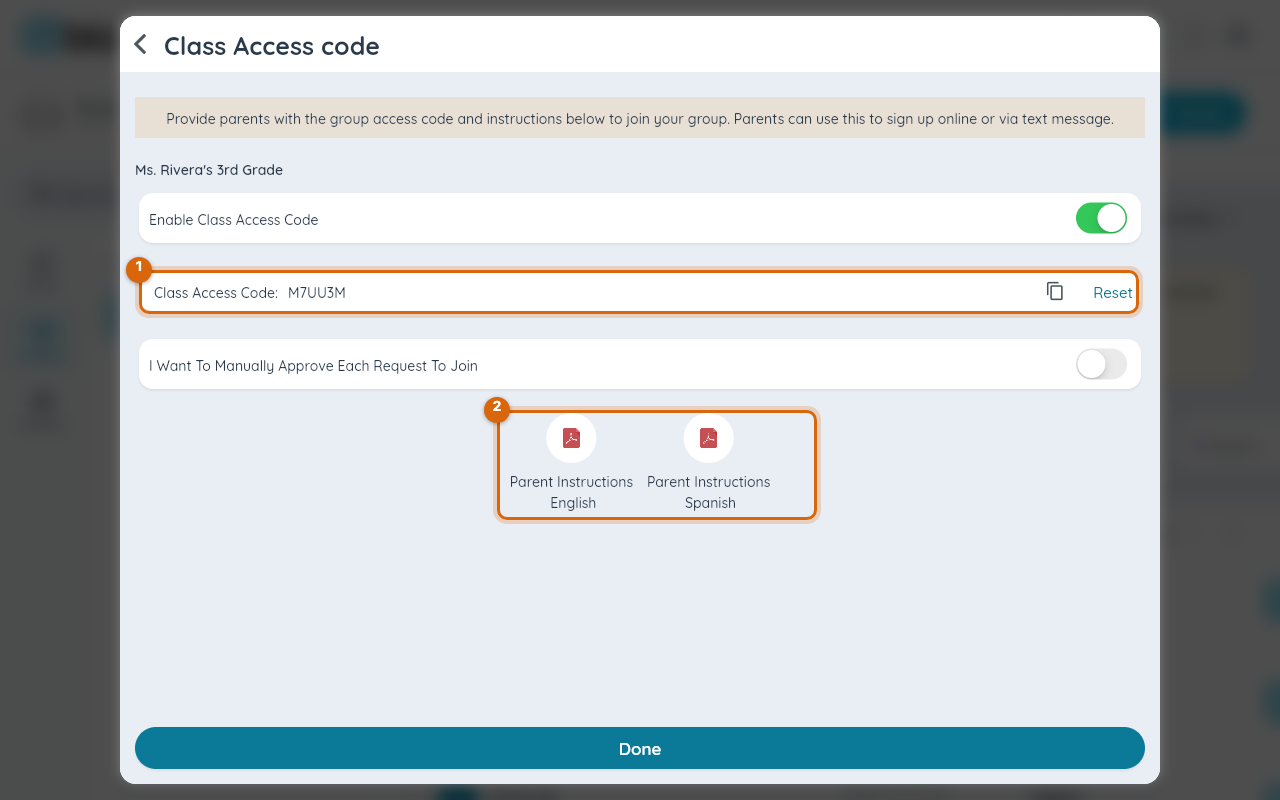
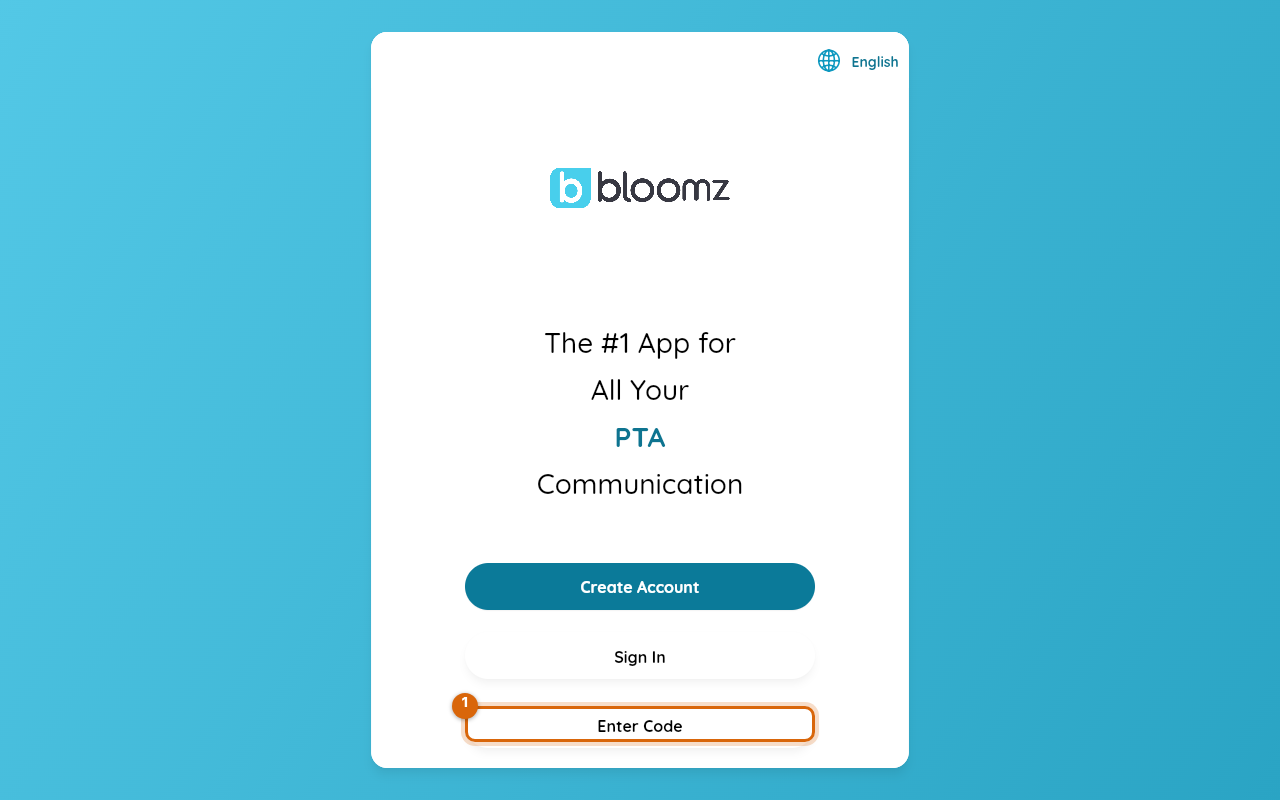
Step 2 — Open Bloomz and select Enter Code
On the welcome screen, select Enter Code.
Step 3 — Type the code
Type the code exactly as given.
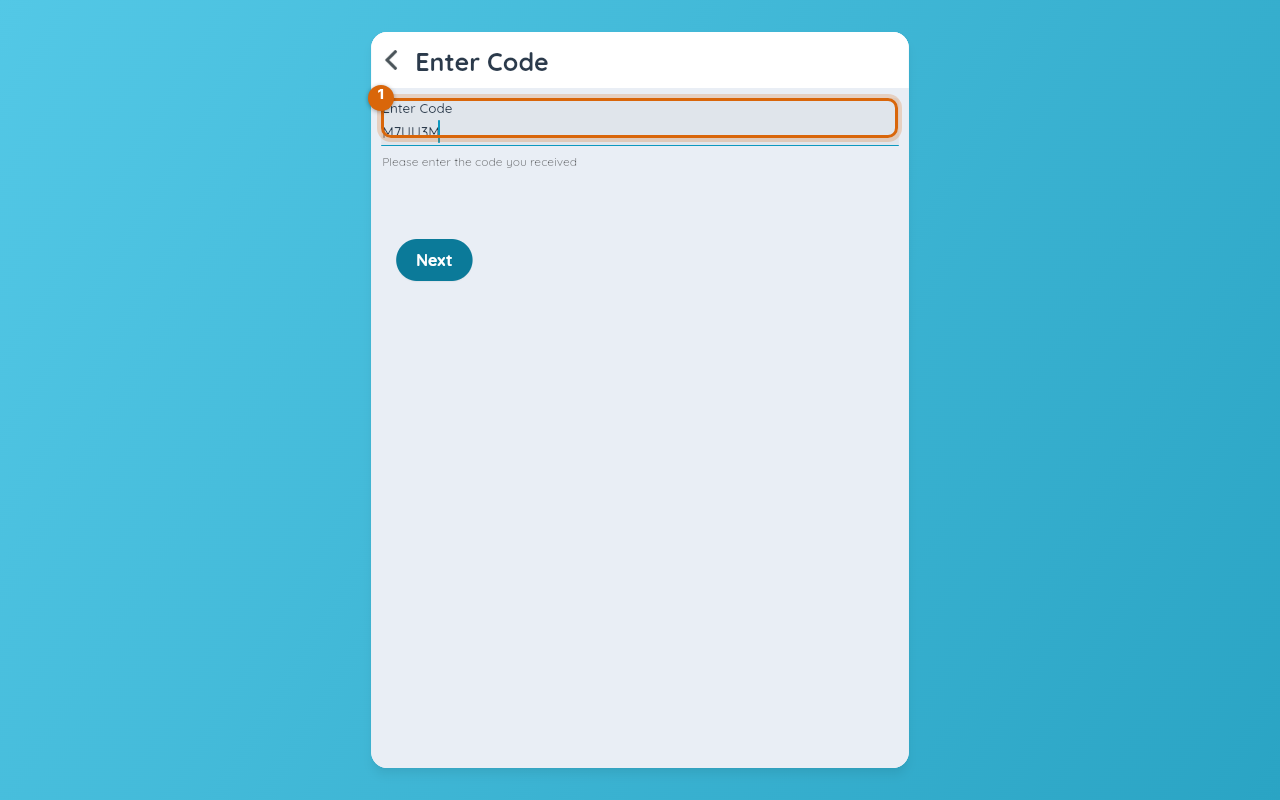
Watch out: scanning a QR version of the code is only available in the Bloomz phone app's camera — the web version shown here only offers the typed field, so if you are on a computer, type the code instead of looking for a scan option.
Step 4 — Create or sign in to your account
If this is your first time on Bloomz, set up a password and a few basic details. If you already have an account, select Sign in here instead — the code attaches to whichever account you use. Either way, the form confirms which class the code belongs to before you finish.
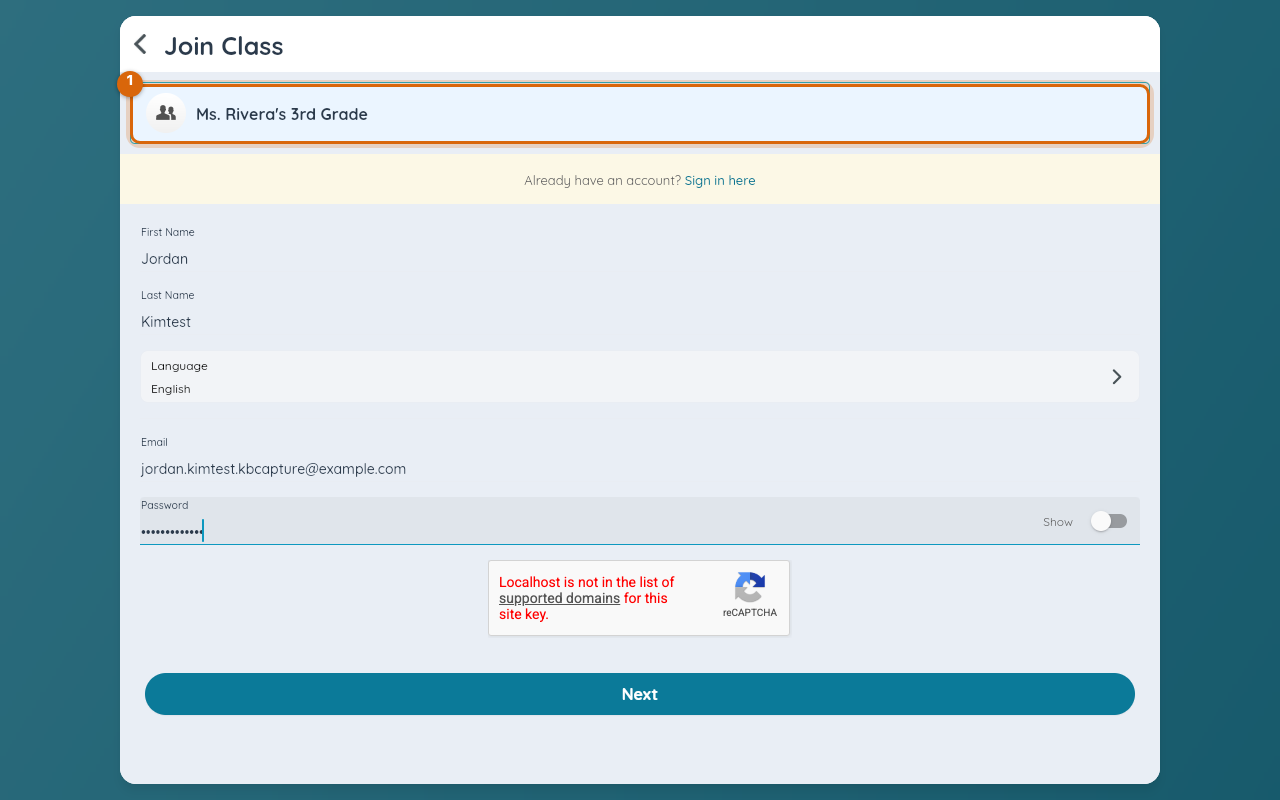
Step 5 — Confirm you're not a robot, then confirm your child
Before the form submits, you will need to pass a short verification challenge (this protects codes from being guessed by automated scripts). After that, if the school has more than one child roster matching the class, confirm which child you are joining for. Then you land on the class feed.
Watch out: class codes can expire or be limited to a set number of uses. If a code does not work, do not keep retrying — ask the teacher or office for a fresh one rather than guessing at typos.
Related
- Join your child's school from an invitation email or text
- Sign in with Google, Apple or Microsoft
- Invite a co-parent or another guardian