 Bloomz
Sign in with Google, Apple or Microsoft
If you already have a Google, Microsoft, Clever or ClassLink account — or an Apple account on an iPhone or iPad — you can use it to sign in to Bloomz instead of creating and remembering a separate Bloomz password. One tap authenticates you with the provider you choose, and Bloomz takes it from there.
Before you start
This works for both parents and teachers. You need an existing account with the provider you pick — Bloomz does not create a Google, Microsoft, Apple, Clever or ClassLink account for you, only checks with the provider that you are who you say you are. Sign in with Apple is only offered in the Bloomz app on an iPhone or iPad — it does not appear when you sign in from a web browser, on any device.
Step 1 — Open the sign-in screen
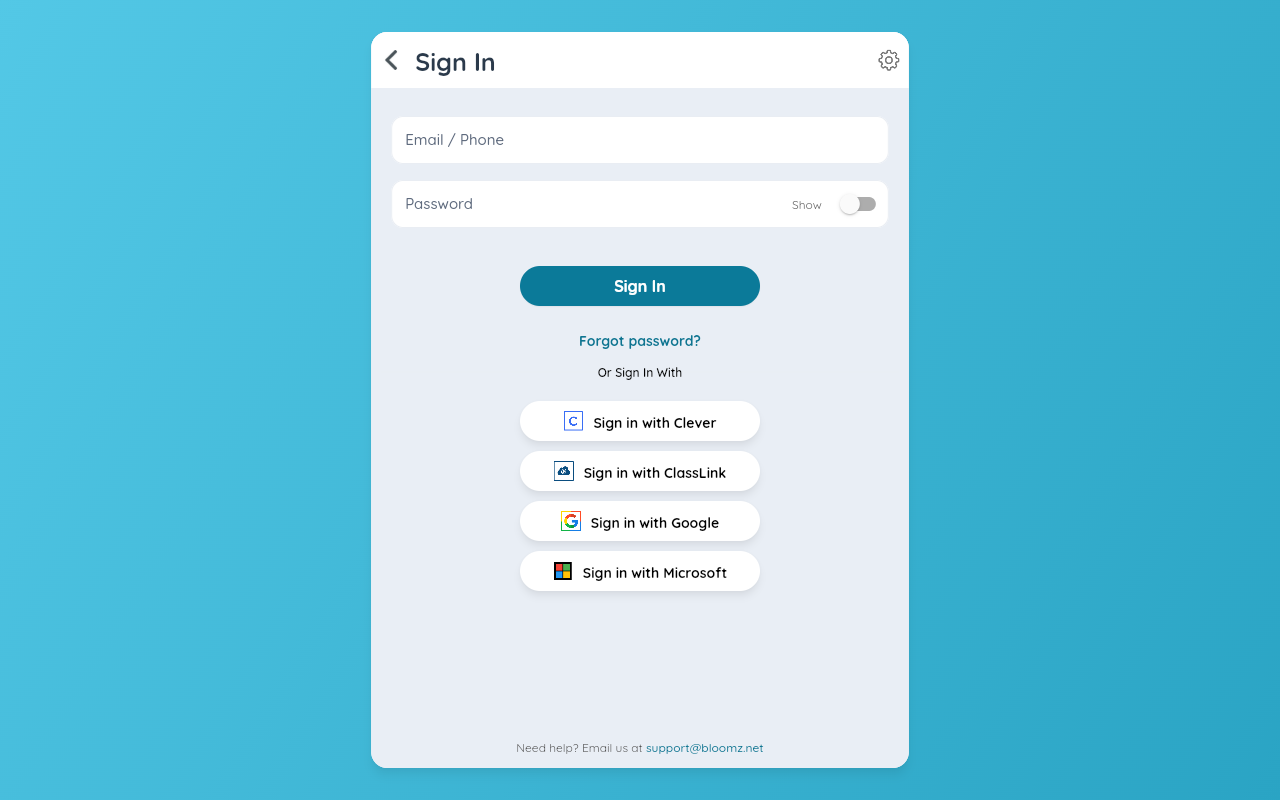
Open Bloomz on your phone or at app.bloomz.com, then select Sign In.
Step 2 — Choose your provider
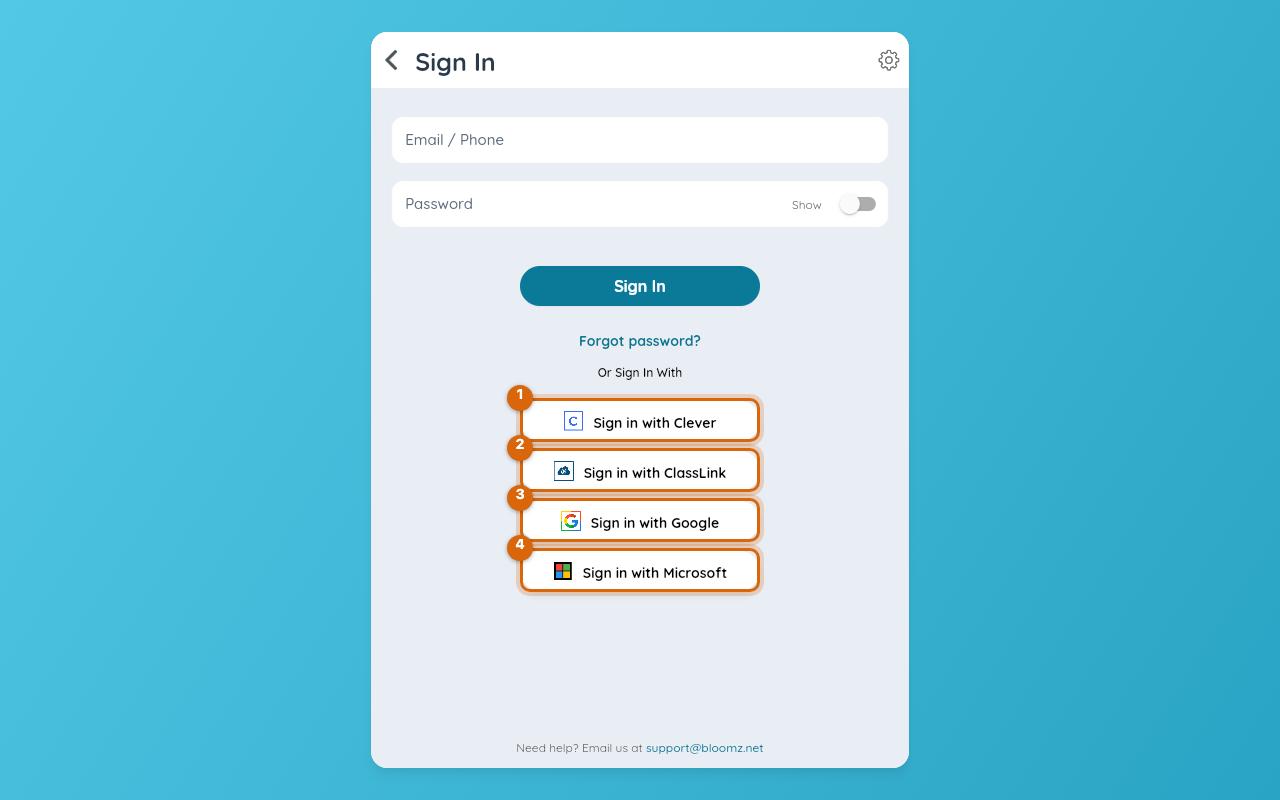
Under Or Sign In With, select Google, Microsoft, Clever or ClassLink (or, in the iPhone/iPad app only, Apple) — whichever account you want to use. Clever and ClassLink are school-rostering sign-in systems some districts use; if your school does not use one, you likely will not need those two.
Step 3 — Bloomz hands off to your provider
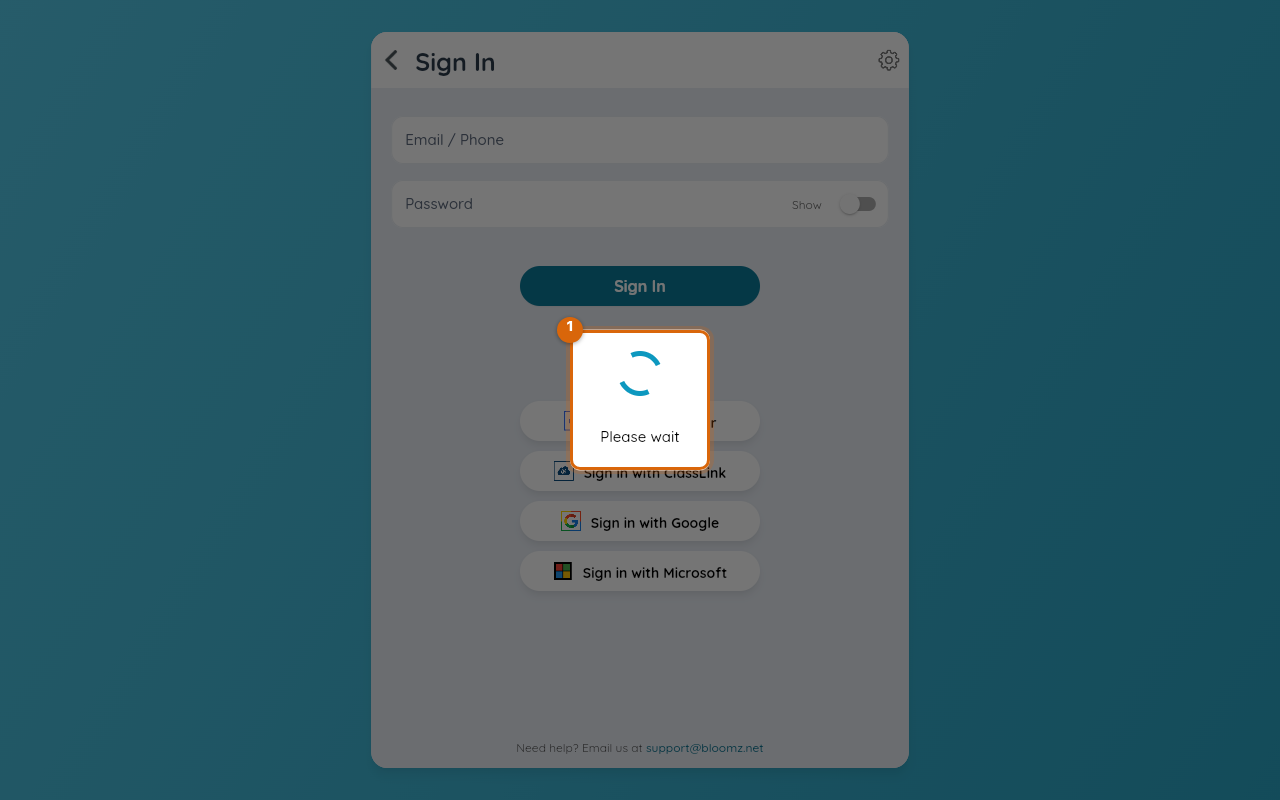
Bloomz briefly shows its own hand-off screen while your browser opens the provider's sign-in page.
Enter that provider's own credentials on its own page, not a Bloomz password — Bloomz never sees or stores it. Bloomz then checks the email address the provider confirms: if it matches an existing Bloomz account you are signed straight into it, and if not, Bloomz creates a new account with that email. Either way you land directly on your normal Home feed — there is no separate "account linked" screen to confirm.
Watch out: if your Google, Microsoft or Apple email is different from the email your school has on file for you, this can create a second, empty Bloomz account instead of linking to your existing one. If your classes do not show up after signing in this way, check Change your email address or contact your school to match the emails on file.
Related
- Enter your two-step verification code
- Change your email address
- Change your password