 Bloomz
Exempt a student from hall pass limits
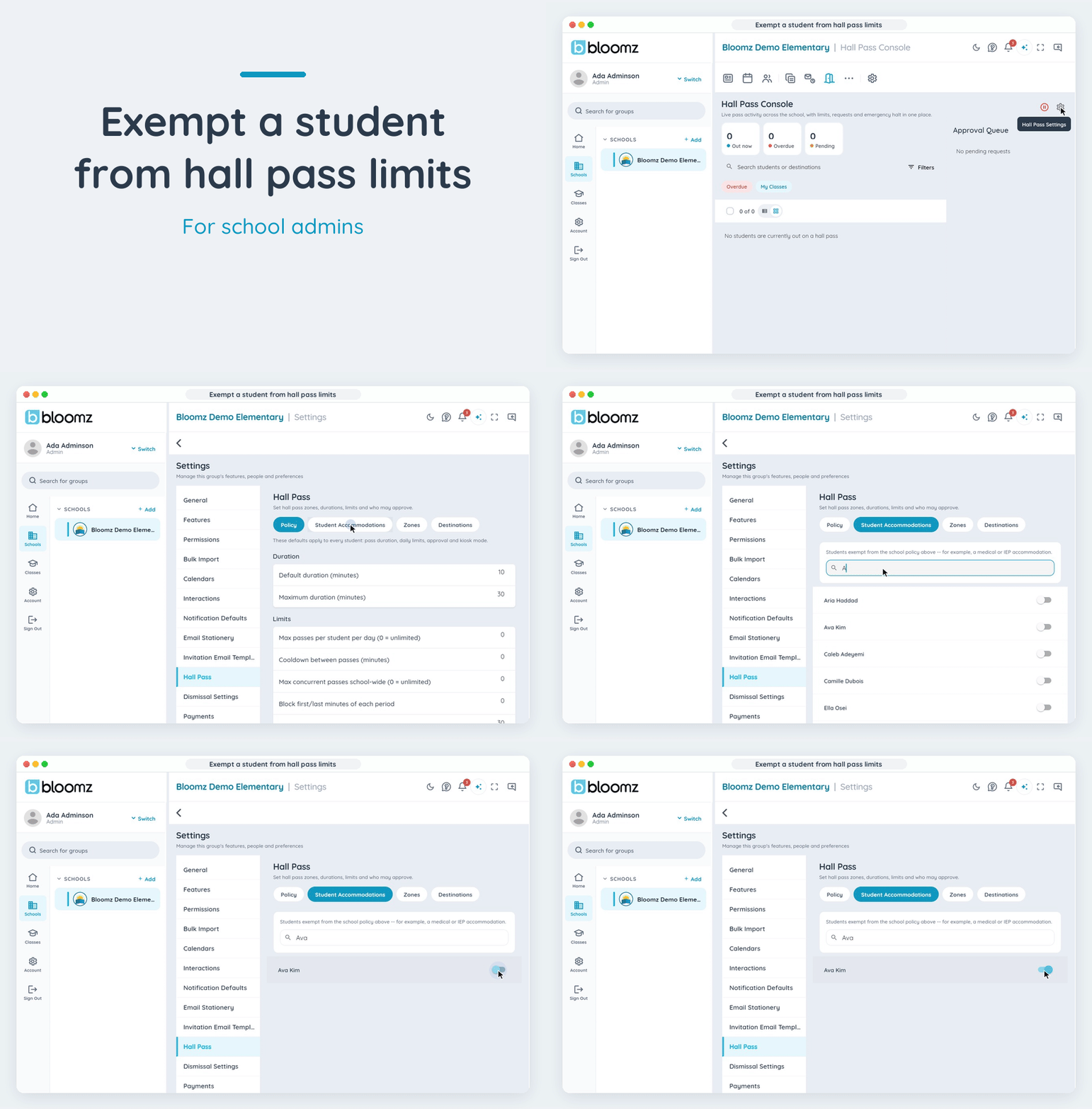
A daily cap or a cooldown is the right default for most students, but not for one on a medical plan who may need the restroom ten times a day. Exempt that student and none of the school's hall pass limits apply to them — only the school-wide halt still does.
Before you start
School admins and office admins set exemptions. This article covers the Exempt switch specifically; for the durations, caps and extra-time accommodations it sits next to, see Set hall pass limits and student accommodations.
Step 1 — Open Student Accommodations
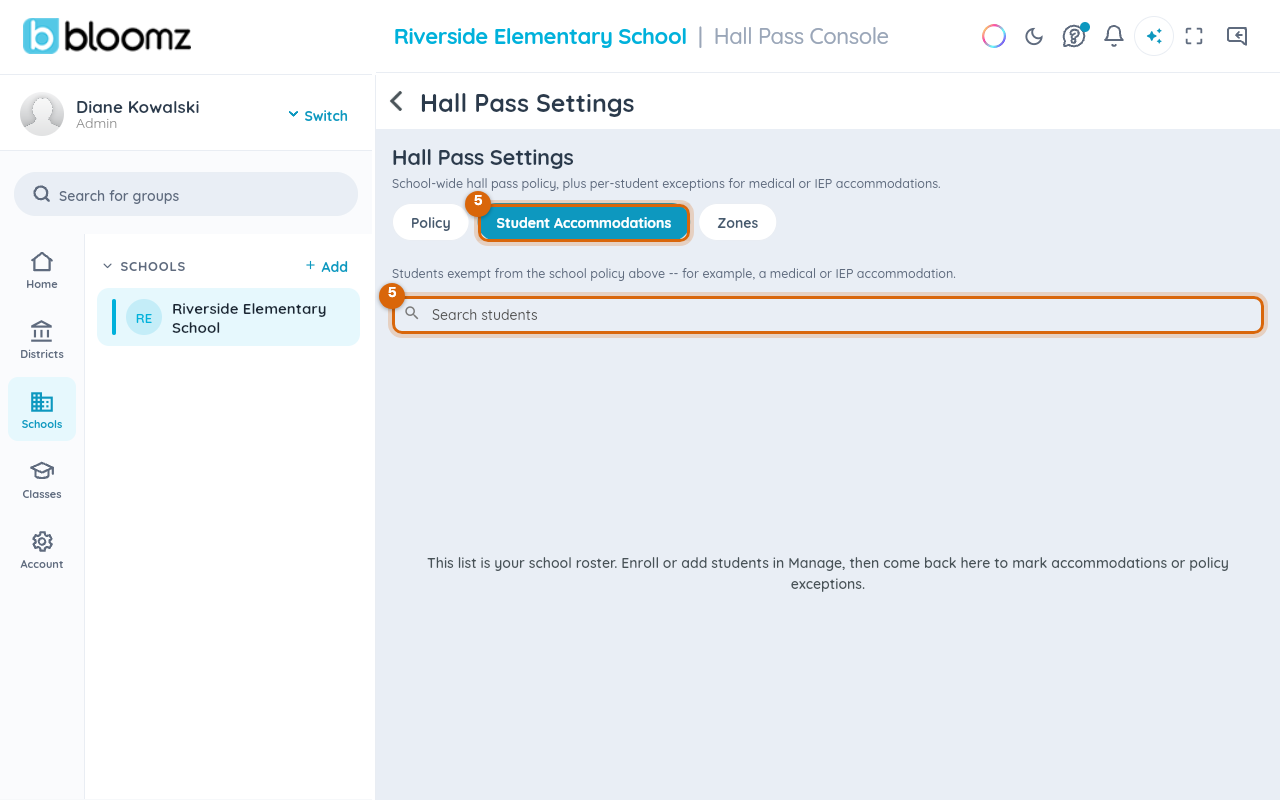
Open the Hall Pass Console, select the settings gear, and open the Student Accommodations tab.
Step 2 — Find the student
Search the roster for the student's name.
Step 3 — Turn on Exempt
Switch on the toggle at the end of the student's row. It applies immediately — no separate save step — and turns off the daily cap, cooldown, concurrent-pass cap and blocked-period rules entirely for this student.

Step 4 — Note why
Keep the reason — medical plan, IEP, 504 — in the student's own records per your school's process; the accommodations roster shows who is exempt, and the tab's own description reminds staff these are policy exceptions for accommodations.
Watch out: exemption is still not a bypass of an emergency halt — a halted school stops every pass, exempt students included. Exemption only ever affects the everyday limits.