 Bloomz
Find who's registered and who's still invited
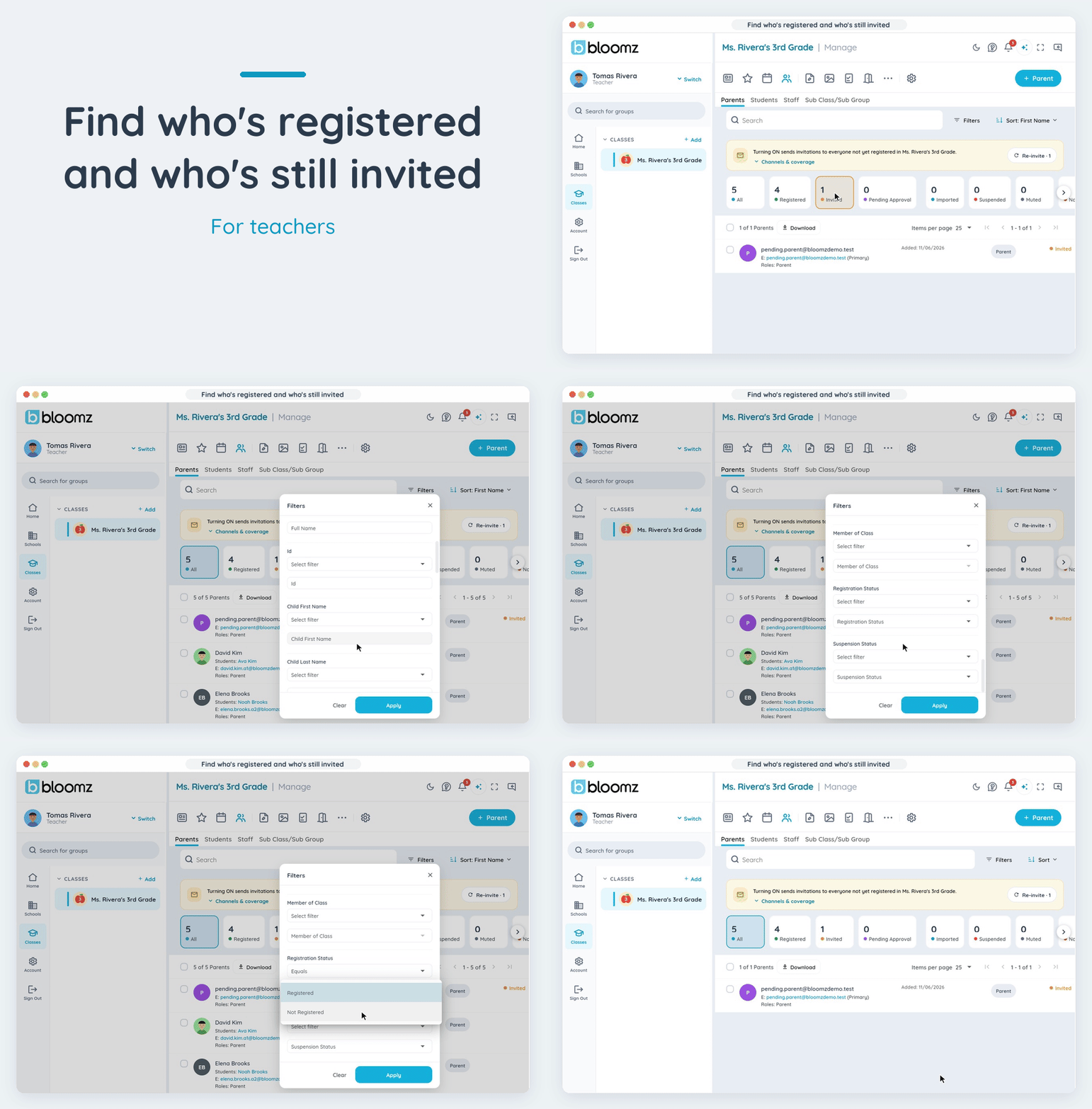
Before conference night or a big announcement, check who has actually finished signing up versus who's still sitting on an unopened invite — so you know who to nudge.
Before you start
You need to be a teacher on the class, or an admin viewing any class at your school. This uses the same Members list you invite families from.
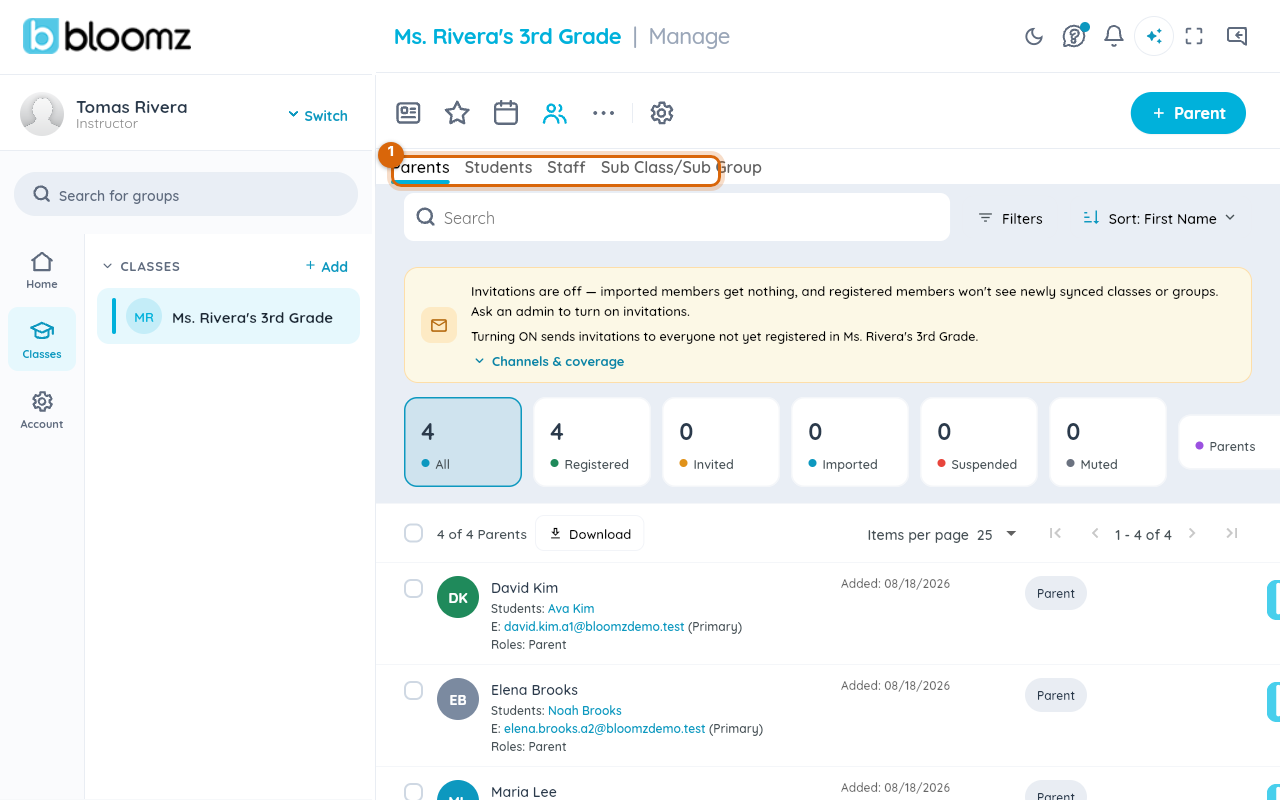
Step 1 — Open Parents
Open the class (or, as an admin, any class at your school) and select the Manage tab, then Parents.
Step 2 — Filter by registration status
Select Filters above the list. A long panel opens (First Name, Last Name and more); scroll down to Registration Status, then pick Registered or Not Registered. Each shows only the matching rows. You can also select a status card at the top of the list (see Step 3) to narrow the list to that group.
Step 3 — Read the counts
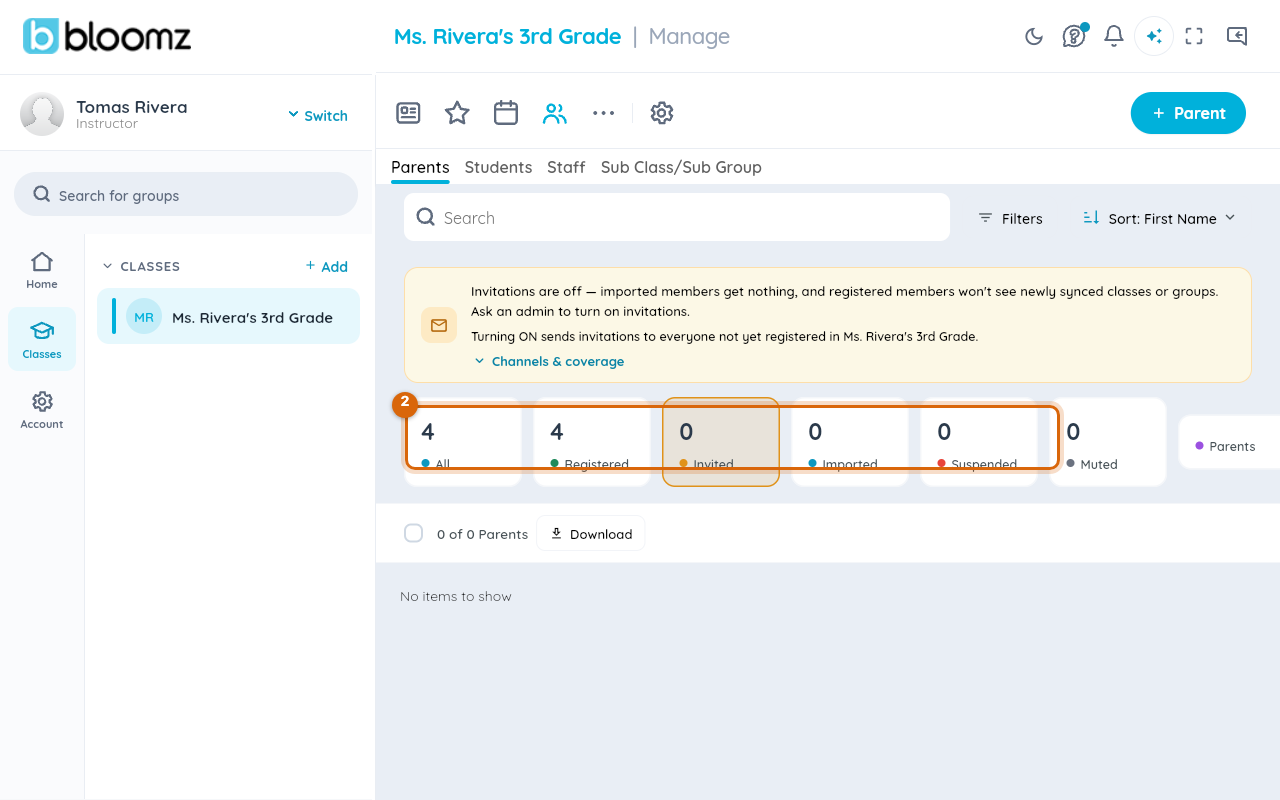
The cards at the top of the list show a running count for each status — All, Registered, Invited, Pending Approval, Imported, Suspended, Muted, No Student Linked and Child awaiting approval — so you can see your overall completion at a glance without opening every row. Imported means the person is on the roster but hasn't been invited yet.

Step 4 — Resend or nudge pending invites
Select the Invited card, check the rows you want to follow up on, and use the invitation action in the toolbar. Bloomz asks you to confirm with a Resend Invitations prompt that explains what will happen; select Yes to send. This re-sends the original invite email or text without creating a duplicate.
Step 5 — Export the list
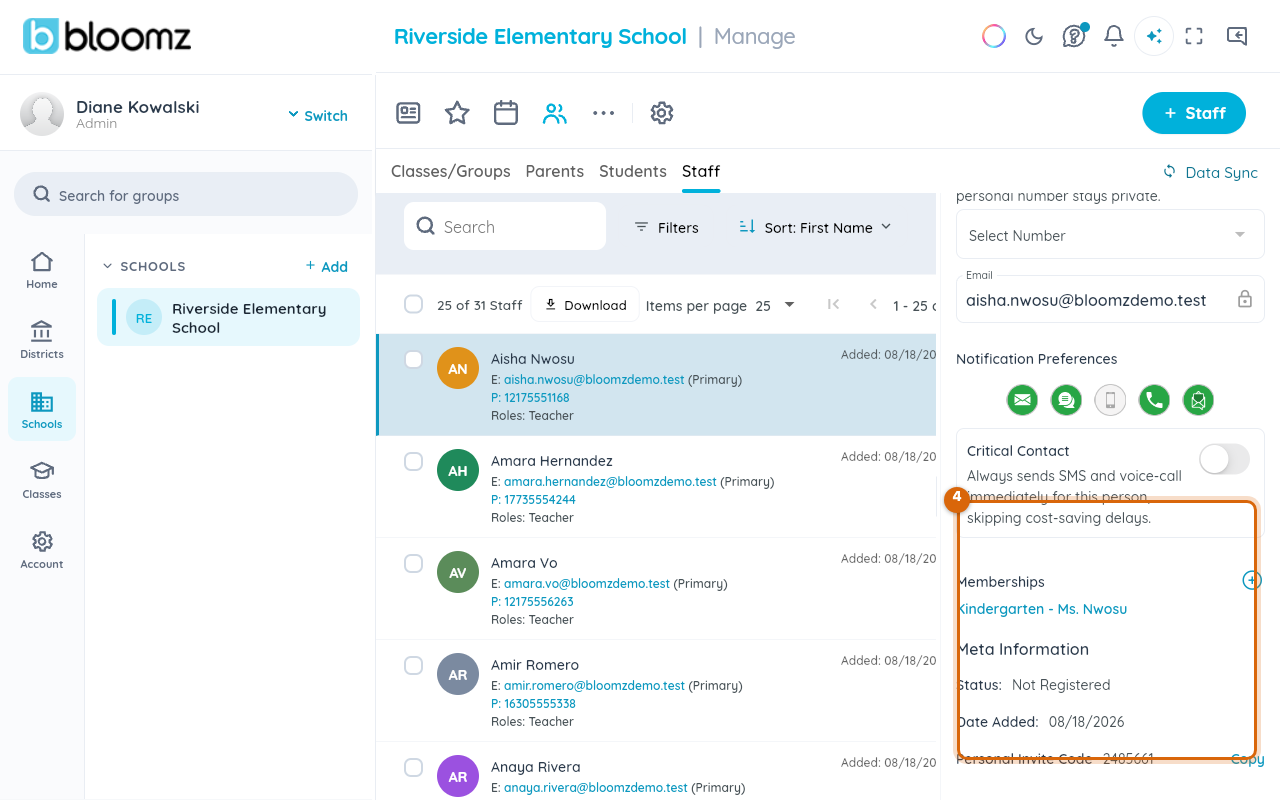
Select Download (the button beside the "N of N Parents" count) to save the filtered list as a CSV — useful for a paper sign-in sheet or a quick email blast outside Bloomz.
Watch out: "Invited" only means the invite was sent, not that it was opened or delivered — a bounced email still shows as Invited. If someone insists they never got it, resend rather than assuming the first one arrived.