 Bloomz
Lock a kiosk device — Guided Access, screen pinning, or MDM
Lock a shared tablet into the Bloomz kiosk screen — for check-in, dismissal, or a lobby display — using the device's own operating-system lock feature, so students or visitors can't back out to the home screen or other apps.
Before you start
Bloomz's kiosk mode shows the right screen, but keeping someone from leaving that screen is handled by the device itself: Guided Access on iOS, screen pinning on Android, or a Mobile Device Management (MDM) profile for district-owned fleets. Pick the one that matches your device and set it up outside Bloomz, then open the Bloomz kiosk screen before locking it in.
Step 1 — Open the Bloomz kiosk screen
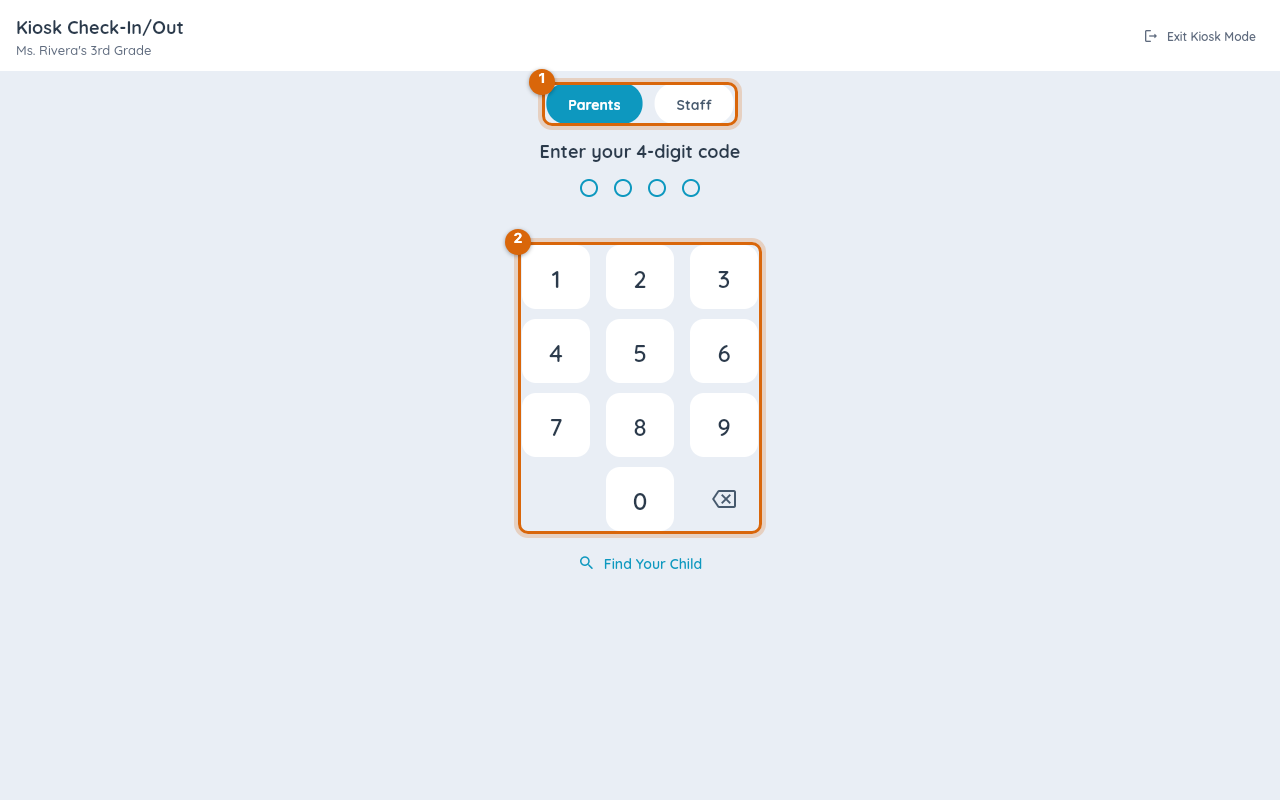
On the shared device, sign in and open the kiosk screen you want locked — Check-In or Dismissal, for example.
Step 2 — iOS: turn on Guided Access
This is a setting on the device itself, not a Bloomz screen, so there's nothing to screenshot from Bloomz for it. On the iPad or iPhone, go to Settings → Accessibility → Guided Access, turn it on, and set a passcode. With the Bloomz screen open, triple-click the side button, then select Start. The device is now locked to that one screen until the passcode is entered again.
Step 3 — Android: turn on screen pinning
This is also a device setting rather than a Bloomz screen. On the tablet, go to Settings → Security → Advanced → App pinning and turn it on. With the Bloomz screen open, select the Overview button and choose Pin this app. Unpinning requires the device's own unlock method.
Step 4 — District fleets: use an MDM profile instead
For devices your district manages centrally, ask your technology team to push a kiosk-mode MDM profile locking the device to the Bloomz app, from your district's mobile-device-management console rather than from Bloomz or the device itself. This is the most reliable option for devices left unattended for long periods, since it can't be exited without the management console.
Step 5 — Test that it holds
Try to leave the screen — swipe up, press the home button — before placing the device where students or visitors will use it unsupervised.
Watch out: Bloomz has no way to detect or enforce OS-level locking itself — if the device isn't pinned, a student can exit the kiosk screen to anything else on the tablet. Always test the lock before leaving a device unattended.