 Bloomz
Run dismissal as staff
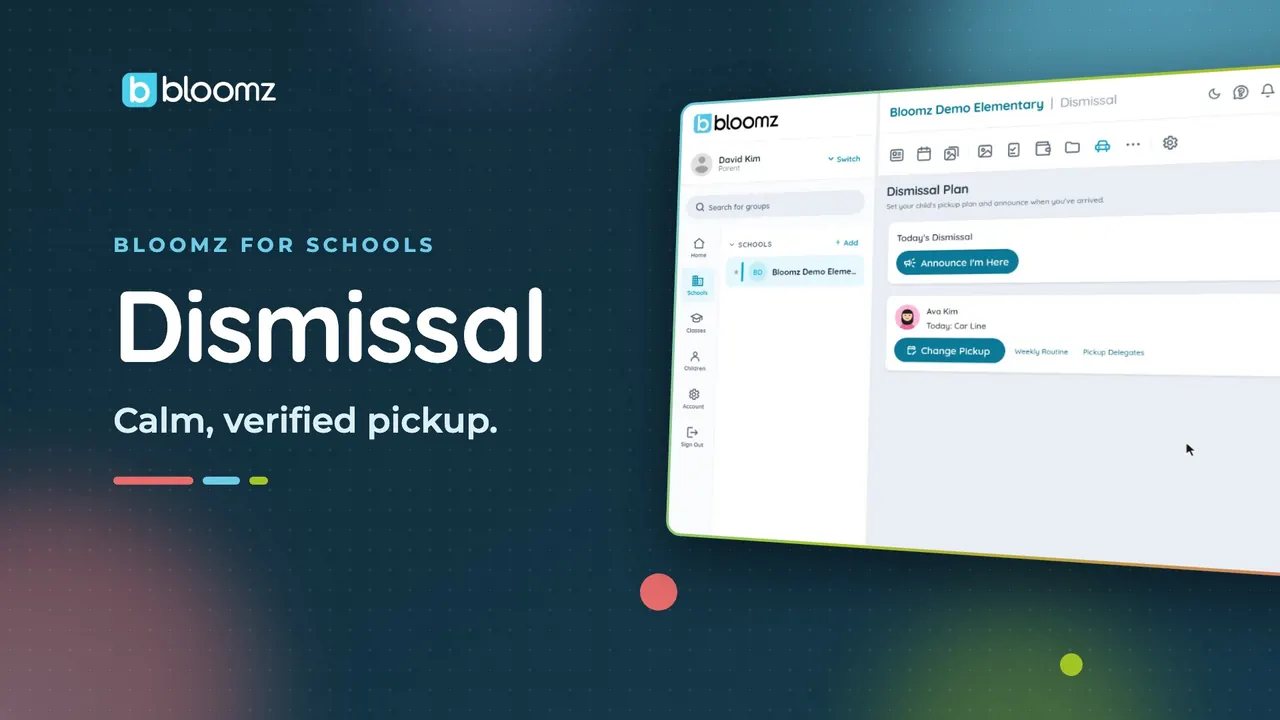
▶ Watch the video (43 seconds): Dismissal in Bloomz: family plans, I'm here, lanes and verified pickup.
Work the pickup line from one live board: see who has announced they are here, call each student down, release them to a verified adult and mark the car gone. Every family's plan, lane and contact is on the entry, so the office never has to guess.
Before you start
Your school must have Dismissal switched on and a dismissal window configured; office staff and school admins see the console, teachers see the Send Down list for their own classes. Families join the queue by announcing their arrival in the app (or staff add them when a car pulls up without announcing).
Step 1 — Open the Dismissal Console
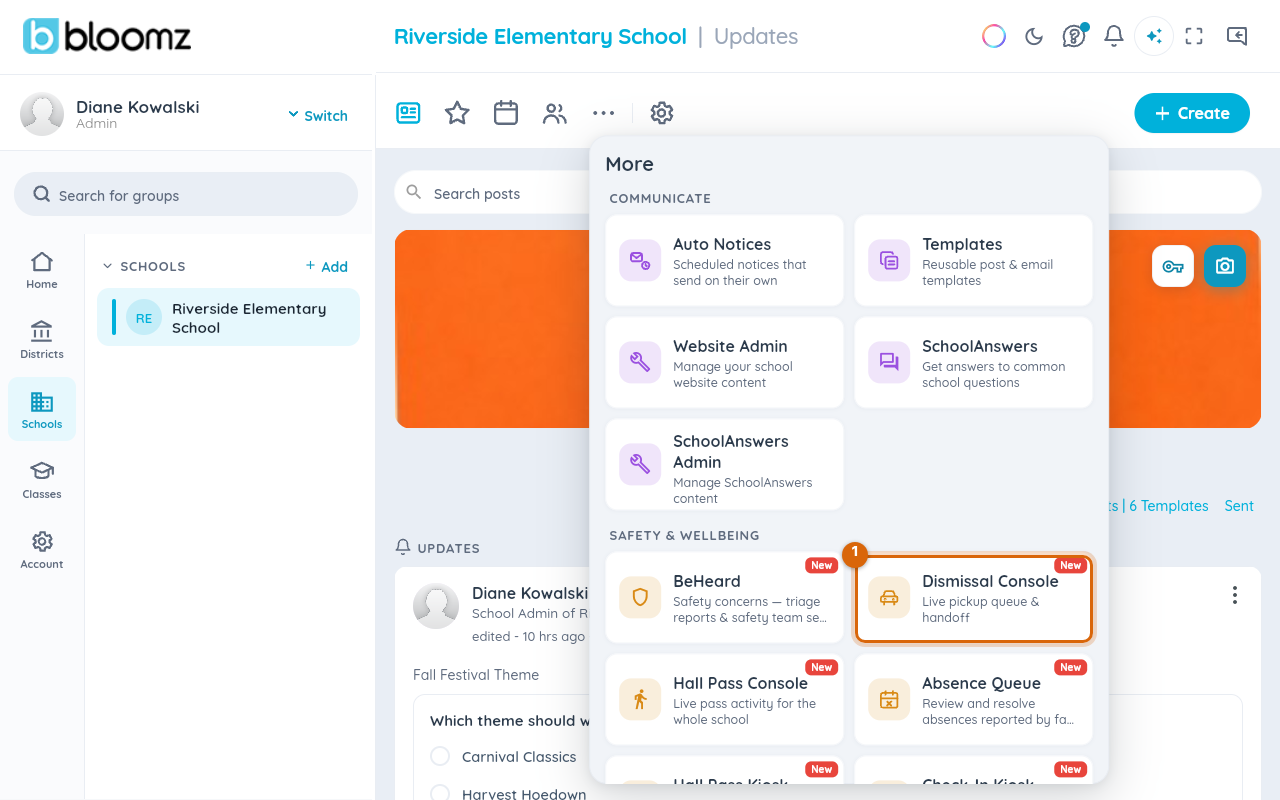
Open your school, select More (…) in the tab row, and choose Dismissal Console under Safety & Wellbeing.
Step 2 — Find the family
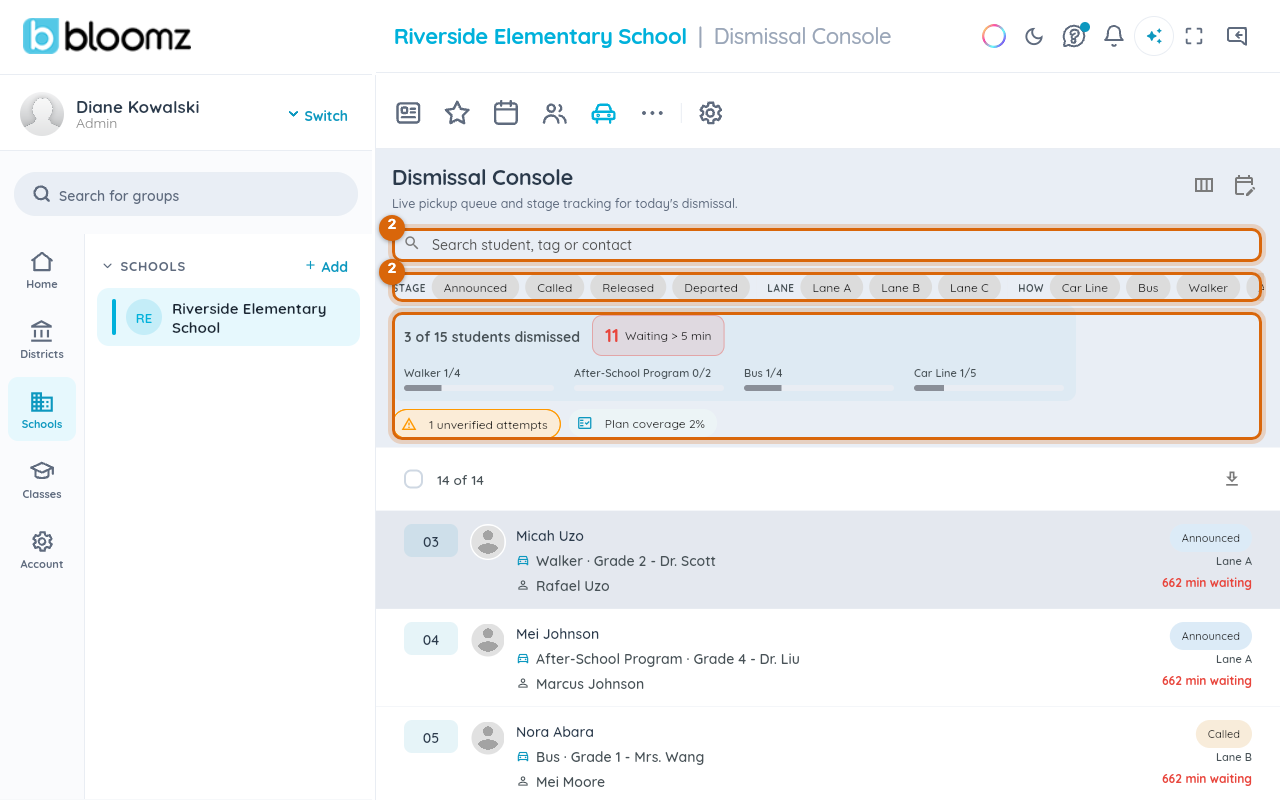
The board lists every announced pickup in arrival order. Type a student, tag or contact into Search, or narrow with the Stage chips (Announced, Called, Released, Departed), the Lane chips and the How chips (car line, bus, walker…). The summary strip shows how many are dismissed, how many have waited over five minutes, unverified pickup attempts and plan coverage.
Step 3 — Open the entry and call the student down
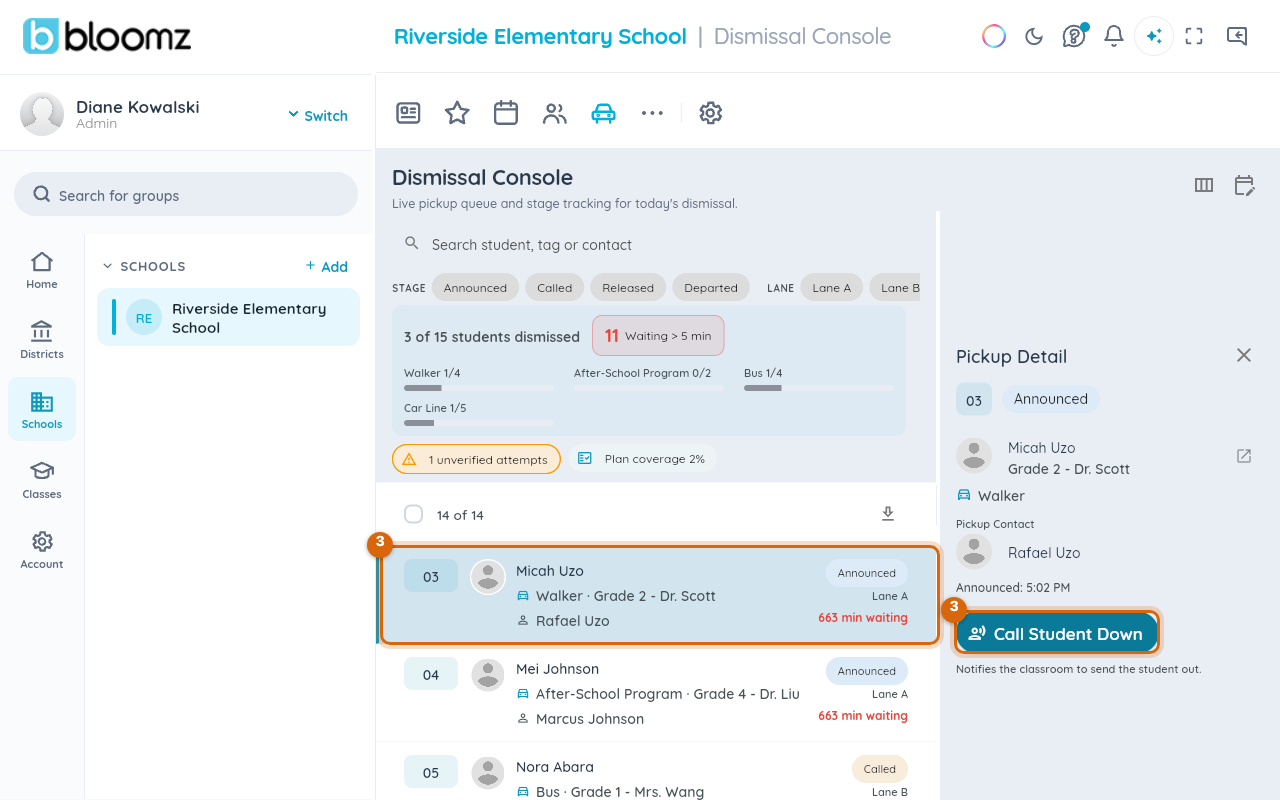
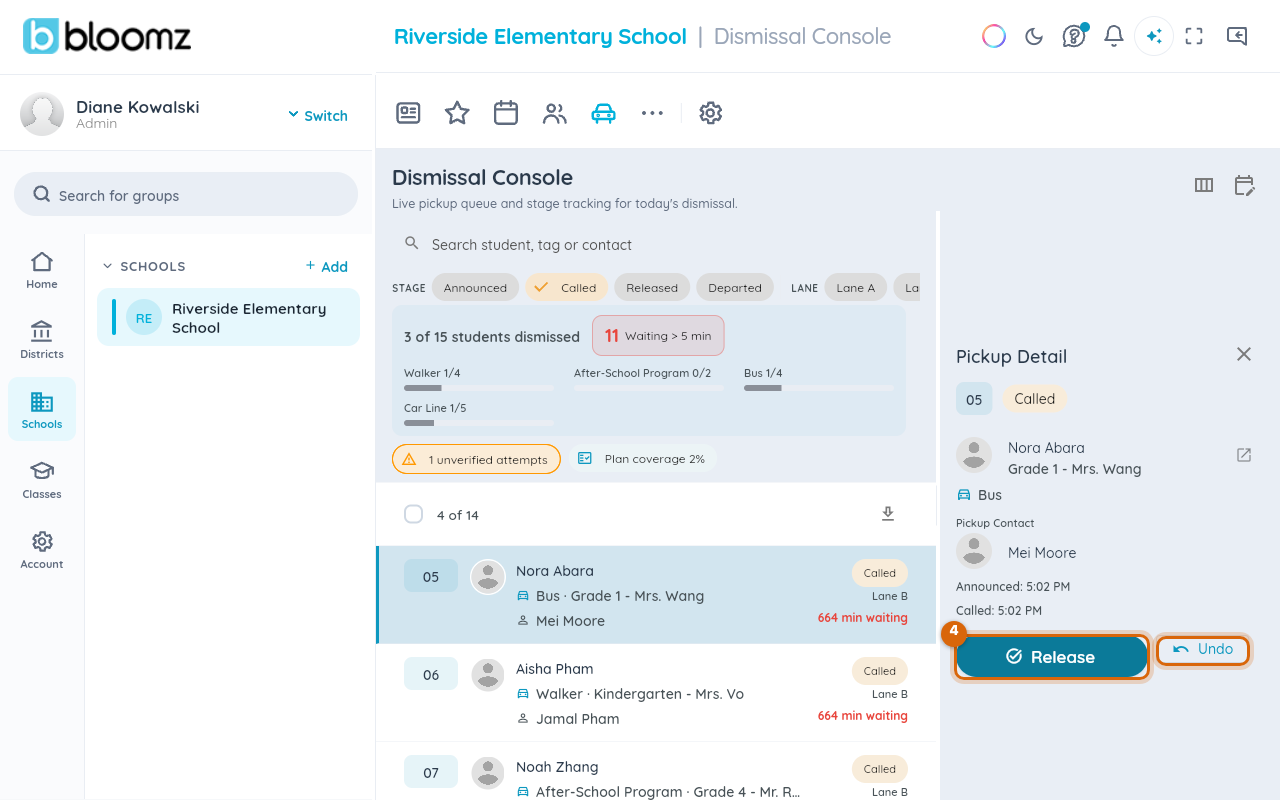
Select a row. The Pickup Detail pane shows the student, class, method, lane, the pickup contact and when they announced. Select Call Student Down — the classroom is notified to send the student out, and the entry moves to Called.
Step 4 — Verify the adult and release
When the student reaches the curb, open the entry again: a Called entry offers Release (and Undo if you called the wrong student). Check the adult against the pickup contact — by scanning the family's Pickup Pass QR, by their access code, or by sight — then select Release. Verification is recorded on the entry.
Step 5 — Mark the car departed
Once the car pulls away, select Mark Departed on the entry. The board's summary counts it as dismissed and the family sees Departed on their side.
Watch out: the unverified attempts chip in the summary strip is the one to watch. It counts pickups where the adult could not be matched to the family's delegate list — open each one and confirm with the office before releasing.
Run a single lane on a tablet
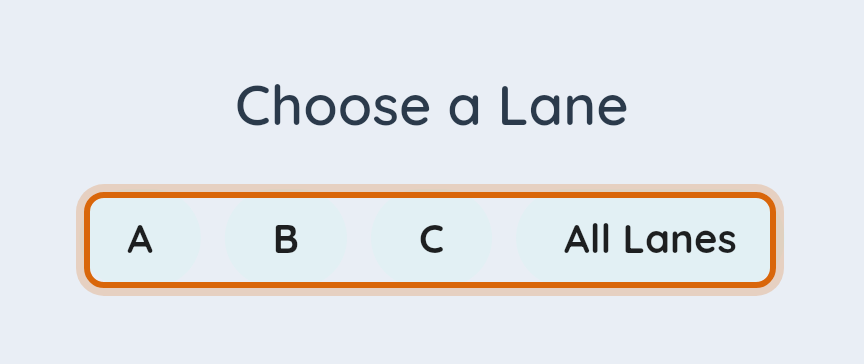
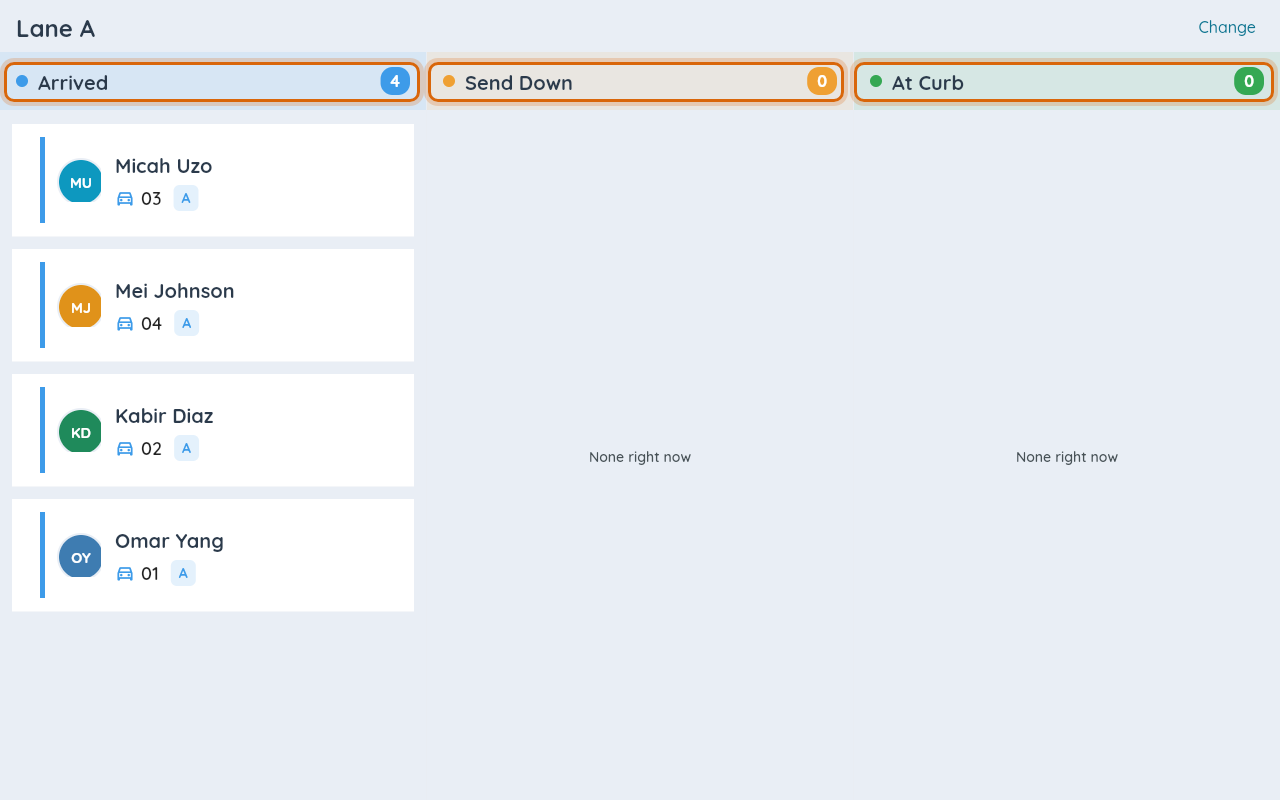
Select the lane icon in the console's top corner and choose A, B, C or All Lanes. Lane Mode shows that lane as three columns — Arrived, Send Down, At Curb — sized for a tablet at the curb; release and depart work the same way.
What families see
Their card in the app moves through Announced → Called → Released → Departed as you work the entry, refreshing every few seconds while the window is open.
Related
- Set your child's weekly pickup plan
- Change today's pickup
- Report an absence
- Halt all hall passes in an emergency