 Bloomz
Lock content language to your student information system
Once a school's nightly sync from its student information system is trusted for content language, Bloomz stops letting people pick their own — the sync sets it instead, and keeps it in step every night, no matter what someone chooses in the app. Turn this on only once you're syncing values you actually want people to have; it's a hand-off of a personal setting, not just a convenience.
Before you start
You need school or district admin access, and a student information system already connected and syncing on a nightly schedule — see Connect your SIS. The setting cascades: turn it on for a district and it reaches that district, every school in it, and every class in each of those schools; turn it on for one school and it reaches only that school and its own classes.
Step 1 — Open Bulk Import
From your school or district, open Settings, then select Bulk Import from the left-hand list.
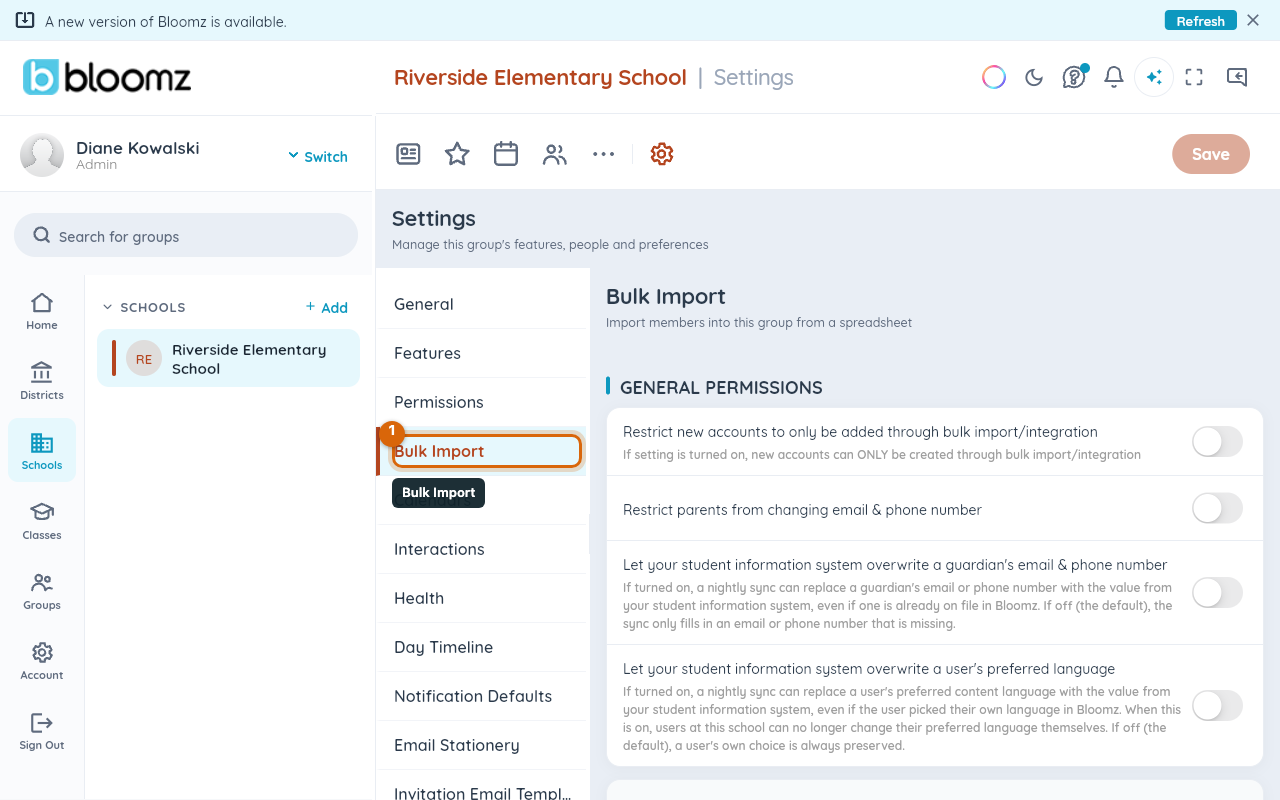
Step 2 — Find the setting under General Permissions
Scroll to the General Permissions card near the top. The row you want is the last one, Let your student information system overwrite a user's preferred language — directly below the similar row for a guardian's email and phone number.

Step 3 — Turn it on and save
Turn the toggle on, then select Save. From the next nightly sync onward, everyone this reaches gets their content language from your student information system, and their own Preferred Content Language screen shows a lock instead of a picker.
Watch out: turning this on locks out everyone the setting reaches right away, including people who already picked a content language for themselves — it isn't limited to new people your sync adds later. Preferred App Language is never touched by this setting, at any school; people can always change the app's own menus and buttons themselves.
What your families and staff see
Anyone the setting reaches finds Preferred Content Language locked: a lock icon in place of each language's circle, no response to tapping a row, and a banner reading "Your school syncs your preferred language from its student information system, so it can't be changed here. Contact your school if this needs to change." Send them to your office, or to whoever manages your sync, if their content language is wrong — you're the only one who can fix it now, either by turning this setting back off or by correcting the value in your student information system before the next sync.