 Bloomz
Read and act on attendance conversation replies
When your school texts a family about an absence, a reply usually comes back — "she's sick," "car trouble," "sorry, forgot." Attendance Conversations catches those replies automatically, matches each one to the absence it answers, and gives you one place to read them, apply the reason to the day's attendance record, and escalate anything that needs a closer look.
Before you start
This is a sub-feature of Thrive — your district needs both Thrive and Attendance Conversations turned on. You need a Thrive role (school admin, attendance clerk, counselor, or similar) to open the console. Nothing here requires setup beyond the district turning the flag on: once it is, every attendance-notice text your school already sends is automatically watched for a reply.
Step 1 — Open Thrive, then Conversations
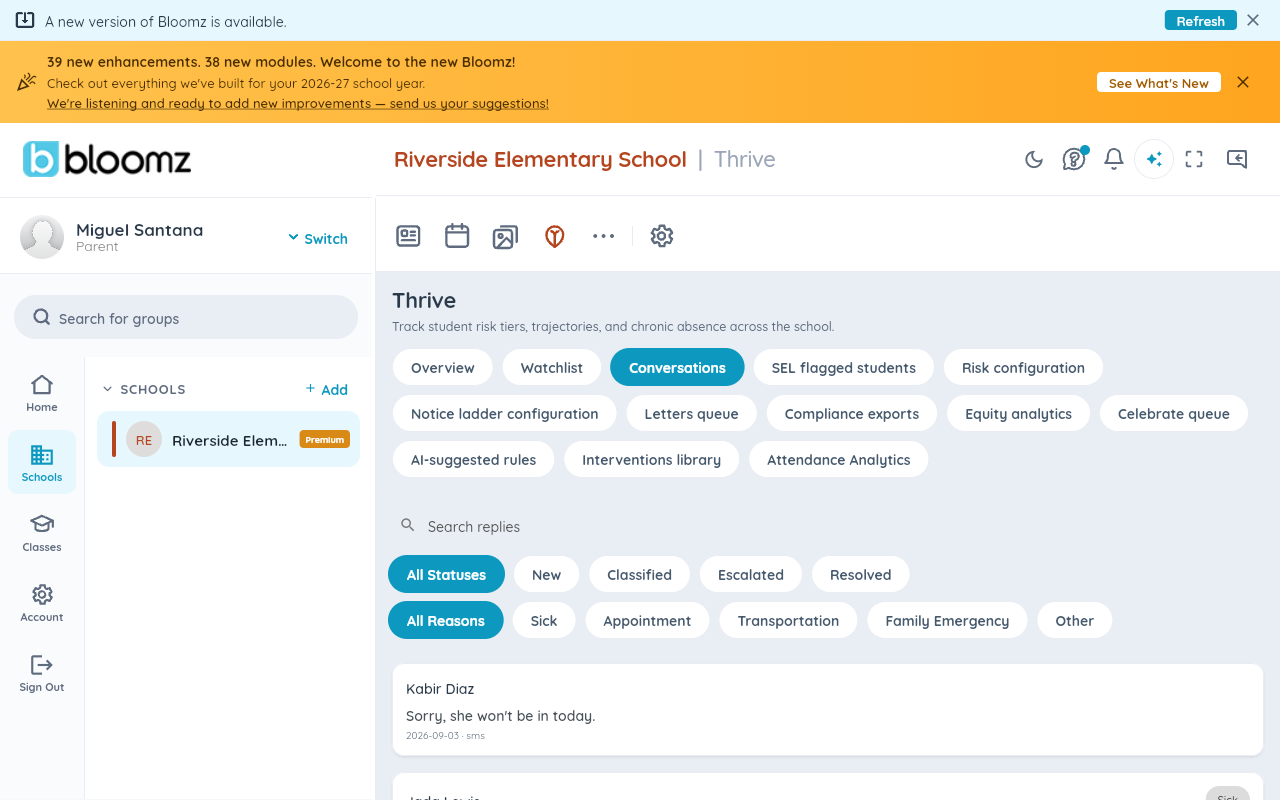
From your school, open More, then Thrive. Along the row of tabs, select Conversations.
Step 2 — Filter or search the list
Use the status pills (New, Classified, Escalated, Resolved) to find replies at a particular stage, the reason pills (Sick, Appointment, Transportation, Family Emergency, Other) once a reply has been classified, or Search replies for specific wording.
Step 3 — Open a reply
Select a reply to open its detail. You see how it arrived (Text Message, a tapped quick-reply option, or an in-app message), its status, the date, and the reply text itself.
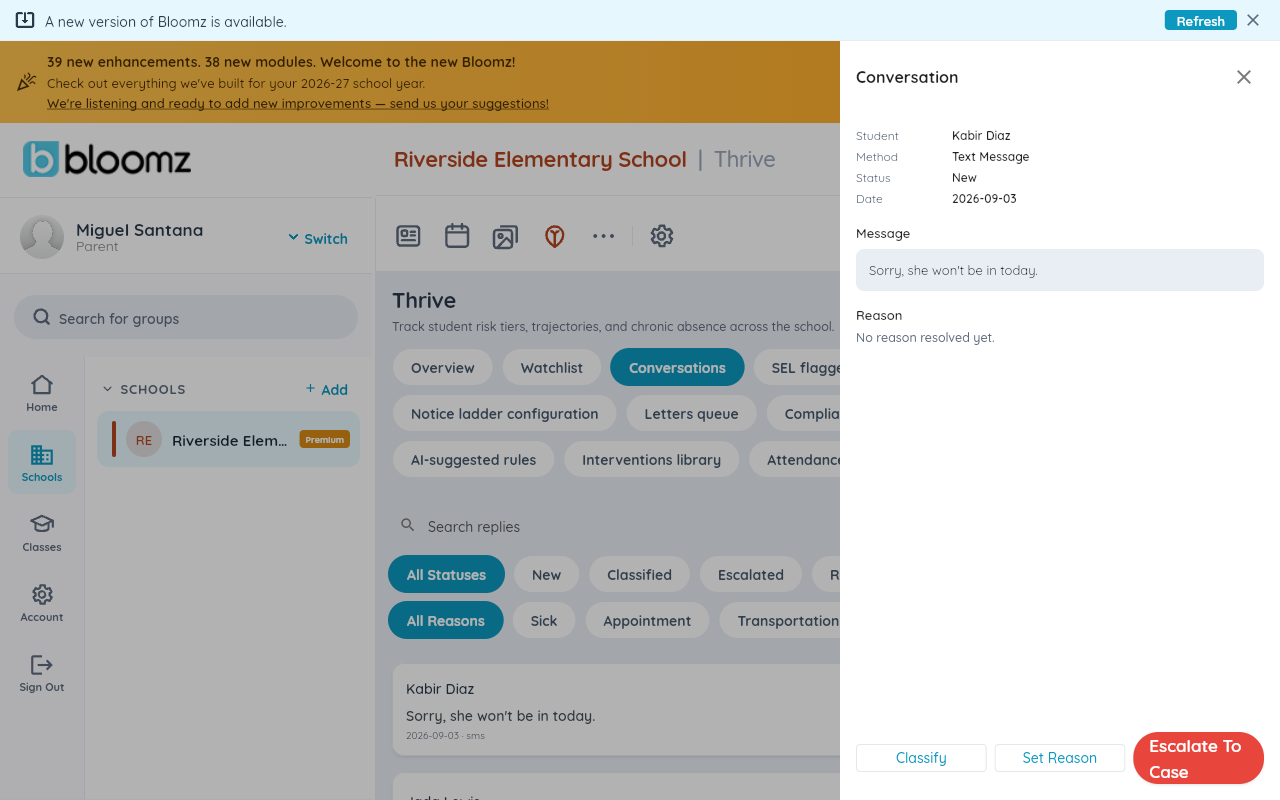
A reply that named one of your quick-reply options (Sick, Appointment, Transportation…) is already Classified and its reason is applied to the attendance record automatically — nothing for you to do. A free-text reply like "sorry, she won't be in today" starts as New, with Reason: No reason resolved yet.
Step 4 — Classify or set the reason by hand
For a New reply, select Classify to have Bloomz read the free text and suggest a reason, or select Set Reason to pick one yourself. Either way, once a reason is set that your district's settings map to "excused," the day's attendance record updates to Excused Absence automatically — you never have to edit the attendance record separately for a reply that already explains itself.
Watch out: Classify depends on your district's AI service being available. If it's unreachable, the reply is marked with a low-confidence Other reason rather than left stuck — you can always correct it with Set Reason.
Step 5 — Escalate anything that needs a closer look
Select Escalate To Case on a reply that needs staff follow-up — this opens (or attaches to) a Thrive case for the student, so it's tracked alongside everything else you're watching for them. A reply Bloomz's own screening flags as sensitive (mentioning a family emergency, for example) is escalated for you automatically and routed to your school's counselors and attendance clerks — you'll see it arrive already marked Escalated.
What families see
Nothing changes on their side — they just texted back to an absence notice the way they always could. They are never told their reply was read, classified, or escalated; Attendance Conversations is a staff-side view of a conversation that already existed.