 Bloomz
Send attendance notices with the notice ladder

▶ Watch the video (49 seconds): Thrive Attendance+ in Bloomz: absence reports, automatic notices and analytics.
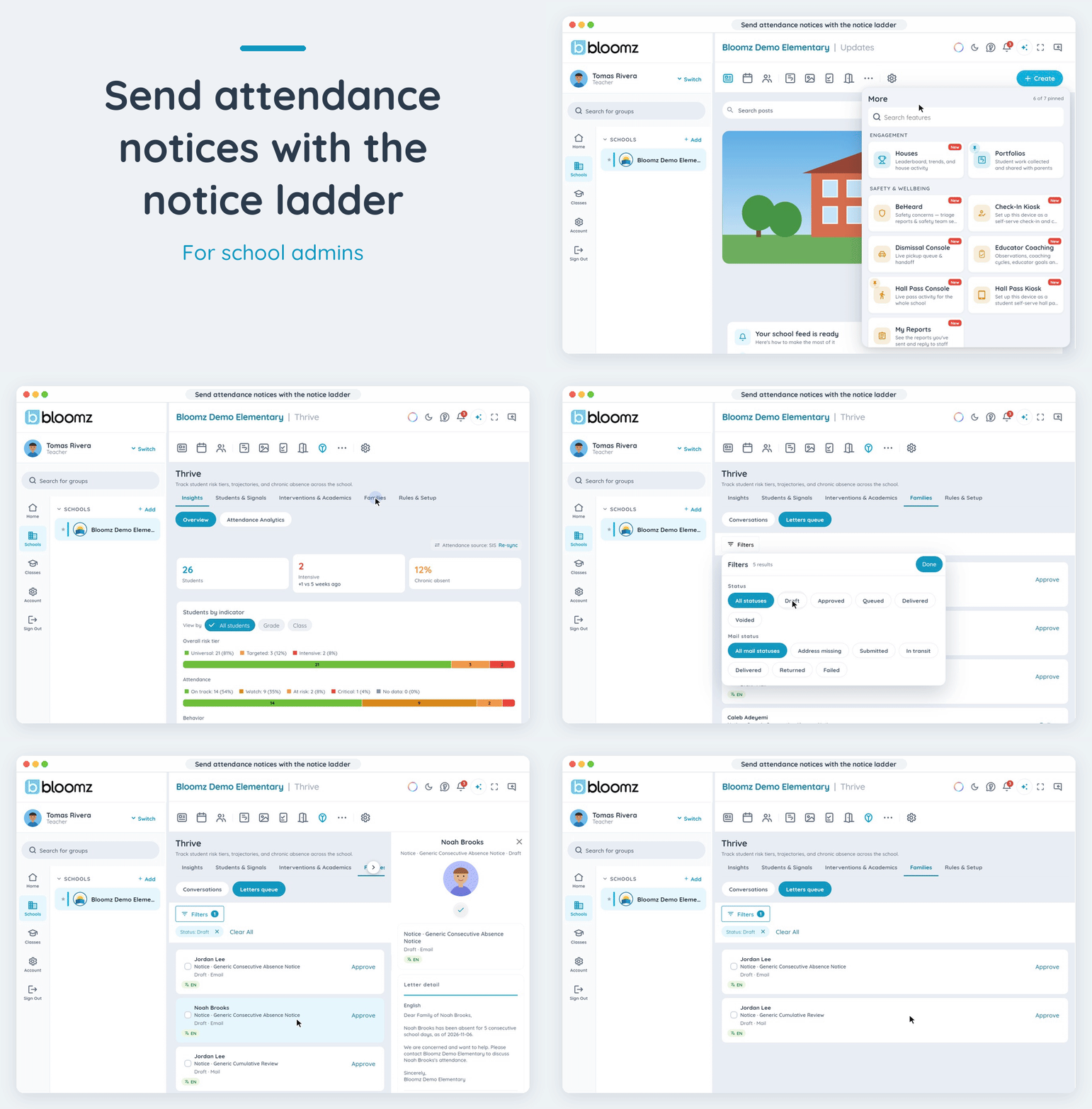
The notice ladder is an escalating series of attendance notices that Bloomz generates automatically once a student crosses an absence threshold your district configured — and every one queues in Thrive's Letters queue for staff review before it reaches a family.
Before you start
Your district configures the thresholds that generate each notice (see Configure Thrive rules and thresholds). Every notice queues for approval — nothing sends automatically without a person reviewing it.
Step 1 — Open Thrive
From your school, open More (…), then select Thrive.
Step 2 — Open the Letters queue
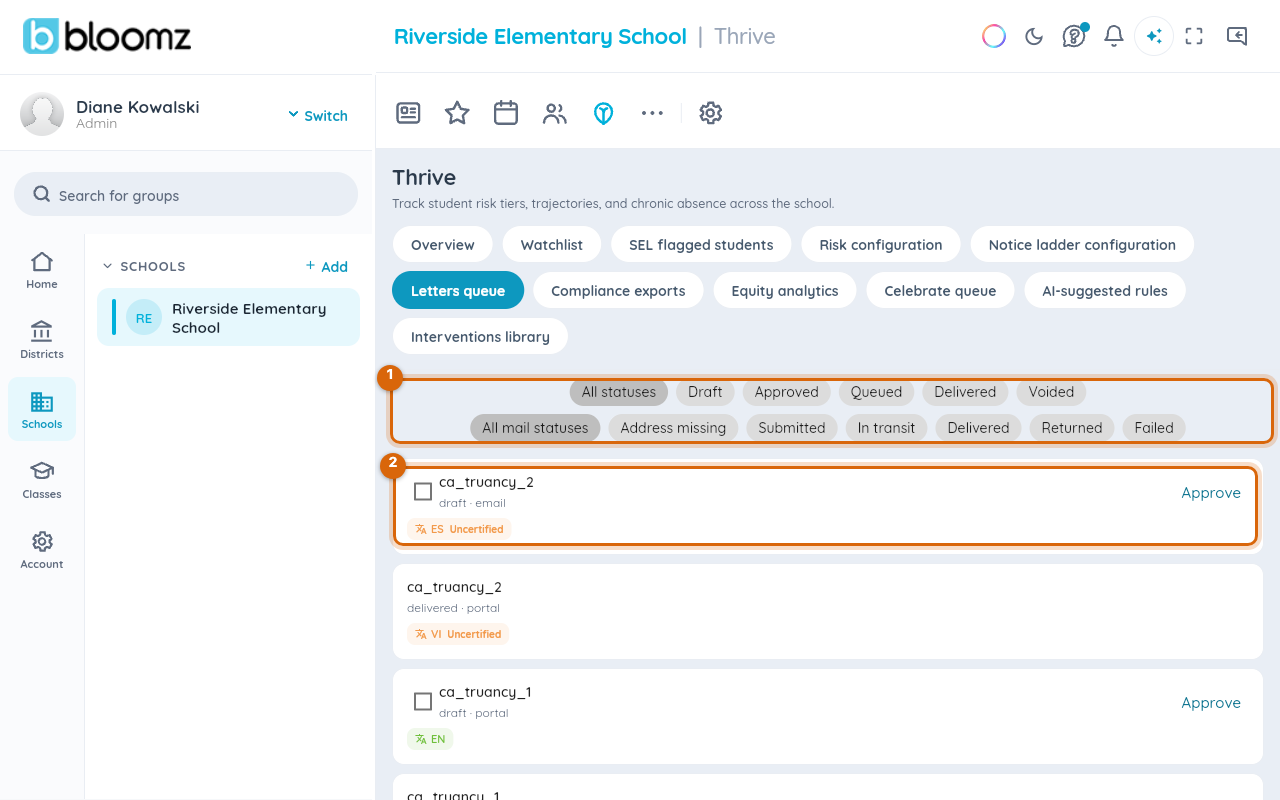
Select the Letters queue chip.
Step 3 — Filter to what needs you
Use the status chips (Draft, Approved, Queued, Delivered, Voided) and the mail-status chips (Address missing, Submitted, In transit, Delivered, Returned, Failed) to find notices that need attention.
Step 4 — Review a notice
Select a notice to open its detail — it shows the notice text in the guardian's language next to the English original, so you can confirm the wording before it goes out.
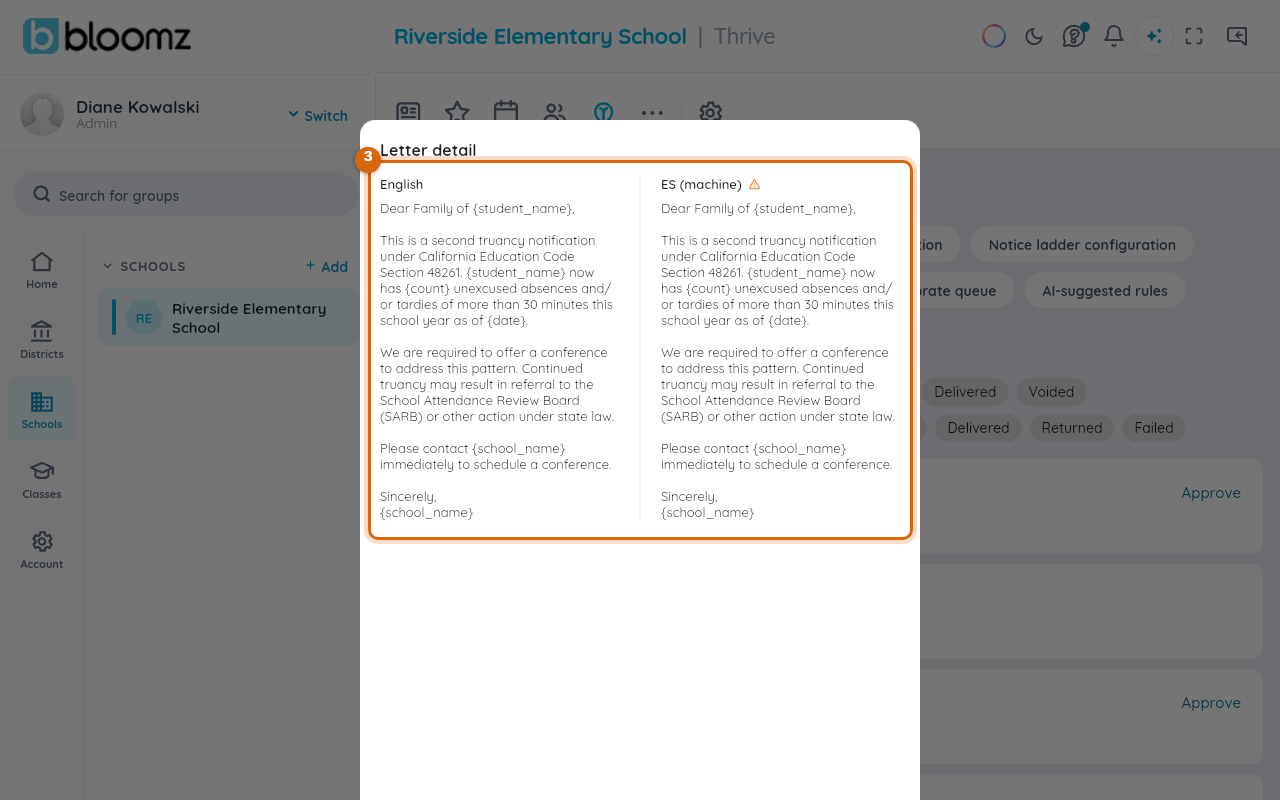
Watch out: a translation marked Uncertified is machine-generated — read it in full before approving a compliance notice like a truancy letter. Ask your district about certified translation if your state requires one.
Step 5 — Approve
Select Approve on a draft notice once you've confirmed it. Delivery follows the guardian's channel — email, portal, or printed mail where your district has set that up — and the notice's status moves from Queued to Delivered once it's sent.
Step 6 — Track escalation
If attendance doesn't improve, the student's next threshold crossing generates the next notice in the sequence automatically, ready for your review in the same queue.