 Bloomz
Configure Thrive rules and thresholds
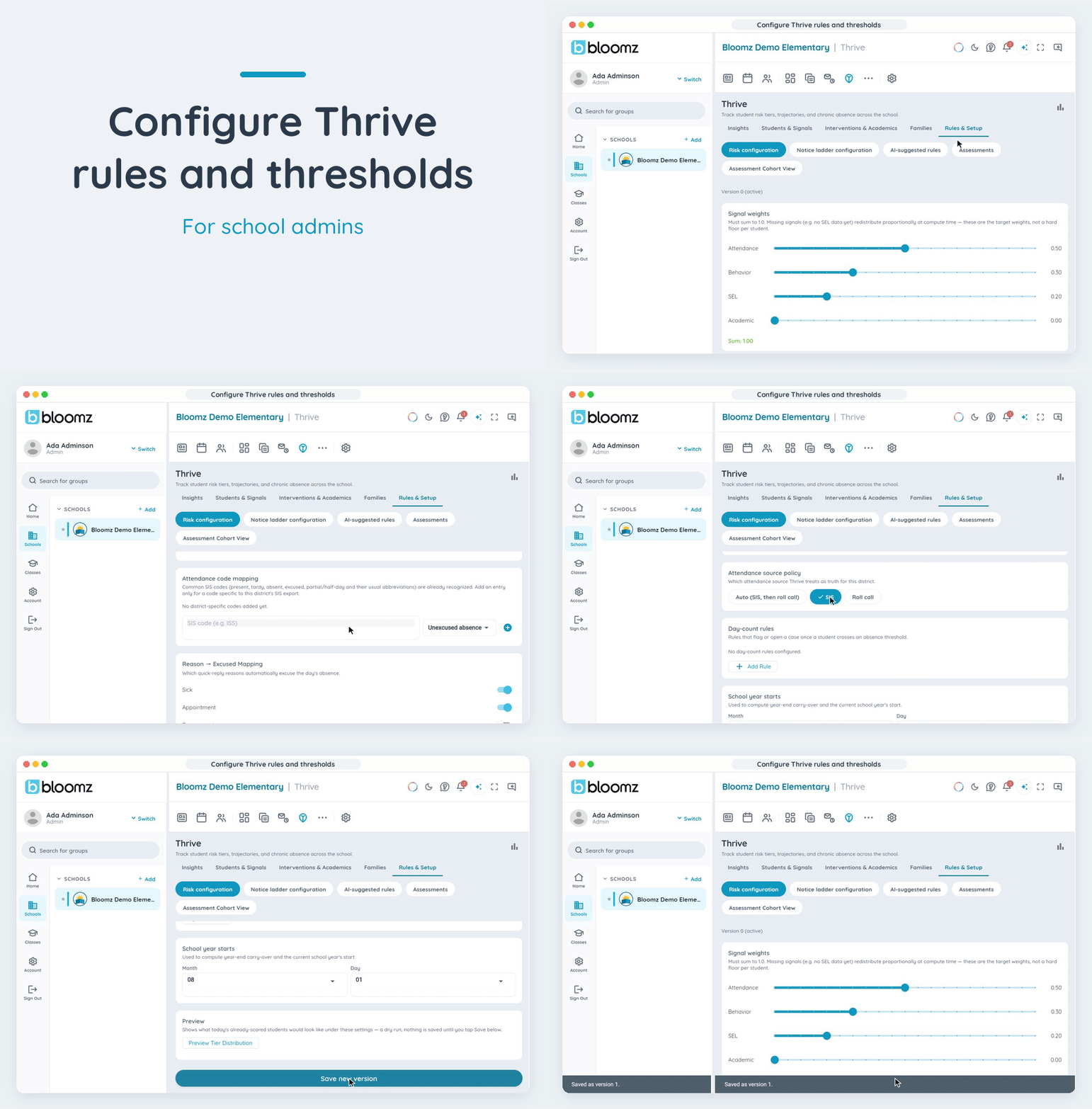
Set the district-level rules that decide what triggers a risk flag — attendance percentage, grade thresholds, and how much weight each domain carries in a student's composite score.
Before you start
This is a district-admin task; changes apply to every school in the district. Because Thrive scores are explainable by design, any threshold change here changes the factor chips staff see on student panels going forward.
Step 1 — Open Risk configuration
From the district (or school) Thrive bar, open the Risk configuration tab. It has four sections on one screen: signal weights, an SIS attendance-code map, an attendance-source policy, and day-count rules.
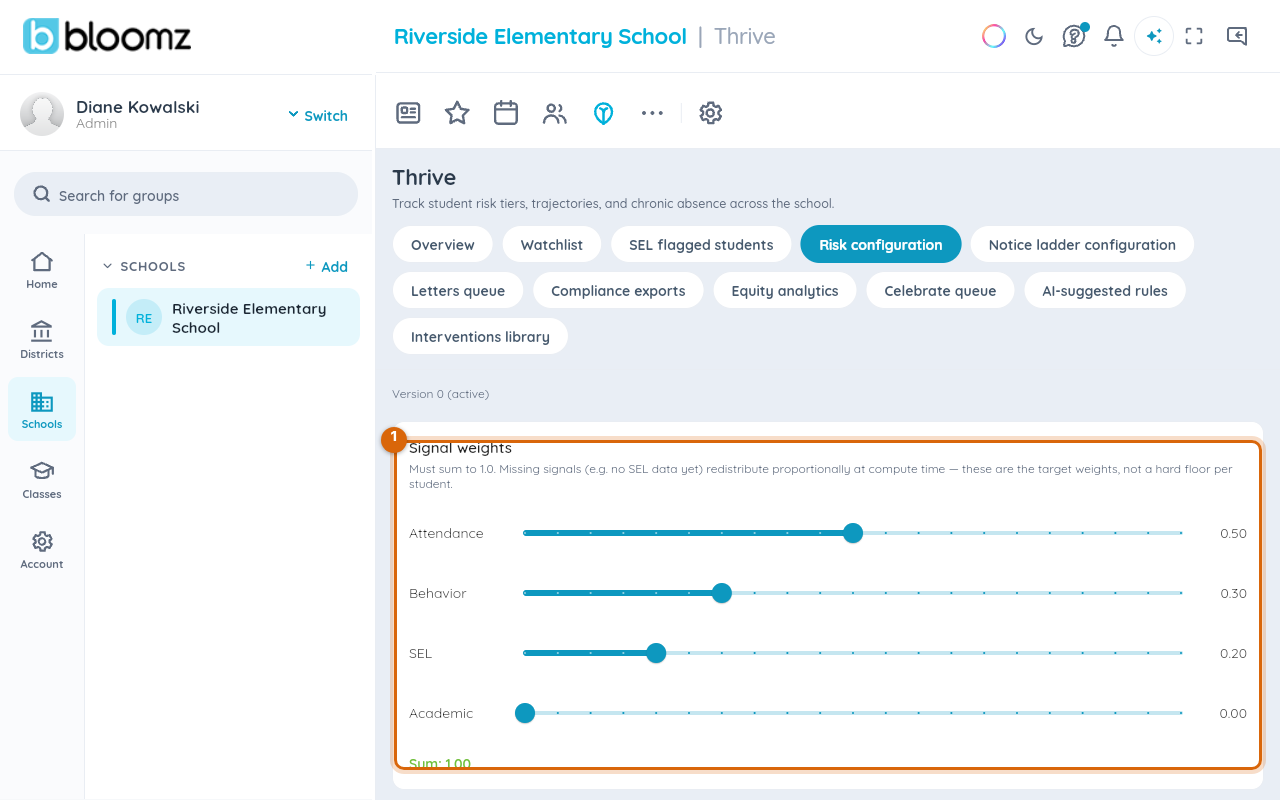
Step 2 — Set signal weights
Adjust how much each domain — attendance, behavior, well-being, academics — contributes to the composite score.
Step 3 — Map SIS codes and set the attendance source
Map the attendance codes your SIS sends to Bloomz's own present/absent/tardy categories, and choose which source Bloomz trusts for attendance — the SIS feed where one is connected, or Bloomz's own teacher-taken attendance otherwise.
Step 4 — Set day-count rules
Set the absence percentage or day-count that triggers a risk flag. Use Preview to dry-run the rule against real student data before committing to it.
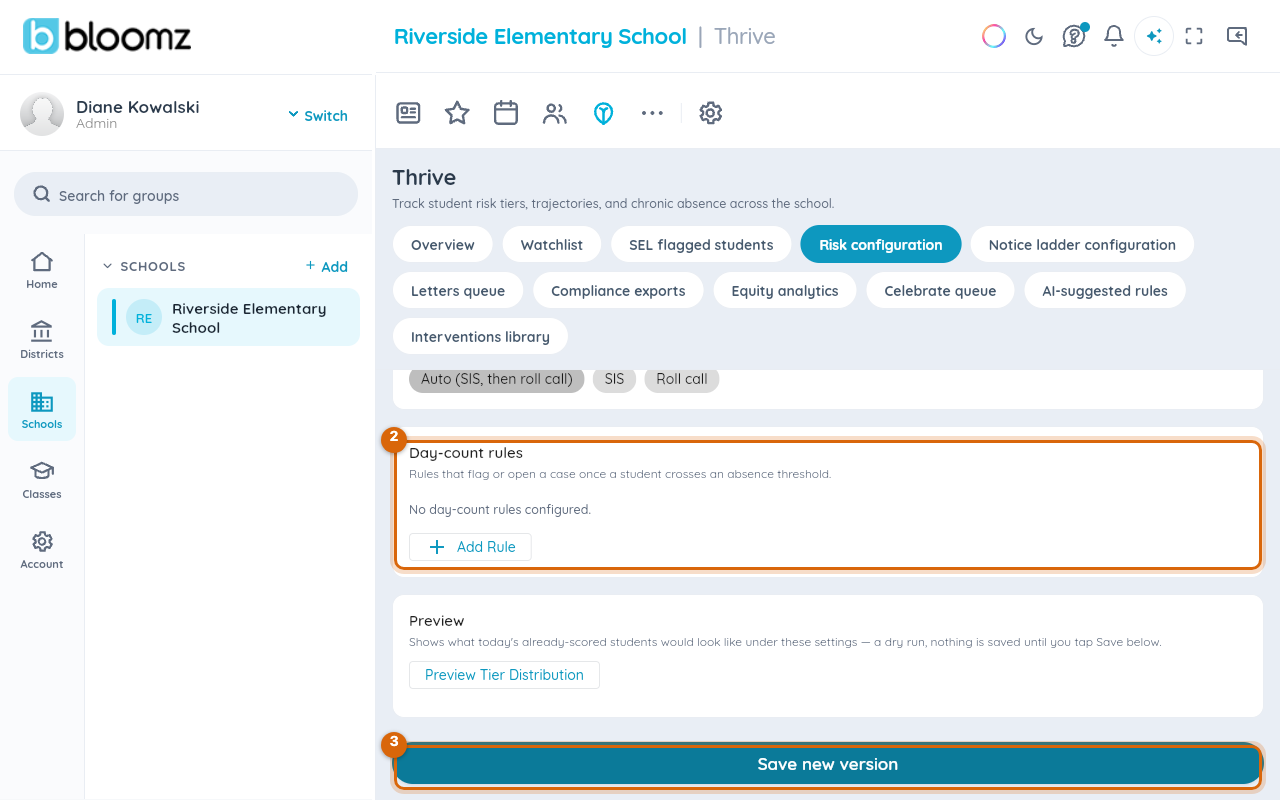
Step 5 — Save and confirm the next recompute
Save writes a new, versioned configuration — the previous version stays in the audit trail. Changes take effect on the next nightly recompute; check the dashboard's freshness banner the following day to confirm.