 Bloomz
Review images held for moderation
Content moderation doesn't only screen text — an image attached to a post, comment or message can be screened too, and one that trips a category your district cares about is held for a staff member to decide on rather than delivered automatically.
Before you start
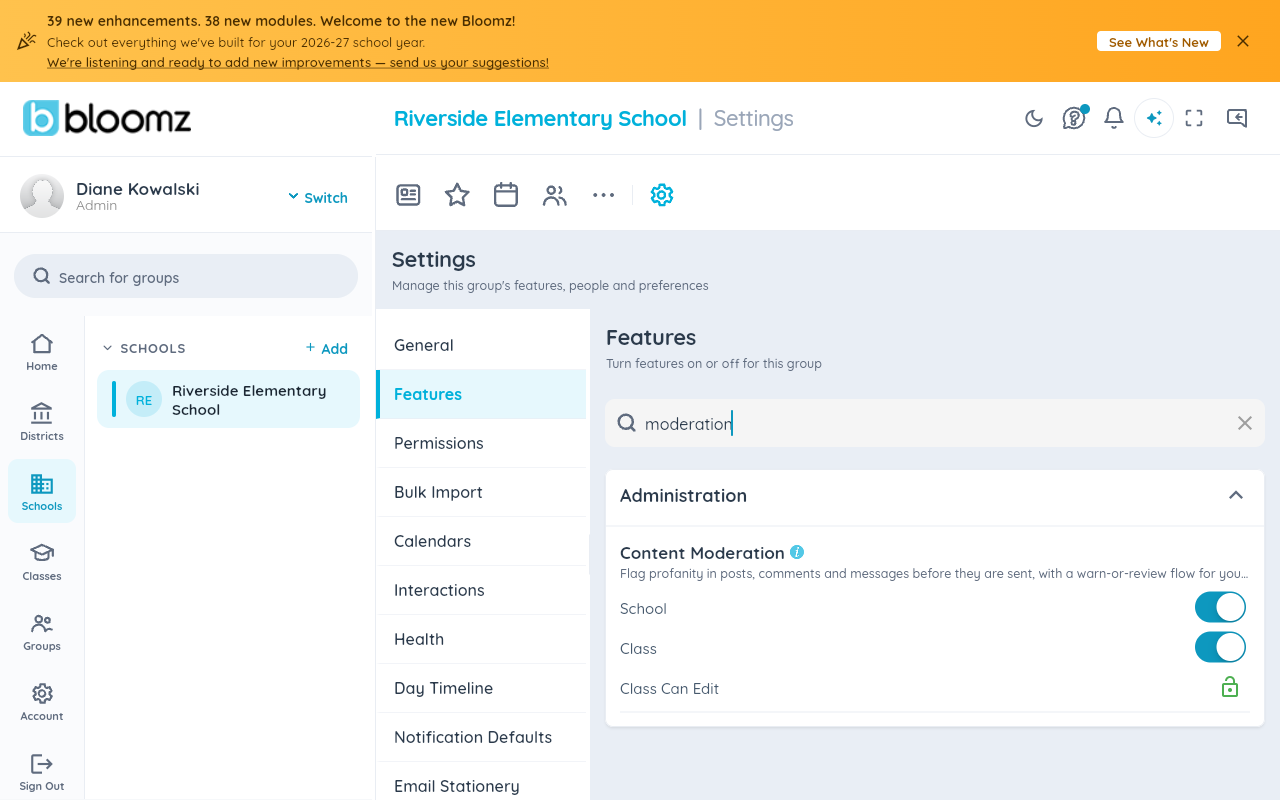
Your school or district needs Content Moderation turned on (Settings → Features → search moderation) — off by default, resolved separately for image content the same way it already is for text.
You need an admin role to review held content; a teacher can still approve or reject something posted to their own class, but only an admin can suspend an account from the same screen.
Step 1 — Open Moderation Review
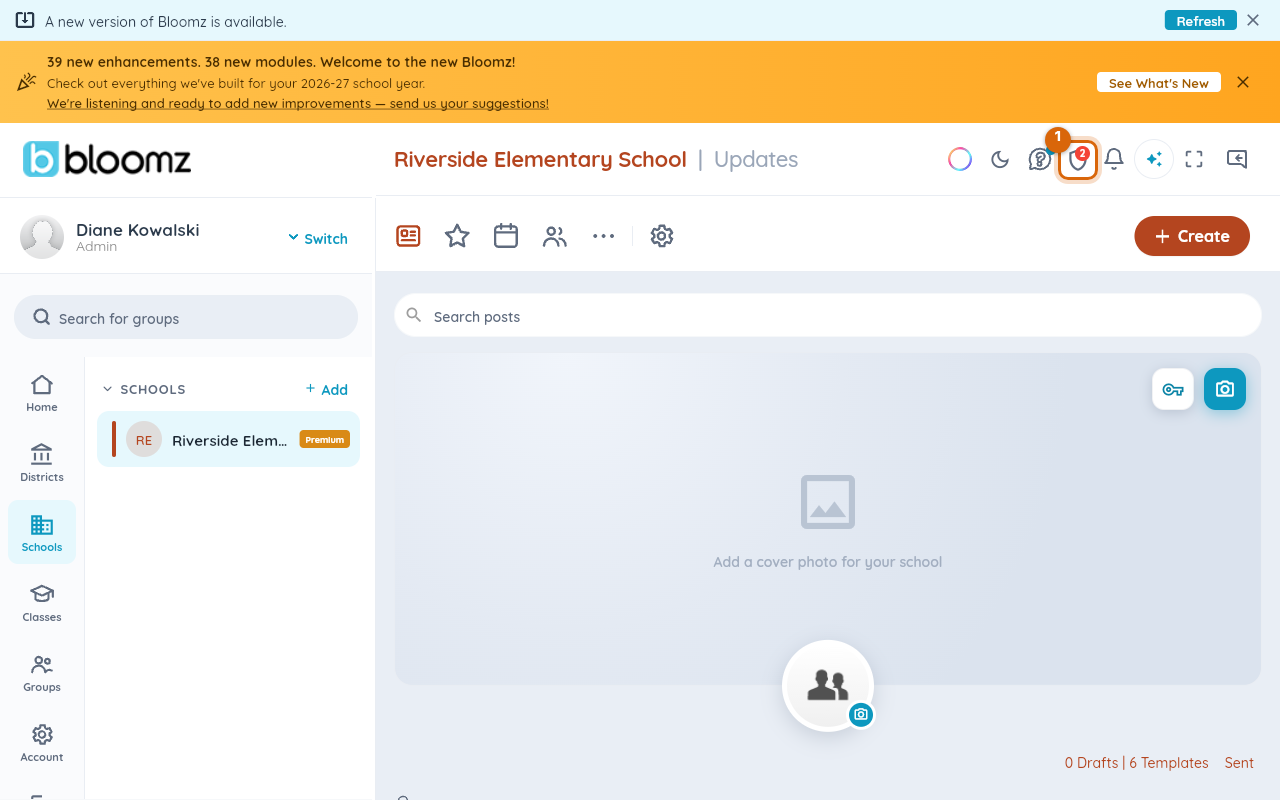
A shield icon appears in the app bar, next to the notification bell, with a red badge counting anything currently held. Select it to open Moderation Review.
Step 2 — Read what was flagged and why
Each held item shows the content, who sent it, and the category it was flagged for. A category your district set to block never reaches this queue at all — it's refused outright at send time; a warn category is what lands here, held rather than delivered until someone decides.
Step 3 — Approve, reject, or act on the account
Choose Approve to release the item as originally sent, or Reject to discard it. Where the situation calls for it, an admin can also Suspend the sender's account from the same screen — a separate action from the approve/reject decision, and its own confirmation step.
Watch out: this is the one moderation queue for both text and image content — a post with both a flagged photo and flagged wording shows up once, with every reason it was flagged, not as separate queue entries.
What happens to the sender
A held item never quietly vanishes — the sender's own copy still shows it as sent; only recipients don't see it until it's approved (or ever, if it's rejected). Nothing about the review itself is announced to families.