 Bloomz
Manage what the moderation filter blocks
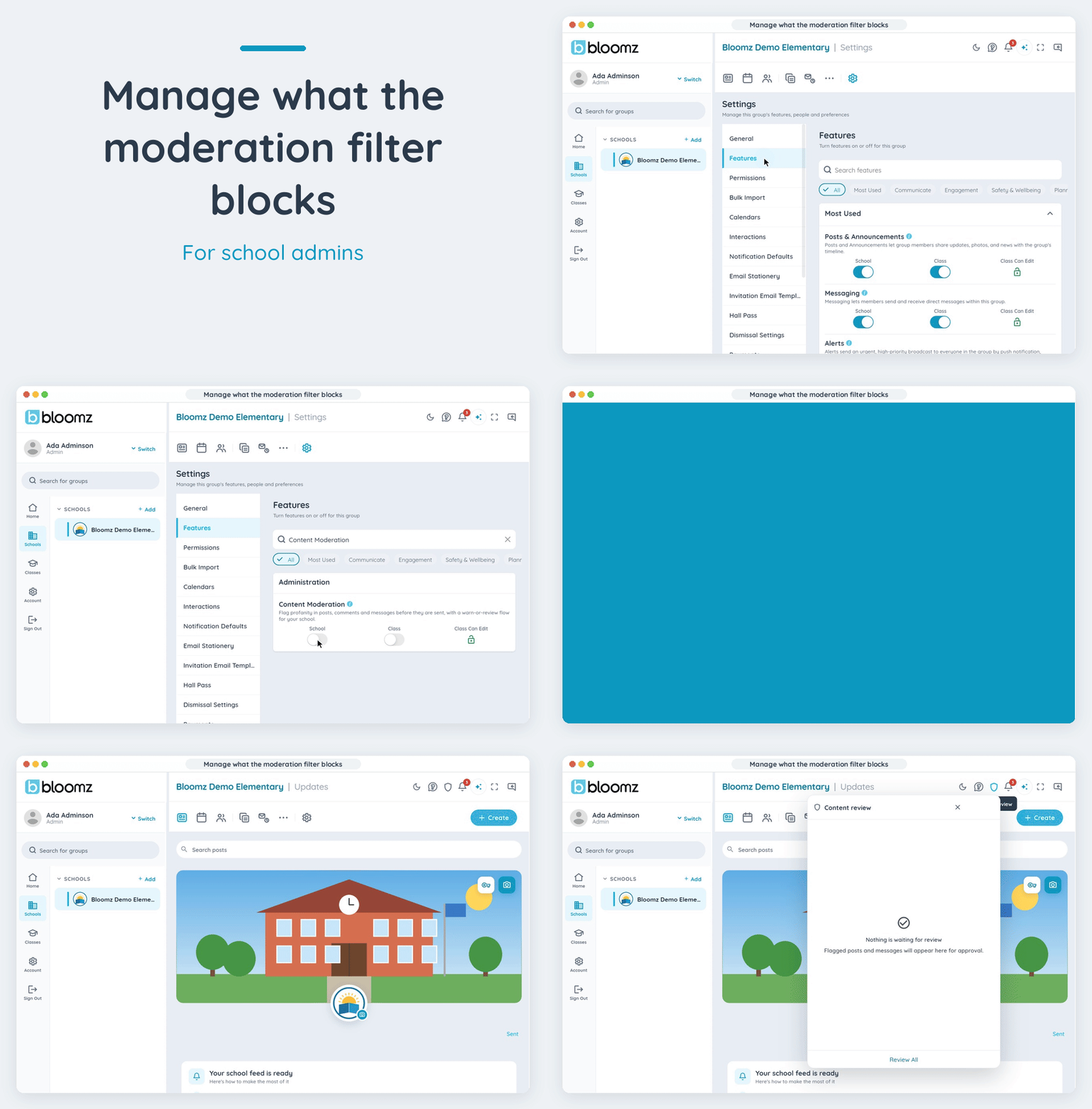
As an admin, you control whether the automated content filter runs for your school — an on/off feature, not a tunable list.
Before you start
Content Moderation in this build is a single toggle, not a configurable wordlist or sensitivity dial — there's no screen to add custom terms or to choose between holding a flagged post for review versus blocking it outright. Turning it on enables profanity screening with a hold-for-review flow (see What happens when a post is held for review); turning it off disables filtering entirely. It's set separately at the school and class level.
Step 1 — Open Features settings
In your school's Settings, go to Features and find Content Moderation. Switch it on for School, Class, or both.
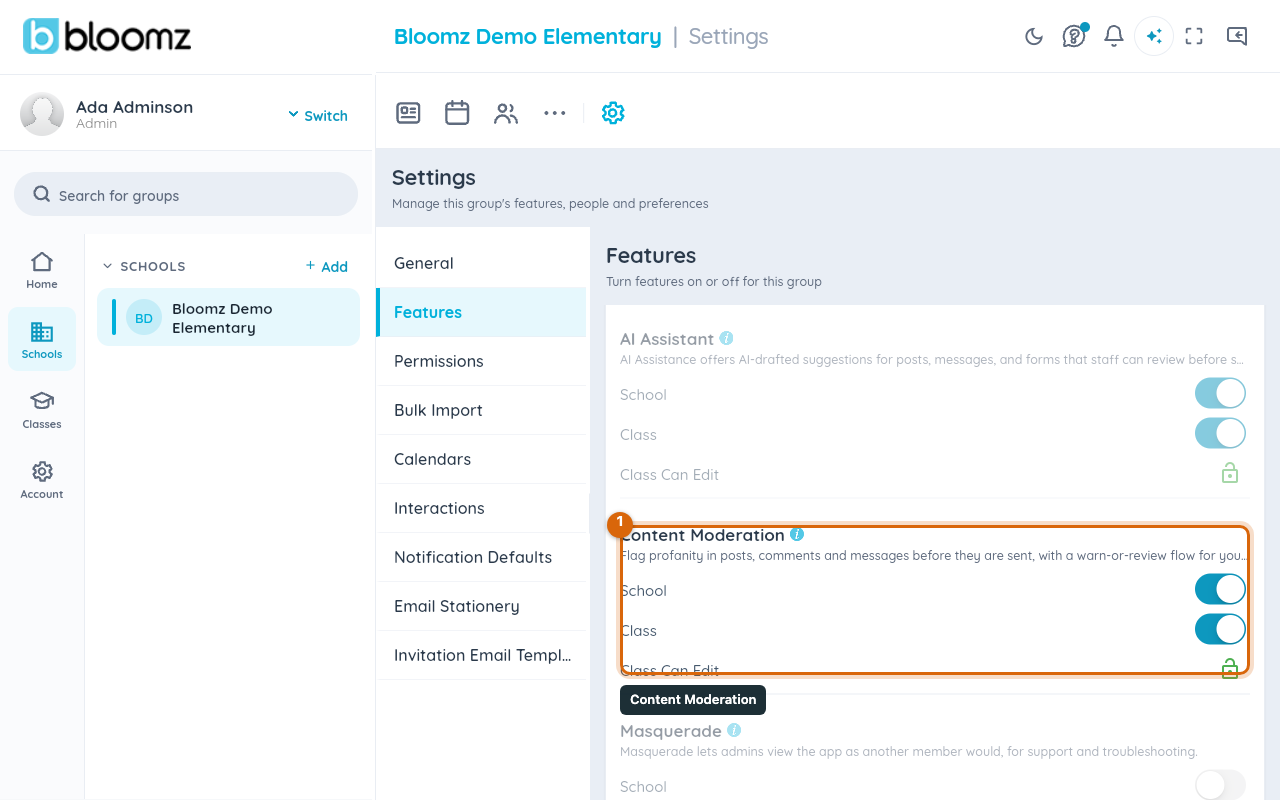
Watch out: there's nothing further to configure here — no blocked-term list, no sensitivity level, and no choice between holding a flagged post for review or blocking it outright. What you see on this page is the whole setting.