 Bloomz
Turn on family messaging for your school
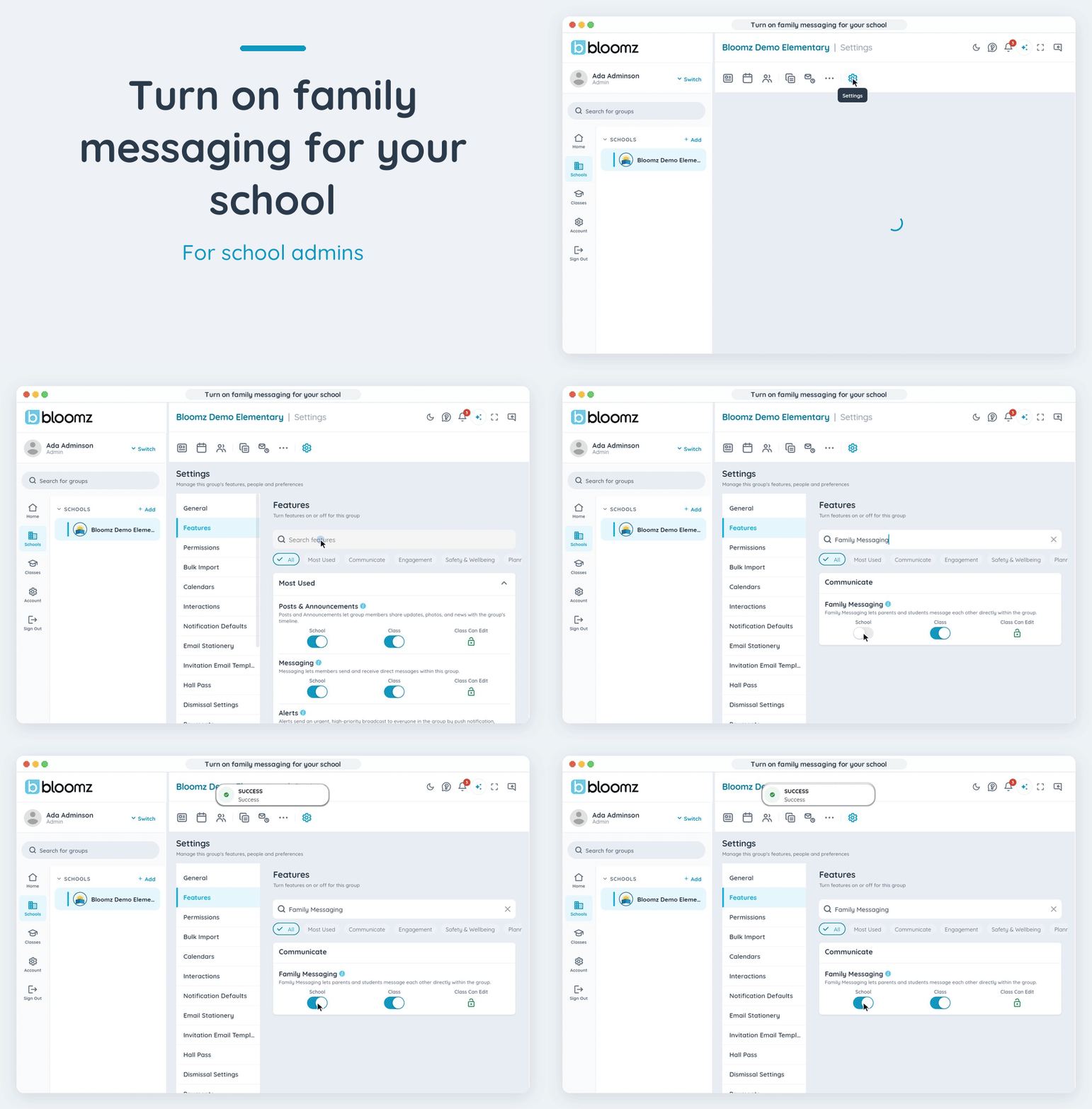
Family Messaging — letting a student and their own parents or guardians message each other directly — is off by default. Turning it on for your school is a single feature switch, at the school or class level.
Before you start
This is a school- or district-level decision, not something a teacher or parent can enable themselves. There is no separate "Messaging" admin console in the app — the control lives on the group's own Settings screen, the same place every other feature gets turned on or off. Think of it as a community decision: once on, students and their own linked guardians can message each other directly.
Step 1 — Open Settings
From your school (or district), select the Settings gear, then Features.
Step 2 — Find Family Messaging
Type Family Messaging in the Search features box, or select the Communicate category chip and scroll to it.
Step 3 — Turn on Family Messaging
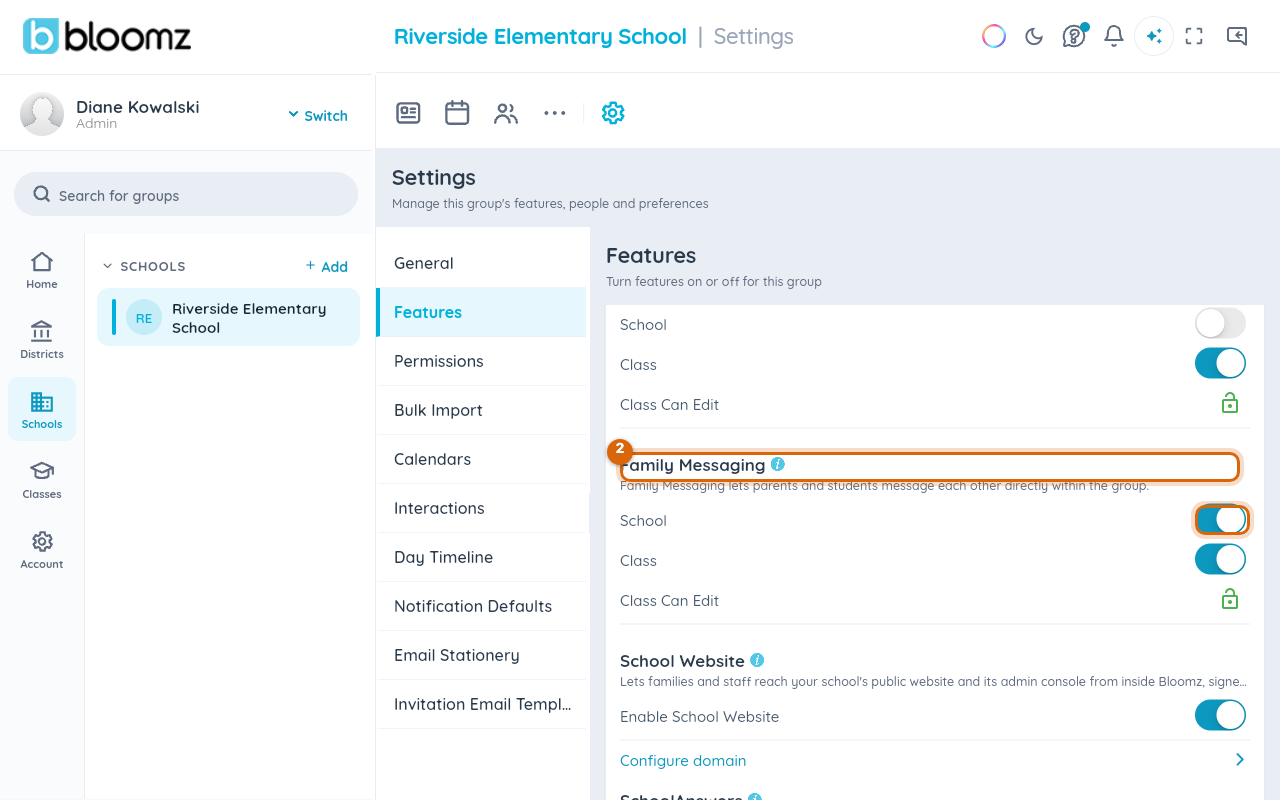
Switch the School switch on (a separate Class switch controls it per class, and Class Can Edit lets classes change it themselves). There is no Save button on this screen — a switch takes effect the moment you flip it, and a green Success message appears.
What families see
Once on, a student sees a prompt in their messages area inviting them to chat with a linked parent or guardian, and a parent sees the same for their own child.
Watch out: there is no setting for excluding a specific guardian from a specific student (for example, a custody arrangement) — that exception isn't a setting you can reach from the app today. If your school needs that, contact Bloomz support rather than looking for it here.