 Bloomz
Turn on Intelligent Notifications for your school
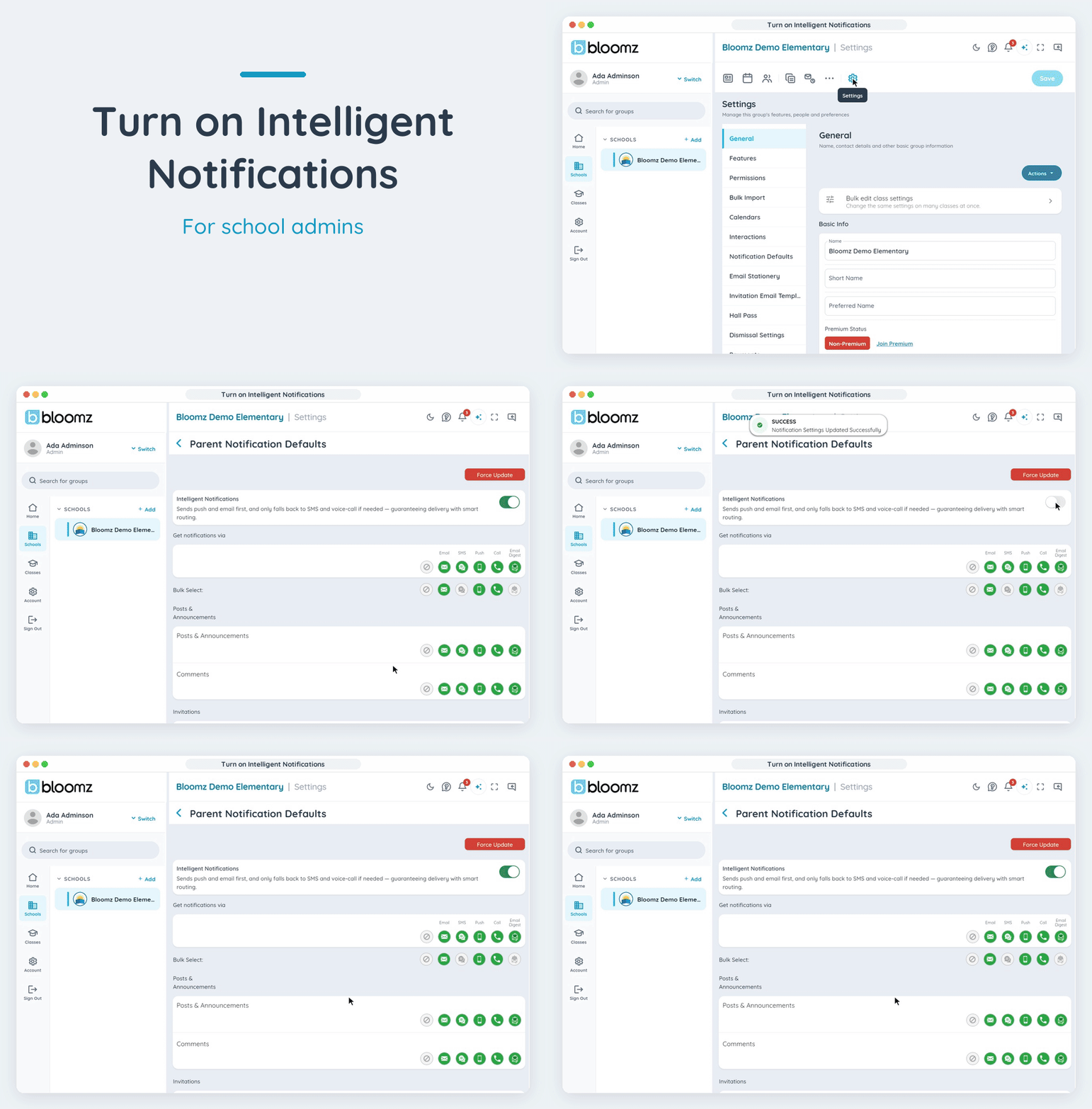
Intelligent Notifications changes how Bloomz delivers routine notifications to a role at your school: push and email are tried first, and Bloomz only falls back to SMS and a voice call if it needs to — guaranteeing delivery while reducing the school's messaging cost. It's on by default.
Before you start
This is a school-wide setting an admin sets per role (Staff, Parent, Student), not something each family configures individually. There's a separate copy of this setting for each role, and for each of District/School.
Step 1 — Open Notification Defaults
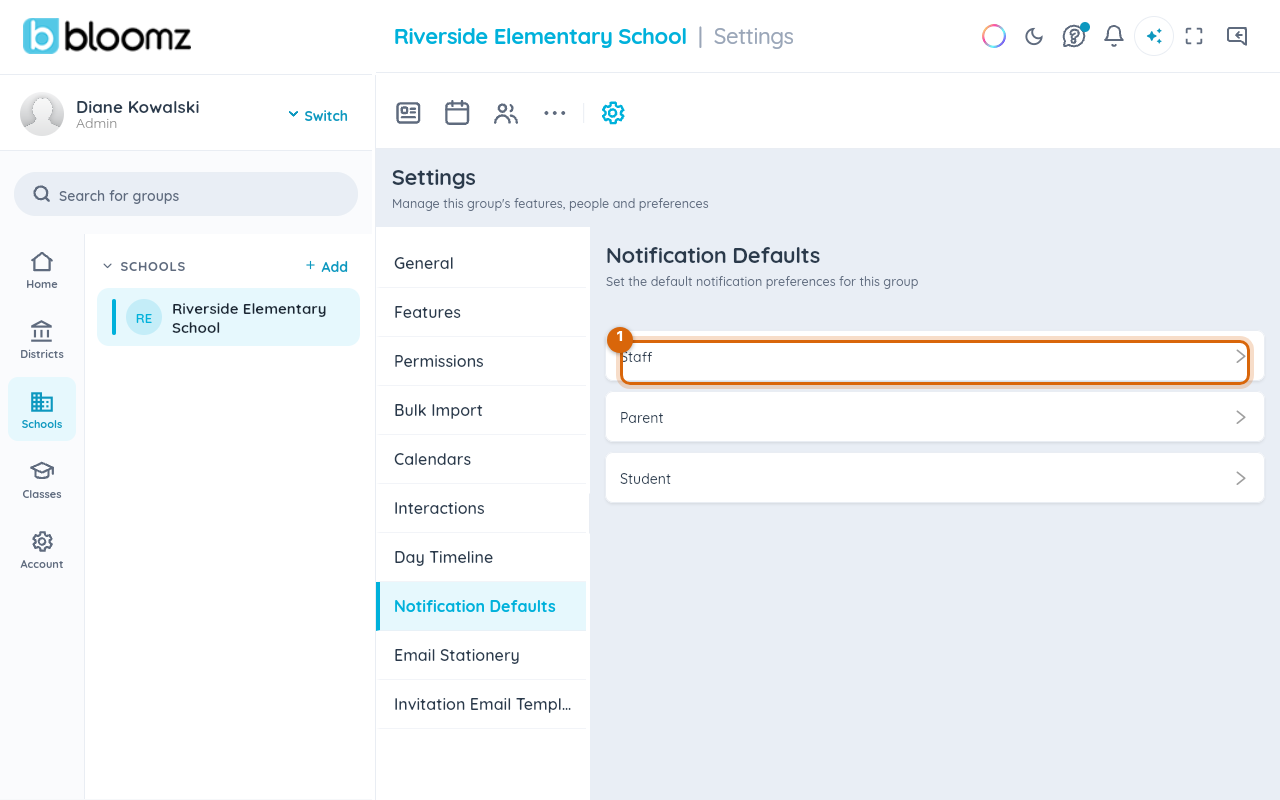
From your school (or district), open Settings, then Notification Defaults. Pick a role — Staff, Parent, or Student.
Step 2 — Turn on Intelligent Notifications
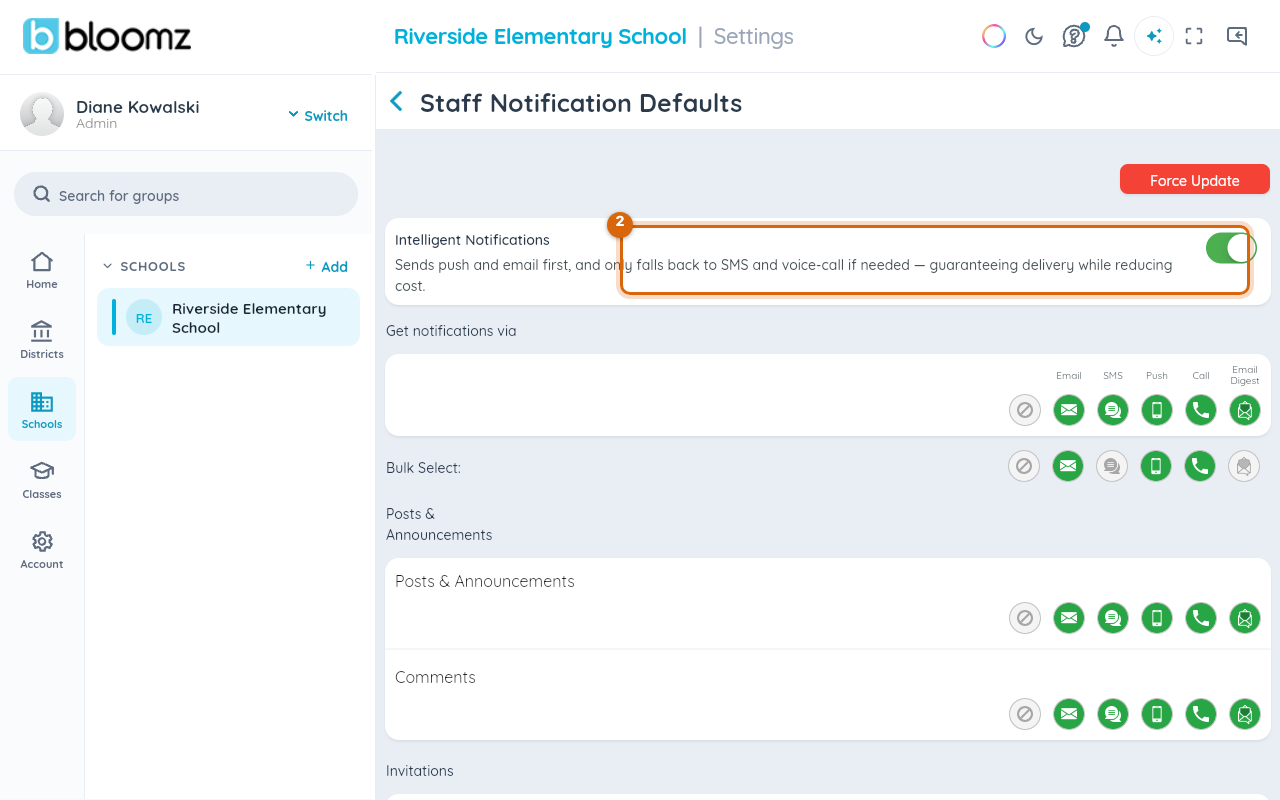
At the top of that role's screen, switch Intelligent Notifications on.
Step 3 — Review the per-category channels
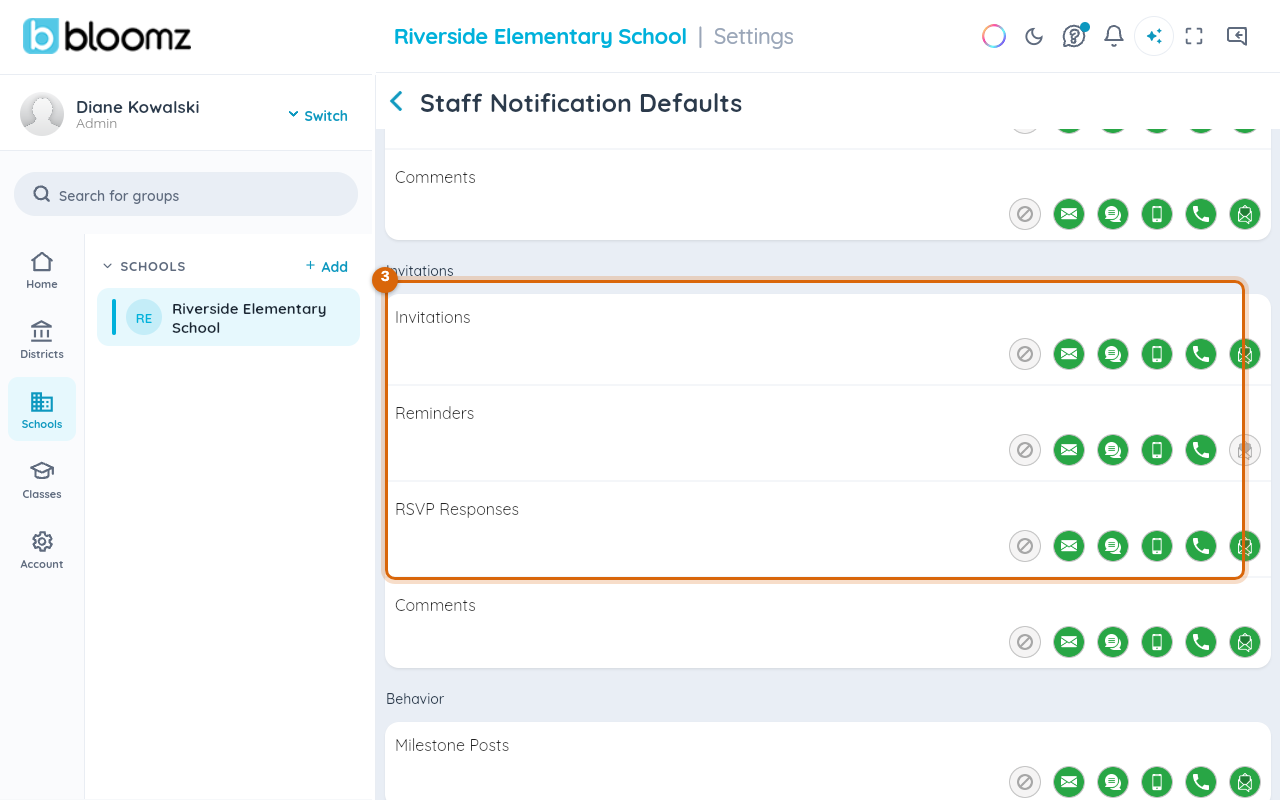
Below the toggle, each notification category (Posts & Announcements, Invitations, Reminders, Behavior, Messages, Auto Notices, …) has its own row of channel icons (Email / SMS / Push / Call / Email Digest) — this is the real per-category control in this build, rather than a separate quiet-hours or batching-window setting.
Watch out: this build has no separate "quiet hours" setting — urgent Alerts are never held back regardless of these settings, but there's no time-of-day control for routine notifications either.
Step 4 — Force Update
Select Force Update, top right, to push the new defaults out immediately instead of waiting for them to apply the next time a notification fires.
What families see
Members whose channel preferences were set by these defaults get push and email first, falling back to SMS or a call only if needed — instead of every channel firing for every notification.
Related
- Send a notice that bypasses the delivery delay
- Turn on family messaging for your school
- Manage what the moderation filter blocks