 Bloomz
What happens when a post is held for review (content moderation)
Bloomz runs an automated content filter on posts before they go out. If something in your post trips it — profanity is the most common trigger — the post is held for review instead of sending right away, and it stays that way until a reviewer clears it.
Before you start
This happens automatically; there's nothing to turn on or configure as a sender. If your school wants to change what the filter catches, that's an admin setting (see Manage what the moderation filter blocks).
Step 1 — Write and send your post normally
Compose and send a post the usual way — there's no special step to trigger a review; the filter checks every post automatically at send time.
Step 2 — See the hold notice
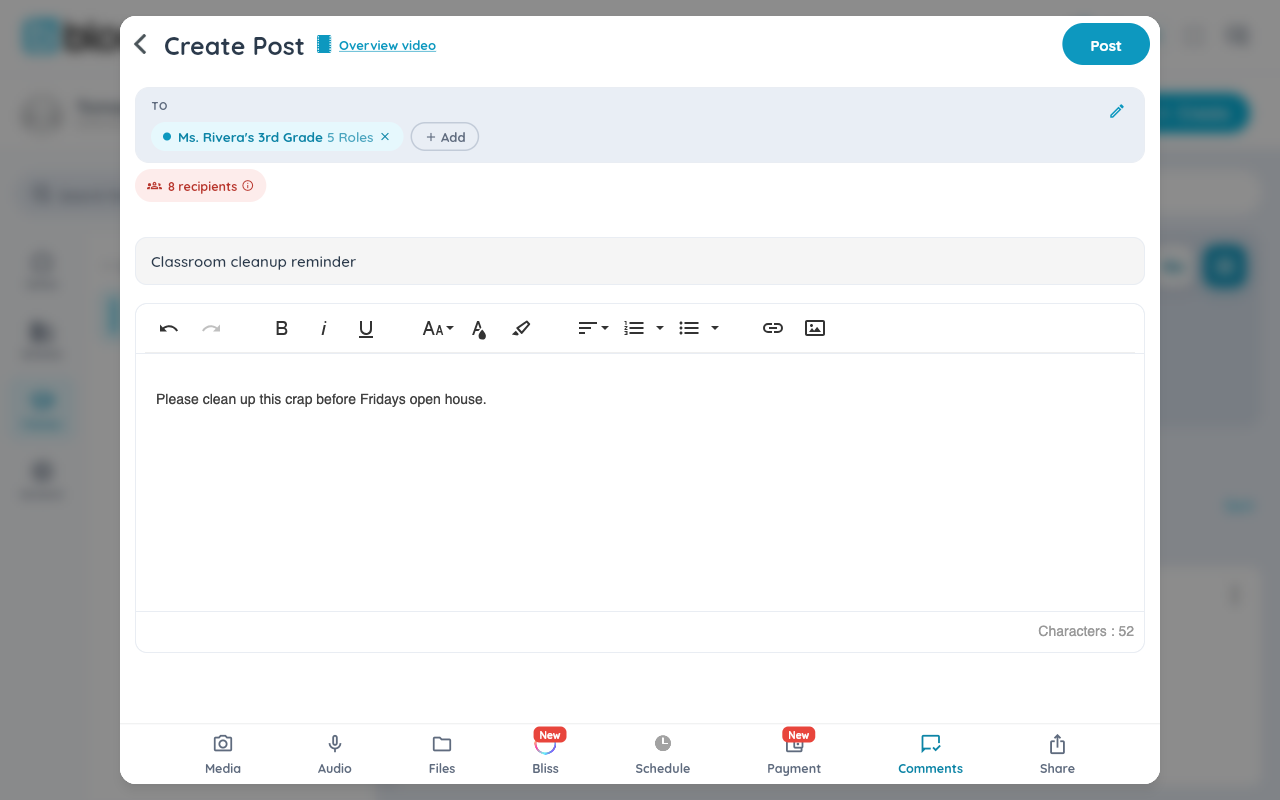
If the filter flags something, instead of the usual "sent" confirmation, you see a notice that the post has been held for review, with a brief note on why.
Step 3 — Check your Notifications
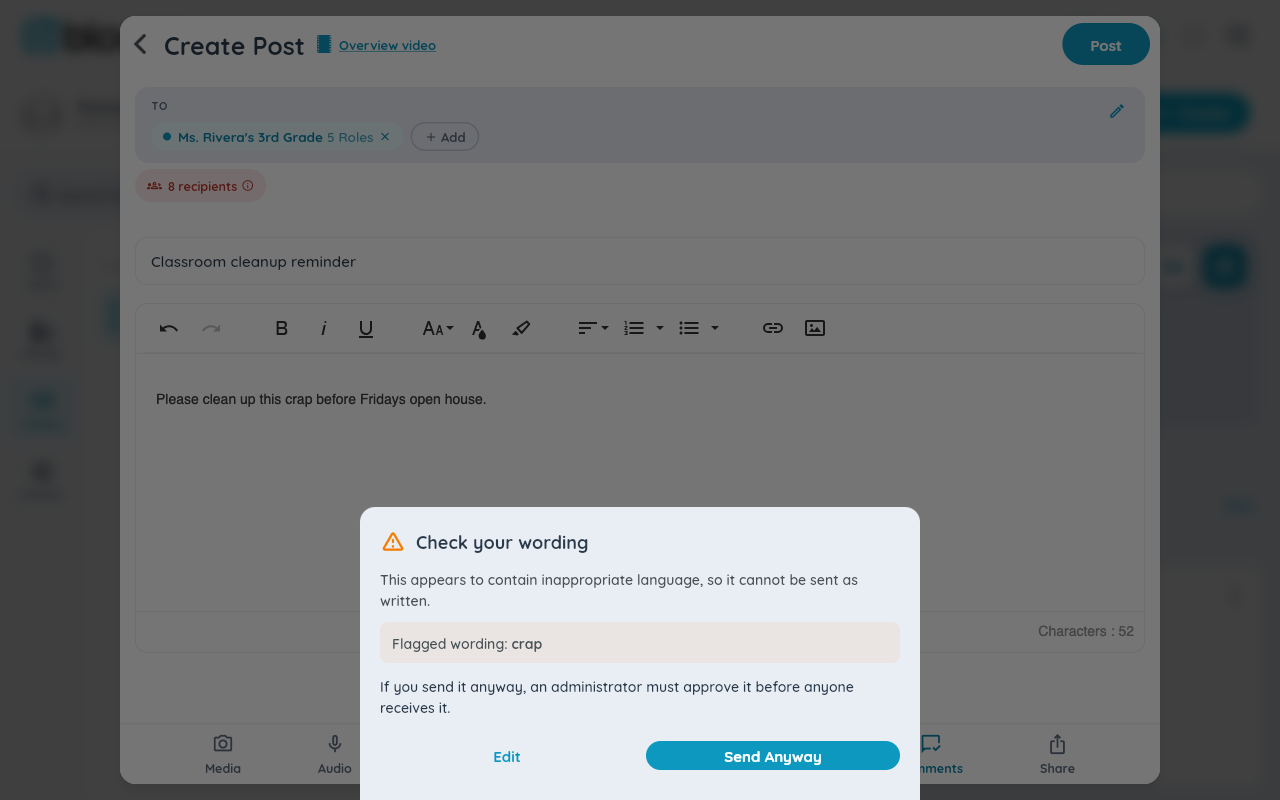
Rather than a badge on the post itself, a held post's review status surfaces through your Notifications — select the bell icon, top right, and check the Submissions filter.
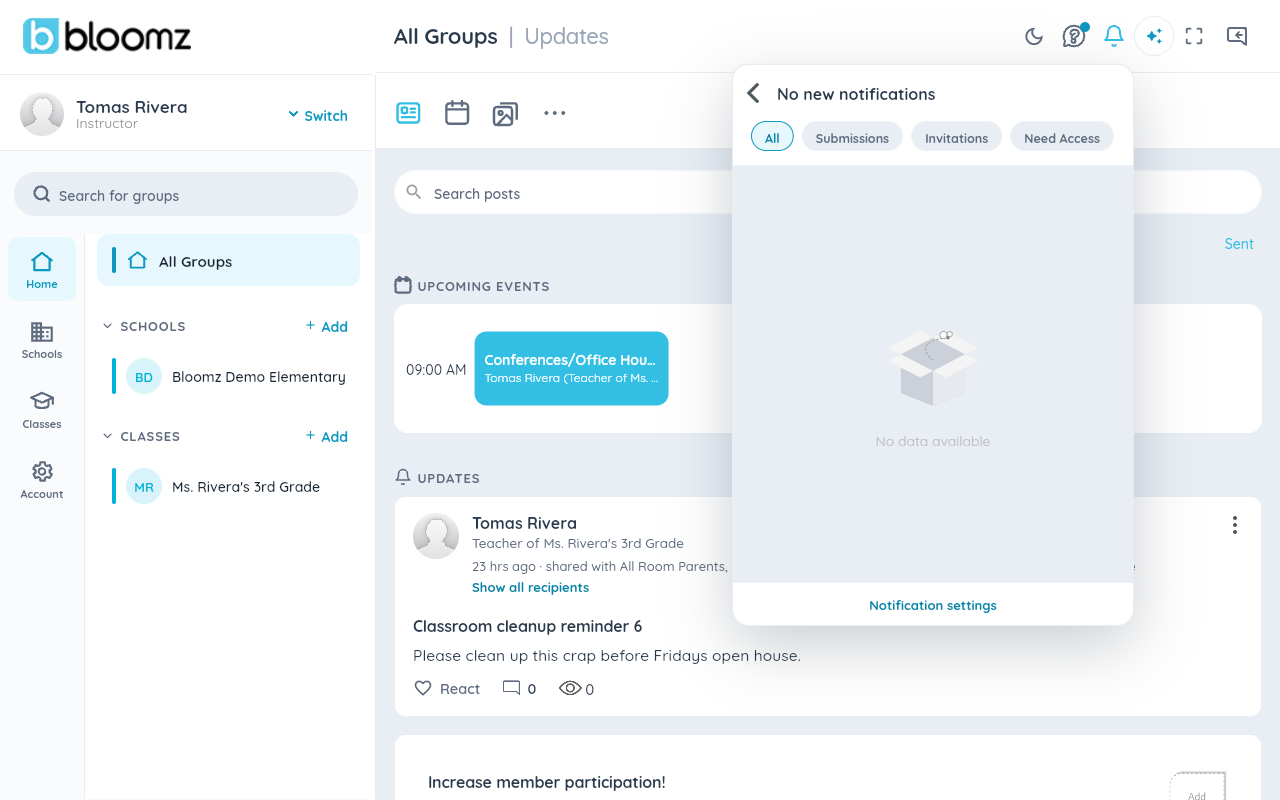
Watch out: while a post is pending review, none of your recipients see it — it isn't partially delivered, it's simply held until a reviewer acts.
Step 4 — Wait for a reviewer's decision
A designated reviewer at your school (usually an admin) sees the flagged post and either approves it — sending it on to your original recipients — or rejects it, in which case it never sends.
Step 5 — See the outcome
You get a notification either way: approved posts move to your normal Sent history and finish sending; rejected ones stay in your history marked as rejected, with the option to edit and resend.

Related
- Manage what the moderation filter blocks
- Recall a post you sent
- Share an update with your class