 Bloomz
Schedule a post to repeat on more dates
Some messages need to go out more than once — a Friday folder reminder, a "picture day is coming" nudge, a permission-slip chase. Instead of rewriting the same post each time, schedule it once and add extra send dates while you write it. Bloomz sends the same message on every date you pick.
Before you start
Anyone who can create and schedule a post can do this — it lives inside the normal post composer, so start by writing your post the usual way (see Share an update with your class).
Extra send dates apply to regular posts, at the moment you create them. They are not available for announcements (an announcement's dates control how long it stays displayed, not when it sends), for templates or drafts (neither carries send dates), or when editing a post you already created.
Step 1 — Turn on Schedule
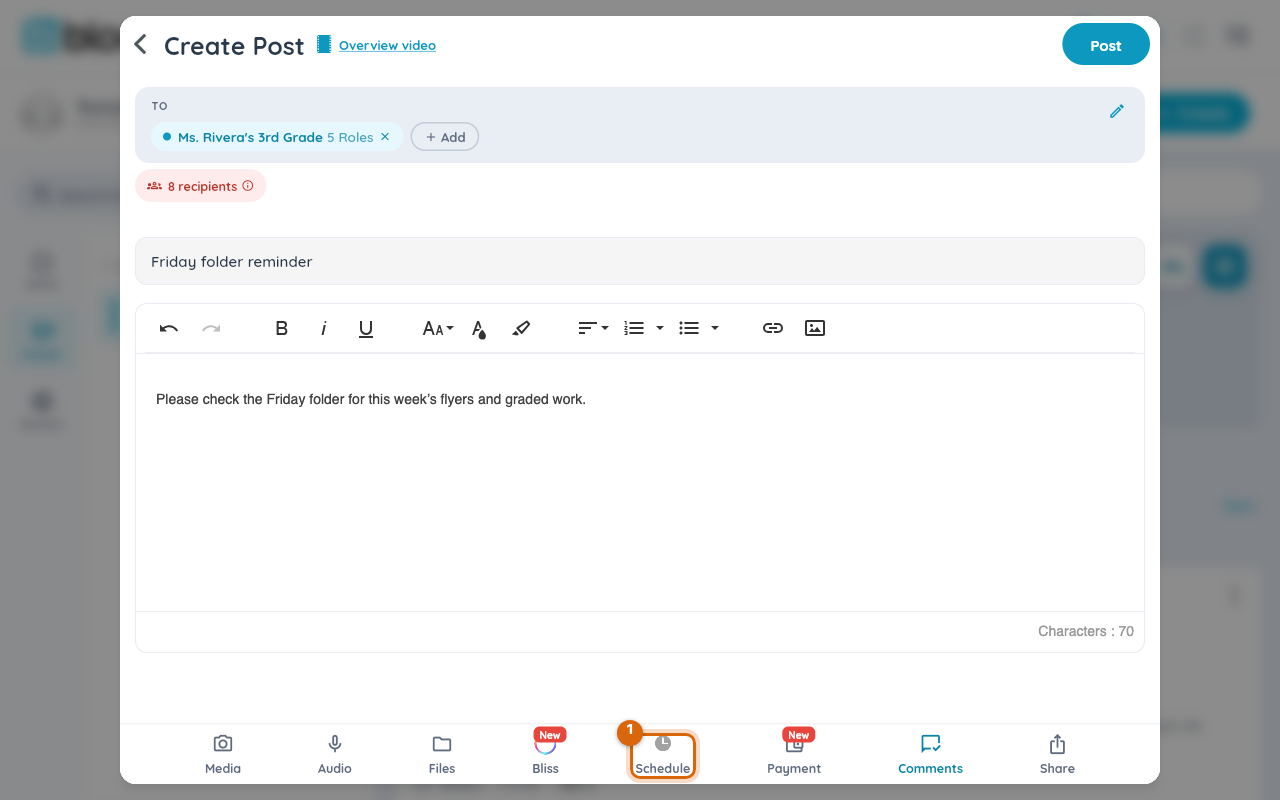
In the composer, with your title and message written, choose Schedule in the row of options along the bottom. Scheduling is what makes the extra-dates option appear — a post that sends immediately has nothing to repeat.
Step 2 — Set the first send date and time
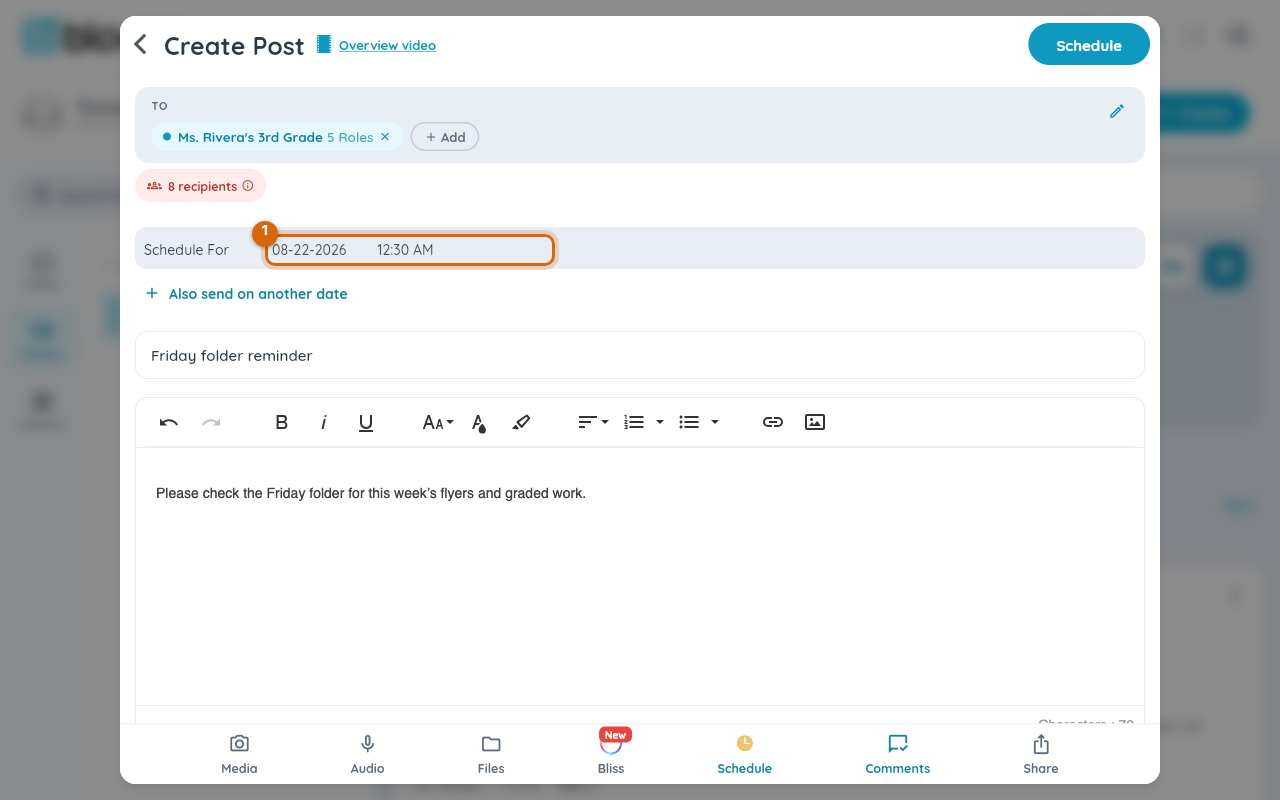
Pick the date and time for the first send, exactly as for any scheduled post.
Step 3 — Choose "Also send on another date"
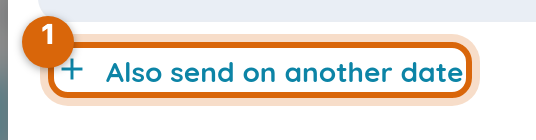
Under the schedule row, choose Also send on another date.
Step 4 — Pick the date, then the time
Pick a date, then a time for that date — each extra send has its own time, so the repeats do not all have to go out at the same time of day. The date then appears as a chip under the schedule row, with a helper line reminding you that each date sends as its own independent post. Remove a chip to drop that date; repeat step 3 for each further date you want.
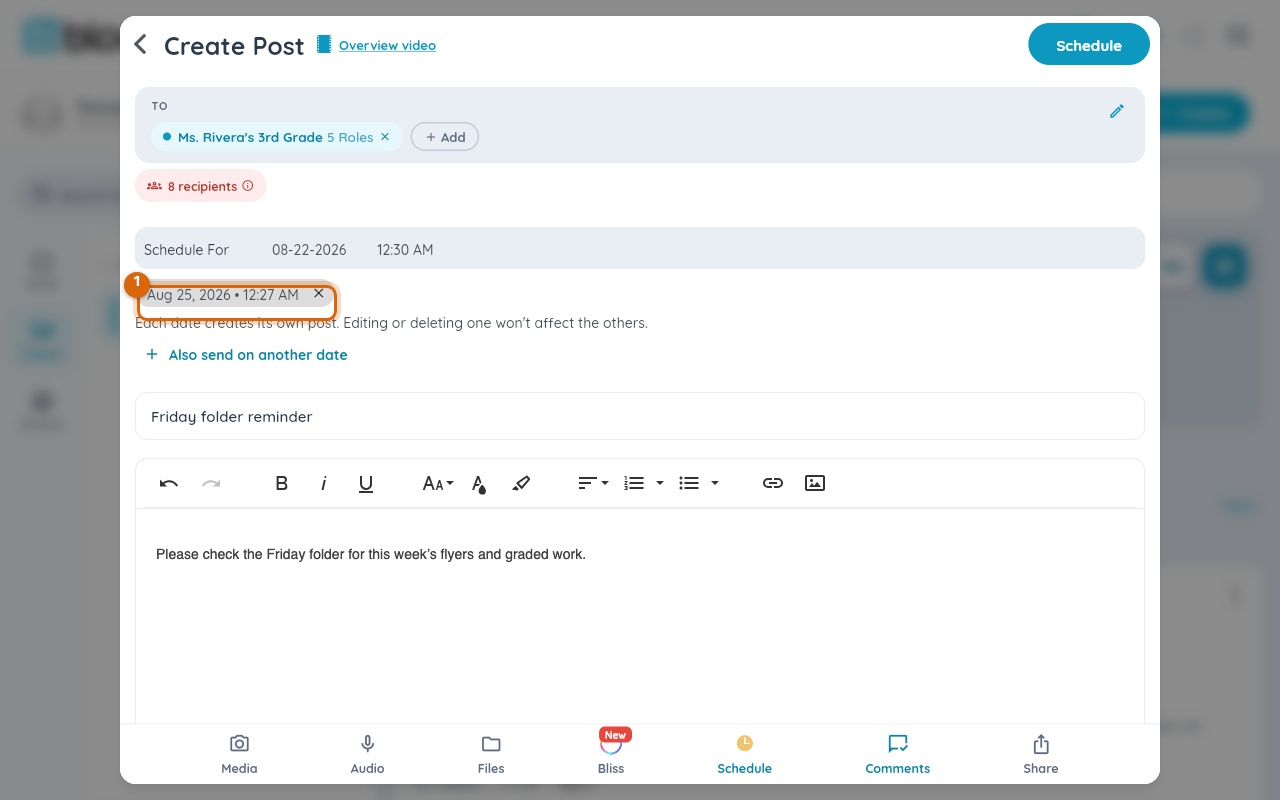
Two things the composer quietly refuses, both on purpose:
- A date you already staged, or one equal to your first scheduled date — that would just send two identical posts at the same moment.
- A date in the past — the picker starts at today.
Watch out: turning Schedule off clears every staged extra date. That is deliberate — otherwise switching scheduling back on later could quietly fan your post out to dates you had forgotten about. If you re-enable scheduling, re-add the dates you still want.
Step 5 — Send the post
Finish and send the post the way you normally would. Each date — the first one and every extra one — then appears as its own entry under Scheduled, and goes out on its date as a separate post with exactly the content you wrote.
Watch out: the dates do not form a linked series — there is no "every Monday" rule and no single switch that cancels the whole run. Each date is a fully independent post: to fix a typo, edit each scheduled copy on the Scheduled screen; to stop the run, remove each remaining copy there. Editing or canceling one never touches the others.
What families see
On each date you picked, families receive the message as a fresh, ordinary post — identical content each time, with the usual notification. Nothing marks it as a repeat.
Related
- Share an update with your class
- See everything you have sent
- Recall a post you sent