 Bloomz
React and reply to posts
A quick reaction is often the perfect answer to a post — it tells the sender "seen, and appreciated" without adding another message to anyone's day. When a reaction isn't enough, reply with a comment. Both work the same for everyone who can see the post: parents, students, teachers, and school admins alike.
Before you start
If you can see a post, you can react to it — reactions follow exactly the same visibility rules as the post itself. Bloomz uses a small, fixed set of reactions chosen for a school community, not an open emoji keyboard:
| Reaction | Means |
|---|---|
| 👍 Like | "I saw this / I appreciate this" — the default |
| ❤️ Love | warmth |
| 🎉 Celebrate | achievements and good news |
| 🙌 Support | encouragement |
| 🙏 Thankful | gratitude |
| 💡 Helpful | useful information |
| 🙋 Count me in | "me too / I agree" — handy for "Who can bring snacks?" posts |
The set is deliberately all-positive — no sad, angry, or laughing reactions, which invite misread tone between teachers and families — and nothing outside this list can be sent.
Step 1 — Tap the like control to react
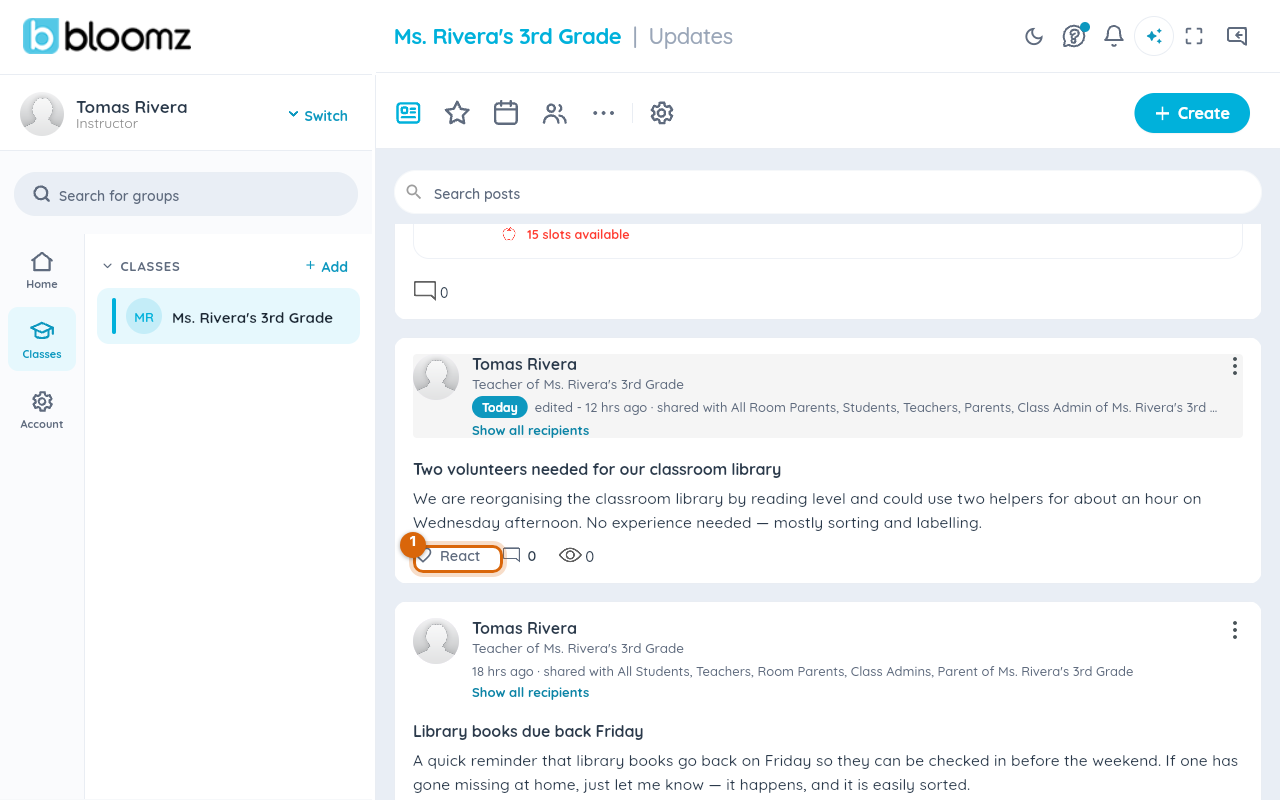
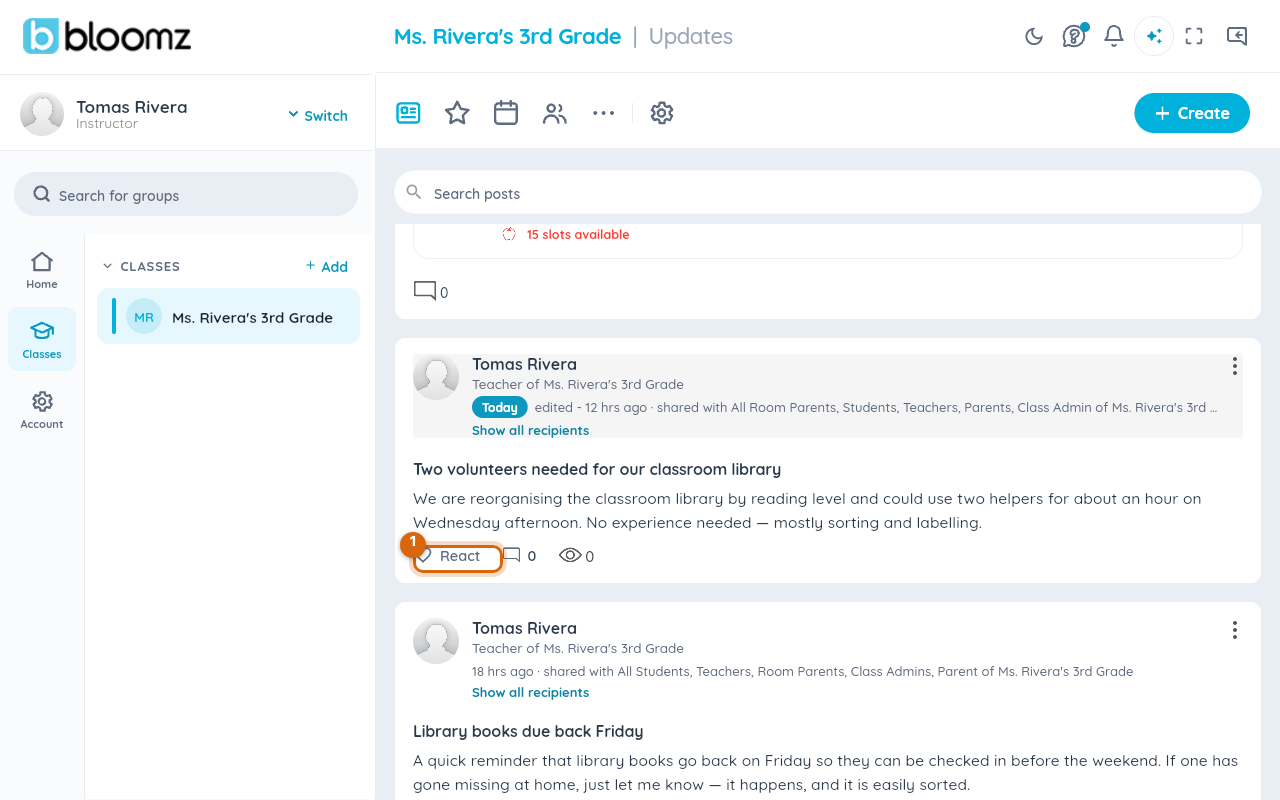
On any post, tap the like control in the action bar at the bottom of the card. That leaves the default 👍 Like, and the post's reaction count goes up by one.
Step 2 — Press and hold to pick a different reaction
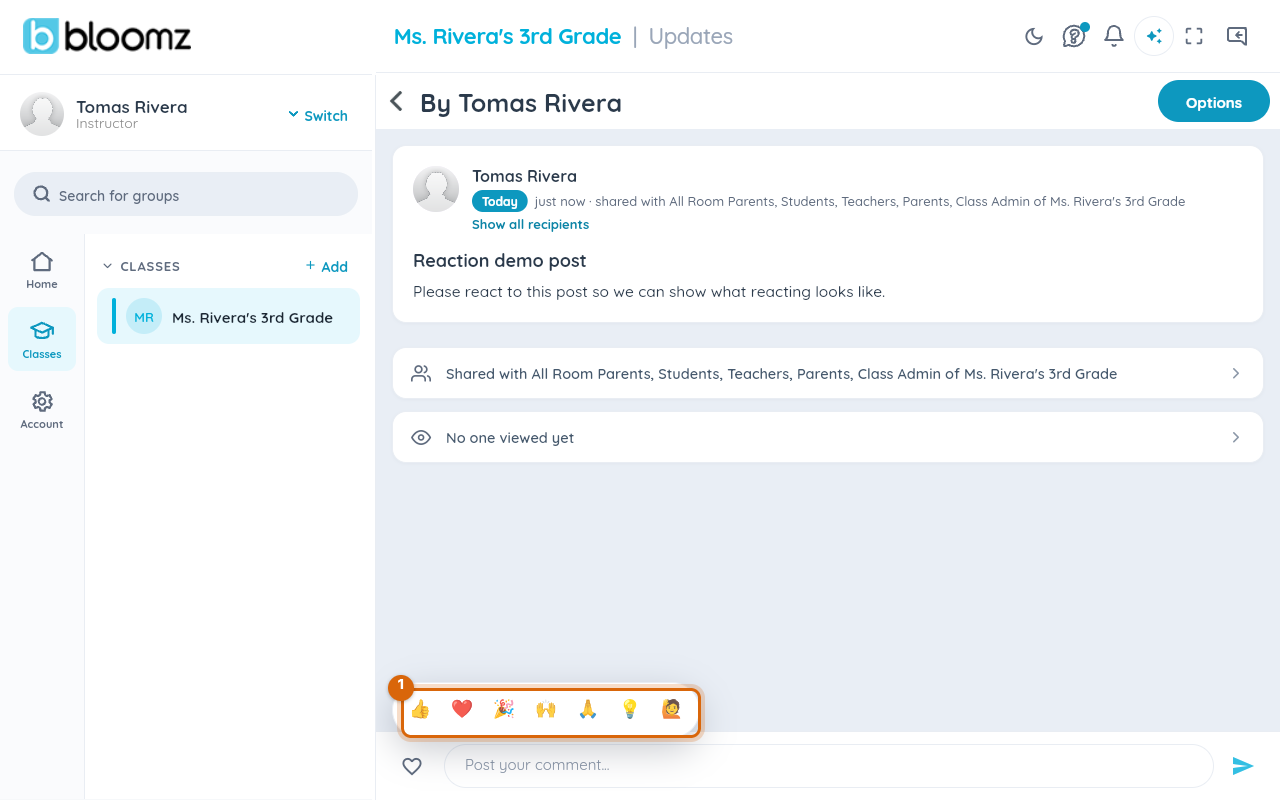
To choose something other than Like, press and hold the like control instead. The reaction bar appears with all seven reactions; tap the one you want. Your choice then shows on the post.
Step 3 — Switch or remove your reaction
You get one reaction per post. Tap a different reaction to switch yours; tap your current reaction again to remove it. Either way the post's summary updates immediately, and your reaction is remembered whenever you come back to the post.
Step 4 — See who reacted
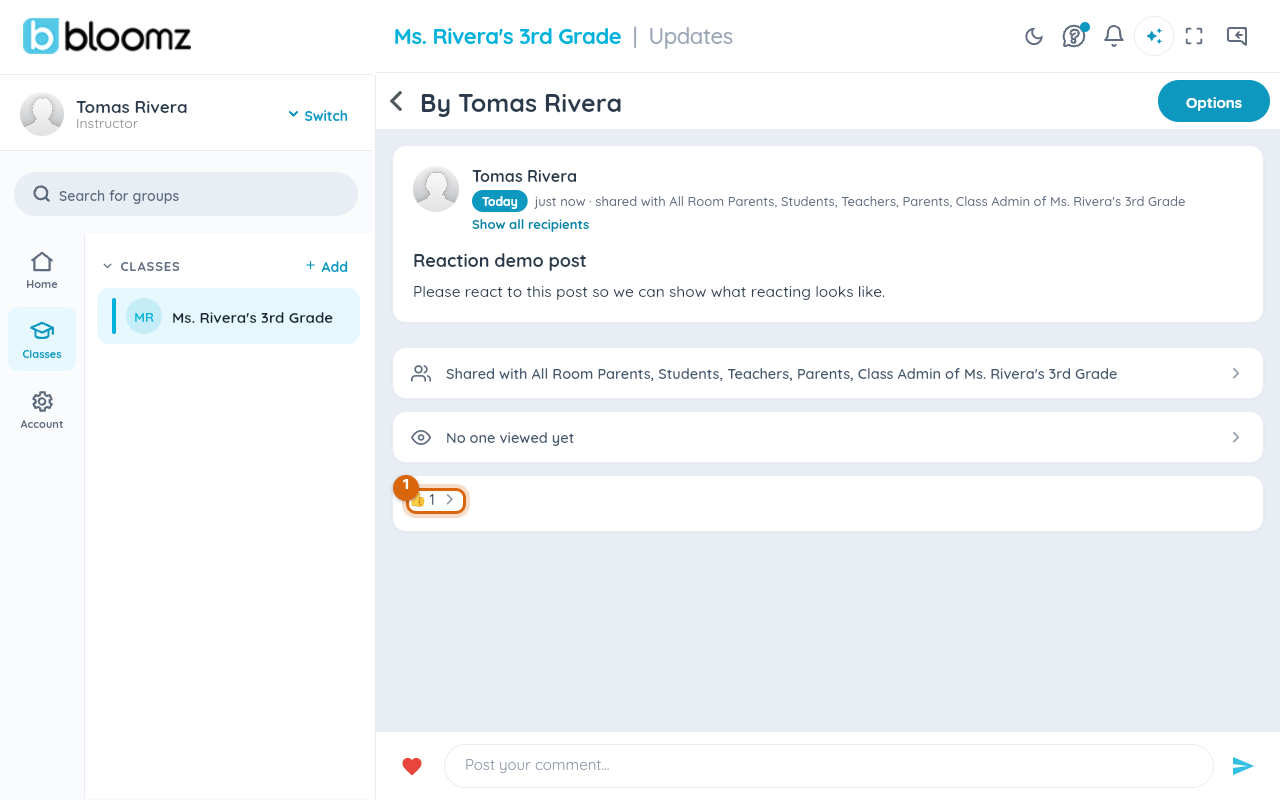
Every post shows a compact reaction summary — the reaction icons in use plus a total count. Tap it to open the who-reacted list: everyone who reacted, with their name and which reaction they chose, grouped by reaction type — useful when you asked "who can bring snacks?" and want just the 🙋 answers.
Watch out: reactions are not anonymous. Anyone who can open the post can see who reacted and with what — react as you would speak in the classroom hallway.
Step 5 — Reply with a comment
When you have something to say, open the post and write in the comment box. Your comment appears under the post for everyone who can see the post, as one running conversation. From a comment's menu you can delete your own comment, and flag or hide comments where your role allows it. Comments can be reacted to as well, the same way as the post.
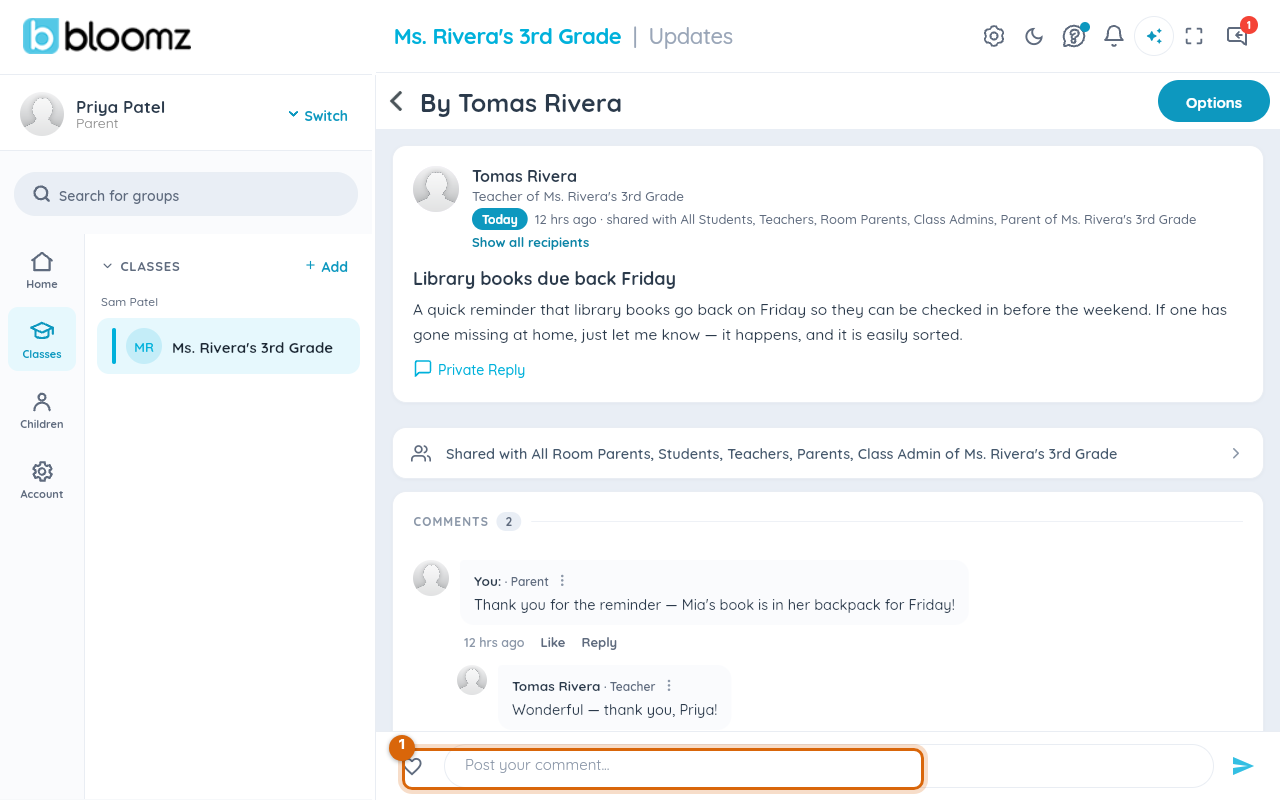
Watch out: the sender can turn comments off on a post. If there is no comment box, commenting is disabled for that post — a reaction still works, or you can message the sender directly. Where comments are disabled, replies are too.
Step 6 — Reply to a specific comment
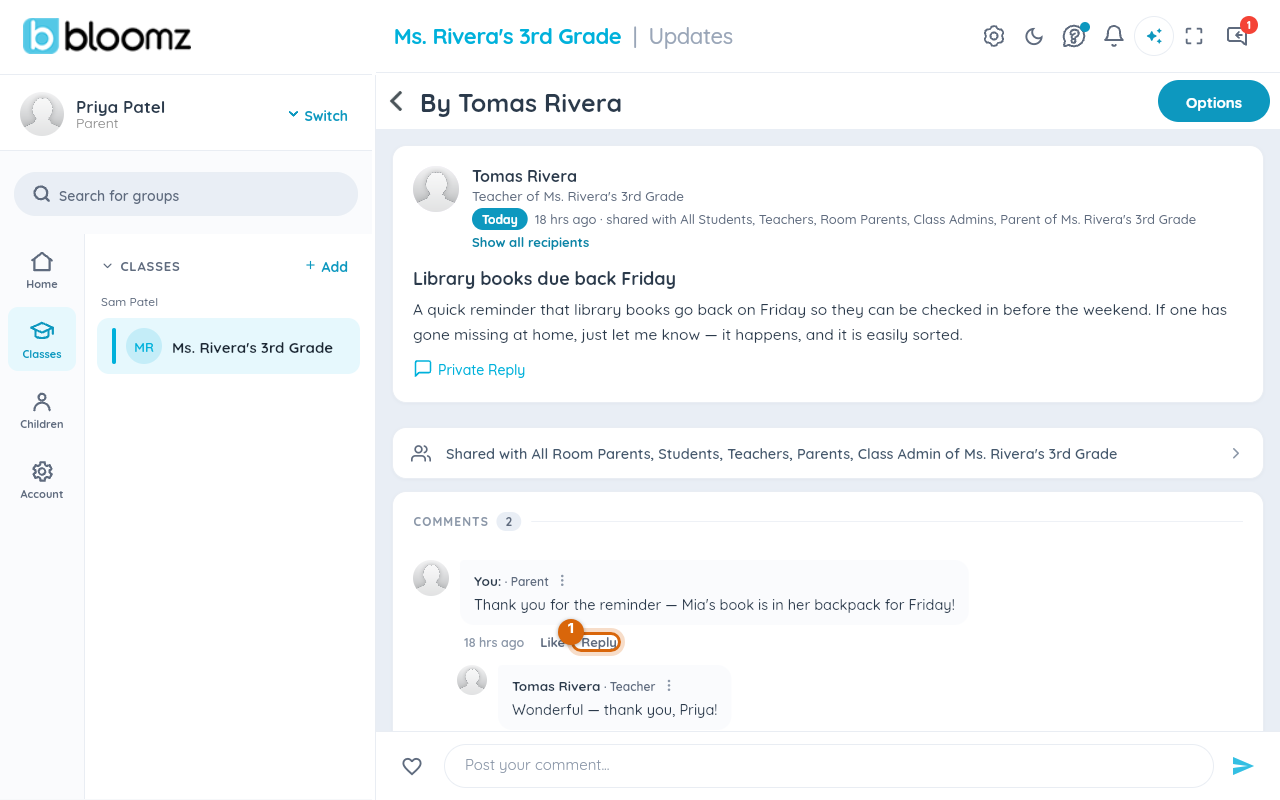
To answer one person rather than the whole thread, use Reply on their comment. Your reply appears indented beneath that comment, one level deep — replying to a reply attaches your answer to the same top-level comment rather than nesting deeper.
What the sender sees
The person you reacted to gets a quiet, batched notification — "5 people reacted to your post" rather than five separate pings — as a push notification by default, not an email. Nobody is notified of their own reaction. A reply to a comment notifies the comment's author, so your answer reaches the person you were answering.
Related
- Share an update with your class
- Send a message to one family instead of the whole class
- Recall a post you sent