 Bloomz
Recall a post you sent
Sent a post with a typo, the wrong attachment, or to the wrong audience? You can pull it back. Recall removes the post from everyone's feed, stops deliveries that haven't gone out yet, and gives you a short window to change your mind and undo.
Before you start
You can recall a post if you sent it, or if you are an admin of the group it was posted to. The Recall option simply does not appear on posts you cannot recall.
Recall is available wherever you see your post with its options menu — the feed, the post's own detail screen, your profile, a member's profile, and a student's portfolio. The steps below use the feed, which is also the only place the Undo option lives afterwards, so it is the best place to start.
Watch out: recall is not magic. It takes the post out of Bloomz, but emails, text messages, push notifications, and voice calls that were already delivered stay delivered. The confirmation in step 3 shows you exactly how much has already gone out.
Step 1 — Open the post's options menu
Find the post in your feed and open its options menu.
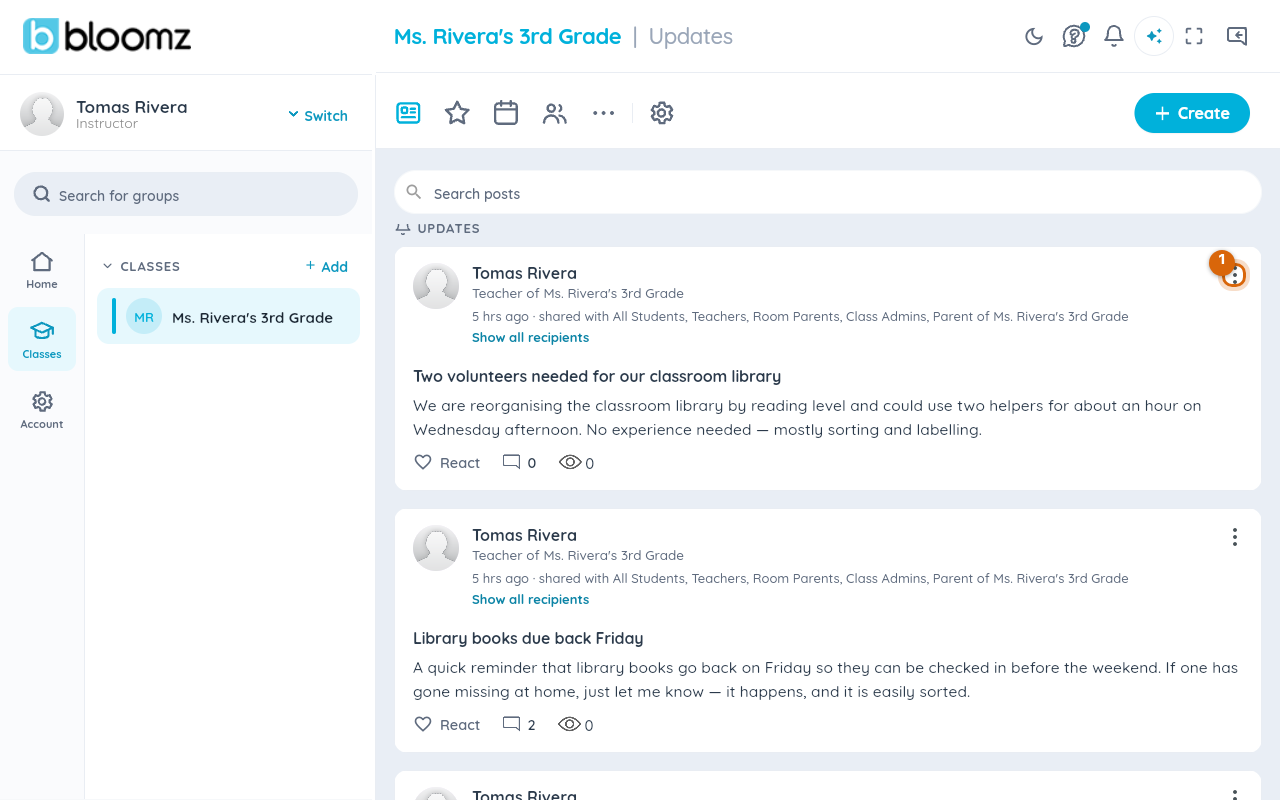
Step 2 — Choose Recall Post
The menu shows View Delivery Report and, below it in red, Recall Post.
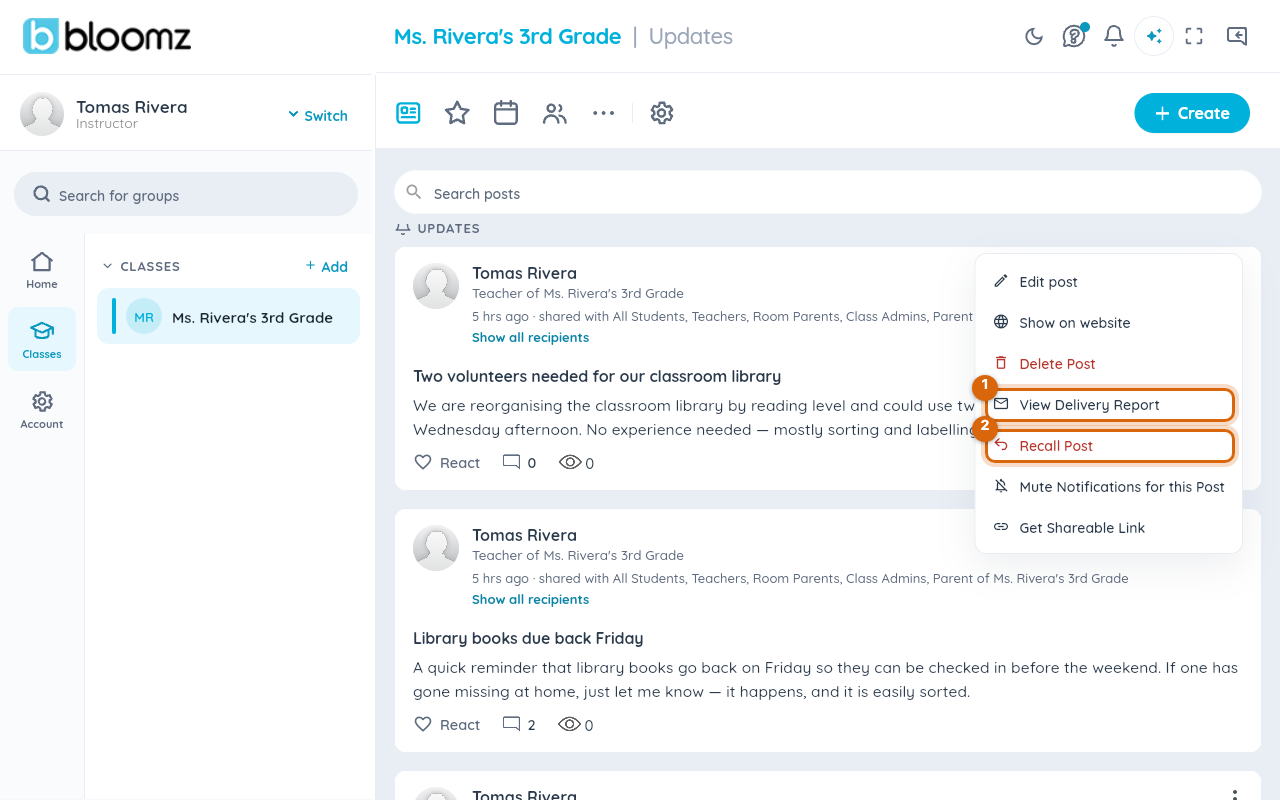
If you only want to see how delivery is going — without changing anything — choose View Delivery Report instead. It opens the delivery dashboard for this post.
Watch out: Delete, in the same menu, is not the same thing. Delete removes the post silently — recipients get no notice, you get no report of what already went out, and there is no undo. When you sent something by mistake, Recall is almost always the better choice.
Step 3 — Review what the recall will do
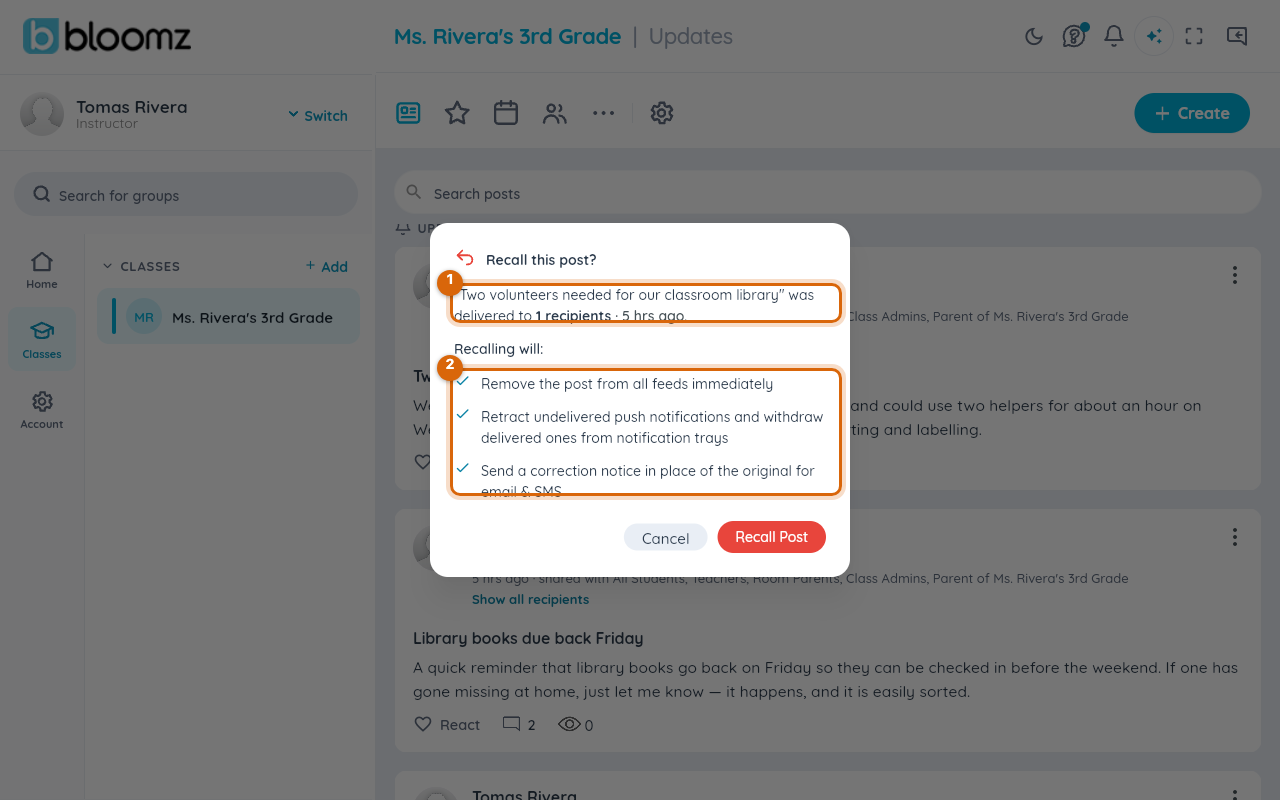
Choosing Recall Post opens a confirmation first — nothing is recalled yet. It shows the real numbers for this post: the post's title, roughly how many recipients it was delivered to and when, what recalling will do (remove it from feeds, stop pending deliveries, retract its comments and reactions), and — when people have already opened it — a note that already-opened emails cannot be unsent, with an estimate of how many have been opened so far.
Step 4 — Confirm the recall
Choose the red confirm button. The recall happens immediately: in the feed, the post's card is replaced by a recalled-post notice, and a "post recalled" confirmation message appears.
From this moment: the post's title, message, and attachments are gone from everyone's feed; deliveries that had not gone out yet are stopped; comments and reactions are retracted; and the post's notifications are withdrawn.
Step 5 — Undo, if you change your mind
Where the post used to be in your feed, you now see a dashed-border card — "Post recalled by \<your name>" — with an inline Undo link. Only you see Undo; everyone else sees just the notice. Choosing Undo restores the post exactly as it was, content, comments and all, and a "recall undone" confirmation appears.
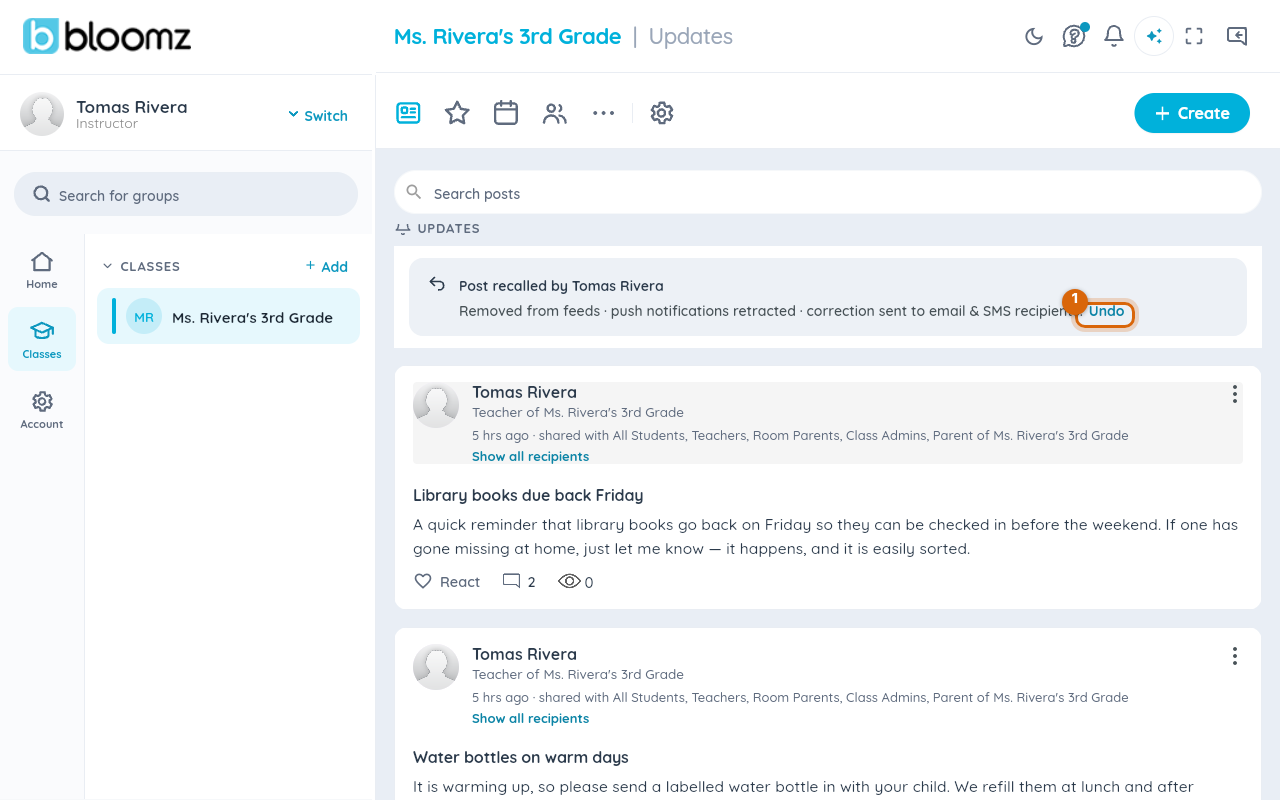
Watch out: Undo is only available for a short window after the recall — about 15 minutes, set by the server and shown to you in the step 3 confirmation. After the window closes, the recall is permanent.
Watch out: the Undo link lives on the recall notice in the main feed only. If you recalled the post from a profile or portfolio screen, the post disappears from that list — go to your feed to find the notice and undo from there.
What families see
Instead of your post, families see a short notice that the post was recalled and by whom — never the content, the attachments, or the comments. In-app notifications for the post are withdrawn. But any email, text, push, or voice message that was already delivered before you recalled stays in their inbox — if a parent already read the post in their email, that copy is theirs.
Related
- Share an update with your class
- See everything you have sent
- Schedule a post to repeat on more dates