 Bloomz
See everything you have sent
"Did I already send that?" The Sent view answers it: one list of every post and announcement you have actually sent, newest first, across all your classes and groups — your complete outgoing history in one place.
Before you start
Anyone with posting rights can use Sent — teachers, school admins, any member who can post. It only ever shows your own posts.
Sent is one of three links that cover the three lives of a post, side by side in the Updates feed header:
| Link | Shows |
|---|---|
| Drafts | posts you started but have not sent |
| Scheduled | posts set to go out later that have not gone out yet |
| Sent | posts that have actually gone out — this article |
Step 1 — Open the Updates feed
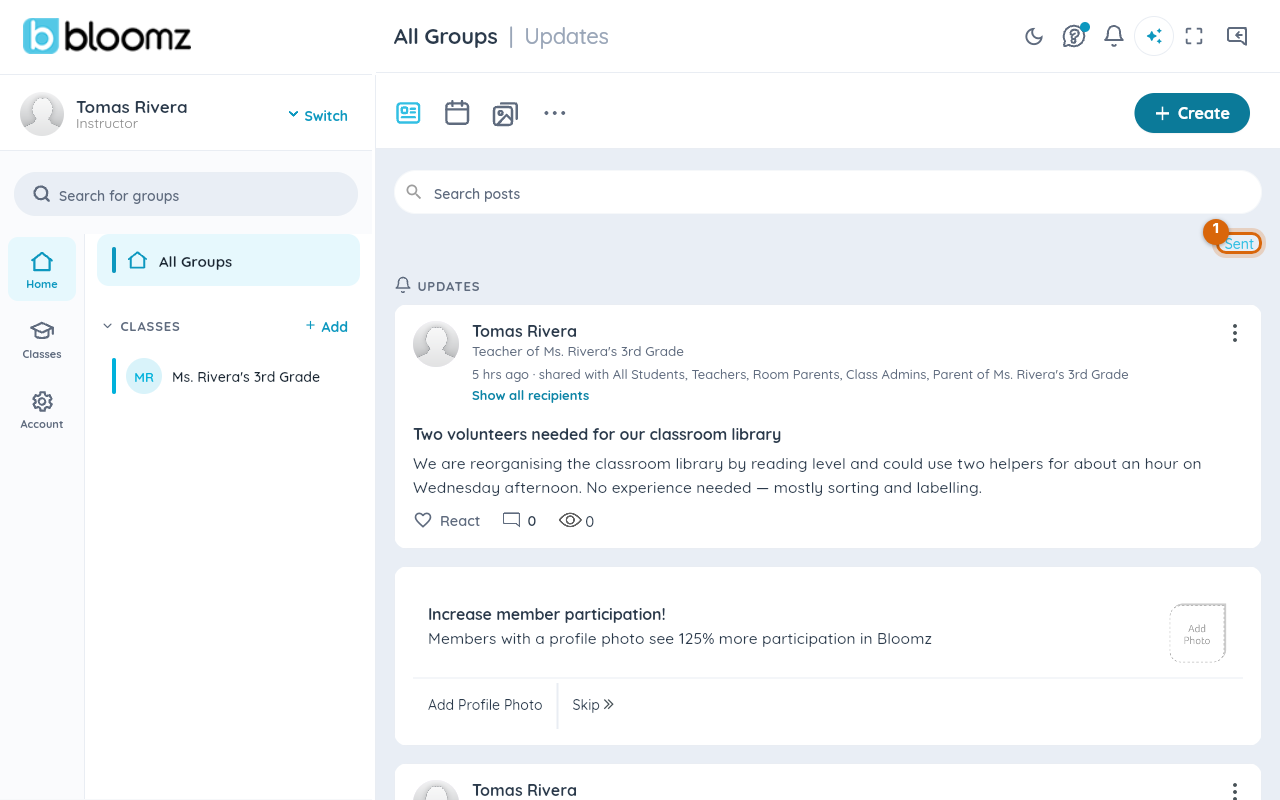
Go to Home, your Updates feed. The header above the feed carries the Drafts / Scheduled / Sent links, on both the mobile app and the web.
Step 2 — Choose Sent
Select Sent, beside Drafts and Scheduled. Your sent history opens, newest first.
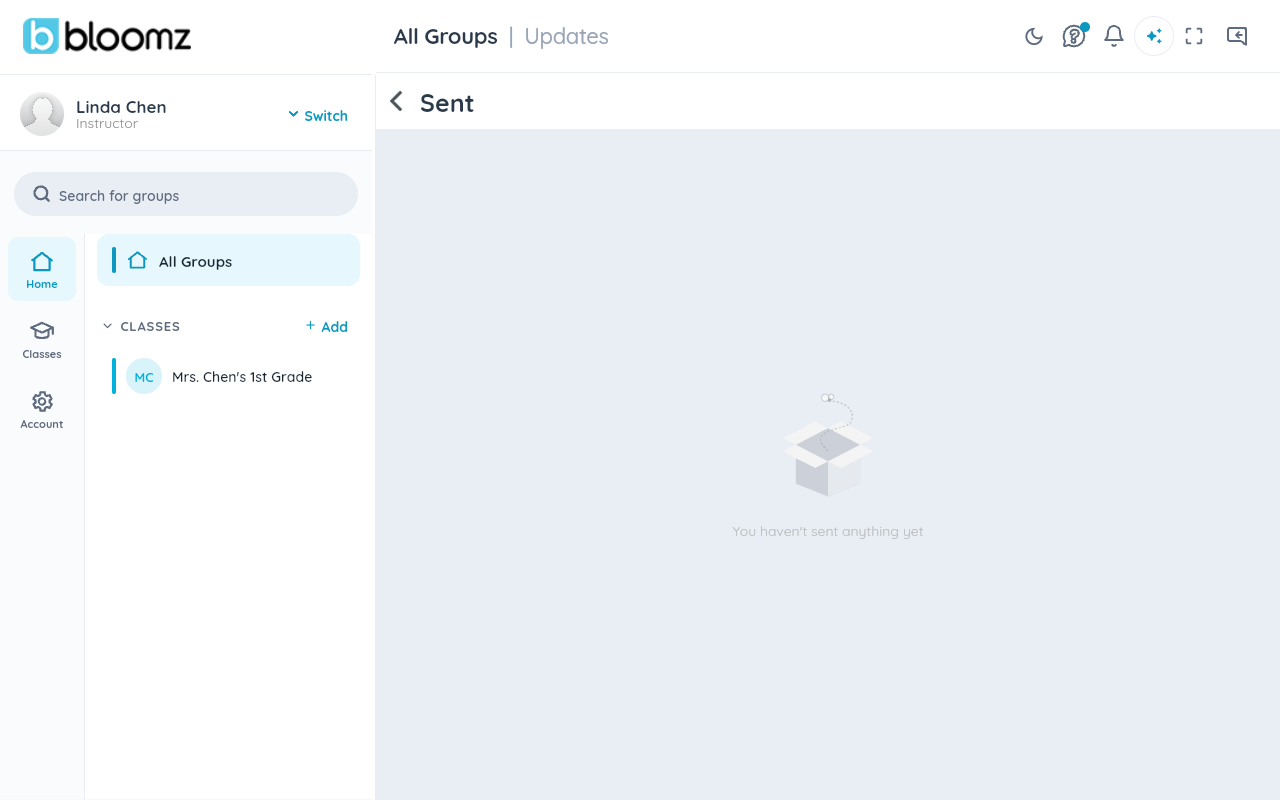
Sent is always there — unlike Drafts and Scheduled it never hides itself when empty. If you have sent nothing yet, it says so, which is a perfectly good answer to "have I sent anything?"
Step 3 — Scroll the list
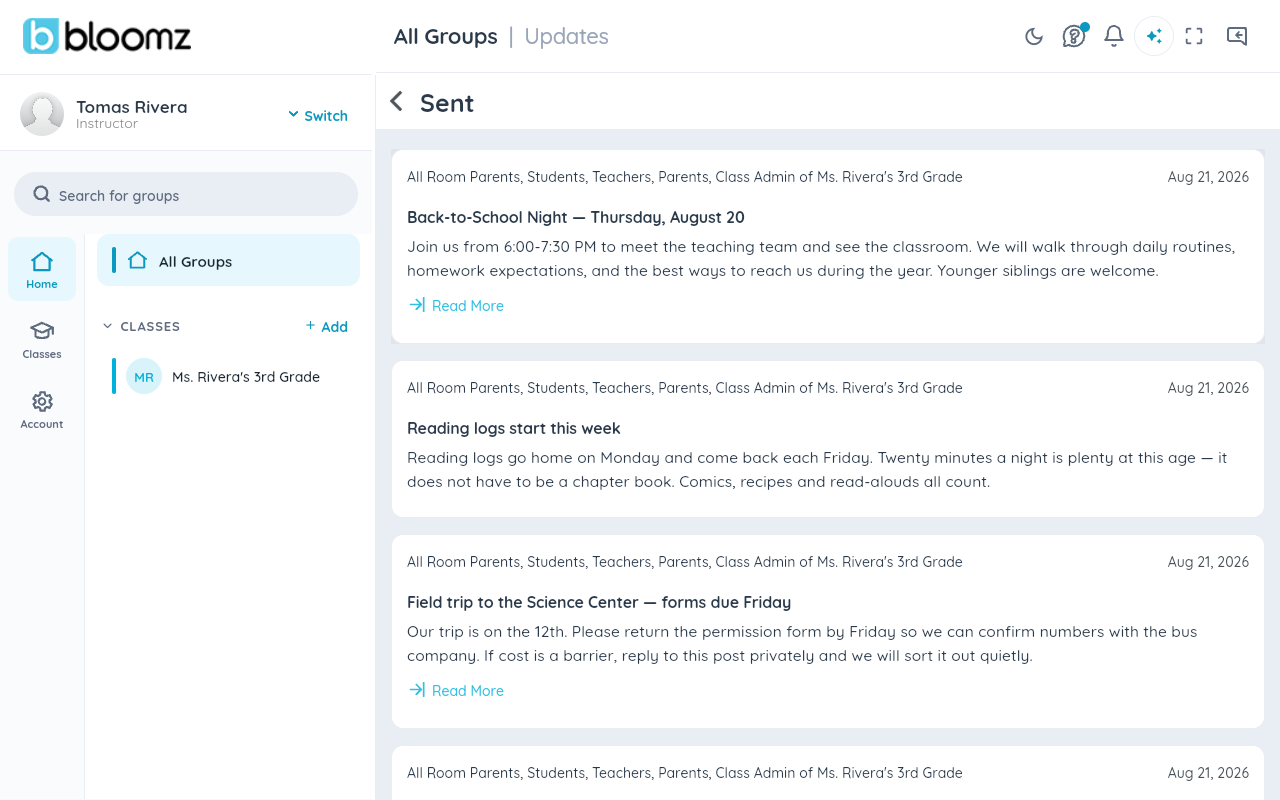
The list holds every post and announcement of yours that has already gone out — including scheduled posts whose send time has passed (the moment a scheduled post goes out, it moves from Scheduled into Sent) and posts you later recalled, so your record of what went out stays complete. Older items load as you scroll; pull down to refresh.
Step 4 — Open a post
Tap any item to open the normal post detail screen and see the post the way you sent it. There are no edit or delete actions on the Sent cards themselves — these posts are already published; pre-send editing lives on the Scheduled screen.
If a post you're looking for isn't there
- It hasn't gone out yet. A post scheduled for the future is under Scheduled; it appears in Sent once it actually sends.
- It's still a draft. Unsent drafts are under Drafts.
- You deleted it. Deleted posts do not appear.
- Someone else sent it. Sent shows only posts you authored — a co-teacher's post to your class is in their history, not yours.
Watch out: the feed and Sent answer different questions. The Updates feed shows posts delivered to you; Sent shows posts that came from you. A post you sent to a group you don't belong to may not be in your feed at all — check Sent.
Sent has no search, filters, or per-class view — it is a straight chronological history of everything, which is exactly what "everything you've sent" means. For long histories, scrolling back is the way to reach older posts.
What families see
Nothing — Sent is a private view of your own history. Opening it, or a post inside it, changes nothing for recipients.
Related
- Share an update with your class
- Schedule a post to repeat on more dates
- Recall a post you sent