 Bloomz
Post an announcement that stays at the top
An announcement is a post that stays pinned to the top of the feed for a window you choose — the right tool when a message must not scroll away: a deadline, a closure, a schedule change. Teachers and school staff can post announcements to any class or group they belong to.
Before you start
Decide how long the announcement should stay up. An announcement has a Show From and a Show Until date, and it stays pinned between them. If the message is only news — not something people need to keep seeing — a regular post is the better tool (see Share an update with your class).
Step 1 — Open Create
From Home, select Create in the top right.
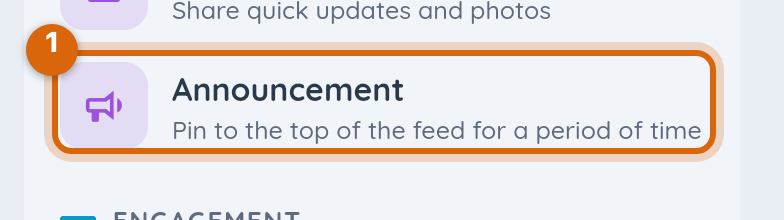
Step 2 — Choose Announcement
Announcement sits next to Post under Communicate. Choose it.
Step 3 — Choose who sees it
The recipient picker is the same one a regular post uses: pick one or more classes or groups, narrow by roles if you need to, and — if the message is really for specific people — pick individual parents or students as well.
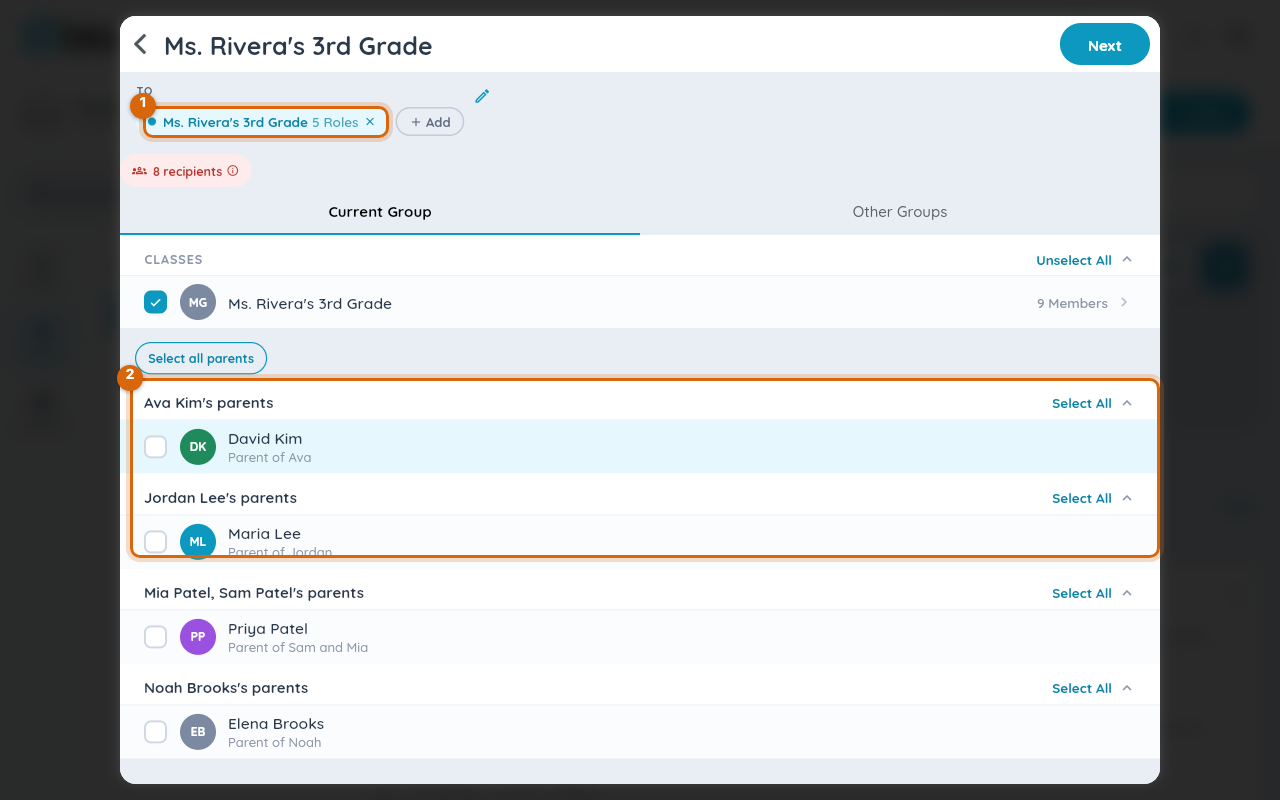
Two rules keep the audience sane:
- You must always select at least one class or group — individuals are picked within your chosen groups, not instead of them.
- Naming individuals does not remove the group audience. The announcement still shows for the group; it does not become a private message.
Then choose Next.
Step 4 — Write it, and set how long it shows
Give the announcement a title and a message, then check the Show From and Show Until dates.
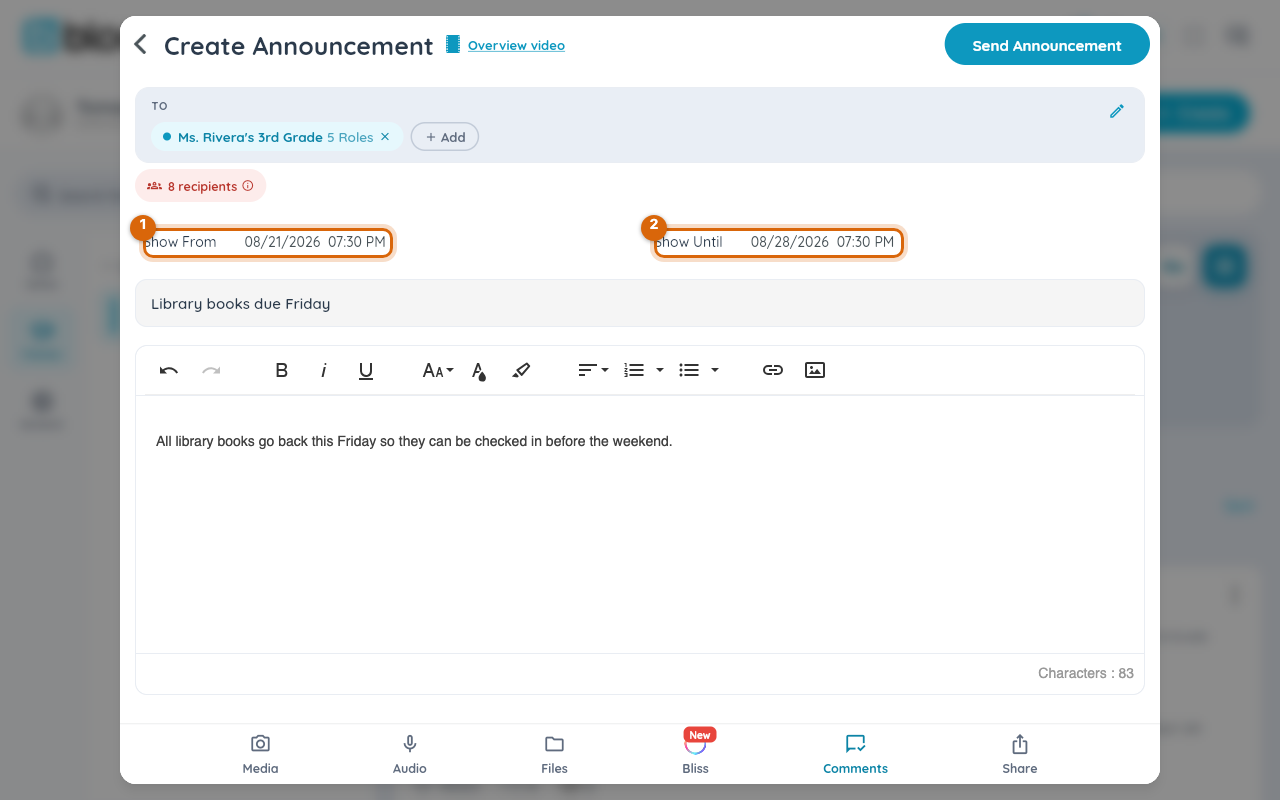
Show Until is pre-filled with the duration you used last time (7 days if you have never changed it). Adjust it to when the message stops mattering — the day of the event, the end of spirit week — and Bloomz remembers your choice for next time.
Watch out: an announcement that never comes down trains families to skim past the pinned area. Keep the window as short as the message allows.
Step 5 — Send it
Send the same way as a post: choose the send action in the top right and confirm. The announcement appears at the top of the feed for everyone you selected, and stays there until its Show Until date passes.
What families see
The announcement sits pinned above the regular feed in the app, and arrives as a notification by whatever channels each family has chosen. Like any post, everyone reads it in their own preferred language.
Related
- Share an update with your class
- Recall a post you sent
- Schedule a post to repeat