 Bloomz
Run a live city meeting and record the minutes
▶ Watch the video (47 seconds): Bloomz Agendas & Minutes: publish once, run the meeting live, publish the minutes.
When your meeting starts, Run Meeting turns the same agenda into a live tool — roll call, a speaker timer, motions and votes, and the notes that become your published minutes. You need an admin role on the City, such as City Manager, and a Published meeting.
Before you start
The meeting must already be Published (see Publish an agenda for your city meeting). Run Meeting is reached from that same meeting's editor.
Step 1 — Open the meeting and select Run Meeting
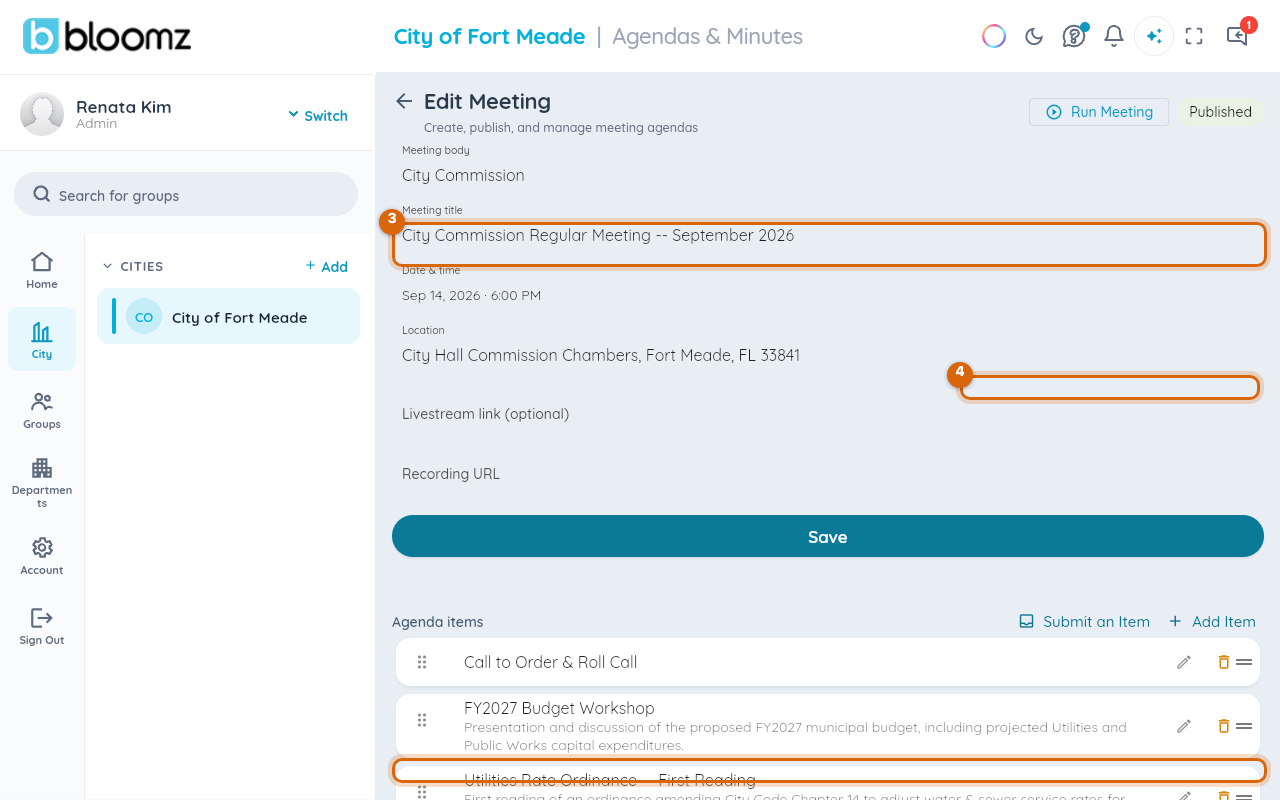
From Edit Meeting, select Run Meeting in the top right.
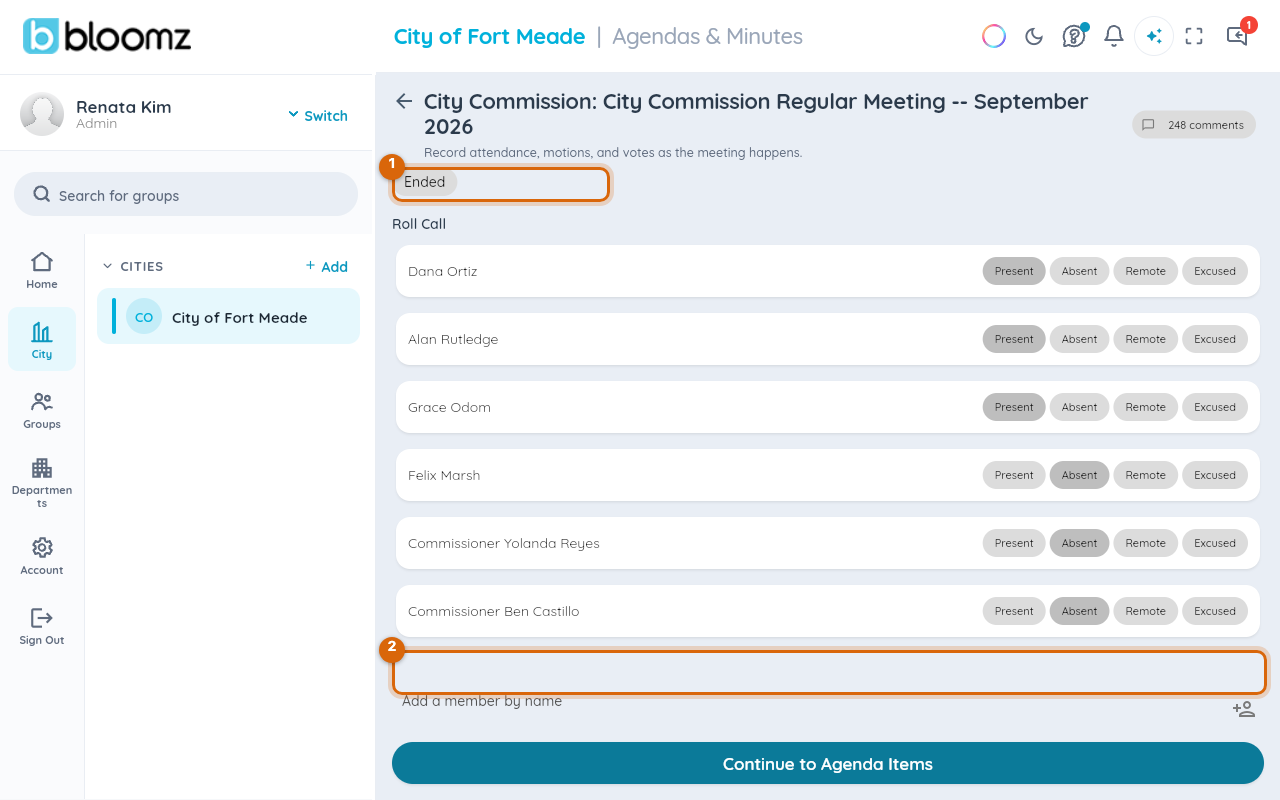
The meeting immediately shows a Live status badge, and residents following the meeting see it too — the badge switches to Ended once you select End Meeting, and you can still reopen this same screen afterward to finish recording motions, votes and notes before you select Finish Meeting.
Step 2 — Take roll call
For each board or commission member, select Present, Absent, Remote or Excused. Use Add a member by name for anyone not already listed.
Step 3 — Select Continue to Agenda Items
This moves you into the item-by-item view. While someone has the floor, a banner above the item shows who is speaking and counts down a built-in speaker timer.
The numbered strip at the top (Item 1 of 9, and so on) lets you jump between items.
Step 4 — Record motions and votes
Select Add Motion to record who moved and seconded an item, or Voice Vote / Consent for items that pass without a recorded roll-call vote. Use Item notes to capture anything you want to appear in the published minutes for that item.
Step 5 — Move through the agenda
Select Next to advance; the item number and progress dots update as you go.
Step 6 — Finish the meeting
When you reach the last item, select Finish Meeting. This compiles your roll call, motions, votes and item notes into the meeting's minutes — the Minutes AI Draft tool can turn a recording transcript into a first draft of those minutes for you to review and edit, where your city's AI features are turned on.
Watch out: End Meeting (available any time during Live) only closes the live broadcast to attendees — it does not finish or publish the meeting. Use Finish Meeting, from inside the item view, to actually complete it and move it to Completed.