 Bloomz
Publish an agenda for your city meeting
▶ Watch the video (47 seconds): Bloomz Agendas & Minutes: publish once, run the meeting live, publish the minutes.
Agendas & Minutes is Bloomz's civic-meeting module — publish a meeting's agenda, add items, and notify residents automatically, all from the City group. It needs the Agendas & Minutes feature turned on (see Manage City Features and Permissions) and an admin role on the City, such as City Manager.
Before you start
Agendas & Minutes must be enabled in Settings → Features. You need an admin role on the City, such as City Manager. The Agenda Clerk staff capability on its own is not enough.
Step 1 — Open Agendas & Minutes
From your City group, select the Agendas & Minutes icon in the top bar (a clipboard icon, next to the calendar).
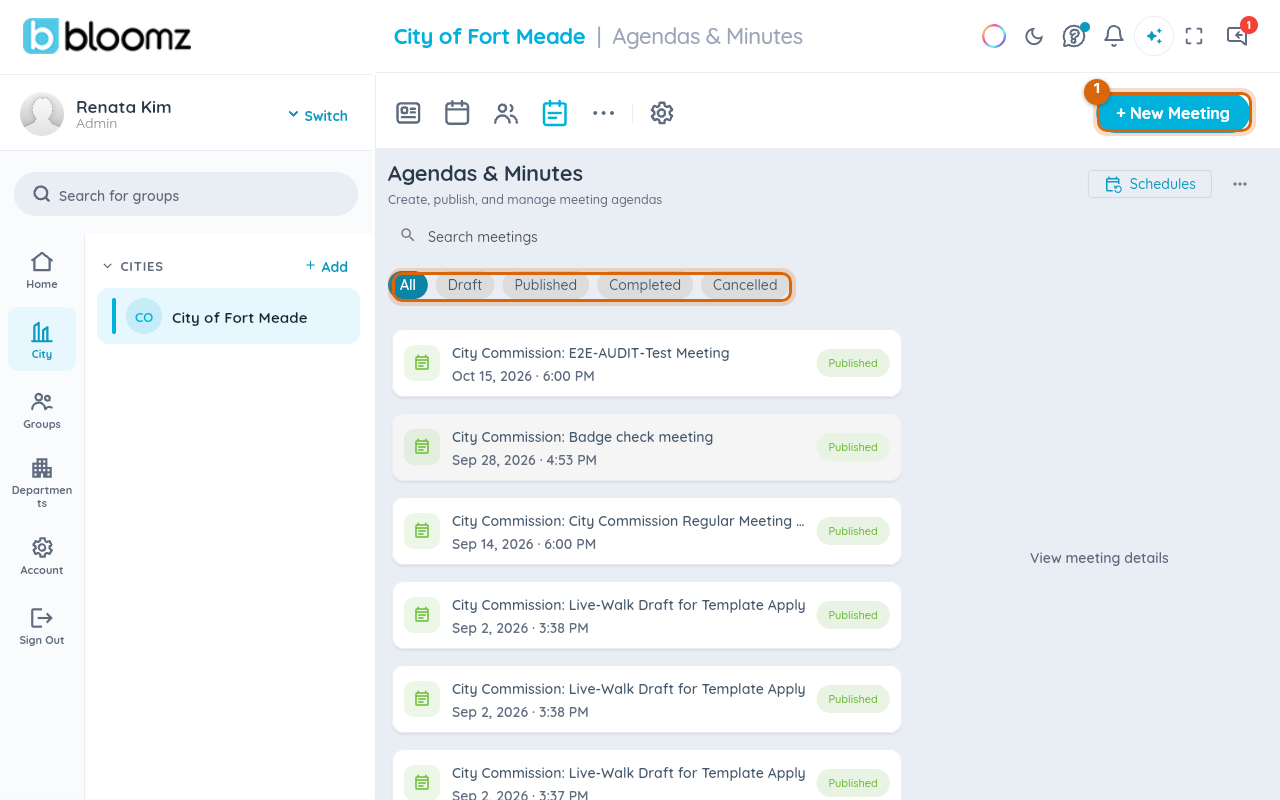
The list filters by status — All, Draft, Published, Completed and Cancelled — and includes a Search meetings box and a link to Schedules for recurring meetings.
Step 2 — Select + New Meeting, or open an existing one
Selecting a meeting in the list opens its detail panel on the right, showing the meeting body, date, location and every agenda item.
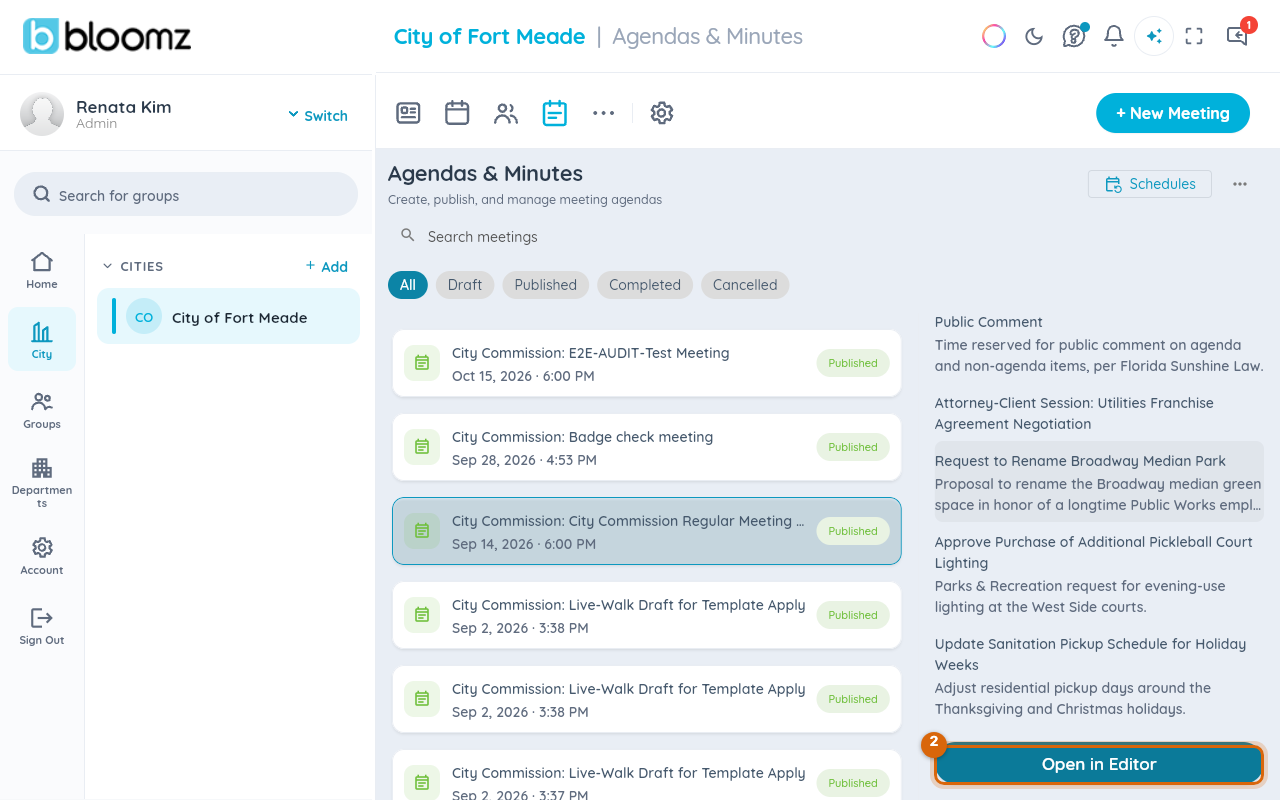
Step 3 — Select Open in Editor
This opens Edit Meeting — the same screen for a new meeting or an existing one.
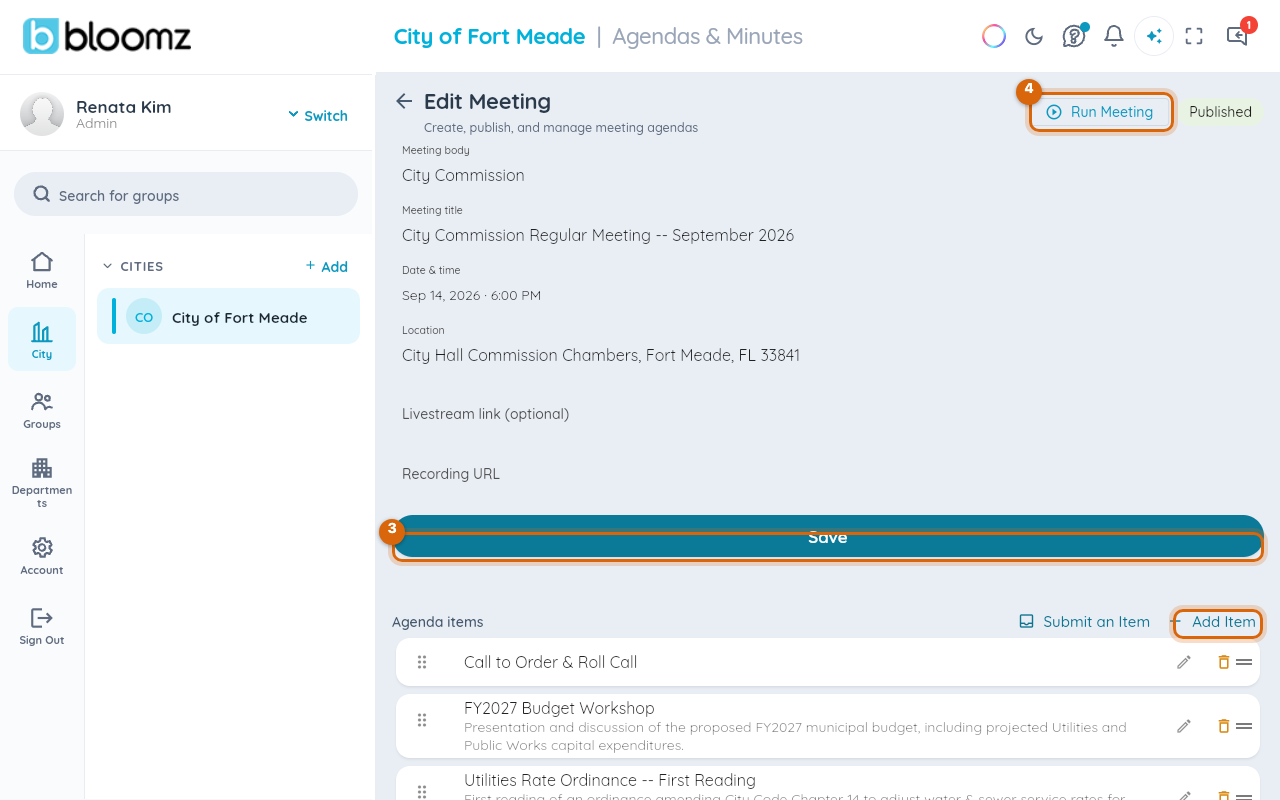
Fill in the Meeting body (which board or commission — "City Commission"), Meeting title, Date & time, Location, and optionally a Livestream link or Recording URL.
Step 4 — Add agenda items
Select + Add Item to add a new item, or Submit an Item to accept an item from someone else in the city. Reorder items by dragging the handle on the left of each row; select the pencil to edit one, or the trash icon to remove it.
Step 5 — Save
Select Save at the top of the item list. A saved meeting is a Draft until you publish it; publishing sends a notice to your city's members and posts the agenda to your calendar.
Watch out: once a meeting is Published, editing its items still works, but residents who already opened the agenda won't automatically see the change — republish or let them know directly for a significant edit.