 Bloomz
Understand City Premium and give staff city-specific roles
City Premium unlocks the full City feature set and cascades a Premium account level to your admins and staff — and separately, Bloomz gives city staff Staff Capabilities, six of them built specifically for a city (Agenda Clerk, BeHeard Triage, Public Records Officer, Recreation Coordinator, Volunteer Coordinator, Weather Alerts Manager), on top of the general-purpose platform role every staff member already has. This article covers both — where to check your Premium status, and how to hand a specific capability to a specific person. You need an admin role on the City.
Before you start
You need an admin role on the City group. Staff Capabilities are assigned at invite time, from the + Staff flow on the Manage → Staff tab.
Step 1 — Check your Premium status
Open Settings → General.
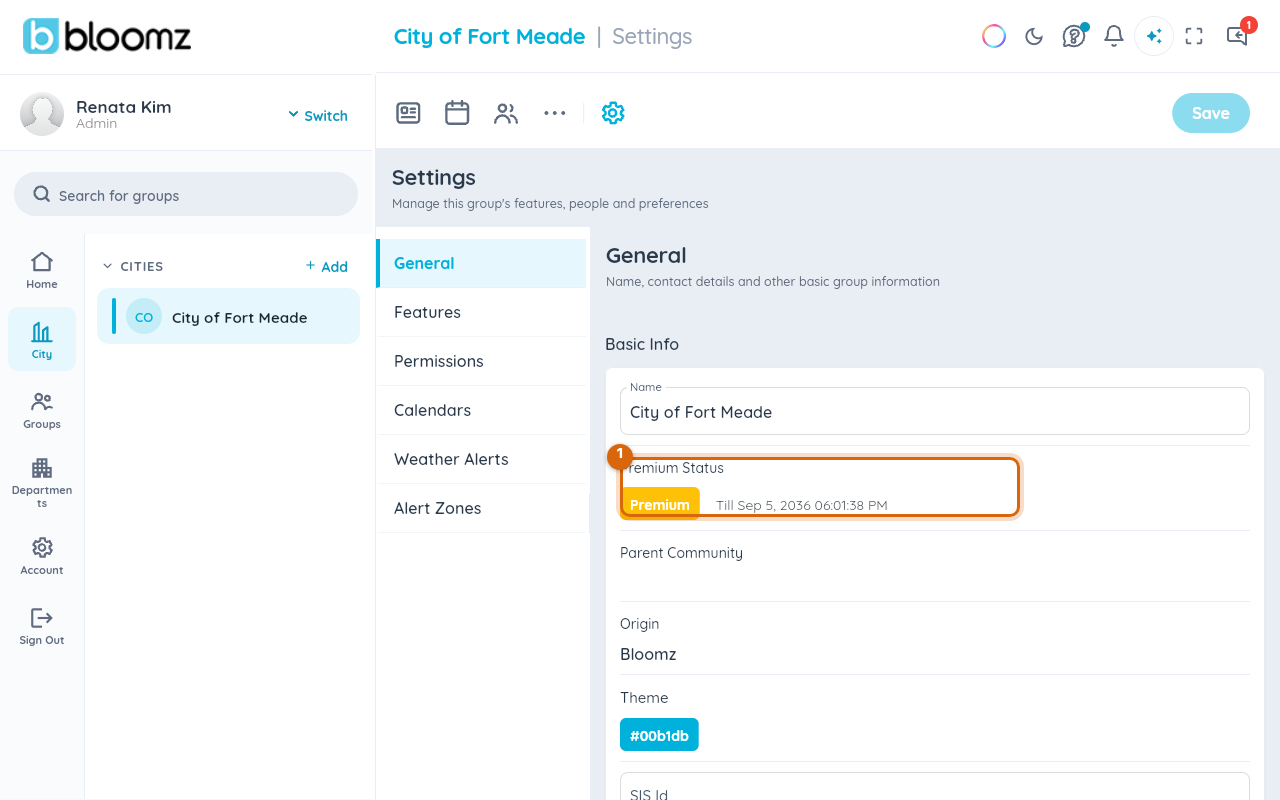
The Premium Status badge shows whether the City is on Premium and until when. City Premium grants a Premium account level to your admins and staff, and cascades the same status down to Departments, Neighborhoods and Community Organizations underneath the City — you don't set it separately on each one.
Step 2 — Open Manage → Staff
Select the people icon, then the Staff tab.
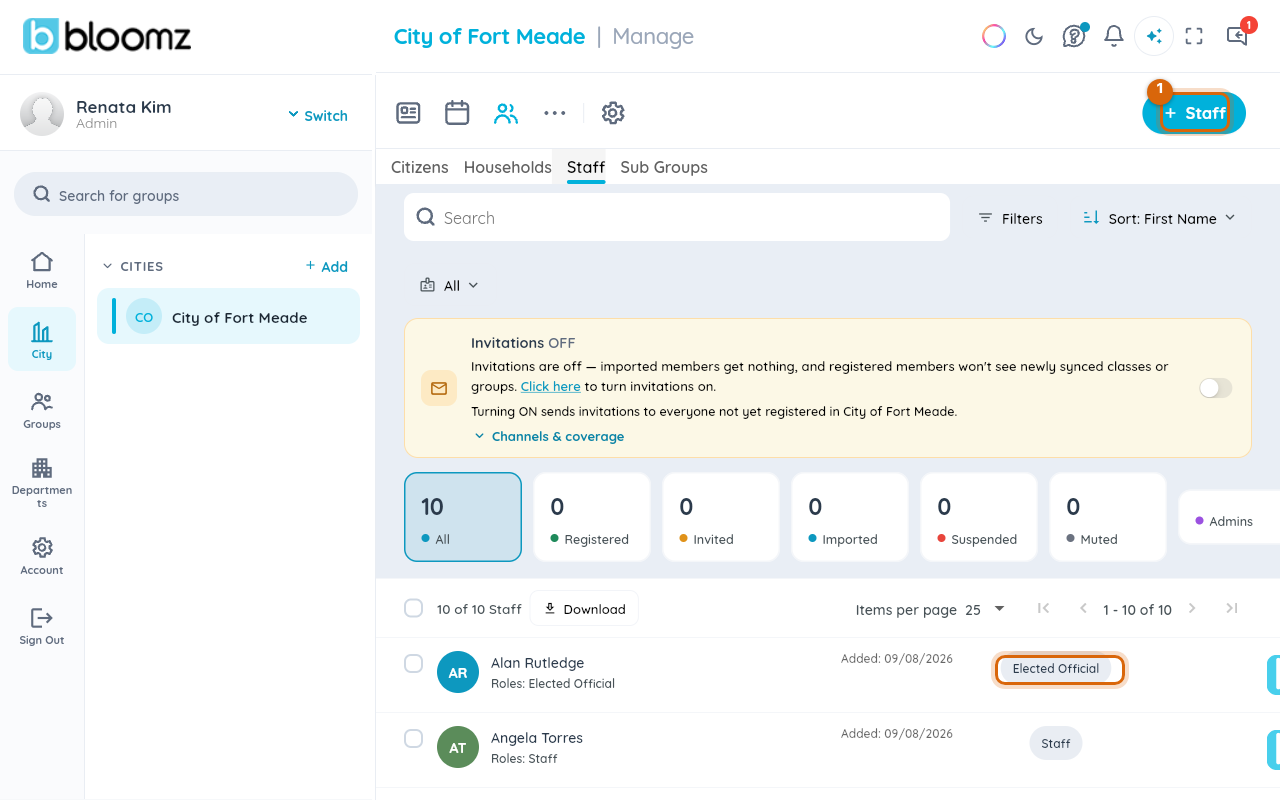
Each staff member's card shows their current Roles — a general platform role like City Manager, Elected Official or Staff.
Step 3 — Select + Staff
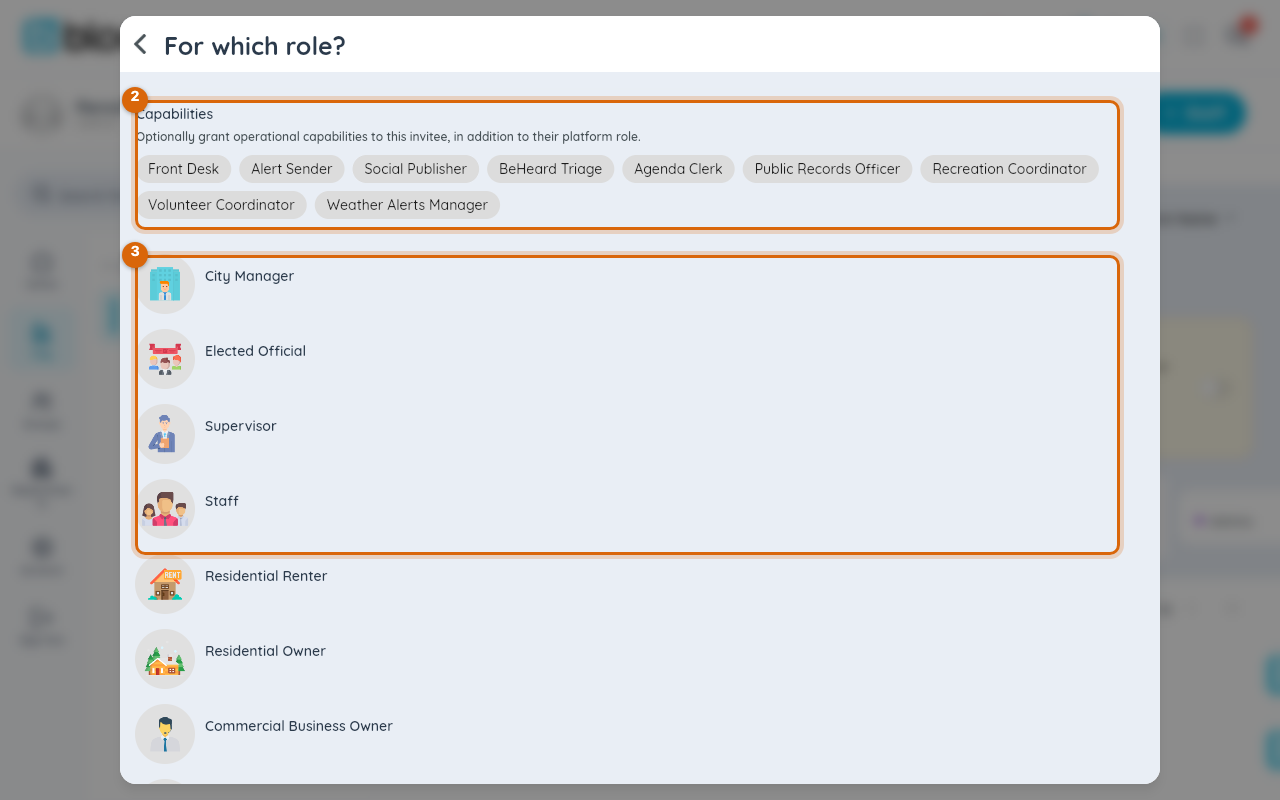
This opens the invite flow, ending on For which role? — the screen that sets both a platform role and any Staff Capabilities.
Step 4 — Choose Staff Capabilities
The Capabilities row lets you optionally grant one or more operational capabilities in addition to the invitee's platform role — Front Desk, Alert Sender, Social Publisher, BeHeard Triage, Agenda Clerk, Public Records Officer, Recreation Coordinator, Volunteer Coordinator and Weather Alerts Manager. The six city-specific ones (BeHeard Triage through Weather Alerts Manager) currently describe what a person does for the city; they do not unlock any screens on their own. Publishing agendas, managing records requests and running programs still require an admin role on the City, such as City Manager.
Step 5 — Choose a platform role and send the invite
Scroll down to pick the platform role — City Manager, Elected Official, Supervisor, Staff, Residential Renter, Residential Owner or Commercial Business Owner — then finish the invite.
Watch out: capabilities are set at invite time on this screen. To change an existing staff member's capabilities, remove and re-invite them, or ask them to be re-invited with the capability added.