 Bloomz
Set up your city's departments, neighborhoods and community groups
A city on Bloomz is built from subgroups — Departments (Utilities, Sanitation, Public Works, the City Clerk's Office) and Neighborhoods or Community Organizations (resident-facing groups like a neighborhood association). This is what lets a resident of the West Side Neighborhood Association see West Side news while a Public Works staffer manages Public Works communication, all under one City. You need the City Manager role or another admin role on the City group to do this.
Before you start
You need an admin role on the City group itself — Departments and Neighborhoods are created from the City's own Manage screen, not from inside a subgroup. Know which kind you're creating: a Department is internal to the city office (staff only, no resident "Student role"), while a Neighborhood or Community Organization is resident-facing.
Step 1 — Open your City group
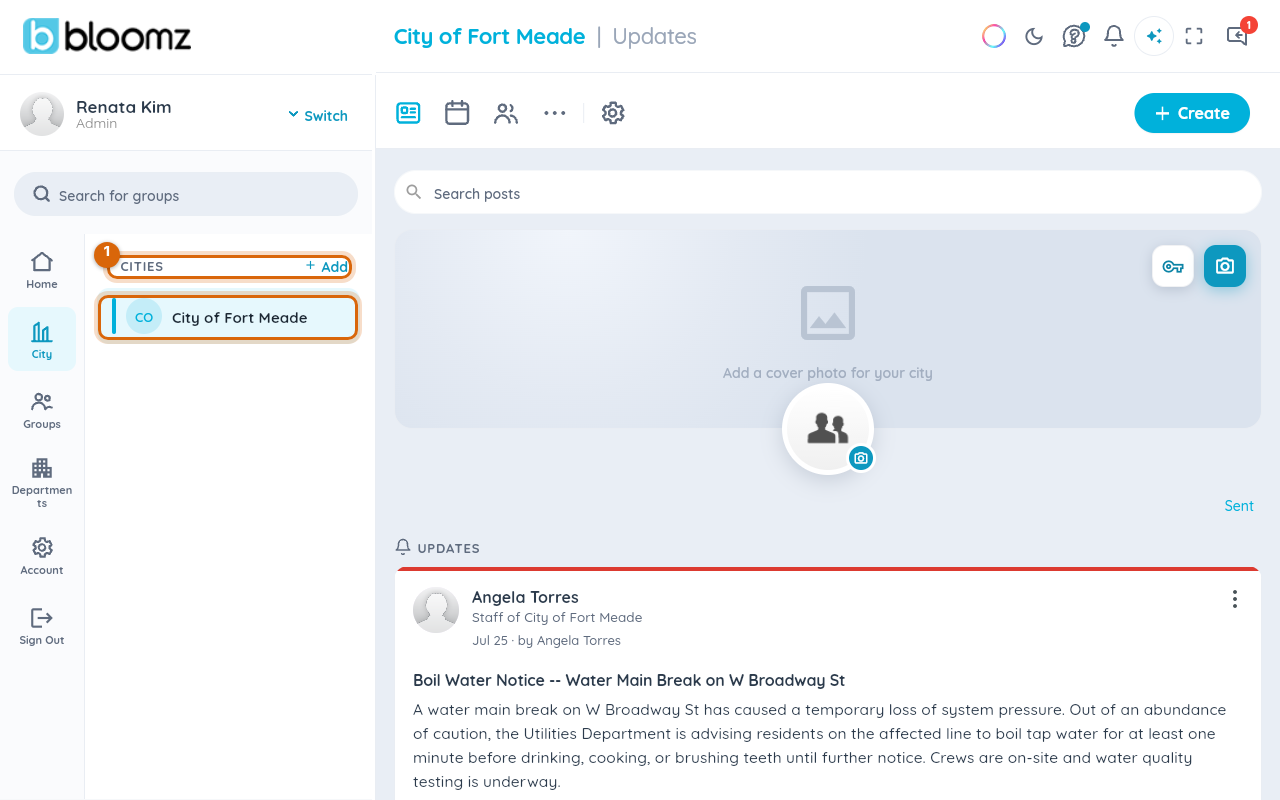
From Home, select your city under the Cities bucket in the left rail — or select + Add next to Cities to create another one.
Step 2 — Open Manage → Sub Groups
Select the people icon in the top bar, then the Sub Groups tab.
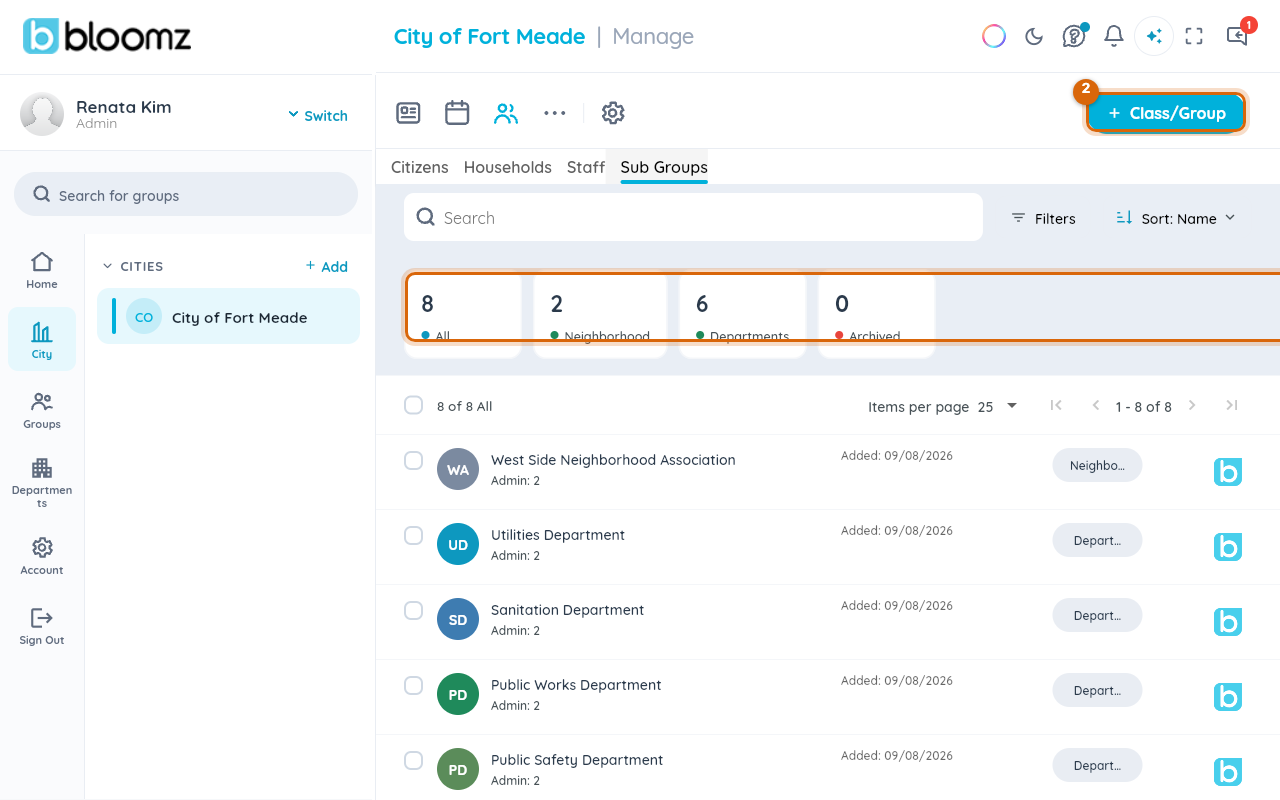
You'll see every subgroup you've already created, split by count into All, Neighborhood, Departments and Archived.
Step 3 — Select + Class/Group
This opens the group-type picker used across Bloomz — the same sheet a school uses to create a class.
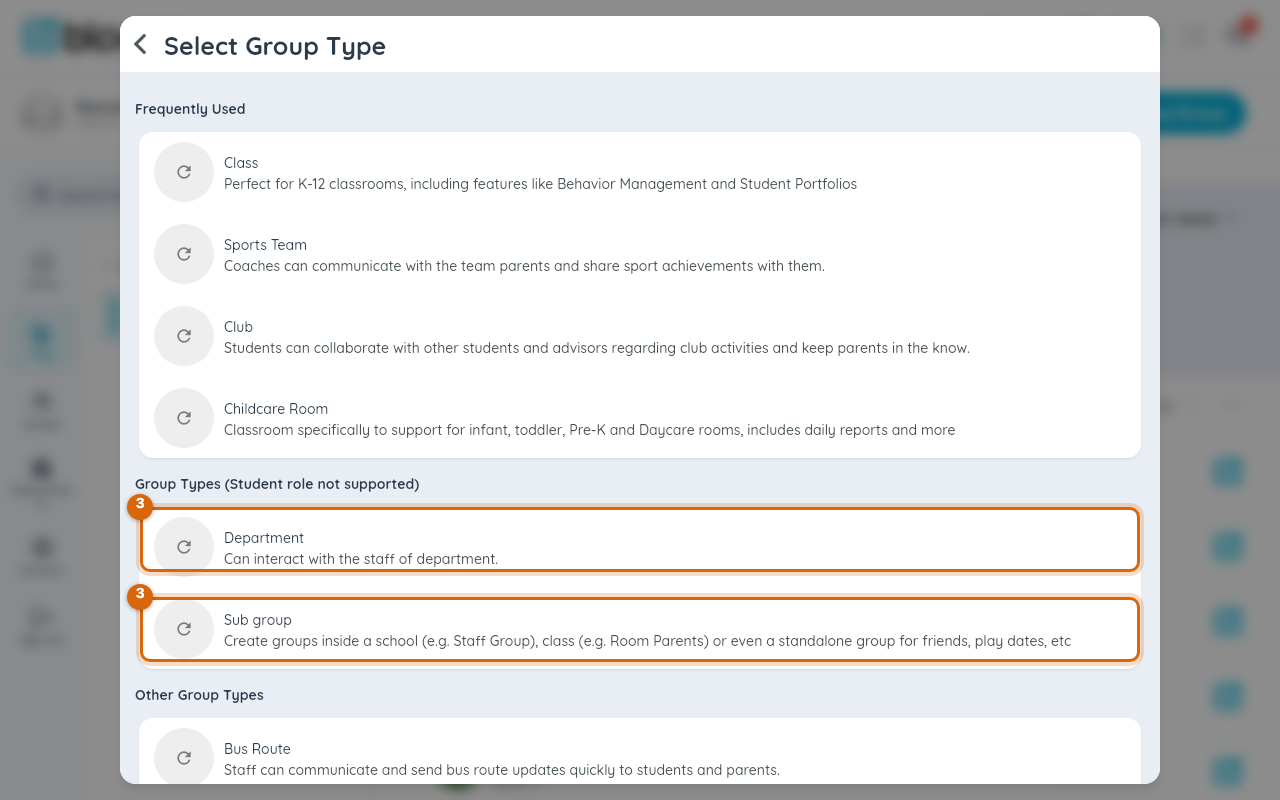
Under Group Types (Student role not supported) you'll see Department and Sub group — Sub group is what Neighborhoods and Community Organizations are built from; name it and Bloomz applies the City's own narrowed feature catalog automatically.
Step 4 — Name the group and save
Give it a real name — "West Side Neighborhood Association", "Utilities Department" — and select Create. It appears immediately in the matching rail bucket and the Sub Groups list.
Watch out: Departments and Neighborhoods use two different Settings pages. A leaf group like a Neighborhood or Community Organization gets a single collapsed row per feature (no further subgroups beneath it); Departments stay on the same simple page as any other subgroup.
Step 5 — Add staff or residents
Open the new subgroup and use its own Manage tab to add people, the same way you would for the City itself — see Manage City Features and Permissions for what a resident of a Neighborhood can do versus a Department staffer.
Divisions inside a department
A department can have divisions under it — for example a Utilities department with Water and Sewer divisions. A division is a Department whose parent is another Department. In the left rail, a department that has divisions shows a count (for example "2 divisions") and a chevron; the divisions are tucked under it and the list stays closed until you open it, search, or select a division. Department and division staff see only their own unit's Be Heard reports (a department also sees its divisions); City admins see all. Residents of the City can browse the departments the city has made visible to them. This is available on the web; the mobile apps will follow in an app update.
Department only or Public posts
When someone writes a post to a department or division in a City, the composer shows a Department only / Public picker. Department only is the default: only that unit's staff (and City admins and managers) can read the post, and it is not shared to the web, push, RSS or social channels. Public also puts the post in front of residents; if the author needs approval to post to the City, the post stays in the department and a notice says it could not reach the City feed. The picker is not shown when you edit an existing post, and Department-only posts show a lock badge. Residents who open a department see its Public posts only.