 Bloomz
Understand households in Bloomz for cities
For a City, the resident equivalent of a school's "family" is a Household — a home address with the residents linked to it (a household head, a spouse, a roommate, and more). Households are a distinct, purpose-built concept for cities: Bloomz never reuses or renames the school Student model for this, even when the same person is both a resident of a city and a parent in a school district on Bloomz. You need an admin role on the City or Neighborhood whose households you're viewing.
Before you start
You need an admin role on the City, Neighborhood or Community Organization. There is no "New household" action anywhere in Bloomz — a household is created automatically, the first time a member is added to the group with a home address (through a roster import, for example). If nobody has been added with an address yet, the list is genuinely empty; that isn't a bug.
Step 1 — Open Manage on your City or Neighborhood
Select the people icon in the top bar. The tab strip shows Residents, Households, Staff and Sub Groups.

Residents is the roster of every registered, invited or imported person in the group — the same style of list a school uses for Parents and Students, with role chips like Residential Owner or Commercial Business Owner.
Step 2 — Select the Households tab
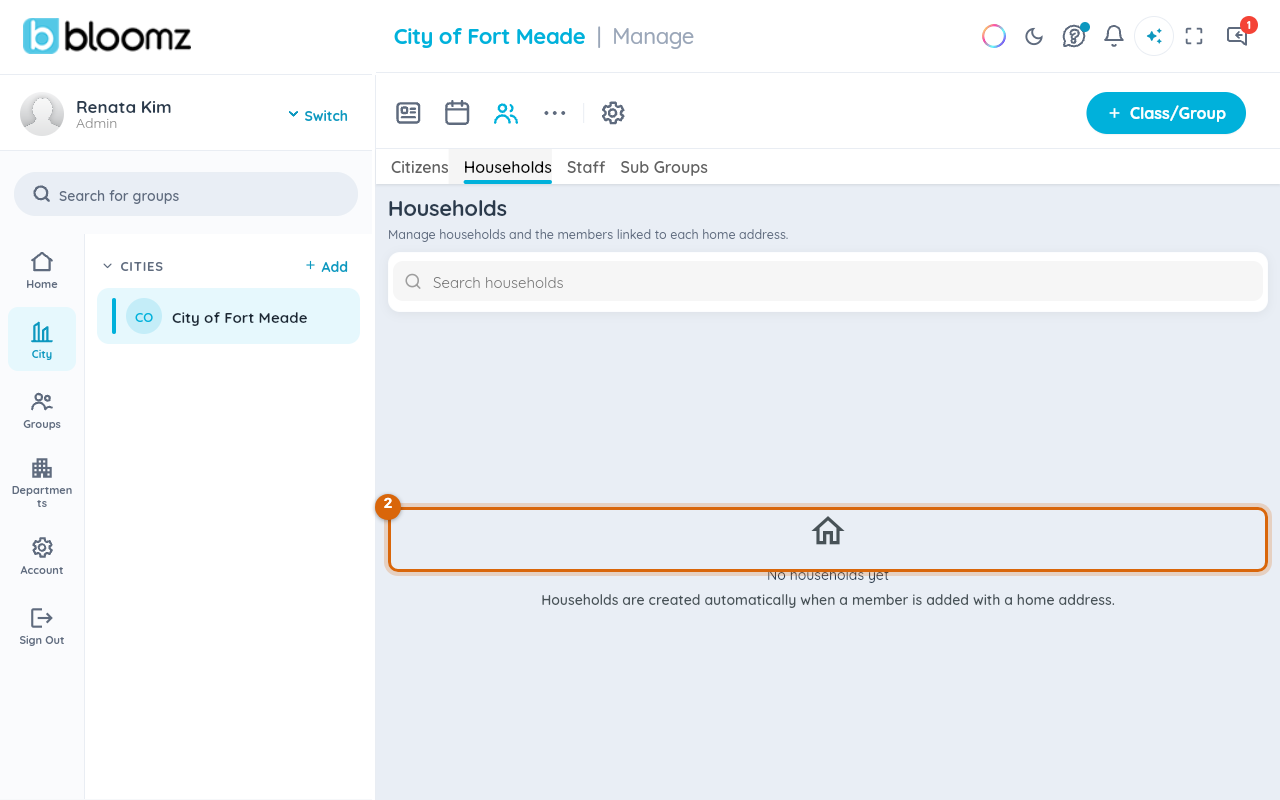
Where a household exists, this list shows its name, address and linked members; selecting one opens a detail panel where an admin can edit the address, add or remove members, or delete the household.
Step 3 — Search for a household once you have some
Once your roster includes members with addresses, use Search households at the top of this tab to find one by name or address — there's no server-side filter beyond the search box, so the list itself pages by 20.
Watch out: Household is never Student. The same person can be a City resident with their own Household AND a parent in a school district's own Bloomz tenant at the same time — the two records never merge or overload each other, by design.