 Bloomz
Run the Check-In kiosk
A shared tablet at the front door or classroom entrance can handle morning check-in on its own, so arriving families and staff do not need to hand a phone back and forth. Kiosk mode locks the tablet to that one job.
Before you start
Your school must have Check-In/Out switched on. You stay signed in as staff the whole time the kiosk runs — that is what makes the exit password gate work.
Step 1 — Start the kiosk
From Room Check-In, select Use this device for check-in, or open the Check-In Kiosk card in the More menu under Safety & Wellbeing.
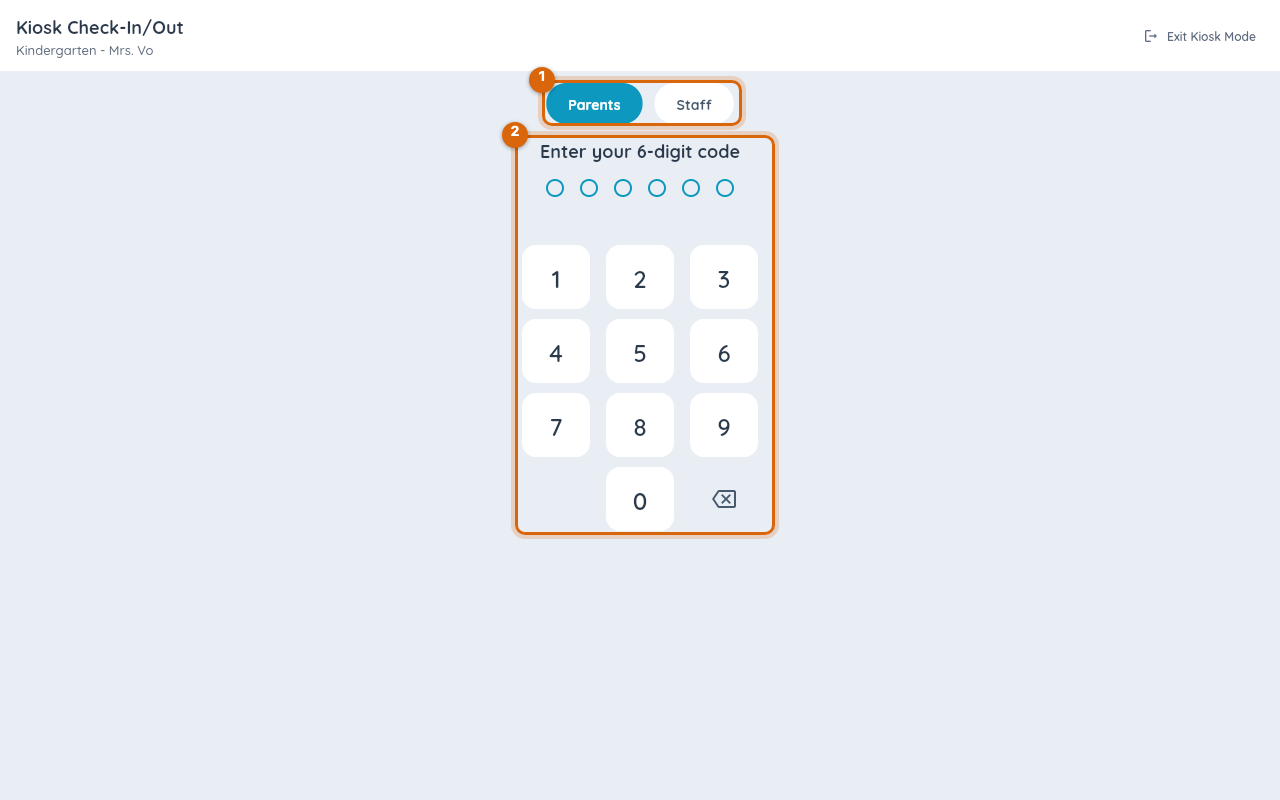
Step 2 — A family or staff member checks in
An arriving adult enters their family's 6-digit Check-in Kiosk PIN to bring up their children, picks who is dropping off or collecting, signs on the signature pad, and chooses the room — the full student roster is never shown to arriving families. There is no roster or name search at the kiosk: a family that can't use their PIN is helped by a staff member from staff screens. Staff clock in and out on the Staff tab.
Step 3 — It resets on its own
The kiosk confirms and returns to its landing screen — also automatically, after 60 seconds of inactivity.
Step 4 — Exit kiosk mode
Every exit path — the Exit Kiosk Mode button, browser Back, Escape — opens a dialog asking for the signed-in staff member's Bloomz password.
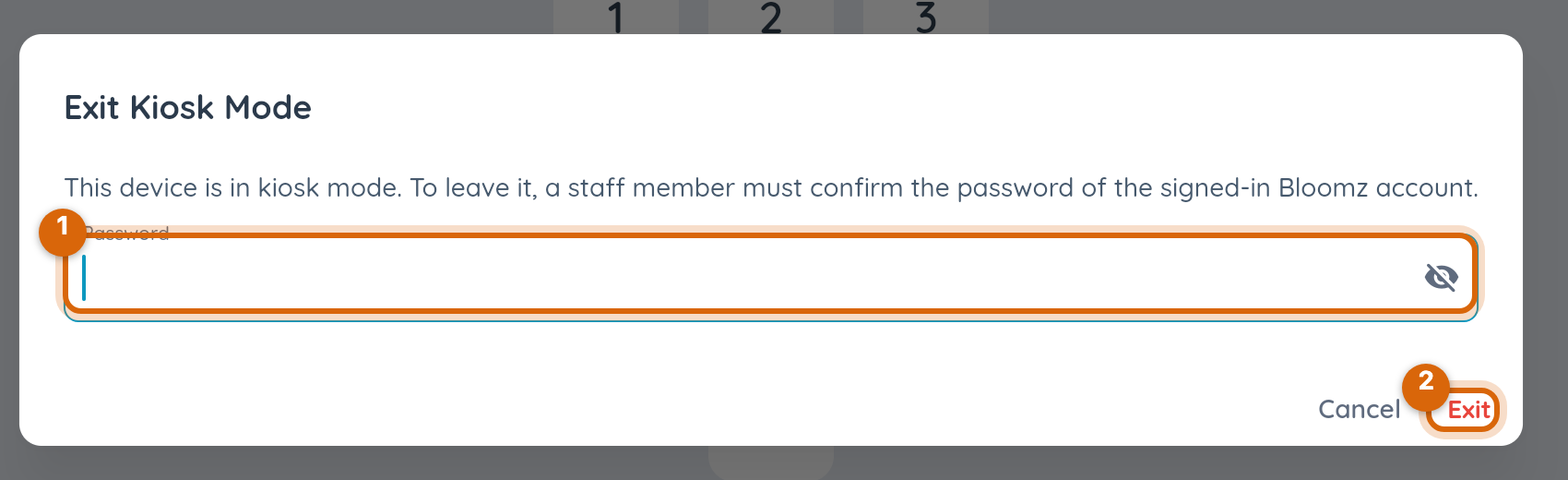
Watch out: the password gate stops someone tapping into your signed-in account, not someone walking away from the app at the device level. For a genuinely unattended kiosk, also turn on Guided Access (iPad), screen pinning (Android tablet), or Chrome kiosk mode — the same protection covers the Hall Pass Kiosk.
Related
- Student check-in and immunizations
- Run the Hall Pass kiosk — and exit it safely
- Update a student's health profile