 Bloomz
Run the Hall Pass kiosk — and exit it safely
A shared tablet in the hallway or at the office door can run Hall Pass on its own, letting students start and end passes without borrowing a staff member's phone. Kiosk mode locks the tablet to that one job — and locks a password behind leaving it.
Before you start
Your school must have Hall Pass switched on, and Enable kiosk mode must be turned on in Student access (see Set hall pass limits and student accommodations). You stay signed in as staff for the whole time the kiosk runs.
Step 1 — Start kiosk mode
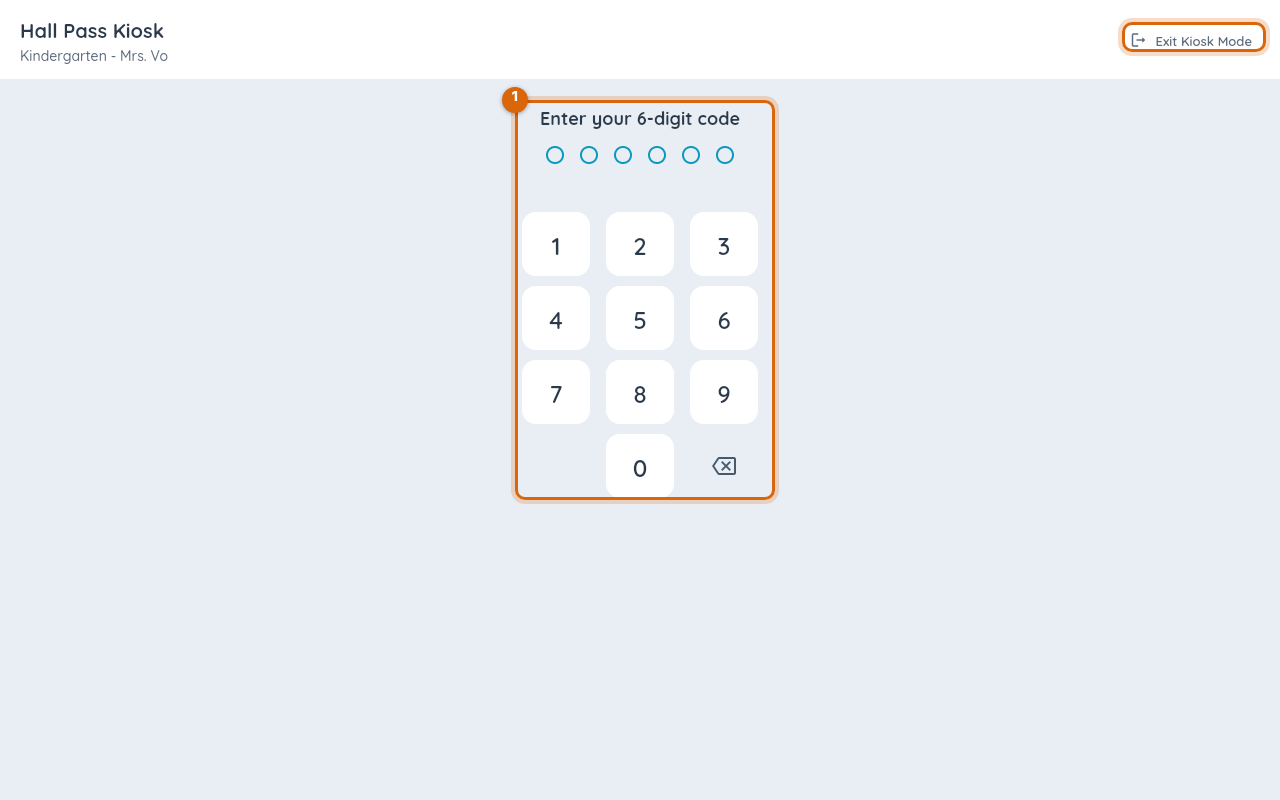
From your class More menu, select the Hall Pass Kiosk card (or the same card in the Hall Pass Console for a school-wide kiosk). The tablet switches to a full-screen kiosk view.
Step 2 — A student uses it
A student enters their 6-digit student PIN, picks a destination chip, and the kiosk starts their pass. It resets to the PIN pad for the next student immediately after.
Step 3 — Exit kiosk mode
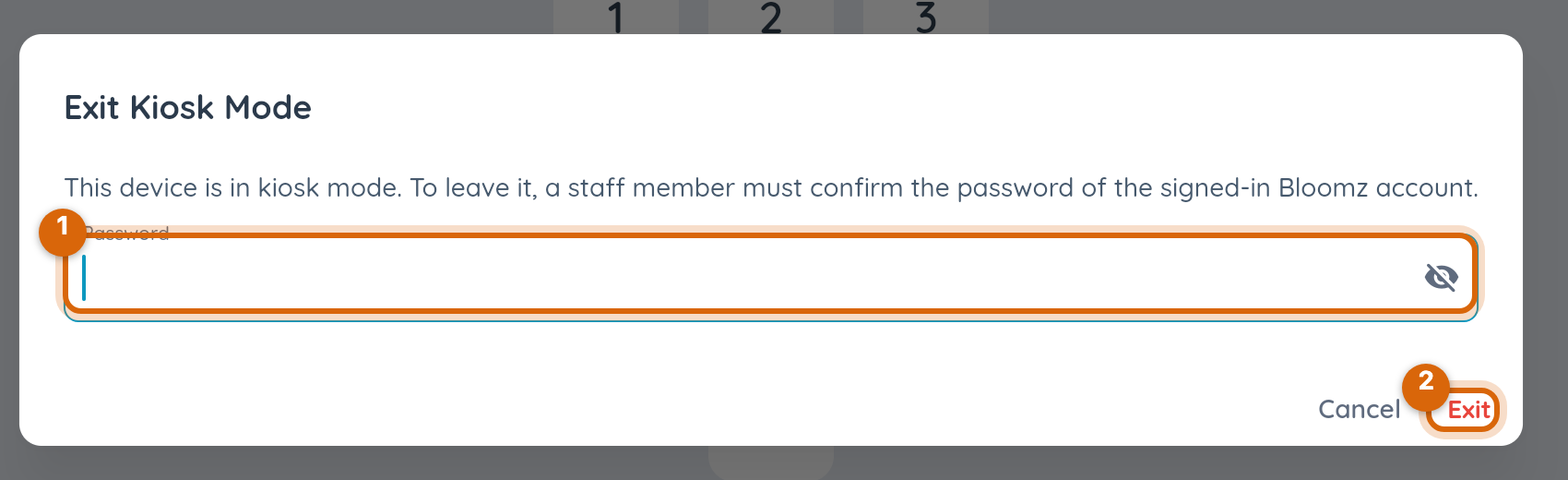
Because the kiosk runs while a staff member is signed in, exiting — the Exit Kiosk Mode button, browser Back, Escape — opens a dialog demanding that staff member's Bloomz password.
Step 4 — Enter the password
Type the password and select Exit. A wrong password shows an inline error; five wrong tries in a row disable the field for 30 seconds.
Watch out: the password gate stops someone tapping into the signed-in account, not someone leaving the app at the device level. For a genuinely unattended kiosk, also turn on Guided Access (iPad), screen pinning (Android tablet), or Chrome kiosk mode — the same protection covers the Check-In Kiosk.
Related
- Issue a hall pass
- Request a hall pass
- Run the Check-In kiosk
- Halt all hall passes in an emergency