 Bloomz
Request a hall pass
When you need to leave class — the restroom, the nurse, a quick errand — request a hall pass from your own device instead of raising your hand and waiting. Your teacher sees the request right away and can approve it in one tap.
Before you start
Your school must have Hall Pass switched on, and your teacher must have turned on Allow students to request passes for your class. If you do not see a Request a Pass button, ask your teacher — some classes only issue passes themselves. If the school has halted passes, requests are not accepted until the halt is lifted.
Step 1 — Open My Hall Pass
Open your class and select My Hall Pass under Safety & Wellbeing in the More (…) menu.
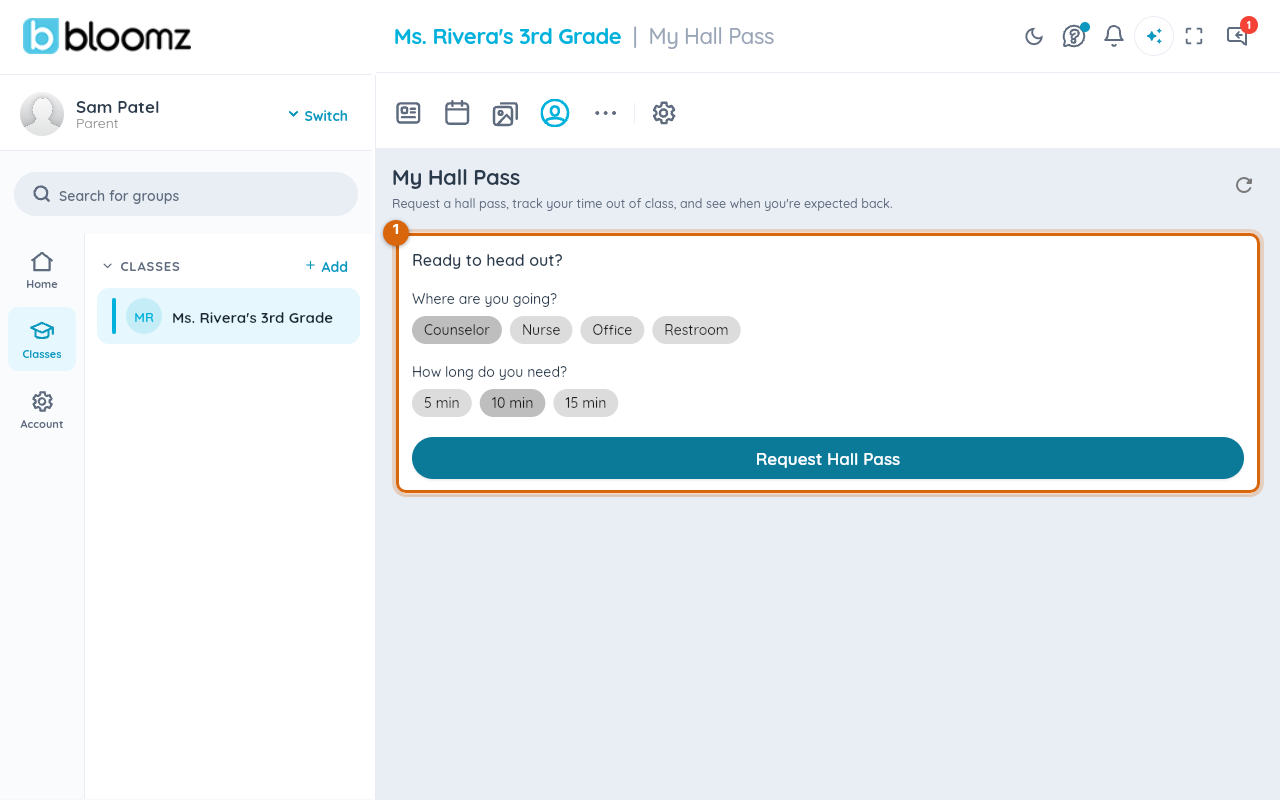
Step 2 — Choose where you're going
Select Request a Pass. Pick a destination chip — Restroom, Nurse, Counselor, Office or whatever your school offers — and add a short reason if your teacher asks for one.
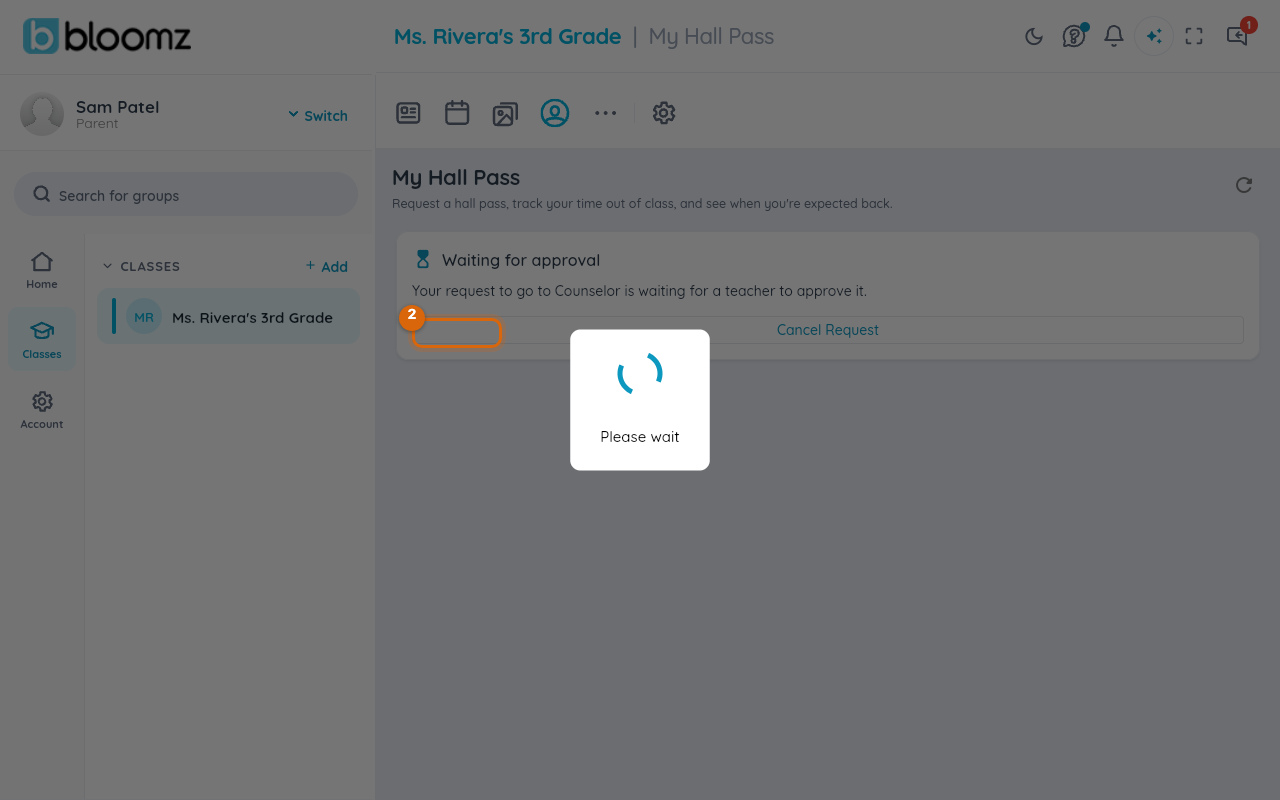
Step 3 — Send the request
Select Send Request. If your class requires approval, the request goes to your teacher; if it does not, your pass starts right away.
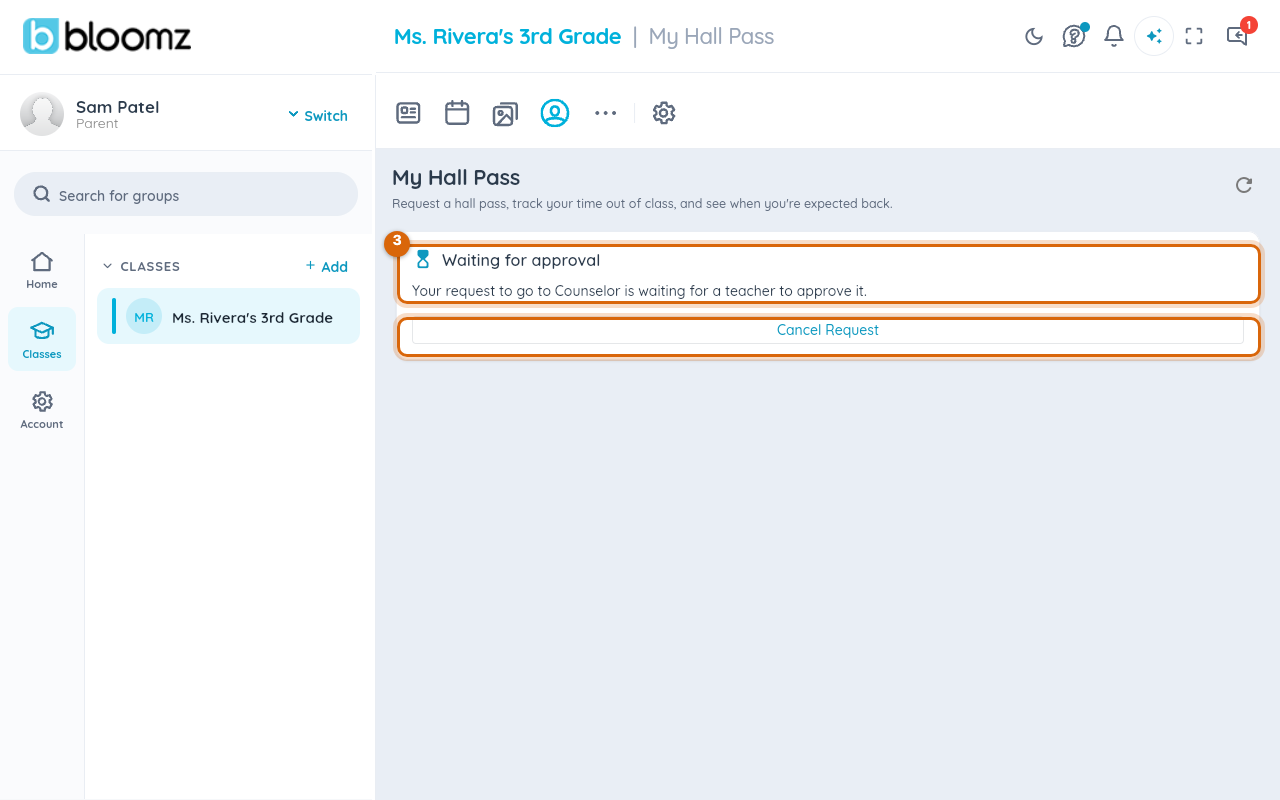
Step 4 — Watch your status
While you wait, My Hall Pass shows Pending approval. Once your teacher approves it, the same screen switches to a live countdown you can show at your destination.
Watch out: the same school rules that apply to teacher-issued passes apply to your request — a daily cap, a cooldown, a blackout window. If a rule blocks you, the app tells you which one and when you can try again.
Related
- Approve or deny a student's pass request
- Confirm arrival and close a pass
- Issue a hall pass
- See your child's hall passes