 Bloomz
See your child's hall passes
See every hall pass your child has taken this week — where they went, and how long they were out — from your own account.
Before you start
Your school must have Hall Pass switched on. You see this for your own children only.
Step 1 — Open your child's class
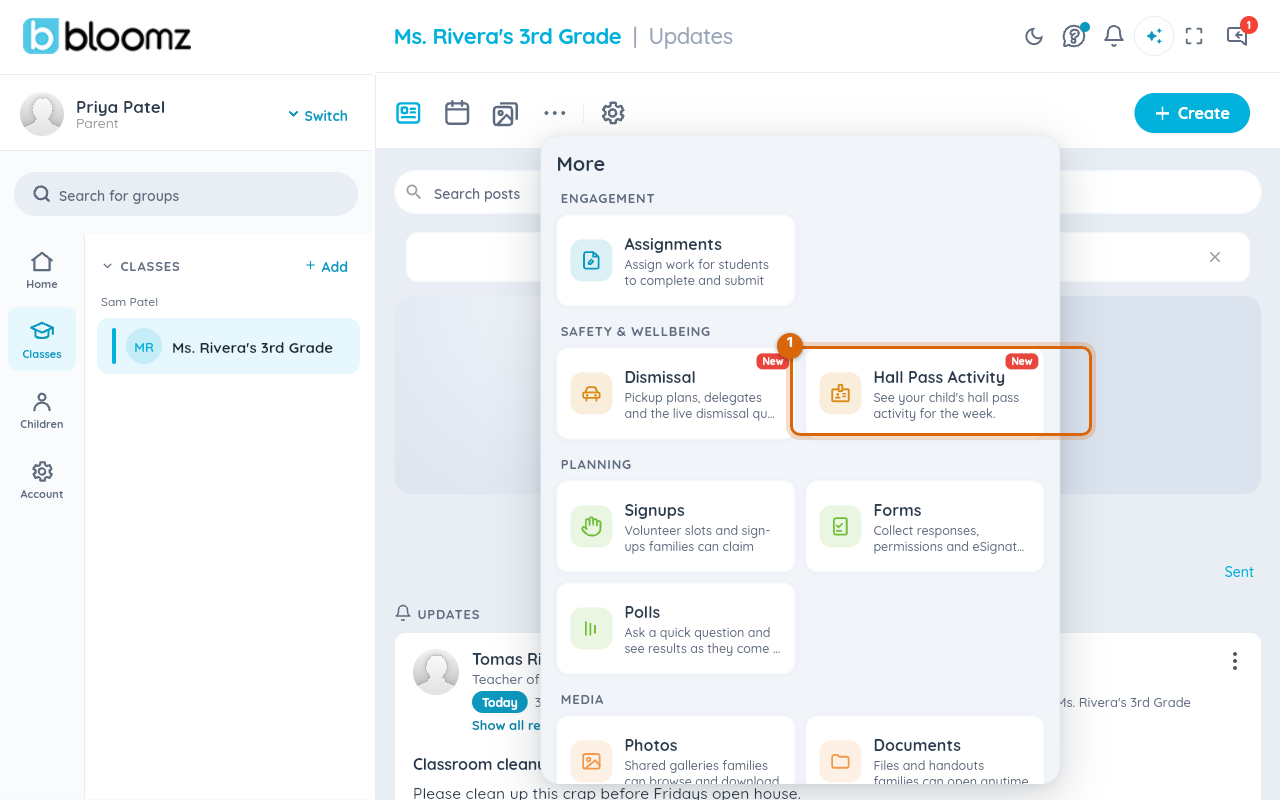
Open your child's class, select More (…), then Hall Pass Activity under Safety & Wellbeing.
Step 2 — Read the week
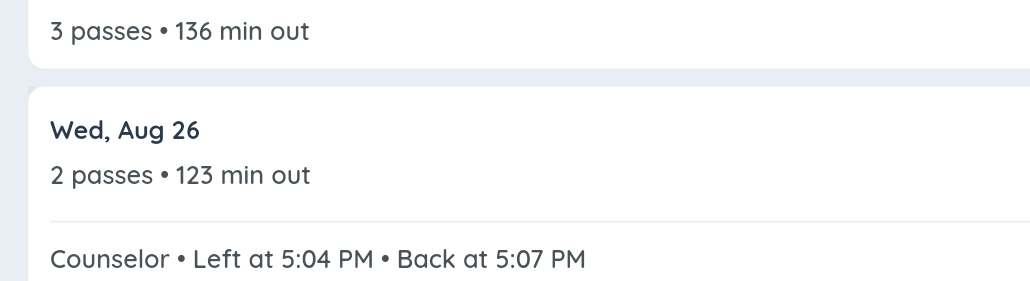
The screen lists the current week day by day, with a pass count and total minutes out for each day that has activity.
Step 3 — Open a day for detail
Select a day to expand it in place: each pass on that day shows its destination and when your child left and got back.
Step 4 — Look further back
Use the arrows on the week bar at the top to page to an earlier or later week.
Watch out: an auto-closed pass just means your child did not return by the grace period Bloomz gave them — it is not automatically a discipline record. If you have questions about one, message the teacher from the same screen.
Related
- Request a hall pass
- Issue a hall pass
- Confirm arrival and close a pass