 Bloomz
Run the Extended Day check-in board
The Extended Day board is the live view of today's program roster — who has arrived, who hasn't, and who has been picked up — and the log is the searchable history behind it. Most arrivals happen automatically: a student dismissed with the After School method is checked in to their program the moment their dismissal departure is recorded.
Before you start
- Extended Day must be turned on and a program set up (see Set up an Extended Day program).
- Viewing the board is open to school staff. The board's manual check-in/out override actions need the dismissal-coordinator capability — if you don't see them, ask your admin about your staff capabilities.
Step 1 — Open the board
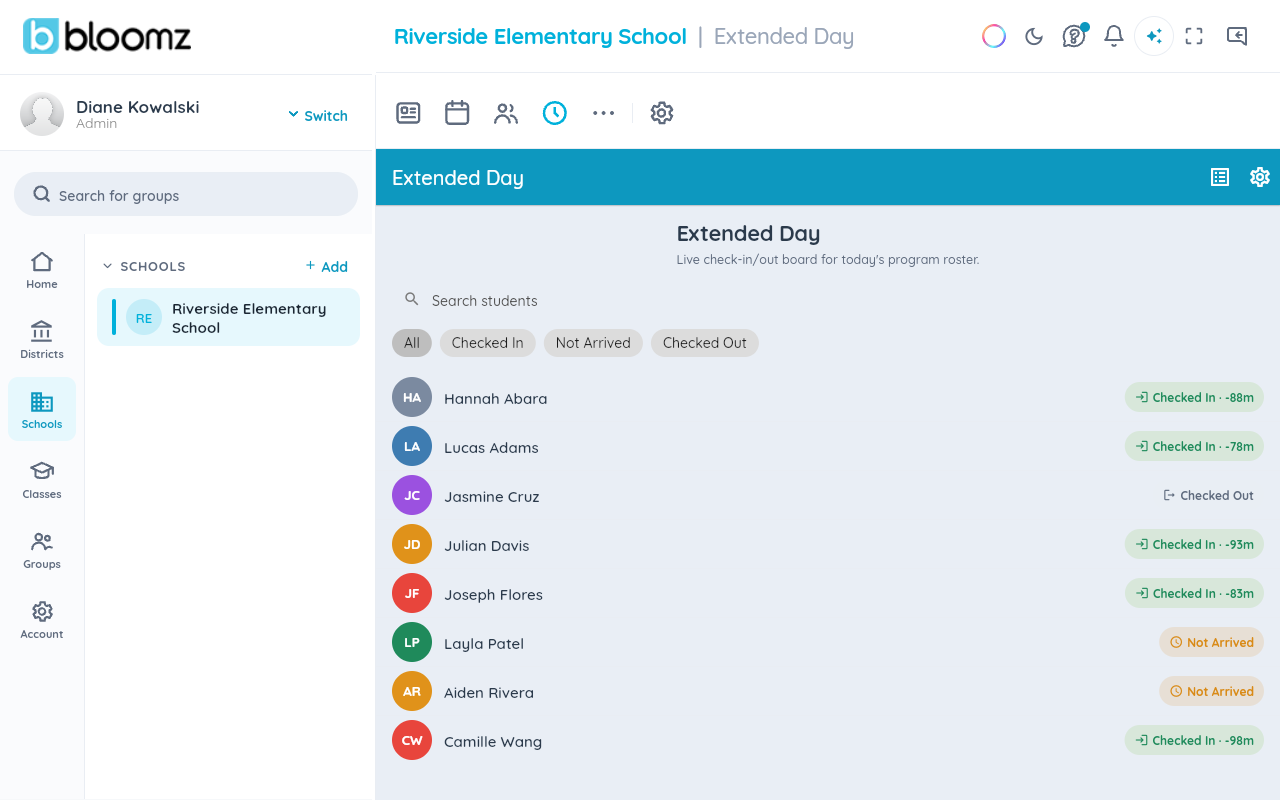
From More (…) → Extended Day, open the board. Every enrolled student shows one of three status chips — Checked In (with a running duration), Not Arrived, or Checked Out — and the board refreshes itself every few seconds.
Step 2 — Read the handoff badge
Rows that arrived through the automatic dismissal handoff carry a Via dismissal handoff badge, separate from the status chip — so you can tell an automatic arrival from one a staff member recorded by hand.

Step 3 — Correct the board when you need to
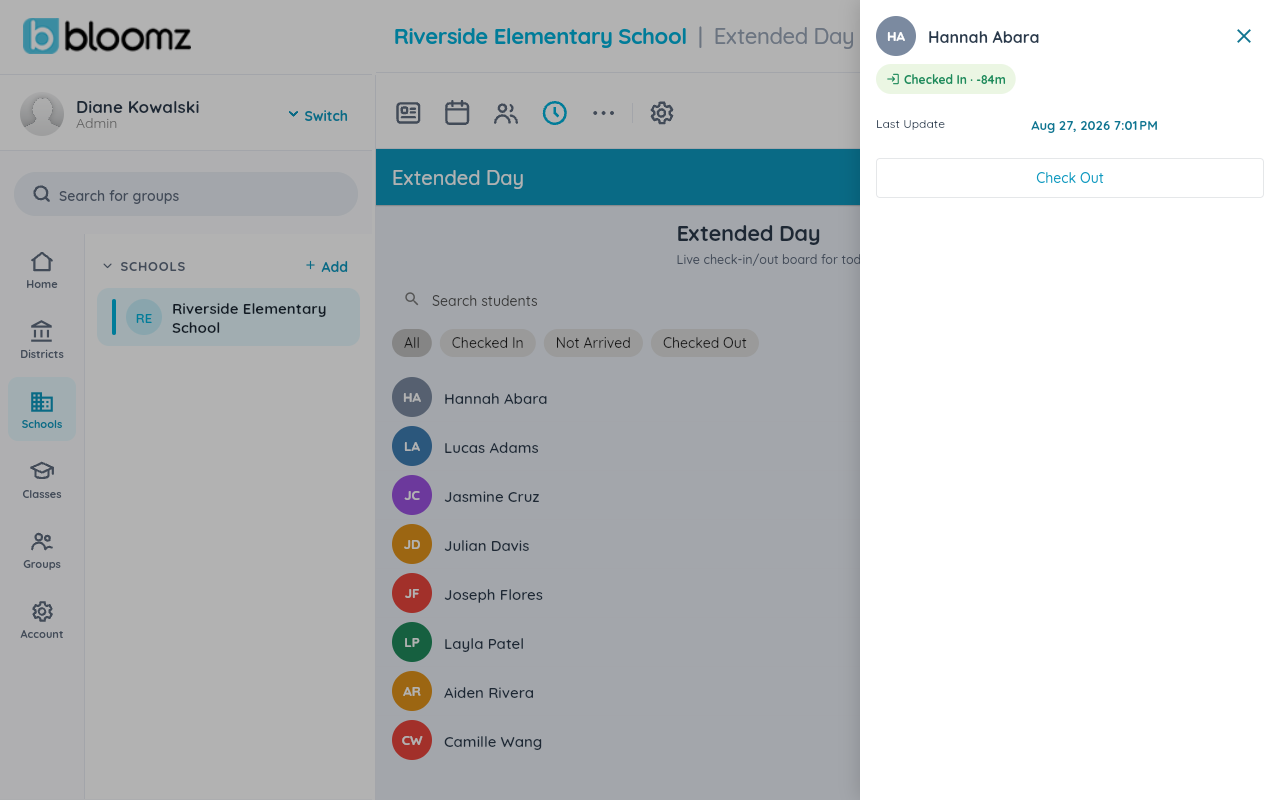
If a student who should have been checked in wasn't (or the other way around), use the manual check-in / check-out override on their row. Checking a student out at pickup runs the same verification and custody checks the dismissal line uses — a contact the school has marked as not allowed to pick up is hard-stopped here too.
Step 4 — Review the log
Open the Log for the historical record: one row per check-in or check-out event, with a status filter, text search, click-to-peek details, and a CSV export.
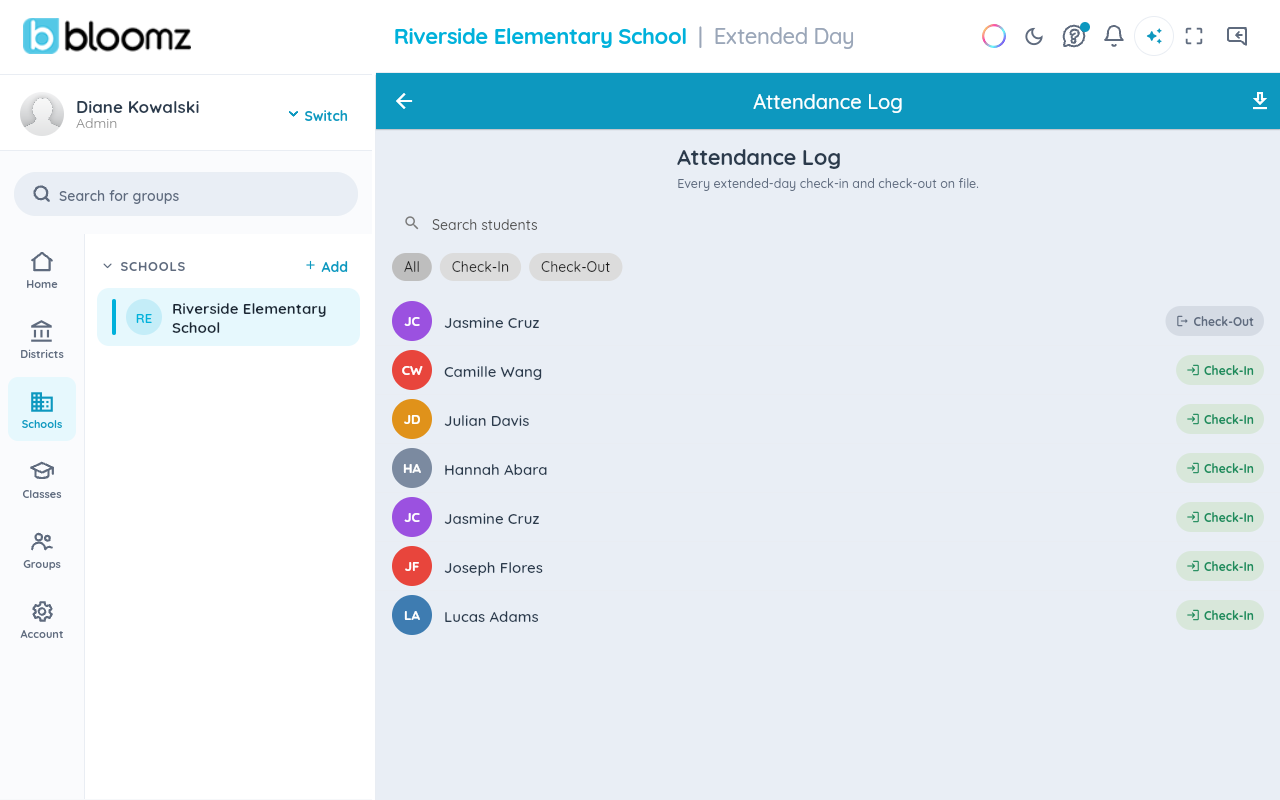
Watch out: the log's CSV export covers the rows currently loaded on the page, not the program's whole history — narrow the filters to the range you need before exporting.
What families see
The family's dismissal notice is unchanged, and their child's program check-ins and check-outs appear on the child's day timeline. Families don't see the board itself.