 Bloomz
Set up an Extended Day program
Extended Day is Bloomz's before/after-school program module: an enrolled roster, a live check-in/out board, an attendance log, and optional automatic recurring billing. This article covers the one-time program setup; running the daily board is covered in Run the Extended Day check-in board.
Before you start
- Extended Day is off by default — a school or district admin turns it on in Settings → Features before the tile appears.
- Setting a program up is a staff task. The module's tile lives in the More menu under Planning.
- A program sits on top of an Afterschool class group: its roster IS that class's membership. You can link an existing afterschool class or have Bloomz create one for you during setup — there's no need to create the class separately first.
- A school can run more than one program at once (for example, separate morning and afternoon sessions); the Board, Log and Setup screens all carry a program switcher so staff pick which one they're looking at.
Step 1 — Open Extended Day
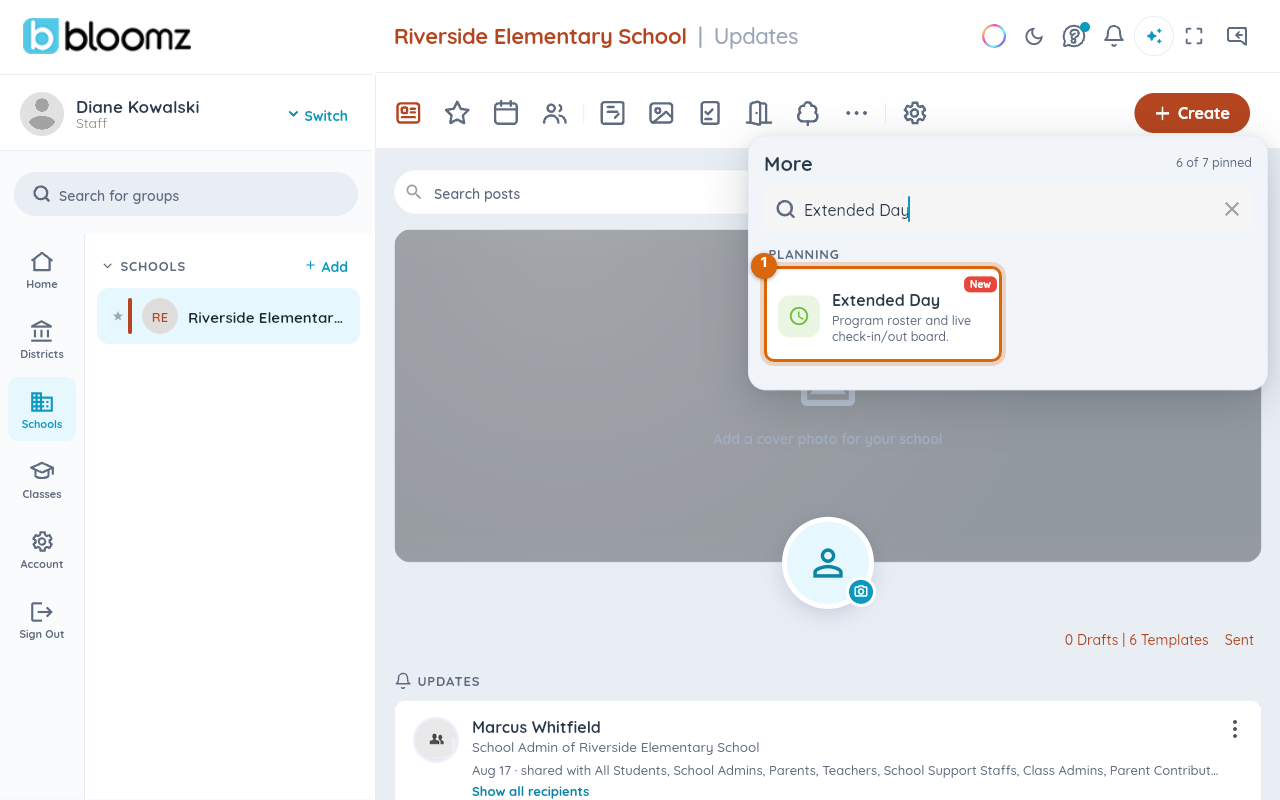
From your school, select More (…) and choose Extended Day under Planning, then select Add Program.
Step 2 — Choose the program's afterschool group
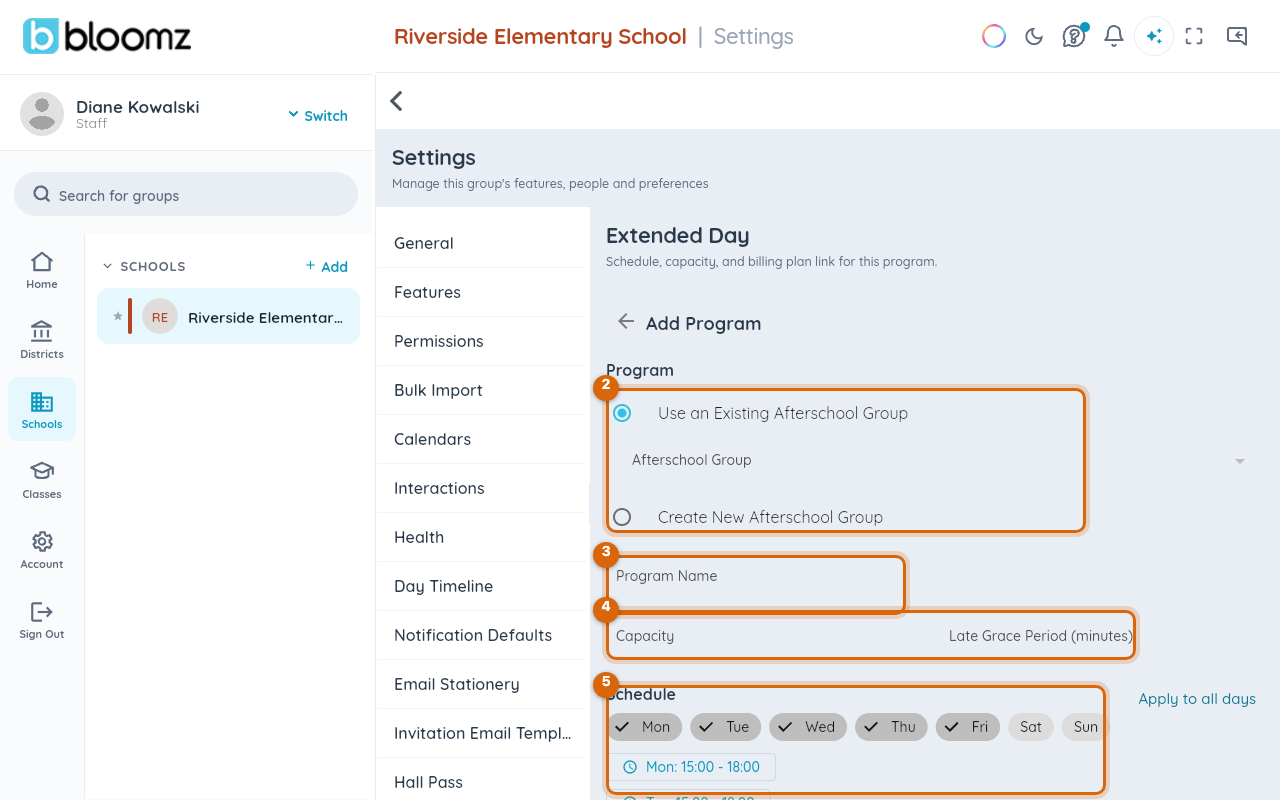
The Add Program form opens. Under Program, pick an existing afterschool class from Afterschool Group, or select Create New Afterschool Group to have Bloomz create one for you — either way the program's roster becomes that class's membership.
Step 3 — Name the program
Type a Program Name families and staff will recognize, such as "After School Care". Still on the same form.
Step 4 — Set capacity and the late grace period
Enter the program's Capacity, and the Late Grace Period (minutes): how many minutes past the program's closing time a pickup can happen before it's flagged Late. Enter 0 for no grace. Still on the same form.
Step 5 — Set the schedule
Under Schedule, turn on each weekday the program runs, then set that day's own start and end time. Apply to all days copies the times of the day you last edited to every day you've turned on. The schedule shows each day's window, for example Mon: 15:00 - 18:00.
Step 6 — Choose automatic billing (optional)
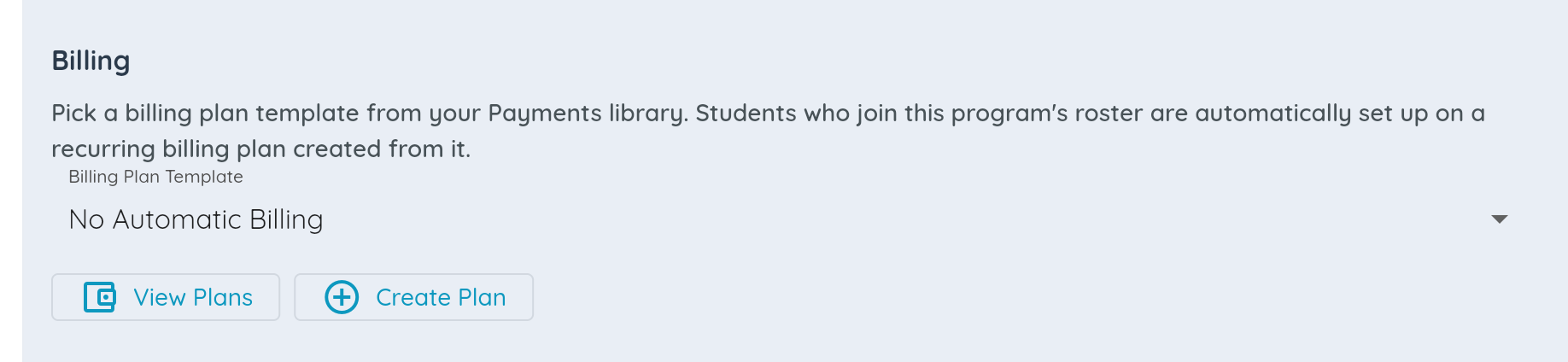
The billing section's Billing Plan Template dropdown lists your school's billing plan templates, plus No Automatic Billing. Pick a template to bill enrolled families automatically (see Bill Extended Day families automatically), or use the View Plans / Create Plan links to set one up first.
Step 7 — Save
Save the program. It appears in the program list, and students you add to the linked afterschool class are the program's roster from that moment on.
What families see
Families don't get a separate Extended Day surface. Their child's program check-ins and check-outs appear on the child's day timeline like any other attendance event, labeled with the program's name.