 Bloomz
Start a coaching cycle with a teacher
▶ Watch the video (55 seconds): Bloomz Grow: observations, private coaching and teacher goals.
Coaching Cycles pair you with a teacher for a stretch of focused work — a shared focus area, a series of sessions, and notes that only the two of you can see. Use this when you want an ongoing coaching relationship, not a one-time classroom visit.
Before you start
Your school needs Educator Coaching switched on, and you need the Coach role. A Coaching Cycle is private to the coach and teacher on it — not even a school or district admin can see its sessions or notes, so pick the teacher you are actually working with; there is no way to reassign a cycle to someone else later.
Step 1 — Open Educator Coaching
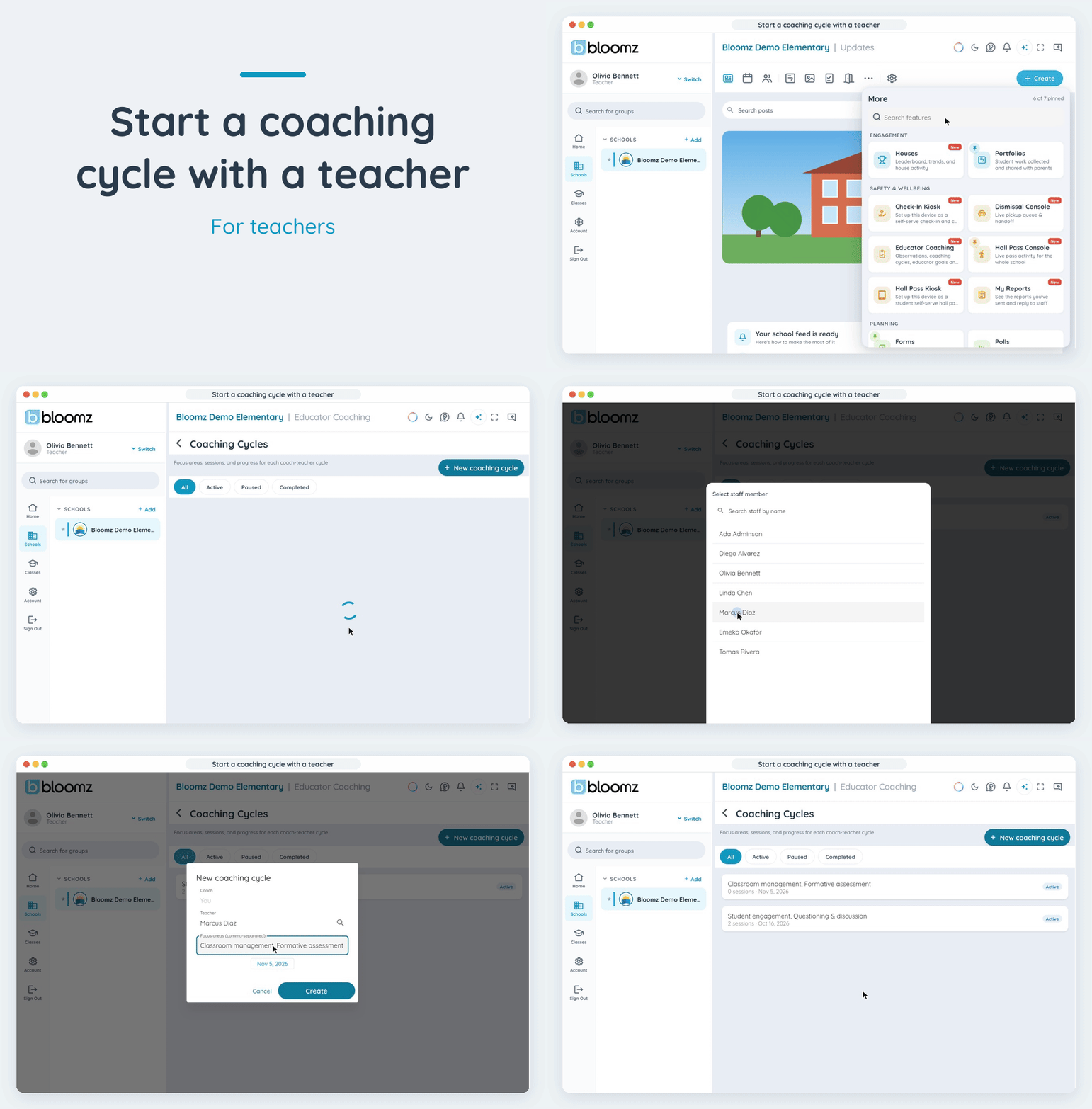
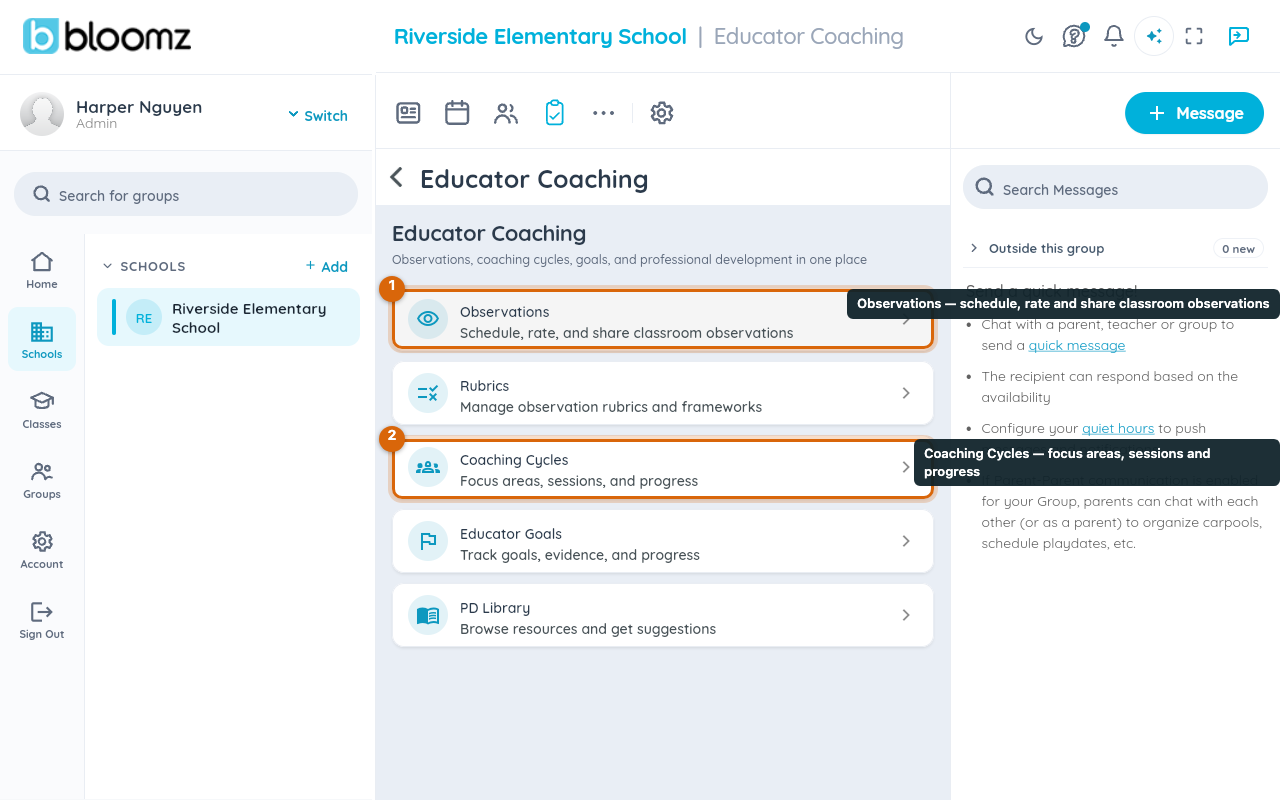
Open your school, select the … (More) menu, and choose Educator Coaching — search "Coaching" if it isn't in the first screen. The hub lists Observations, Rubrics, Coaching Cycles, Educator Goals and PD Library.
Step 2 — Open Coaching Cycles
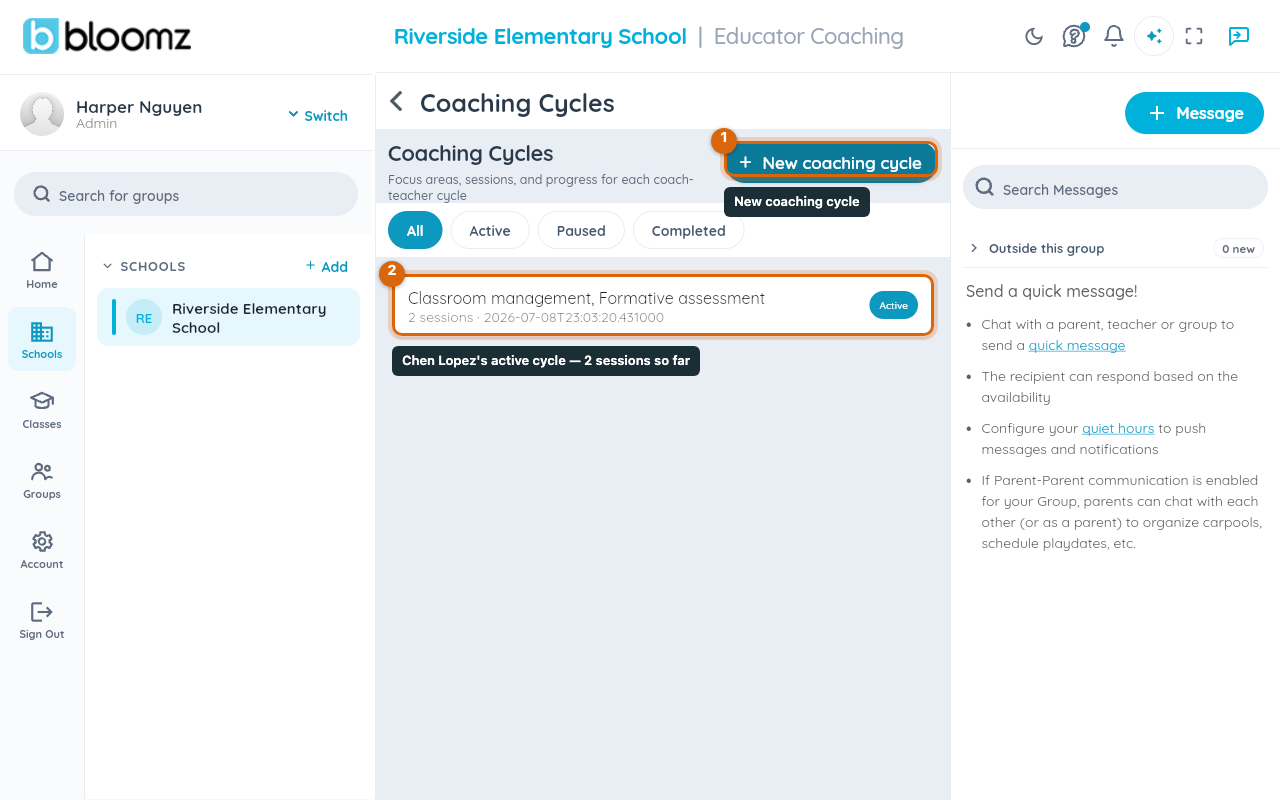
Select Coaching Cycles. Every cycle you're coaching is listed with its focus areas, session count and status — Active, Paused or Completed — with filter chips above the list.
Step 3 — Start a new cycle
Select New coaching cycle. Pick yourself as Coach and the teacher you're working with as Teacher — both open a searchable picker — then type a comma-separated list of Focus areas (for example "Classroom management, Formative assessment") and confirm the start date. Select Create.
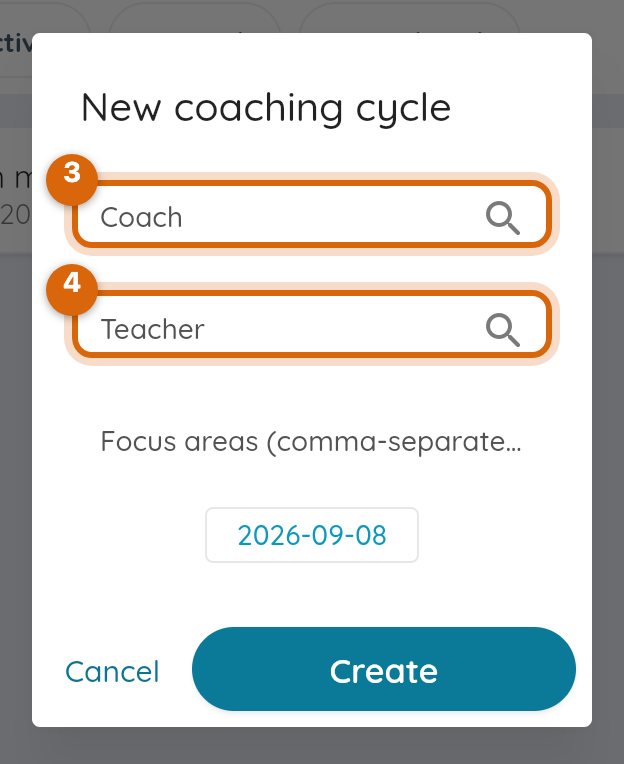
The cycle opens as Active.
Step 4 — Track sessions and move the cycle forward
Select the cycle from the Coaching Cycles list to open its detail screen. Here you can see the cycle's full history and add to it as the work continues:
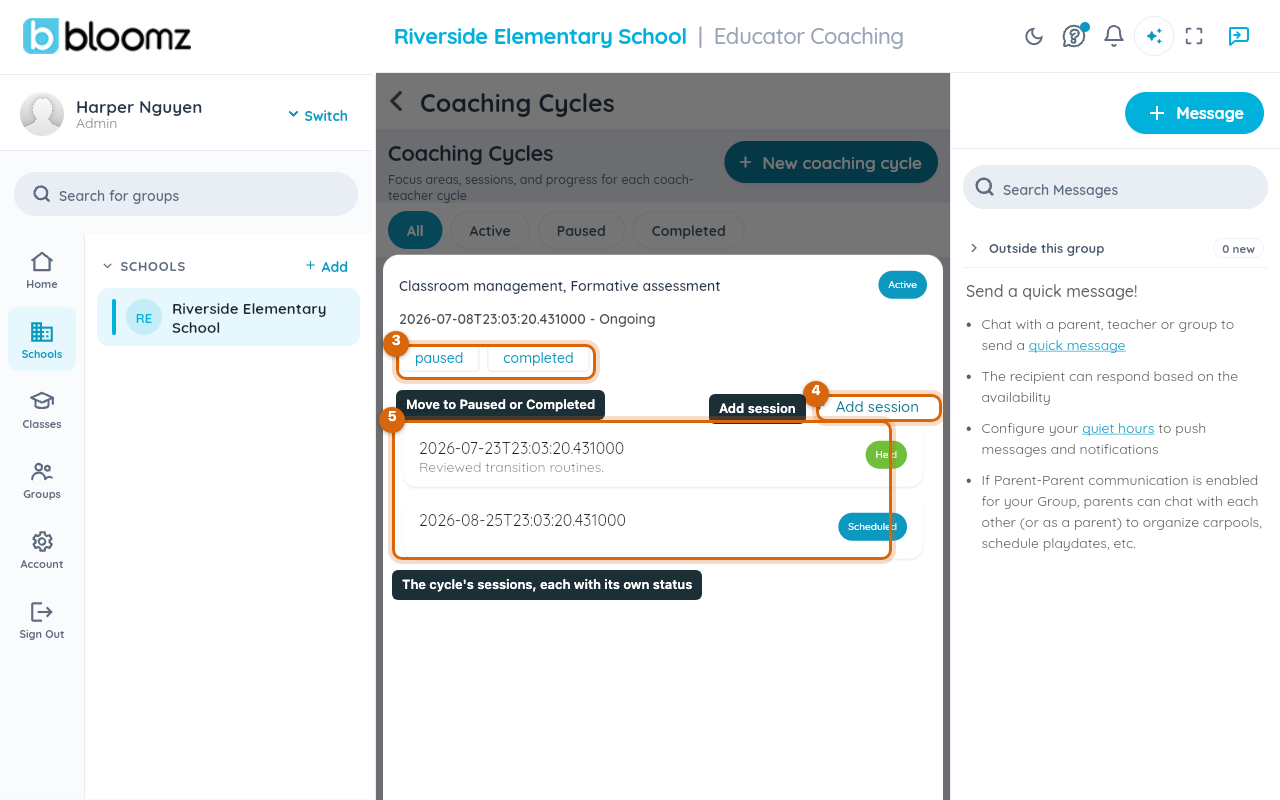
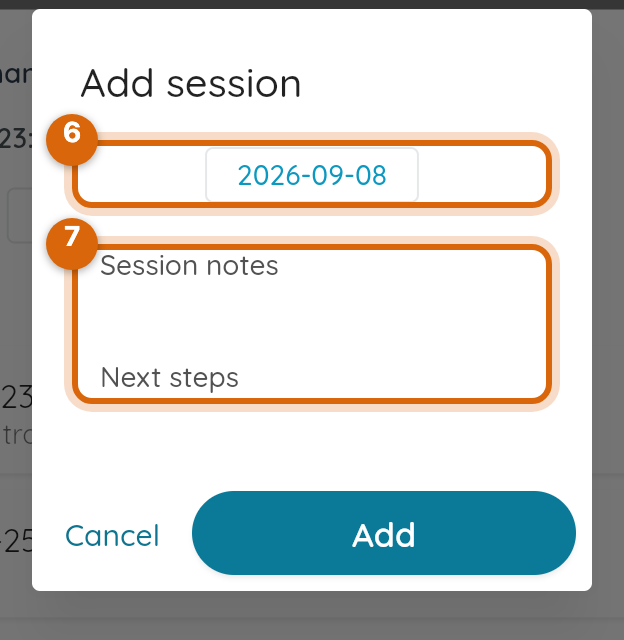
- Add session logs each meeting as it happens — pick the date and add your session notes and next steps. A session you add today can be edited later from the same screen.
- Every past and upcoming session is listed underneath, each with its own status (Scheduled, Held, and so on) so you can see the cycle's progress at a glance.
- Use the paused / completed buttons above the sessions to move the cycle forward when the work pauses or wraps up. A cycle only offers the transitions that make sense from its current status — you can't jump straight from Active to Completed without passing through the states in between.
Watch out: because a cycle is private to its coach and teacher, an admin who wants to check on coaching activity across the school can't open a specific cycle — that's what the Coaching Reports (Cycle Activity) view is for instead: aggregate session and cycle counts, never anyone's individual notes.