 Bloomz
Read every broadcast sent in your school (All School Communication)
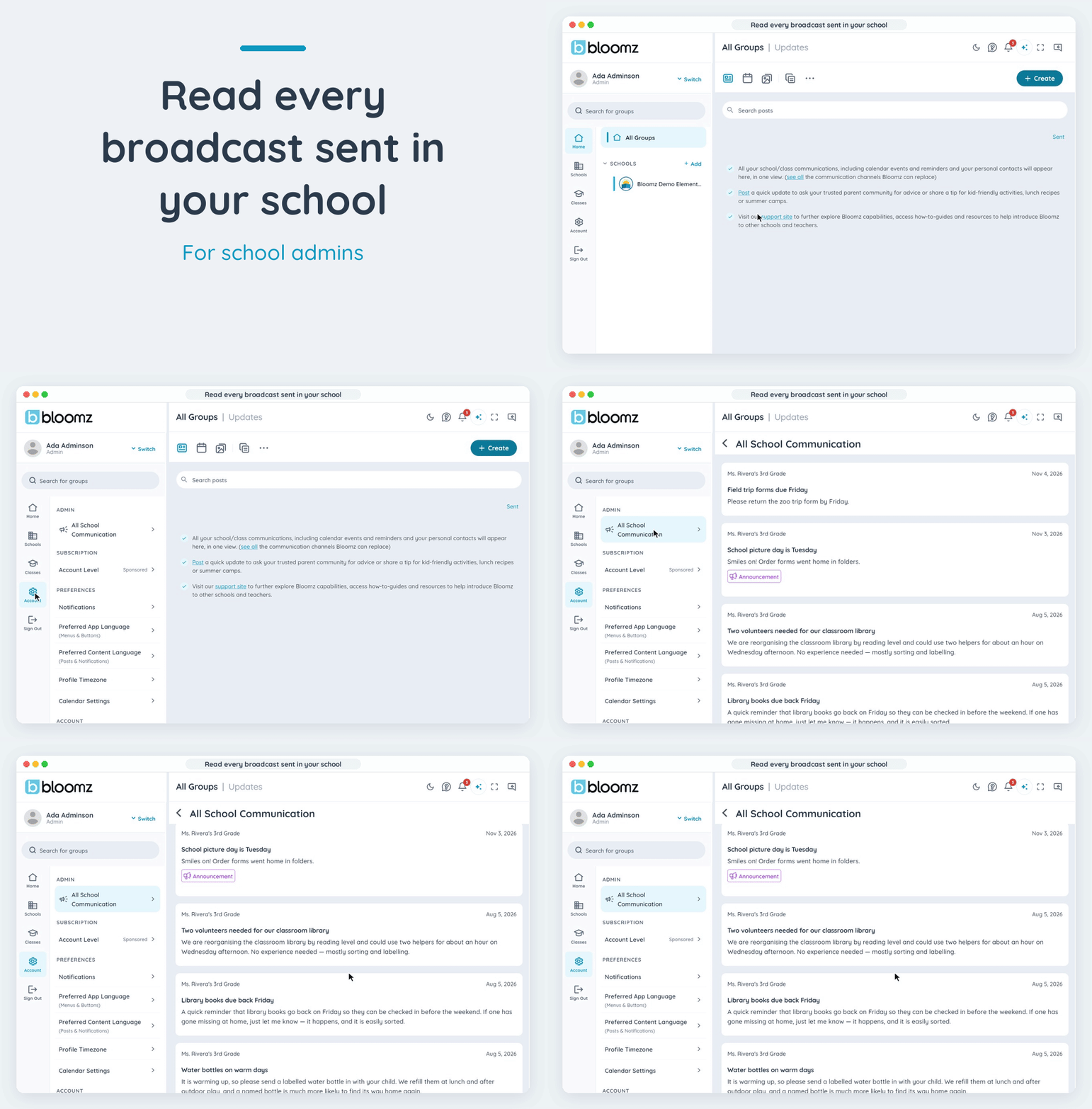
As district or office staff, you're not tied to one class — you need to see every broadcast-level post going out across the school. All School Communication is that consolidated view.
Before you start
This view is available to district and school office staff roles; it's not the same as a teacher's own feed or Sent history, which only shows their own posts. It covers broadcast posts and announcements — not one-to-one messages, which stay private between their participants.
Step 1 — Open All School Communication
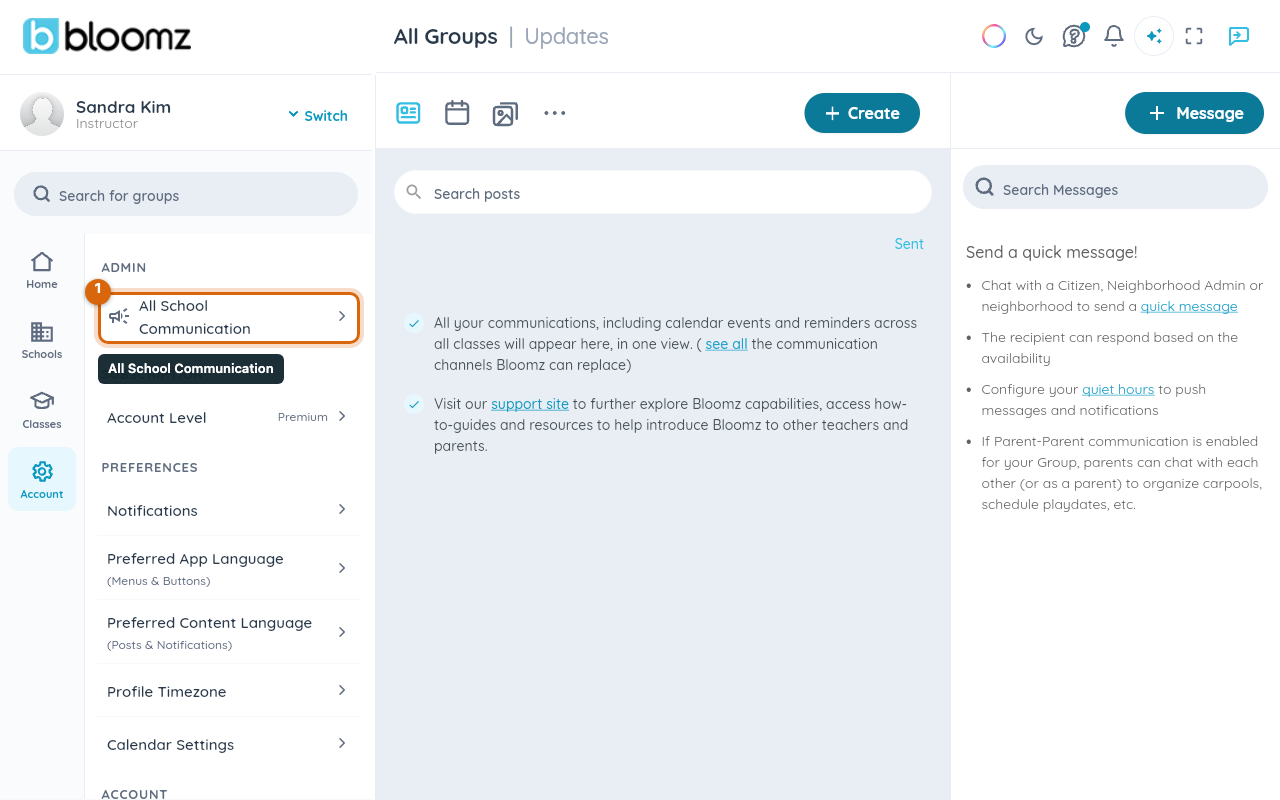
Open your Account panel (bottom of the left rail) and, under Admin, select All School Communication.
Step 2 — Scroll the consolidated feed
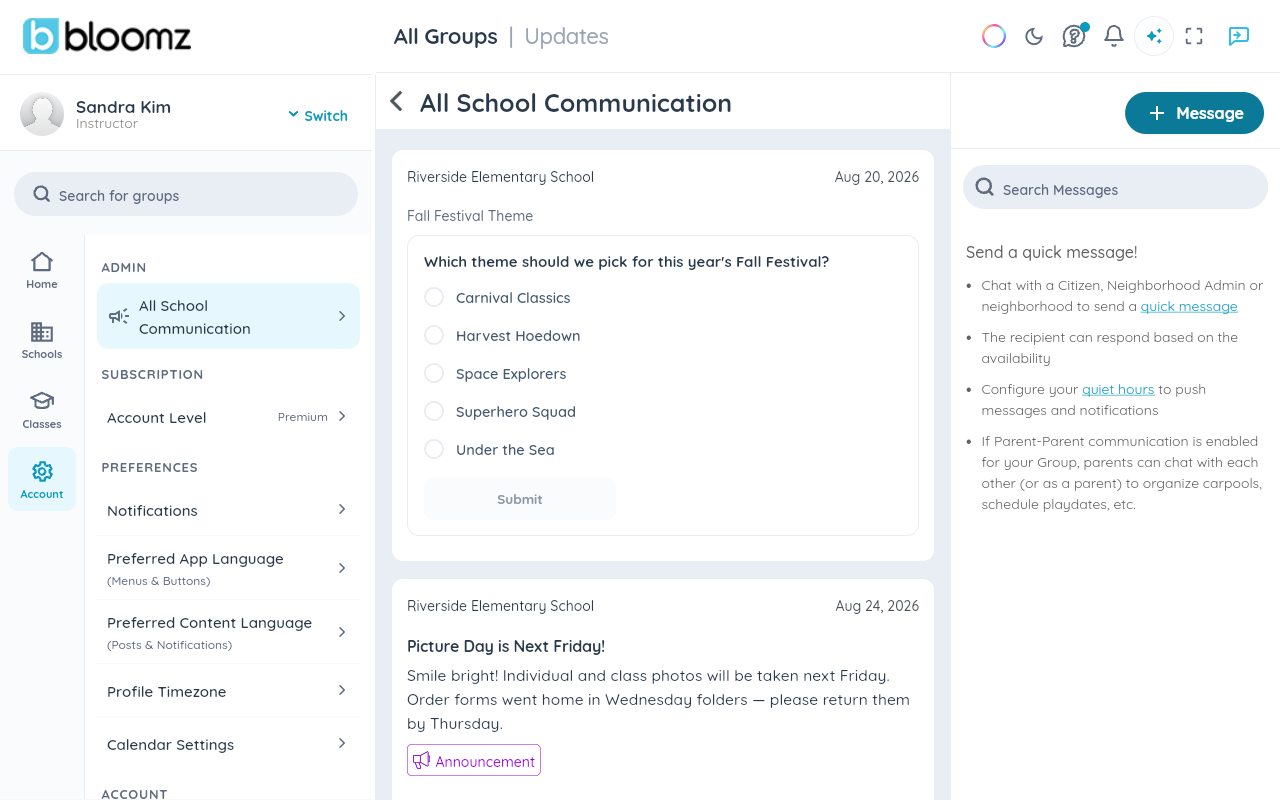
The feed lists every broadcast post and announcement sent across the school, newest first, regardless of who sent it or which class it went to.
Step 3 — The feed is already scoped to your school
There's no separate filter step to take — the feed already covers every broadcast in scope. If your account spans more than one school, a school picker appears above the feed so you can switch which one you're viewing; a single-school account sees that school's full feed with nothing further to narrow.
Step 4 — Read directly from the card
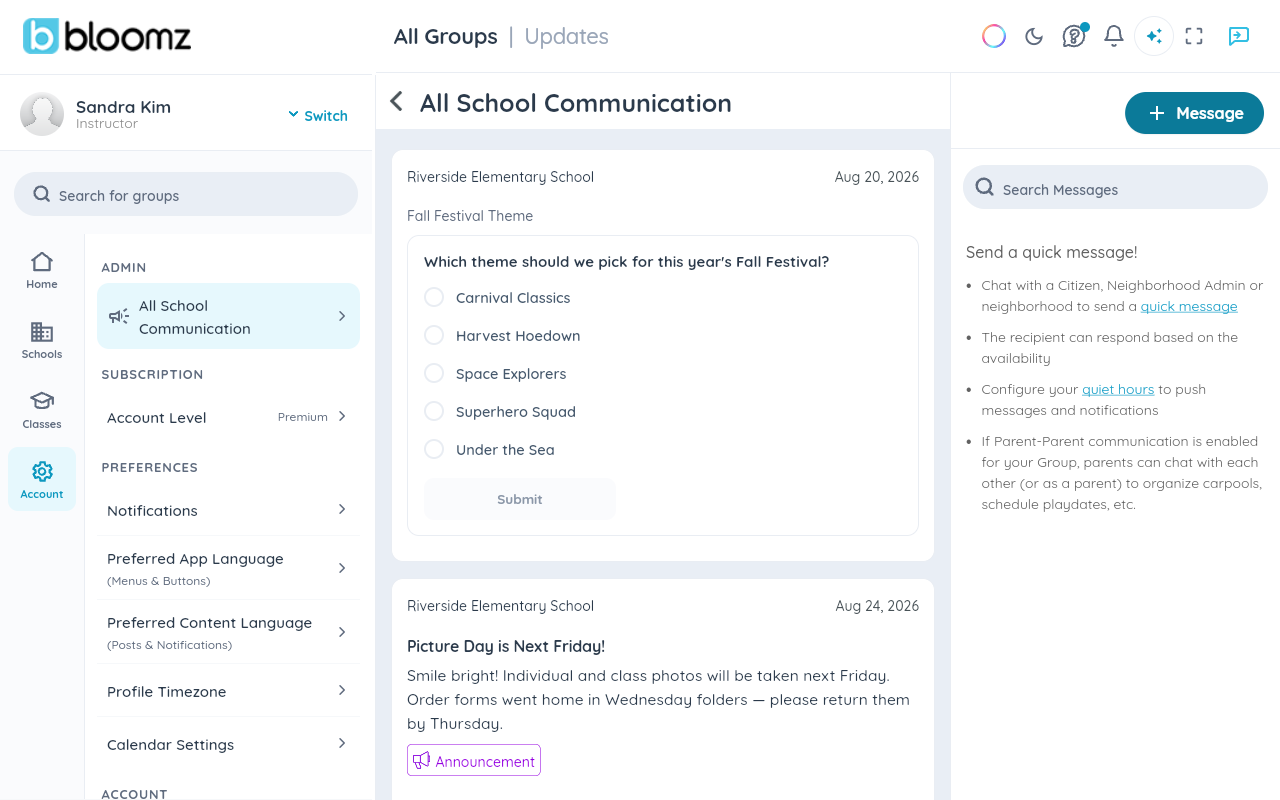
Each card in the feed already shows the post's full content — there's no separate detail page to open, and no link into the original sender's delivery report from this oversight view.

Watch out: this view is for oversight, not participation — you can read and check delivery, but you don't comment or react from here on someone else's class post.