 Bloomz
Connect your school's social accounts for cross-posting
Before anyone can cross-post a Bloomz update to Facebook, Instagram or X, your school's own account on each platform needs to be connected once. After that, any public post can be shared straight to your social channels without you touching those apps again.
Before you start
You need to be an admin of the school, and Social Cross-Posting needs to be turned on for your school. You'll also need to be signed in to your school's own Facebook, Instagram or X account (not a personal one) when you connect, since the connection step hands off to that platform's own sign-in.
Step 1 — Open Social Cross-Posting settings
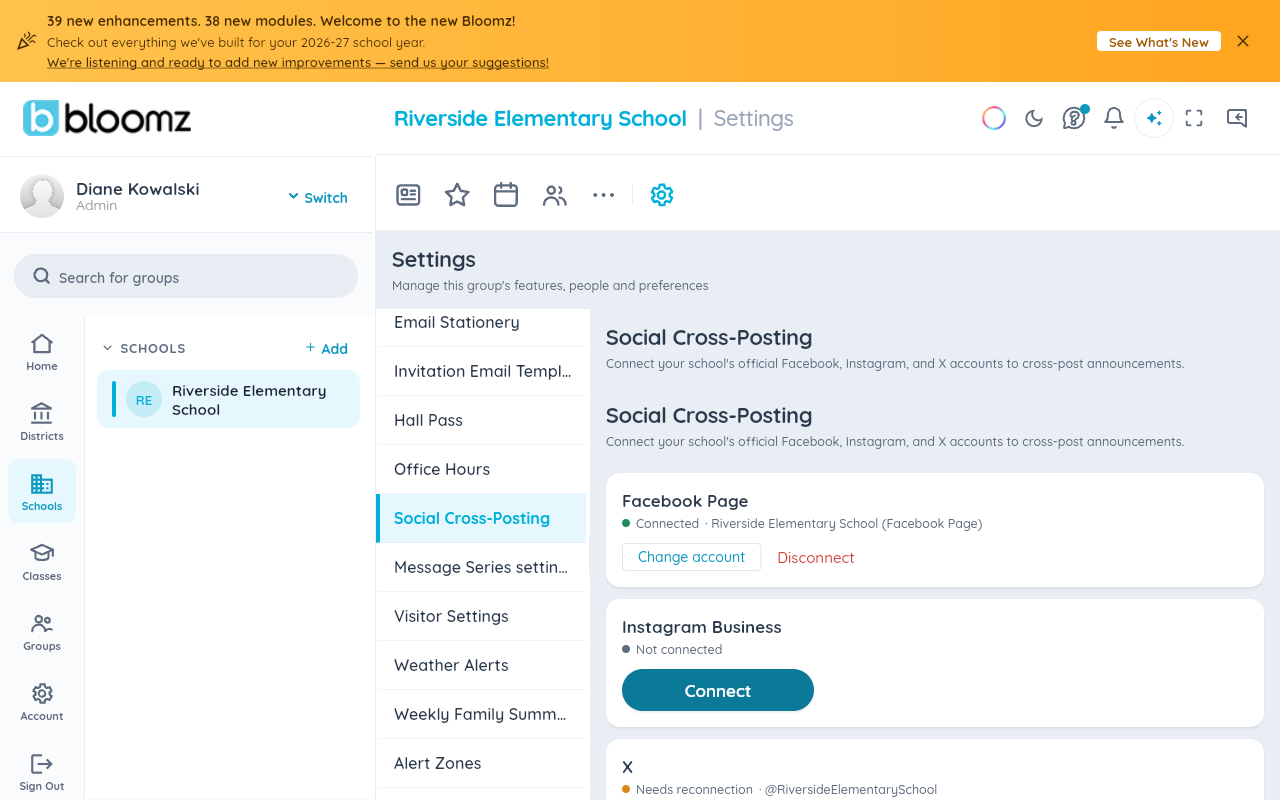
From your school, open Settings, then select Social Cross-Posting from the list on the left.
Step 2 — Connect an account
For each platform you want, select Connect and sign in to your school's account when the platform's own window opens. Bloomz never sees or stores your password — only the platform-issued access token comes back.
Step 3 — Read each account's status
Each row shows one of three states: Connected (green, ready to use, with Change account and Disconnect options), Not connected (a plain Connect button), or Needs reconnection (amber — the platform's access token expired and cross-posting on that channel is paused until you connect again).
Watch out: disconnecting an account does not pull back anything already published to it — only new cross-posts stop going out. To recall something already on a channel, edit the original post and remove that channel from it instead.
What this makes possible
Once an account shows Connected, anyone composing a public post at your school sees an Also post to option that can send it straight to that channel — see Cross-post an update to Facebook, Instagram or X.