 Bloomz
Cross-post an update to Facebook, Instagram or X
A post your school already made public on Bloomz doesn't have to stop there — send the same update straight to your school's Facebook, Instagram or X at the same time, without retyping it anywhere else.
Before you start
Your school needs at least one social account connected first (an admin does this once — see Connect your school's social accounts for cross-posting). Cross-posting only works on a post that's public — set to show on your school website — since that's what makes it appropriate for a public social feed too.
Step 1 — Make your post public
Write your post as usual. Before sending, turn on the setting that shows it on your school website — the same one that makes it eligible for the public Live Feed.
Step 2 — Choose Also post to
Select Also post to in the composer's bottom toolbar.
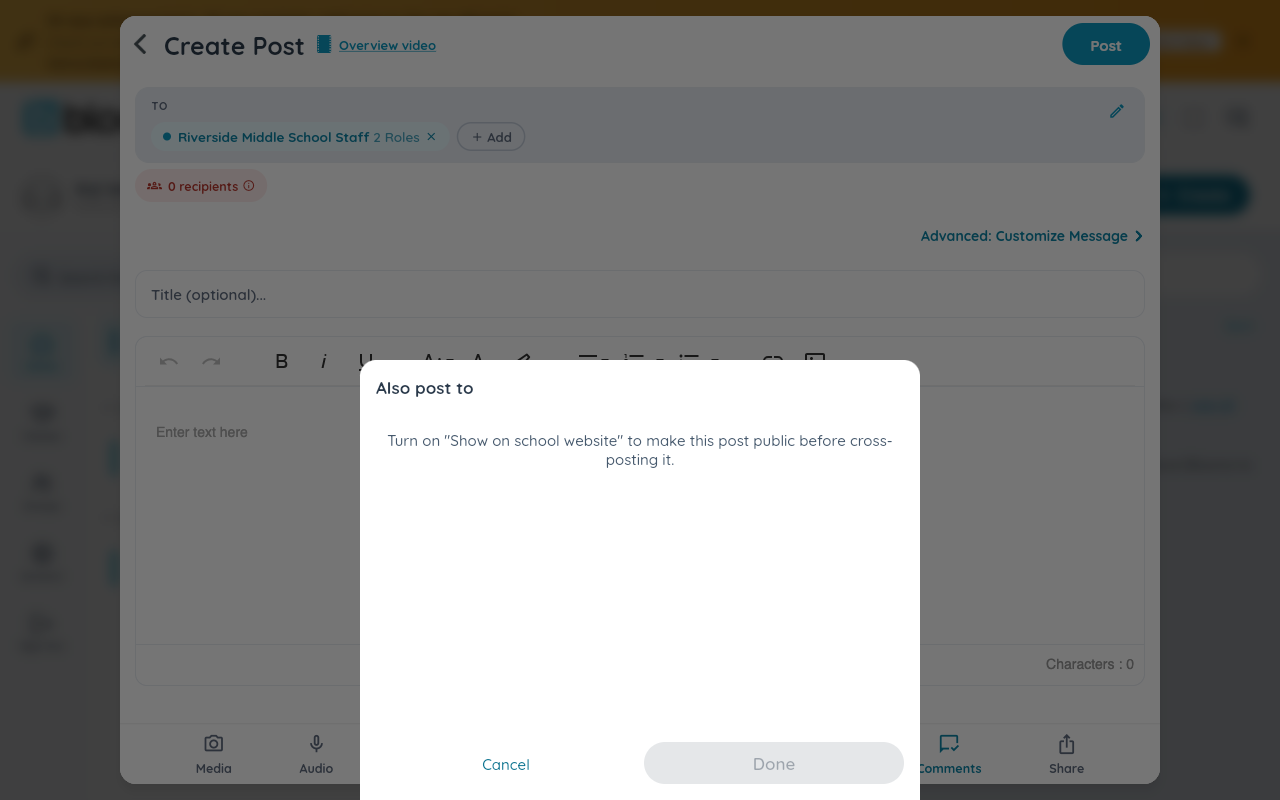
If you see the message above instead of a list of channels, your post isn't public yet — go back and turn that on first.
Step 3 — Pick channels and captions
Once your post is public, Also post to lists each connected channel with a toggle. Turn on the ones you want. Each channel can take its own caption — leave it blank to reuse your post's own text as-is.
Watch out: Instagram has no plain-text post type. A text-only post's Instagram channel is always skipped rather than retried — add at least one photo if you want that post to actually reach Instagram.
Step 4 — Send
Finish and send your post the normal way. Each channel you turned on queues its own delivery in the background and retries automatically if a platform is briefly unavailable — you don't need to wait around for confirmation.
What appears where
Your post shows in Bloomz and on your school's public Live Feed as always, plus on each social channel you selected — each with a status you (or an admin) can check on the post itself or in the school's cross-posting log.
Watch out: turning a post's public setting back off recalls it from every social channel it reached, even one that already published — social visibility always follows the post's own public/private state.
Related
- Connect your school's social accounts for cross-posting
- Post an announcement that stays at the top
- Check how many people will see a post before you send