 Bloomz
Check how many people will see a post before you send
Before a post goes anywhere, Bloomz shows you exactly how many people are about to receive it, right in the composer.
Before you start
The recipient count updates live as you change classes, groups, or individuals — you don't need a special screen to see it, it's always visible under the To row while you compose.
Step 1 — Find the recipient count
Look just under the To row in the composer. A pill shows a number — the total people your current selection reaches.
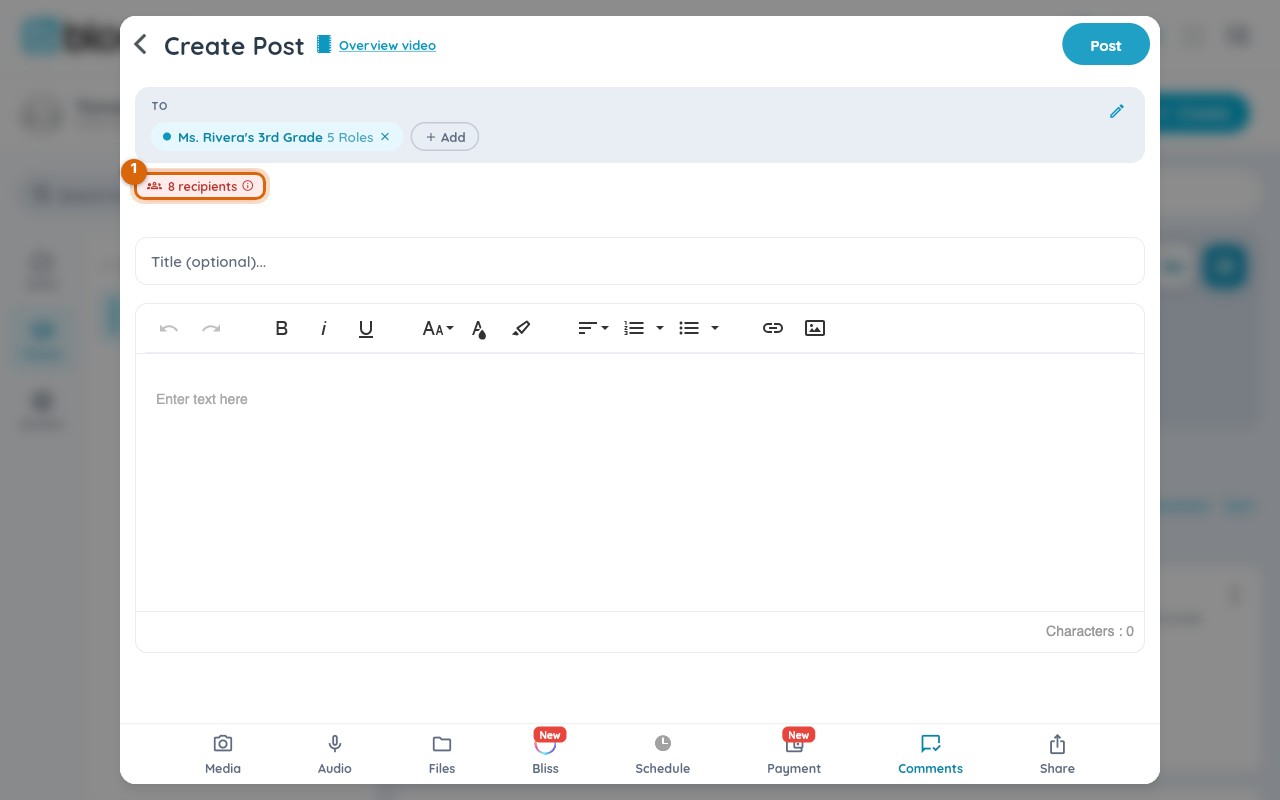
Step 2 — Adjust your recipients if the number looks wrong
If the count is bigger or smaller than you expected, go back to the recipient picker and adjust — the number updates the moment you change anything (see Pick exactly who gets a post).
Watch out: the count is people, not messages — a family with two guardians linked counts as two recipients, since each gets their own copy.
Step 3 — Send
Tap Post (or Send, depending on where you're posting from). For an everyday class-sized audience, the post goes right out with no extra step — the count you saw under To is exactly who received it.
Watch out: for a genuinely large audience — school- or district-wide — your school can turn on an extra confirmation step that states the recipient count and asks you to confirm on purpose before it actually sends. Whether you see that step depends on your school's settings and how big the post is, not on anything you control from the composer.
Related
- Pick exactly who gets a post (classes, roles, individuals)
- Target families with a recipient filter (grade, language, …)
- Read a post's delivery report