 Bloomz
Find and join your neighborhood
If your city has drawn its neighborhood boundaries, Bloomz normally places you in the right one automatically from the address on your account. If that hasn't happened yet — or you'd rather choose it yourself — you can find or pick your neighborhood from your City group's settings.
Before you start
You need to already be signed in and a member of the City group. Your city must have drawn at least one neighborhood boundary — if it hasn't, you'll see a message saying so instead of a map.
Step 1 — Open Your Neighborhood
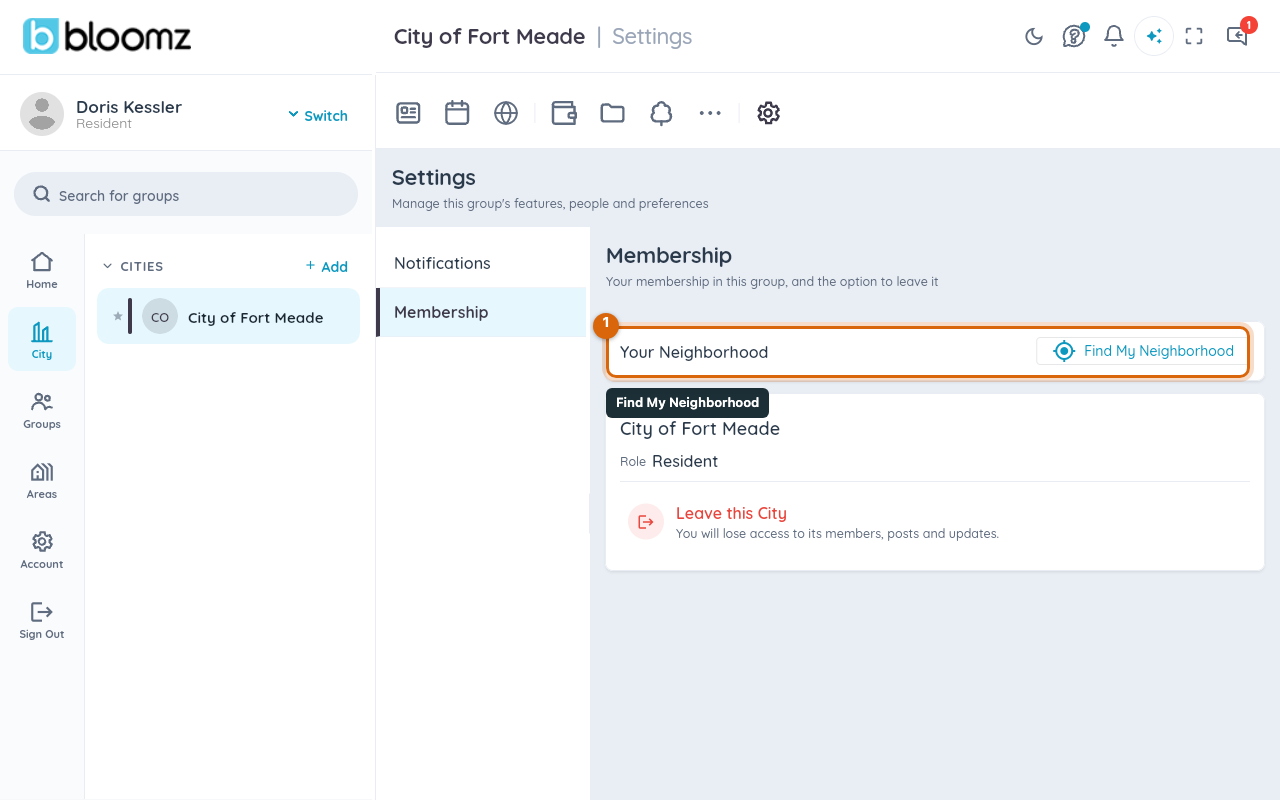
Open your City group, select the gear icon to open group settings, then the Membership tab. Select Find My Neighborhood on the Your Neighborhood card — this is the same card that already shows your current neighborhood, if you have one.
Step 2 — Use your location, or pick on the map
Select Use My Location to check your device's current location against your city's boundaries — your location is checked on your device and never leaves it, only the neighborhood id it resolves to is sent. If your position falls inside a drawn boundary, Bloomz shows you which neighborhood it matched and moves you to Step 3. If location access is off, or your position falls outside every boundary, Bloomz tells you and offers Pick on Map instead: tap your neighborhood directly on the map.
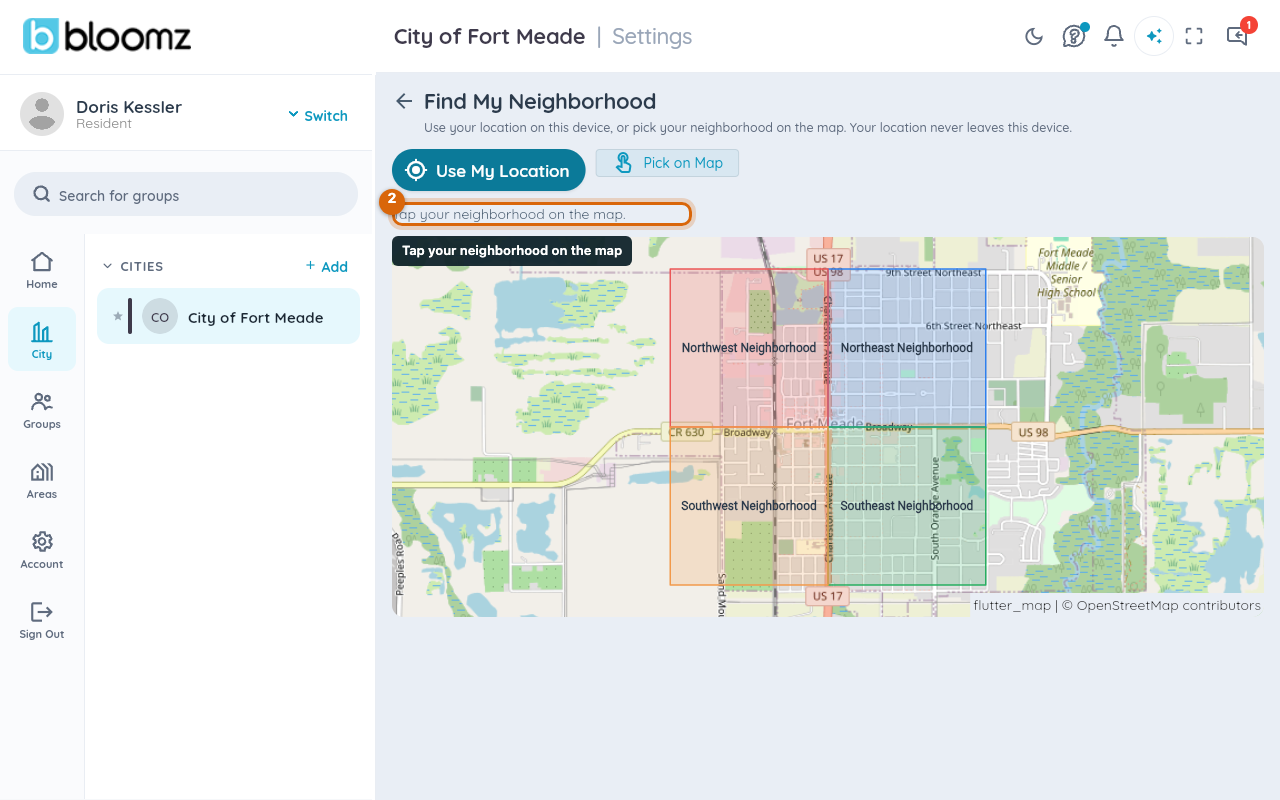
Each neighborhood on the map is shaded a different color so you can tell them apart at a glance; tap anywhere inside the one that's yours to select it.
Step 3 — Confirm and join
Once a neighborhood is found or picked, confirm to join it. You're a member of that Neighborhood group from that point on — its own posts, events and Agendas & Minutes items start appearing for you alongside whatever the City as a whole already sends you.
If your city hasn't drawn boundaries yet, or hasn't placed you
Not every city uses the Neighborhood Map — if yours hasn't drawn any boundaries, this screen tells you that instead of showing a map, and there's nothing to pick yet. If your city imports households from a CSV or its own roster instead, you may already be placed in a neighborhood without ever using this screen at all; check the Your Neighborhood card first before assuming you need to do anything here.
Note: if a city admin already placed you in a neighborhood by hand, this screen tells you that instead of letting you change it — ask your city if you need to move.
What happens next
Joining a neighborhood is what makes posts and alerts your city sends to that neighborhood reach you, on top of anything sent to the City as a whole — announcements, events, and Agendas & Minutes items your city targets by neighborhood. You can only belong to one neighborhood in a given City at a time; picking a new one moves you out of the old one.
Related
- Draw and manage your city's neighborhood boundaries
- Understand households in Bloomz for cities
- Find and comment on your city's meeting agendas