 Bloomz
Register for a city recreation program
Browse your city's open Recreation programs, register a household member, and manage payment from your own My Registrations list. You need a Bloomz account and membership in the City (or school) offering the program.
Before you start
You need to be signed in and a member of the group running the program. Recreation must be turned on for that group.
Step 1 — Open Recreation
From your City (or school) group, select the Recreation icon in the top bar or More menu.
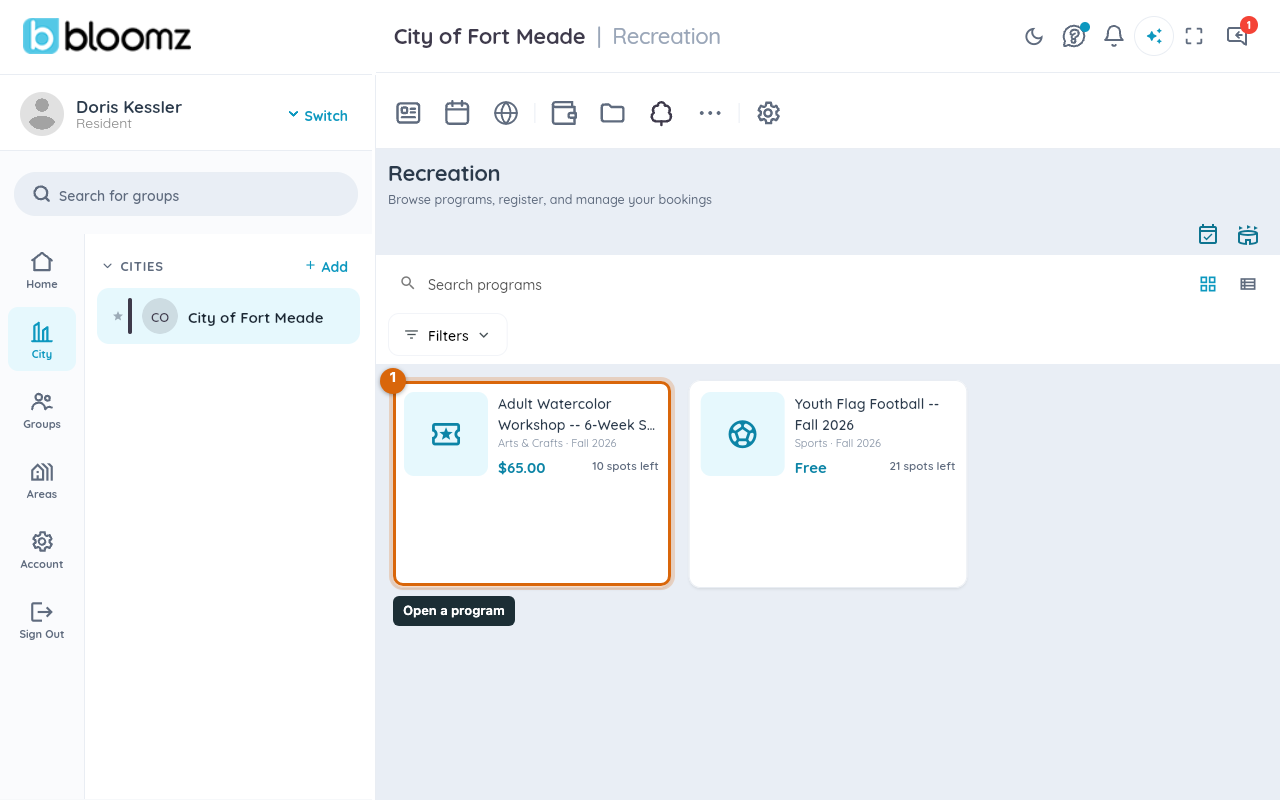
Browse by category, season or division, or use Featured to see highlighted programs — the list only shows programs the admin has set to Open, never a Draft. A card shows the price (or Free program), spots left, and whether it's Full.
Step 2 — Open a program and select Register
Select a program to open its detail tray, showing the schedule, location, any required forms and payment options. Select Register. If the program is full, this opens as a waitlist join instead — Bloomz never rejects a registration outright, it moves you to the waitlist and promotes you automatically if a spot opens up.
Step 3 — Pick who's registering
Choose which household member (or, on a school, which child) the registration is for, then complete any required forms the program lists. You land on payment next.
Step 4 — Choose a payment option and confirm
Free programs skip this step entirely. If the program has a price, pick Pay in full or an installment plan where one's offered, apply a discount code if you have one, and review the total after any discount. Select Confirm Registration — Bloomz hands you off to the same payment sheet you'd see paying a school fee, and your registration is Registered (or Waitlisted) the moment that payment step completes.
Step 5 — Manage your registration afterward
My Registrations lists every program you've registered for, across every group you belong to, with payment status (Paid, Partial, Unpaid) and a Pay Now button for anything still due. You can cancel a registration from there if the program allows it — cancelling frees your spot and Bloomz automatically promotes the next waitlisted registrant into it.
Watch out: cancelling a registration doesn't automatically cancel or refund a payment plan already in progress — check with your city or school about their refund policy first.
What program admins see
Registering doesn't send your city or school a notification — admins find new registrations by checking the program's roster, not by an alert, so don't expect immediate acknowledgment beyond your own confirmation screen. If the program created a roster group, being registered adds you to it, which is how the admin can message everyone enrolled.
Related
- Set up a Recreation program for residents to register
- Pay a school fee
- Bank and redeem your Civic Rewards points
- Register and pay for a camp or program