 Bloomz
Pay a school fee
When your school asks for money — a field trip fee, tuition, a club charge — the request reaches you inside Bloomz, and you pay it there too. A fee can arrive attached to a post, an event, or a form, or simply as a notification; every one of them can also be paid from one place, the Payments area.
Before you start
- This article is for parents and guardians. You only see payment features if your school has turned Payments on — if it hasn't, there is nothing for you to set up.
- You can pay by card or by bank transfer (ACH), and you can save either for next time.
- If you also work at the school, your family's fees live in a My Family tab inside the same Payments area instead of a separate parent screen.
A fee sent with a post
Teachers can attach a fee to a post they publish to the class. The post itself is the announcement; the fee arrives alongside it as a payment request — you get a notification, and the amount shows up as an open item in your Payments area, where you pay it (see Pay from the Payments area below).
Pay from an event
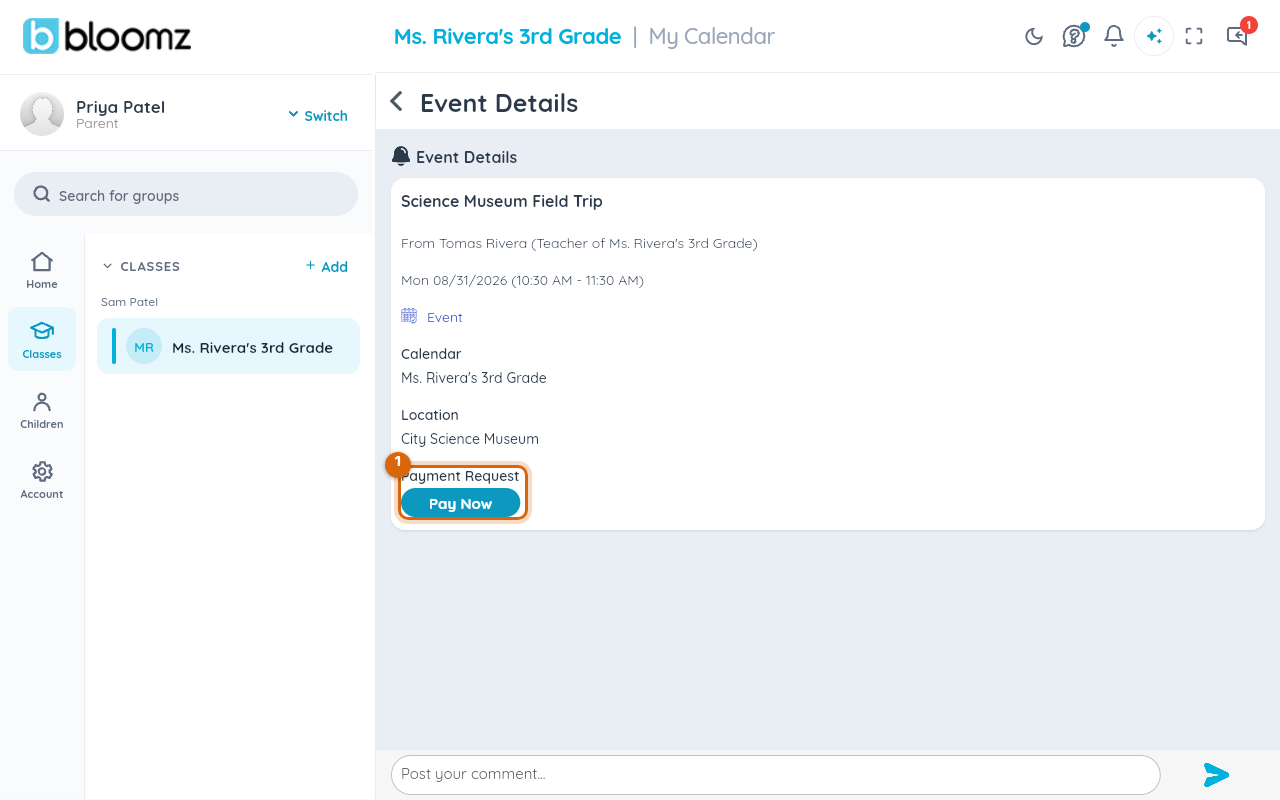
An event can carry a fee. Its detail screen shows a Payment Request section with a Pay Now button.
Step 1 — Open the event and choose Pay Now
Open the event from your feed or calendar, find the Payment Request section, and choose Pay Now.
Pay a fee attached to a form
A form can come with a fee — think permission slip plus payment. The fee itself arrives like any other payment request: you get a notification, and it shows as owed in your Payments area, where you pay it the normal way. Submitting the form and paying the fee are usually separate steps — you can fill in the form right away and pay the fee from the Payments area.
Watch out: some forms require the payment before the submission is accepted (the school chooses this when sending the form). If your form won't go through, check the Payments area for an unpaid fee tied to it and pay that first.
Pay from the Payments area
Everything your family owes is collected in one place, whichever way it was sent.
Step 1 — Open More
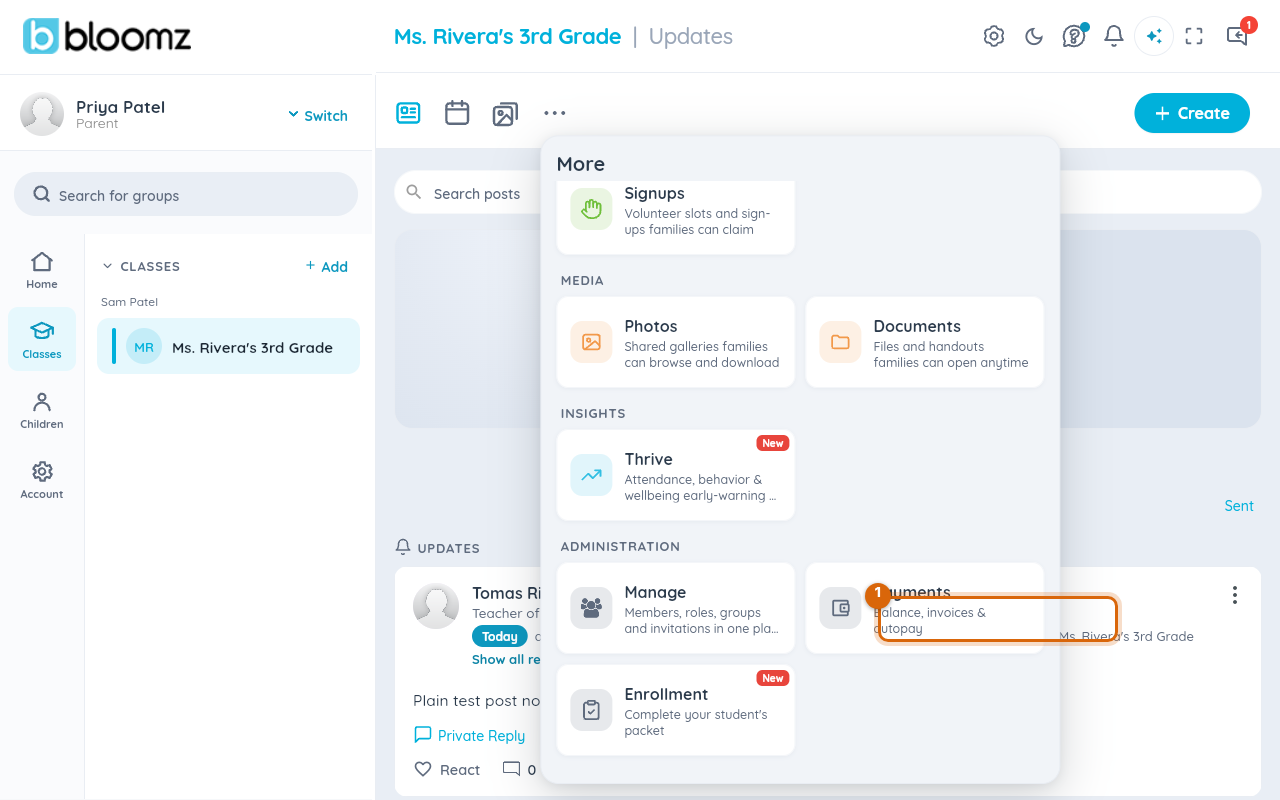
From the main navigation, open the More menu.
Step 2 — Choose Payments
Choose the Payments card.

The Payments area opens on your family's balance, with your open items and your payment history. If you are staff as well as a parent, this same content is the My Family tab.
Step 3 — Choose the item to pay
Select the open item you want to pay. The pay sheet opens.
Complete the payment
However you got here — post, event, or the Payments area — the last part is the same pay sheet.
Step 1 — Choose how to pay
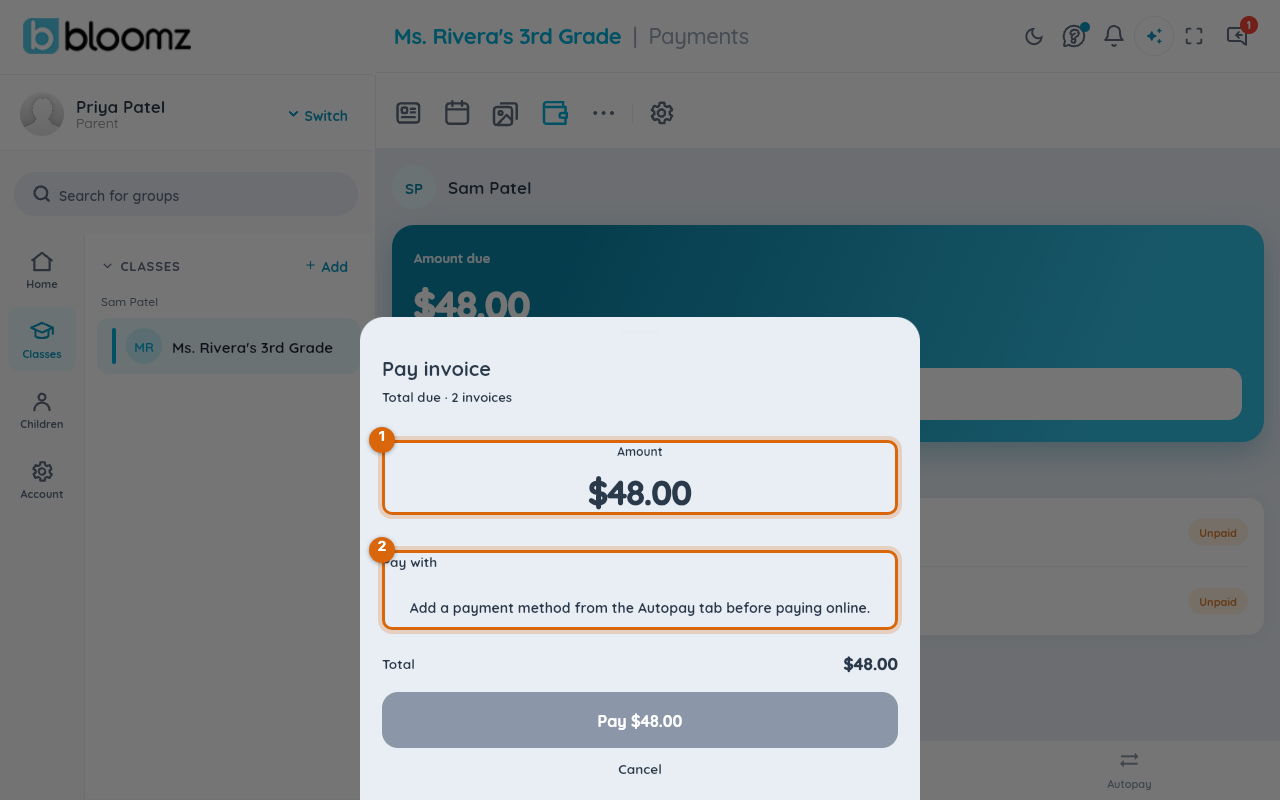
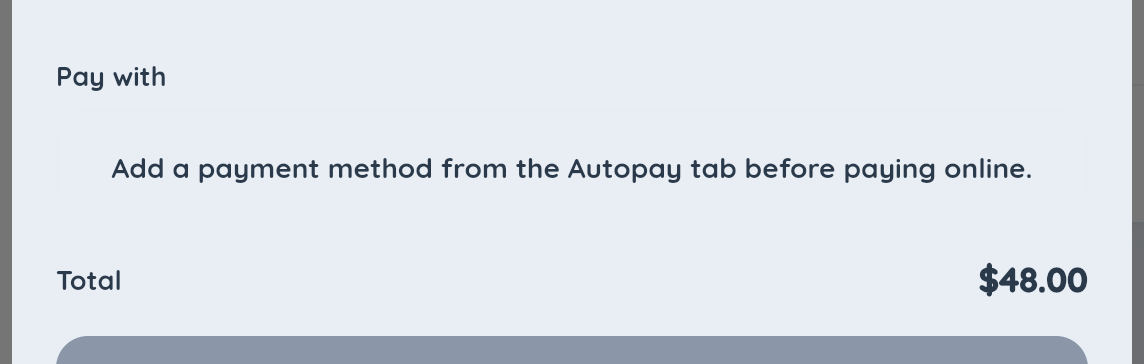
The pay sheet shows the amount and pays with a saved payment method — a card or a bank account (ACH). If you haven't saved one yet, the sheet's Pay with section points you to the Autopay tab, where you add a method once and reuse it for every payment.
Watch out: some schools pass processing fees on to the payer — typically 2.9%–2.95% of the payment for cards (plus a flat 30¢ per card payment at some schools) and 0.6% for bank transfers. If your school does, the fee is shown as part of the payment before you confirm, and paying by bank is usually the cheaper option.
Step 2 — Confirm the payment
Confirm the payment on the sheet.
When it goes through you get a payment receipt notification, and the payment appears in your history in the Payments area. If a payment fails, you are notified of that too, so you can try again with another method.
Set up autopay
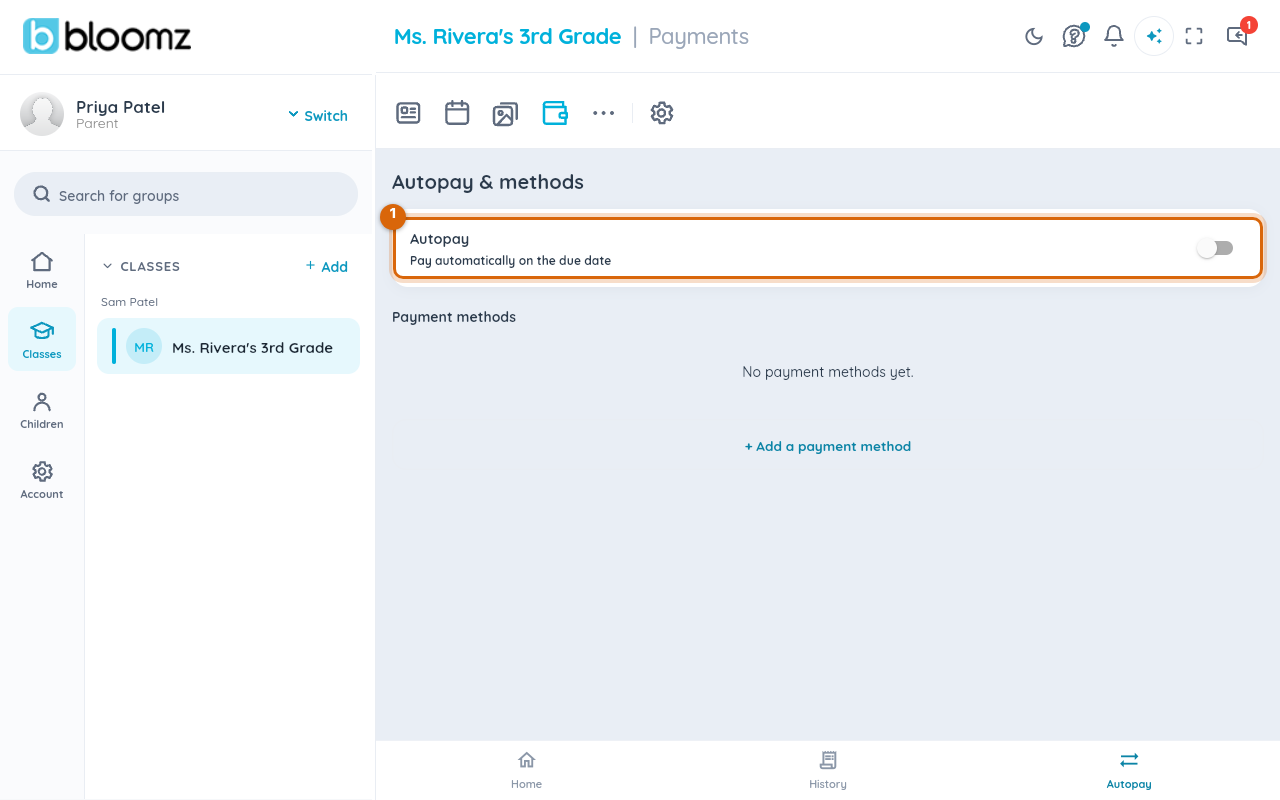
If you would rather not pay each charge by hand, turn on autopay from the Payments area's autopay and payment methods screen — recurring charges are then collected automatically with your saved method.
Reminders, due dates, and shared bills
- Due dates. A fee can carry a due date. Bloomz reminds you automatically: a balance due notice two days before the due date and a past due notice one day after it, each sent once and only while the balance is still open. Paying stops them.
- Two households, one student. Schools can split a charge between a student's guardians so each of you owes only your own share. You see only your own portion — never the other guardian's — and each of you pays with your own saved method. Autopay is separate per guardian: yours never charges you for someone else's share.
Watch out: if you expect to see a charge and don't, it may be billed to the student's other guardian. Ask the school office if you are unsure who was billed.
Related
- Collect payments from families
- RSVP to an event
- Fill out and submit a form