 Bloomz
Open a case for a student
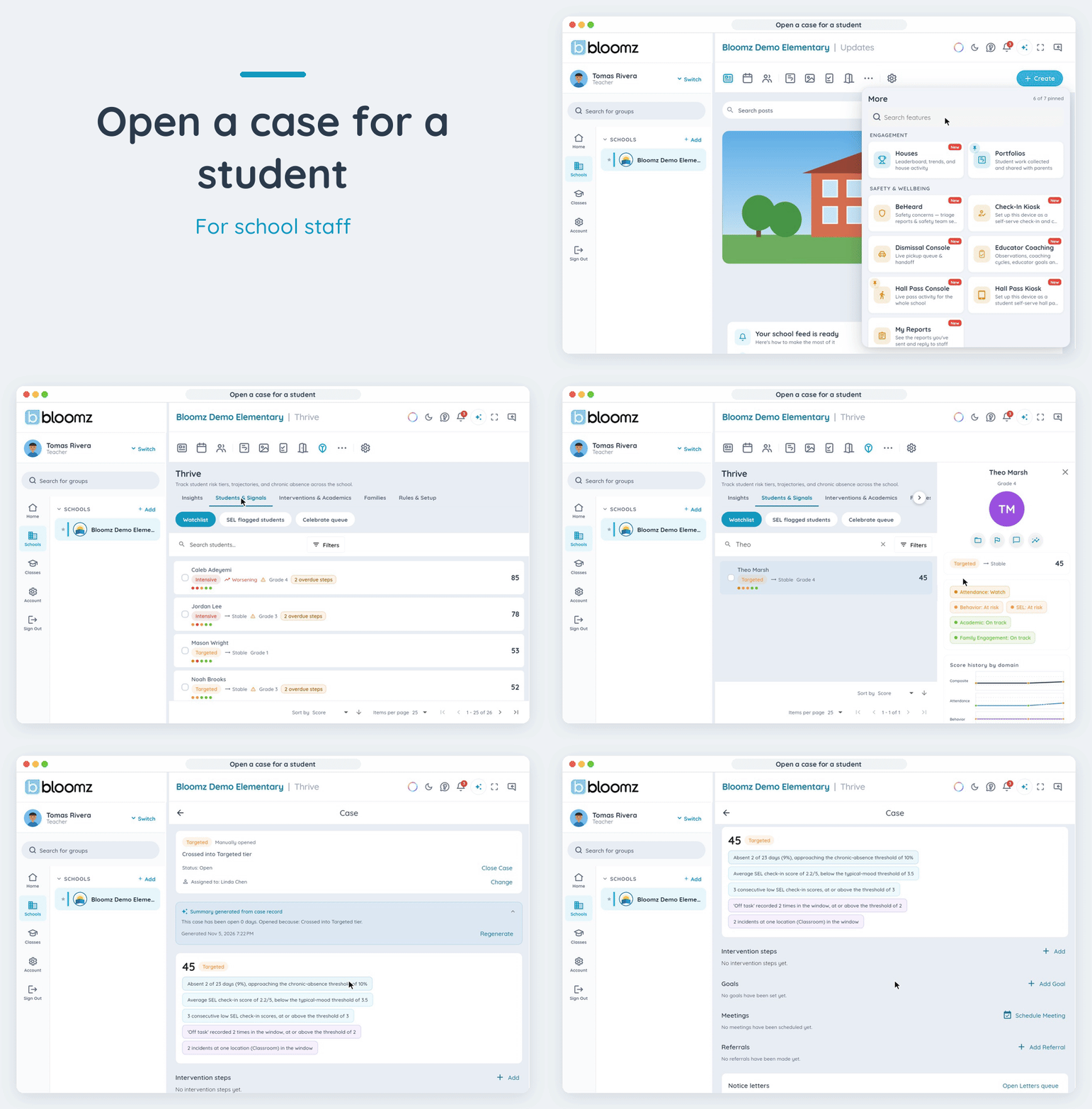
Starting a case is how you move from noticing a concern to formally tracking it — a case collects intervention steps, goals, meeting notes, and a timeline in one place for one student.
Before you start
You can open a case from the watchlist or from a student's Thrive panel. Anyone with Thrive access for that student — their teacher, a counselor, or an admin — can open a case; it doesn't require the student to be in a particular tier.
Step 1 — Find the student
From the Thrive watchlist or a search, open the student's panel. See Find a student on the Thrive watchlist if you're not sure where to start.
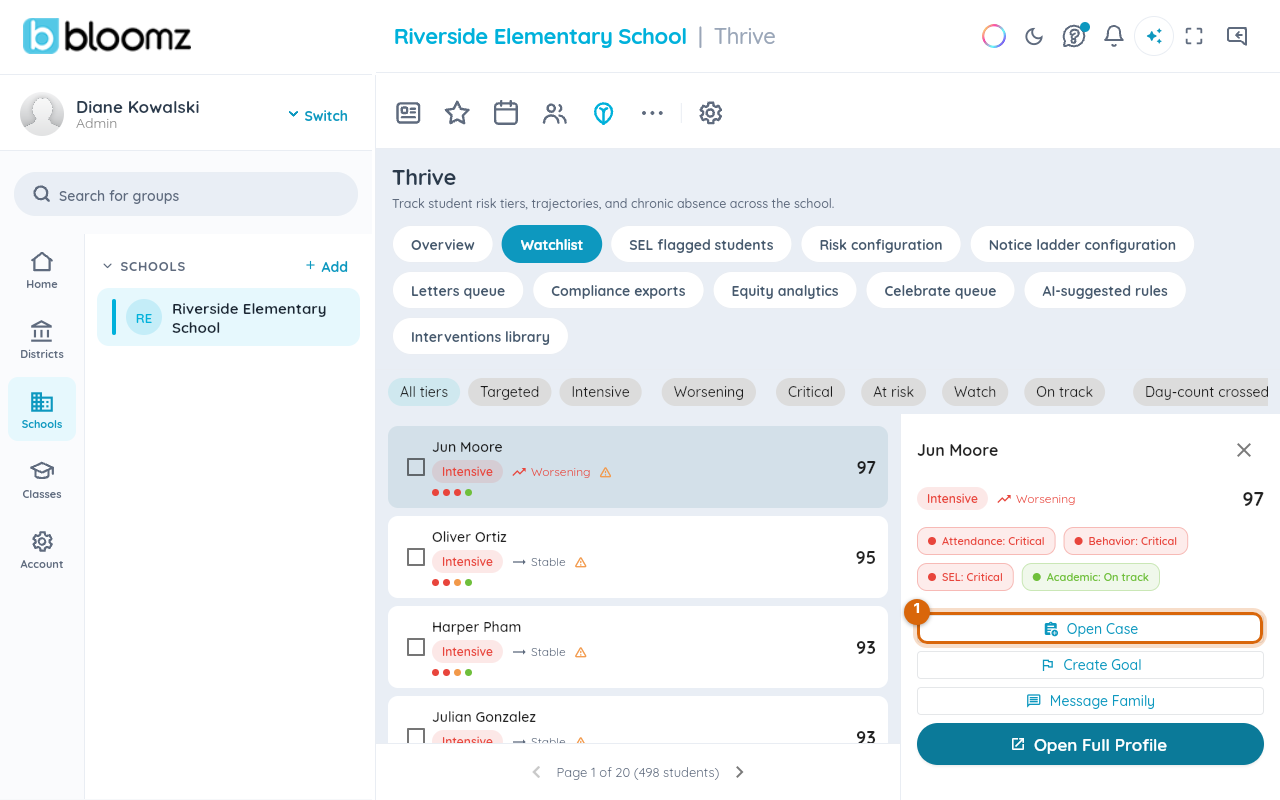
Step 2 — Select Open Case
From the student's panel, select Open Case. The case opens immediately — there's no concern-description form to fill in first.
Step 3 — Review the auto-generated summary
Bloomz opens the case as "Manually opened," records why the student was flagged (for example, "Crossed into Intensive tier"), and generates a plain-language summary from the case record, with a Regenerate action if you want a fresh one. The same score, factor chips, and status you saw on the panel carry over onto the case.
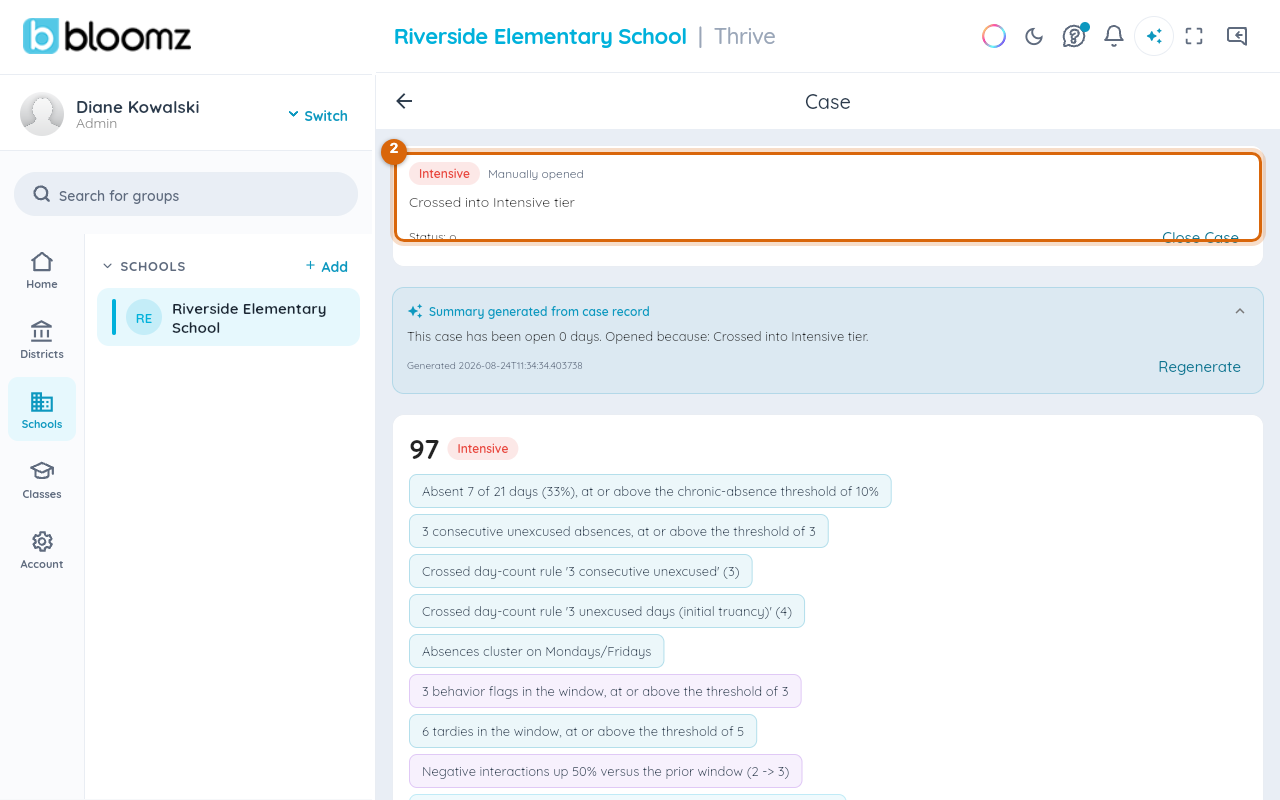
Step 4 — Add an intervention or a goal
The case is already saved — nothing else to do to create it. From here you can add an intervention and a goal right away or come back to it later; see Add an intervention from the library and set a goal.