 Bloomz
Schedule an MTSS meeting and capture action items
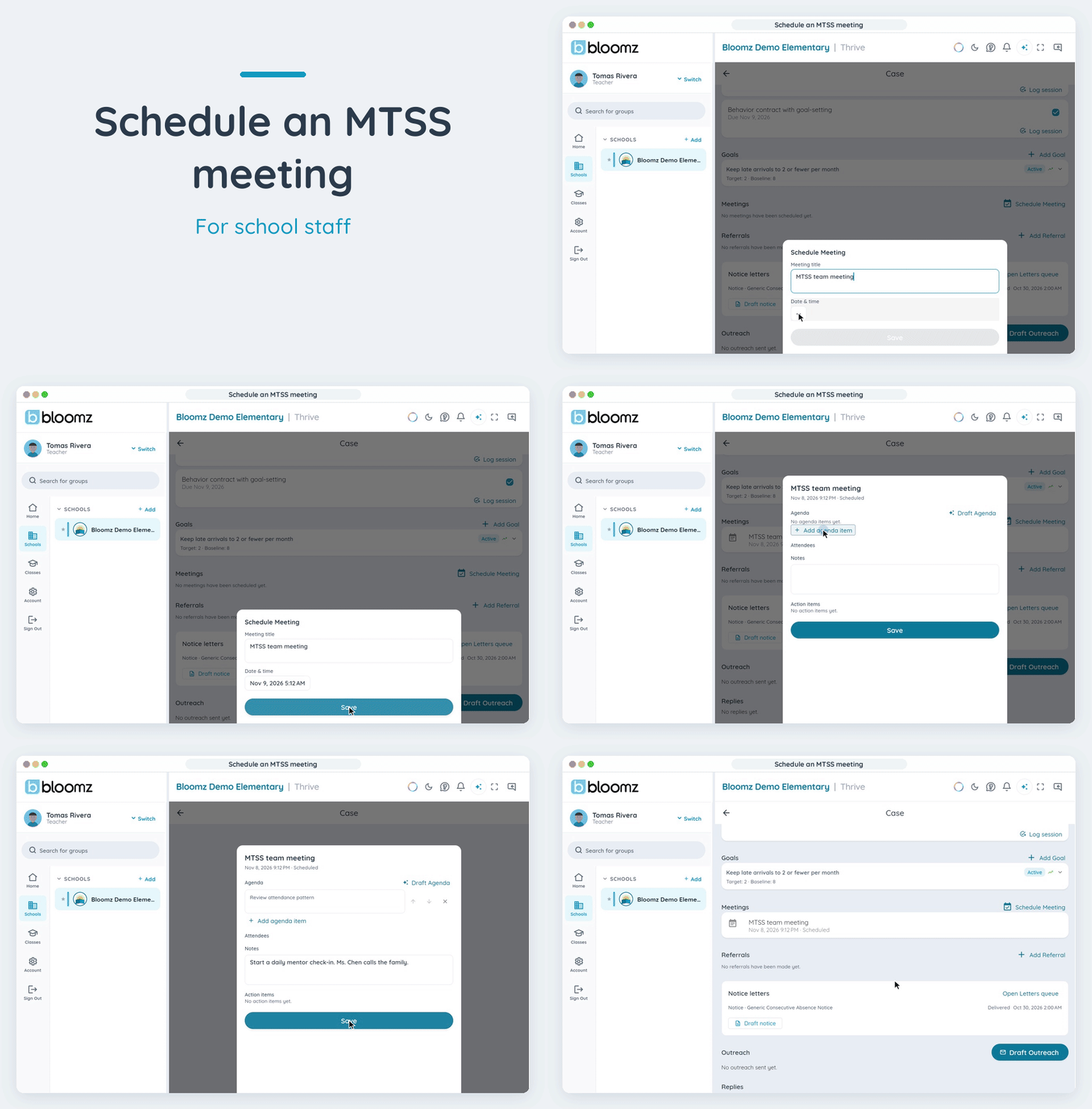
Schedule a team meeting about a case, and capture what the team decided so the next steps aren't lost between meetings.
Before you start
Meetings are attached to a specific case, and attendees don't need to be the same people assigned to the intervention steps — invite whoever should weigh in.
Step 1 — Open the case's Meetings section
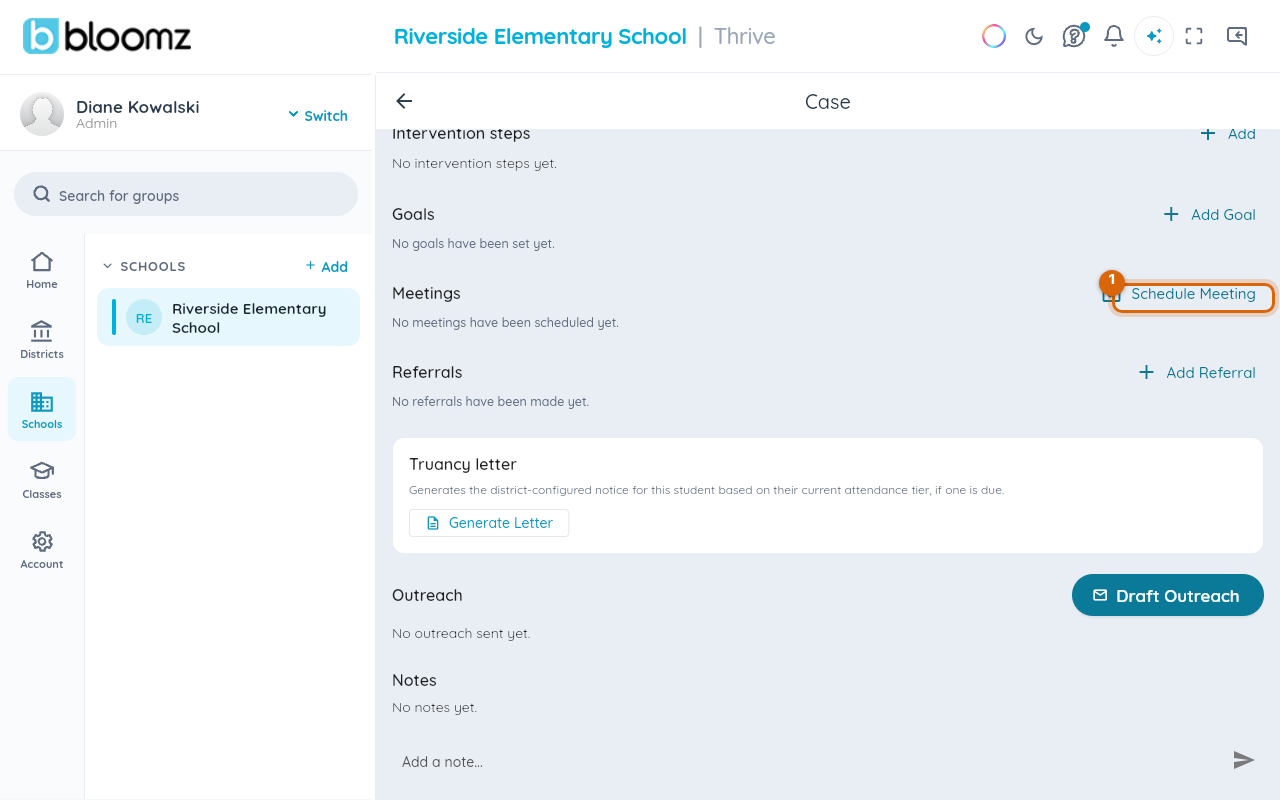
From the student's case, go to the Meetings section and select Schedule Meeting.
Step 2 — Set the title, date and time
Enter a Meeting title, choose the Date & time, and select Save. The meeting appears in the list with its date and a status of Scheduled.
Step 3 — Hold the meeting and take notes
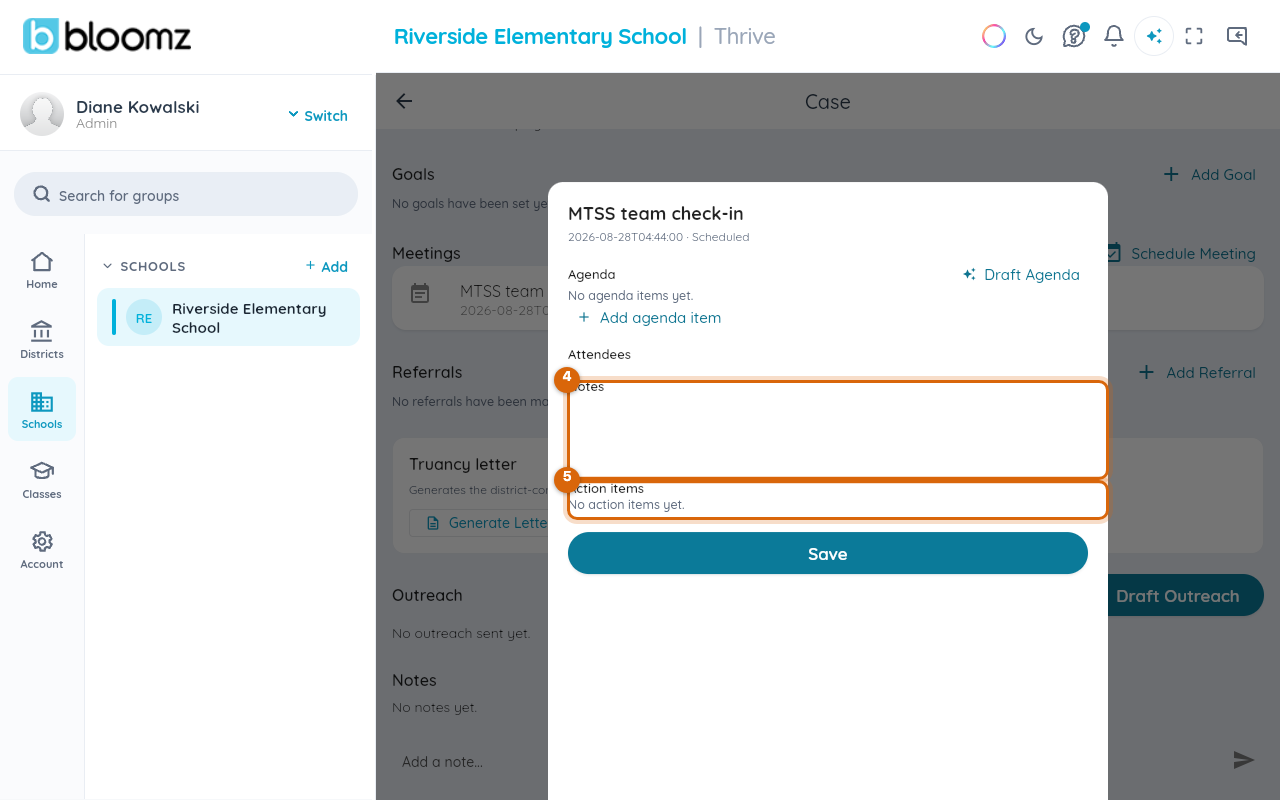
At meeting time, select the meeting to open it. Build the Agenda with Add agenda item (or Draft Agenda for a suggested one), check the Attendees, and type what's discussed in Notes as you go.
Step 4 — Review action items
Anything the team committed to appears under Action items. Select → Step next to an item to turn it into an intervention step, so it's tracked the same way as the rest of the plan.
Step 5 — Save the meeting to the case timeline
Select Save. It's now part of the case's timeline, alongside intervention updates and progress points, for anyone reviewing the case later.